
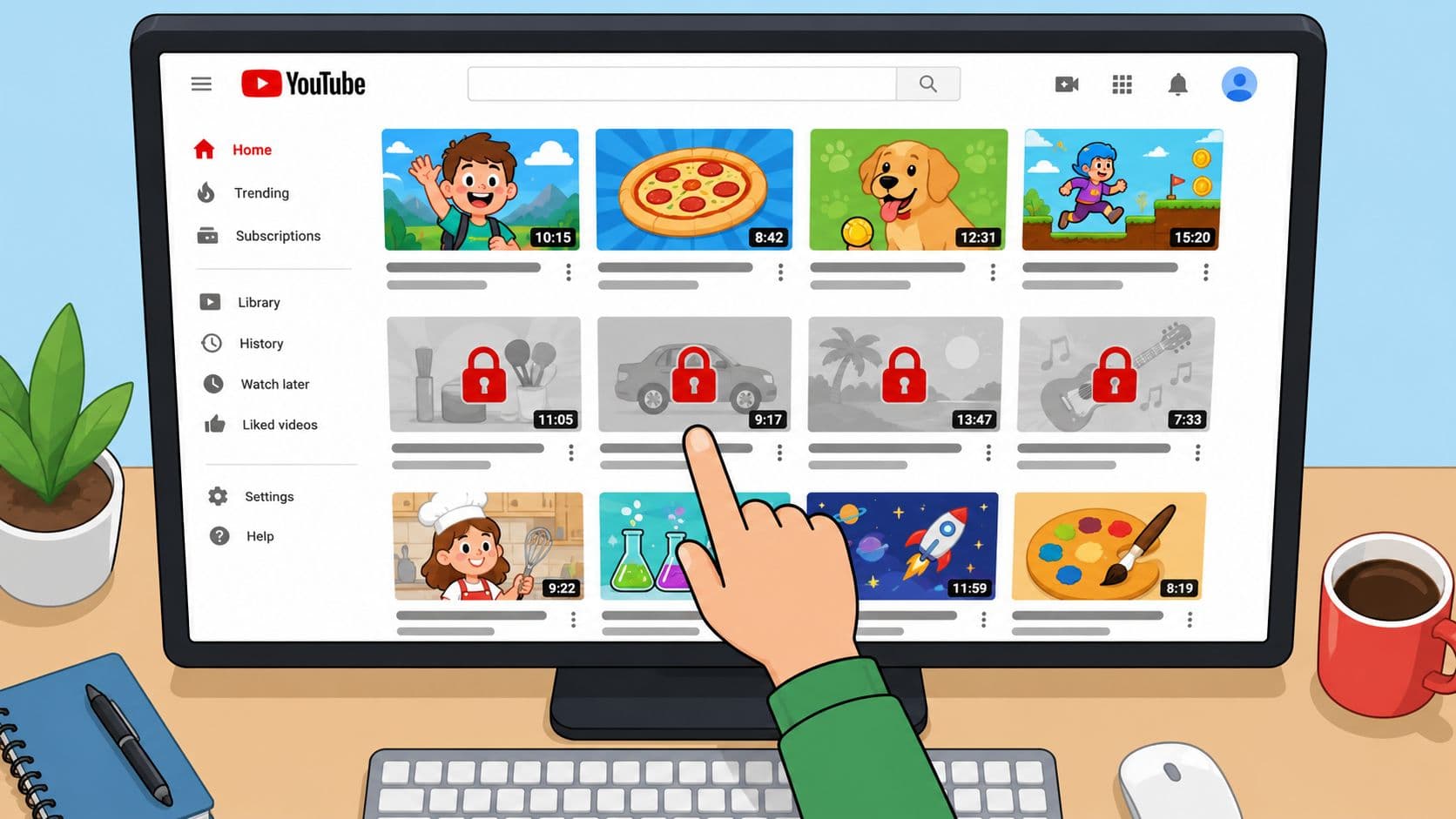
You block a YouTube video at 10 p.m., close the app, and feel like you've solved the problem. Fifteen minutes later, a nearly identical thumbnail appears in the sidebar, followed by a Short using the same topic, then a recommendation from another channel. The block worked on one item. It didn't address the feed that keeps replacing it.
That's the practical answer to how do I block certain videos on YouTube: use YouTube's own filters for broad cleanup, add browser controls where you watch on a computer, and put friction around the Android app when the off switch is the core problem. Each layer handles a different failure point.
Why Blocked YouTube Videos Keep Coming Back
At 10 p.m., you select Not interested on a video you don't want to see again. At 10:15, the original thumbnail is gone, but three related uploads have taken its place. One has a different title. Another comes from a new channel. The third appears in Shorts, where the feed offers less room to make a deliberate decision.
That pattern isn't necessarily a malfunction. A single video is only one item in a much larger recommendation environment shaped by viewing activity, related topics, channels, and engagement signals. Removing one recommendation doesn't remove every nearby upload that shares the same subject or audience.

The item is smaller than the pattern
YouTube's standard controls are designed to shape recommendations, not create a user-defined blacklist. Not interested tells YouTube that a particular recommendation wasn't useful. Don't recommend channel goes further for that creator, but neither option guarantees that related content from other channels won't return.
Search is another route around the recommendation cleanup. A video can still reach you through a direct link, a search result, a shared playlist, or a different feed surface. That's why repeatedly removing thumbnails feels productive at first and exhausting later. You're treating a recurring category as a series of isolated objects.
Practical rule: If the problem returns through new channels and similar topics, stop managing individual thumbnails and control the app, account, or feed format that keeps delivering them.
The same limitation applies to YouTube's official safety design. YouTube describes Restricted Mode as an optional filter that has existed since 2010, remains off by default, and is aimed largely at environments such as schools and libraries. In 2017, YouTube said users with Restricted Mode enabled accounted for about 1.5% of daily views, a small share that reflects its role as a broad filter rather than a universal per-video lock.
For someone trying to stop algorithmic resurfacing, the useful starting point is TiedSiren as part of a layered setup. YouTube handles content signals. A separate Android-level control handles access to the app itself.
Native YouTube Options for Hiding Videos and Channels
YouTube gives you useful suppression controls, but they're easy to misread. Not interested affects a recommendation. Don't recommend channel reduces recommendations from a creator. Blocking a user is mainly about interaction with your own channel, not removing that person's videos from your viewing experience.
Use the control that matches the problem
On the YouTube app or website, open the three-dot overflow menu beside a recommendation. Choose Not interested when the individual video or topic is unwanted. If YouTube offers a reason, select the relevant option, but treat the result as feedback to the recommendation system, not a permanent exclusion.
For a creator you don't want in Home or suggested feeds, open the same menu and choose Don't recommend channel. YouTube's standard experience uses this to reduce recommendations from that channel. It doesn't create a guaranteed block across search, shared links, trending areas, or every feed surface.
The user-blocking option is different. It's intended to stop a user from interacting with your channel in specific ways, such as commenting. It shouldn't be used as a method for filtering that user's videos from your own recommendations.
| Tool | What It Blocks | What Still Gets Through | Access Path |
|---|---|---|---|
| Not interested | The selected recommendation and related feedback signal | Similar videos, other channels, search results, shared links, and Shorts | Three-dot menu beside a recommendation |
| Don't recommend channel | Recommendations from the selected channel in relevant feed areas | Search results, direct links, other channels, and some separate feed surfaces | Three-dot menu beside a channel recommendation |
| Block user | Certain interaction from that user with your channel | The user's videos and recommendations elsewhere on YouTube | Channel or user interaction settings |
YouTube's standard app doesn't provide a permanent per-video blacklist, keyword blocking, or a guarantee that a chosen video will never appear again. A practical Android walkthrough reflects that limitation: the native controls hide or reduce recommendations rather than enforce a hard exclusion.
Use these options early, before the feed becomes saturated with the same theme. They're good for cleaning recommendations. They're weak as the only defense against a determined late-night return to the app.
What Restricted Mode Actually Filters Out
Restricted Mode is a broad content filter, not a precision tool. It uses signals such as metadata, community reporting, and age-related indicators to limit access to some mature content. That makes it suitable for a shared device or an institution that wants a general safety layer.
It isn't designed to let you enter a channel name, keyword, or video URL and block only that item. It also won't give you granular exceptions for content that happens to be educational, documentary, or topical.
Why the filter produces uneven results
Independent testing reports from 2025 and 2026 found that Restricted Mode missed roughly 20% to 30% of content reviewers or parents considered inappropriate, meaning about one in four objectionable videos could still remain visible with the filter enabled. Those reports also found false positives, where legitimate educational or topical videos were blocked inconsistently. The testing report supports the practical conclusion that Restricted Mode works probabilistically.
| Content Category | Videos Tested | Correctly Filtered | False Positives |
|---|---|---|---|
| Borderline or potentially inappropriate content | Not specified in the verified testing data | Roughly 70% to 80% were filtered, based on the reported miss range | Reported, but no percentage was provided |
The table matters because the missing number is part of the answer. There's no verified breakdown for how many videos were tested, or a precise false-positive rate.
Where it fits
Turn on Restricted Mode from your account or device settings when you want a general reduction in mature material. On managed networks, an administrator can also control availability. YouTube has stated that the setting is off by default, so adults managing their own devices need to enable it deliberately.
Don't confuse that setup with a personal blocklist. Restricted Mode may hide content you'd rather keep, while allowing content you specifically want gone. Parents using supervised accounts can review viewing activity through My Activity, YouTube History, and Manage history, according to Google's supervised-account documentation. That oversight can reveal patterns, but reviewing history still isn't the same as preventing every selected video from opening.
Use Restricted Mode as a filter at the edge of the system. For a specific recurring trigger, you need stronger control over recommendations, the browser, or the app itself.
Browser Extensions and Platform-Level Controls
Browser extensions add targeted rules beyond YouTube's own menus. They can inspect video information and hide or block items by title, channel name, video ID, tags, or description. This makes them useful when a recurring channel, phrase, or upload pattern keeps returning to the feed.
BlockTube, for example, supports blocking by title, channel name, video ID, and related metadata. Its precision comes with a clear boundary: the rule applies to the browser where the extension is installed, not automatically to the YouTube app on an Android phone. A browser filter can be solid and still fail the moment you pick up the phone.
For a broader comparison of browser and device features, review TiedSiren's features. The key distinction is control scope. Browser tools inspect page content, while system controls restrict access to apps, accounts, or usage patterns.
Desktop filters versus system controls
| Tool | Platform | Granularity | Bypass Risk |
|---|---|---|---|
| BlockTube | Supported browser environments | Video title, channel, video ID, and similar metadata | Browser-specific, with other devices and apps outside its filter |
| Browser keyword blocker | Desktop or mobile browser, depending on the extension | Keywords and page elements | Can over-block unrelated content and may be disabled in the browser |
| Family or platform controls | Operating system or managed account | App access, usage windows, or account restrictions | Usually broad rather than video-specific, with settings that may need separate administration |
| YouTube native controls | YouTube account and app | Recommendations, channels, and broad filtering | Search, direct links, other devices, and alternative feed surfaces can remain available |
The BlockTube extension listing illustrates metadata-based filtering for browser use. That helps when the same channel or phrase repeatedly appears on a desktop feed, but the rule does not follow your Google account across every device.
Platform-level controls address access and timing rather than individual video identity. They can restrict the YouTube app or manage use through account and device policies, yet they usually cannot distinguish one video from another. Blocking YouTube at the app level is broad. Leaving the app available while relying on a desktop extension is more selective, but leaves another route open.
The practical failure point is often the second device. A filtered laptop at the desk does little when an unrestricted mobile app is beside the bed at 11pm. Assign content rules to the browser, then add device-level friction through app restrictions, usage windows, or managed account settings. Layering those controls reduces the gap between deciding to block a video and reaching it through another app, browser, or direct link.
Blocking YouTube Shorts and Supervised Accounts
Shorts make blocking harder because the target is a format, not a single creator or upload. Removing one recommendation from Home does little when the same theme returns through a vertical feed designed for rapid switching.

Use account controls where they apply
YouTube's newer supervised-account controls include Shorts-specific limits. Depending on the account, parents may be able to block Shorts entirely or set a Shorts viewing timer for supervised teen accounts. Official support material also describes blocking specific channels for supervised child accounts. These settings address the feed format more directly than repeatedly choosing Not interested.
Account type and availability determine which controls appear. Parents should open the supervised account settings, select the child or teen profile, and review Shorts, channel, watch history, and recommendation options. Apply any available setting before adding browser workarounds.
For adults managing their own routines, TiedSiren's download page offers app-level blocking that works alongside these account settings.
Browser extensions can hide Shorts containers or match Shorts-related page elements, but selector-based rules depend on YouTube's page structure and may need maintenance after interface changes. A mobile browser can show a different layout, yet it is not a dependable replacement for restricting the installed YouTube app.
Separate child safety from adult self-control
Supervised accounts are designed for parental oversight, content settings, and history review. They work well when one adult manages another person's account. An adult trying to stop a late-night Shorts loop needs a separate control layer, because supervision settings do not necessarily provide a personal blocklist.
Google's supervised-account guidance includes history review through My Activity and YouTube History. That supports auditing, but it does not convert every unwanted topic into a permanent exclusion rule.
Repeated exposure after one click is the larger concern. Research cited in independent reporting found that about 10% of Up Next recommendations in one study included eating-disorder-related harmful themes. Another summary described one in three recommended videos as concerning harmful eating-disorder content. The cited research summary supports category-level controls for users trying to avoid recurring harmful themes, rather than chasing individual thumbnails.
Shorts controls reduce one route into the feed. Pair them with browser filtering and app-level restrictions when the installed app or a direct route can still reopen the loop.
Closing the Impulsive Bypass Gap on Android
Most blocking systems fail at the same moment: you decide to turn them off. The filter itself may work correctly. The problem is that the off switch is available when your judgment is already compromised by fatigue, boredom, or a familiar urge.
A browser extension can be disabled from the browser's extension area. Restricted Mode can be switched off in its settings. A conventional app timer may stop showing the app without making the decision difficult to reverse. None of those observations mean the tools are useless. They mean the control has to match the failure mode.

Add friction before the urge arrives
Android puts app permissions and related controls inside Settings. Google's standard path runs through Settings, Apps, the chosen app, and Permissions, with a broader permission manager available under Security and Privacy. That central location is convenient for normal administration, but it also gives an impulsive user a clear route to reverse a restriction. Google's Android permissions instructions document that path.
Android also adds friction around restricted settings for some apps. The flow runs through the app's info page, then More, then Allow restricted settings, as described in Google's Android support documentation. The control isn't always a one-tap switch, but it remains part of the broader device settings environment.
TiedSiren is one Android option for handling the app-level part of this problem. It lets you choose YouTube in a custom blocklist, set a duration before starting the session, and use Strict Mode, where the running session ends when its timer ends and nothing else ends it. While the session runs, it blocks the Android Settings screen, raising the cost of the fastest impulsive shutdown. It supports Android 8.0 and later, a platform boundary documented in Android's permission documentation.
The useful target isn't an impossible bypass claim. It's the five-second bypass you'd otherwise make without thinking.
Use YouTube's native controls to reduce recommendation exposure, a browser extension for desktop-specific patterns, and Android app friction for the device you reach for at the weak point. TiedSiren's scheduled sessions and recurring blocklists can also separate work, study, and sleep contexts, while its focus timer shows the remaining session time. The result is still friction, not an absolute lock, but friction is the part most one-tap blockers leave out.
If YouTube keeps resurfacing the same content, start with Not interested and Don't recommend channel, then add a browser filter where you watch on desktop. For Android, TiedSiren lets you block YouTube for a committed duration with Strict Mode, scheduled sessions, custom blocklists, and Settings-screen friction.