
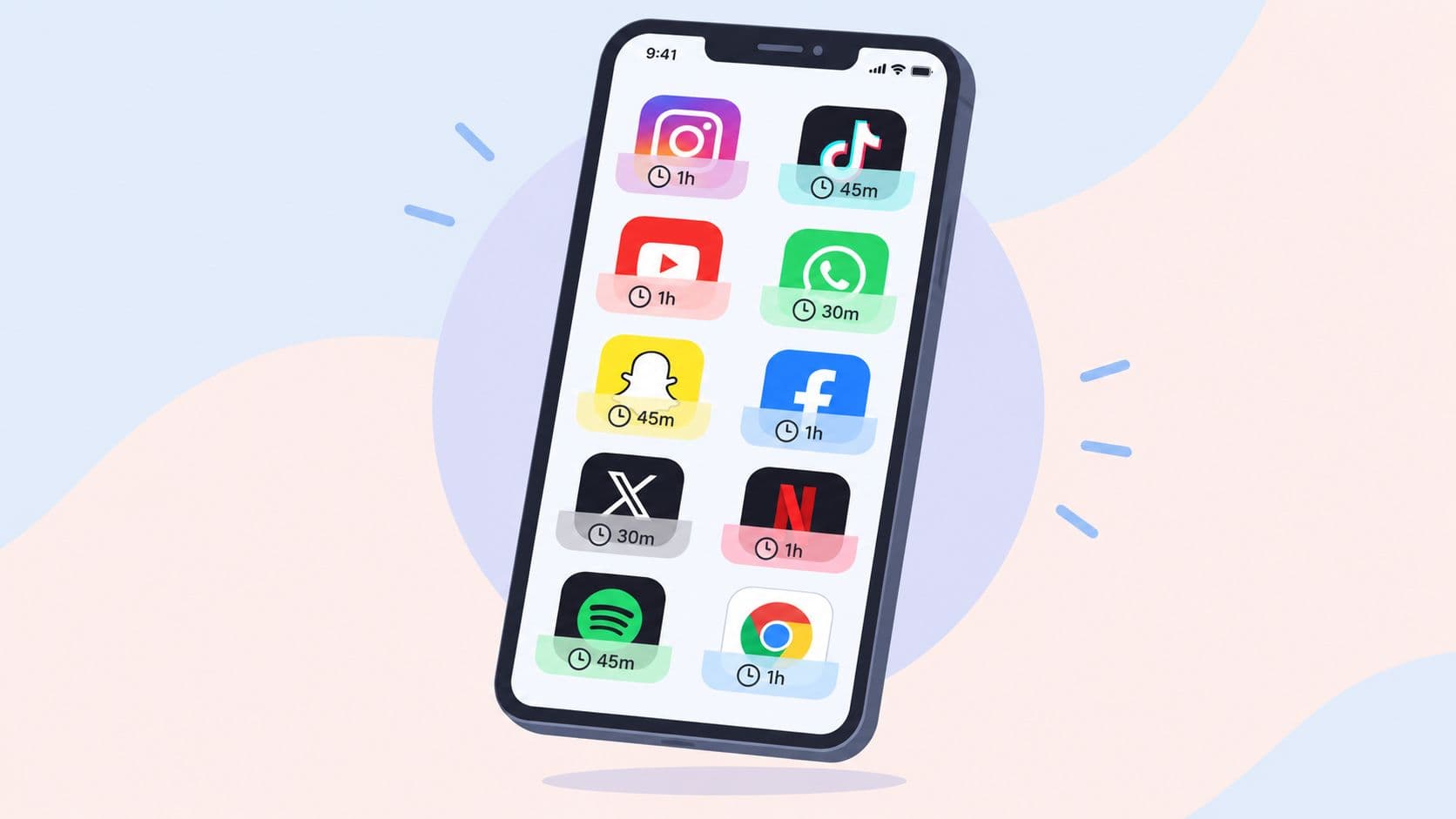
You've already installed a blocker. You've already watched it work. Then the urge hits, you open Settings, disable the limit, and return to the same feed within seconds. The problem isn't that you lack information about screen time. The problem is that the off switch is still too close.
The best app to limit screen time depends on what happens during that attempted bypass. Some tools add reminders. Some block apps across devices. Others make changing the rules difficult, require an intentional action, or commit you to a session before temptation arrives.
This list compares 10 screen-time tools by enforcement approach, bypass friction, platform fit, setup needs, and use case. A blocker's strength shouldn't be judged by absolute claims. Judge it by the effort required to override it when you're tired, bored, or already reaching for the phone.
Global screen exposure is large enough for this distinction to matter. One 2025 market summary reports 6 hours and 54 minutes of screen time per day worldwide, approximately 44% of waking hours, with daily exposure rising from 6 hours and 9 minutes in Q3 2013 to 6 hours and 54 minutes in Q3 2025, a 45-minute increase over that period. An independent 2026 overview estimates about 6 hours and 40 minutes daily, split between roughly 3 hours and 46 minutes on mobile and 2 hours and 52 minutes on computers. (Screen time statistics)
1. TiedSiren
TiedSiren is the best app to limit screen time for an Android user whose real failure point is the off switch. It's free, Android-only, and built around a simple commitment: choose the apps, choose the duration, and start the session before the urge arrives.
Once a session is running, Strict Mode makes the timer the only in-app exit. There's no pause, five-minute override, or confirmation prompt designed to let you negotiate with yourself. TiedSiren also blocks the Android Settings screen during an active session, raising the effort required to reach the fastest route to disabling the blocker.

What happens when you try to bypass it
The impulsive bypass becomes inconvenient. You can't open the app, tap an override, and continue scrolling. Blocking Settings adds another layer of friction, so the five-second decision becomes a more deliberate act.
That isn't an absolute lock. Determined users may still look for technical workarounds such as ADB, safe mode, or uninstalling. TiedSiren's advantage is narrower and more useful: it defeats the casual bypass you perform without planning, often at the exact moment you know you should stop.
Practical rule: Set the block before work, study, or sleep begins. Don't wait until you're already inside the distracting app.
Custom blocklists let you group apps by context, such as work, study, or sleep. Scheduled sessions can recur daily or weekly, and the focus timer keeps the remaining session visible. TiedSiren runs on Android 8.0 and later, and its product site describes it as free without a credit card or trial. iOS, macOS, and Windows are currently on a waitlist.
Best for: Android users who have disabled other blockers, students, deep-work practitioners, adults with ADHD, and anyone quitting a specific social, gambling, gaming, or entertainment app.
For a closer look at the product's enforcement approach, visit TiedSiren's features. You can also review its privacy and platform details on the TiedSiren website.
2. Freedom
Freedom is the strongest choice when your distraction problem moves between phone, computer, websites, and desktop applications. It blocks websites, desktop apps, and mobile apps, then applies sessions and schedules across supported devices.
The bypass moment depends on how you configure it. With an ordinary session, you're mainly responding to the block itself. With Locked Mode, changing an active session becomes difficult, which adds meaningful friction for someone trying to edit the rules mid-block.

Best use case
Choose Freedom if you want one schedule covering a phone and a computer. Preset and custom blocklists support recurring routines, while multi-device support covers iOS, Android, macOS, Windows, and ChromeOS extensions.
The setup is broader than a phone-only blocker. You'll need to identify distracting sites, desktop apps, and mobile apps across the devices where you work. That preparation pays off if your usual workaround is switching from your phone to a laptop.
Freedom has a mature ecosystem with help documentation, plus family and team options. Its trade-off is platform dependence. On iOS, it relies on Apple Screen Time permissions that can be turned off, and many advanced capabilities require a paid plan.
Use Freedom when your workaround is another device, not merely another tap.
Best for: Remote workers, students using both a phone and laptop, and households or teams that need shared coverage across device types. It's less suitable if you only need a hard Android session and don't want broader cross-device setup.
Visit Freedom for its current platform and plan details.
3. Opal
Opal is the polished choice for users who want clear commitment modes without a rough interface. It focuses on stricter blocking, schedules, time limits, open limits, allow-only blocking, and focus history.
At the bypass moment, Opal gives you an explicit commitment option. Its No Unblocks mode and Harder Blocking Difficulty are designed for users who don't want to make exceptions during a focus period. That clarity matters because vague limits invite a decision, while a no-unblock session makes the decision earlier.

Where Opal fits
Opal makes the most sense for iPhone, iPad, and Mac users who value automation and presentation. iOS Shortcuts integrations can connect blocking to routines, and Mac support extends the same focus mindset beyond the phone.
The trade-off is cost and system control. Many capabilities sit behind Pro, and iOS enforcement still depends on Apple Screen Time and VPN approaches under the hood. If you know exactly where those permissions live, the bypass route may remain available through system settings.
A strong setup starts with a short list of apps that reliably pull you away from work. Add schedules only after you know which blocks you'll respect. Unlimited rules, focus scoring, and history are useful for users who want more structure, but they don't replace a commitment mode.
Best for: Apple-focused users who want no-unblock sessions, automation, and a polished experience. Android users who want maximum Settings friction should choose an Android-first blocker instead.
See Opal for current product availability and plan information.
4. AppBlock
AppBlock is built for users who need granular rules, not one blunt daily limit. It supports app and website blocking, schedules, app open limits, and triggers based on time, location, and Wi-Fi.
The bypass experience depends heavily on Strict Mode. When you activate it, changing blocks becomes harder during the restricted period. That makes AppBlock a solid option for someone whose distraction changes by context, such as social apps at work, video apps at home, or specific websites on a study network.
Why the rules matter
AppBlock's advantage is the number of ways you can define a block. A schedule handles routine. A location rule handles places such as a library. A Wi-Fi rule handles a network where you want fewer distractions. Website blocking and browser extensions extend the setup to desktop use.
That flexibility creates more setup work. You'll need to decide which trigger should control each block and test whether the rule matches your routine. Full capability requires Premium, and Strict Mode can't cover operating-system loopholes outside the permissions available to the app.
AppBlock blocks solidly. Its trade-off isn't weak blocking. It's the complexity of configuring a system that matches your behavior.
Best for: Android and iOS users who want context-based rules, multiple triggers, and anti-bypass controls. It's a better fit than a simple timer when your distractions change by place or network.
Visit AppBlock to review its current blocking modes.
5. Stay Focused by Innoxapps
Stay Focused is an Android-first choice for study sessions and usage quotas. It blocks apps and websites, supports schedules and daily usage limits, and offers study or focus timer modes with usage tracking.
When you try to disable it, its stricter options and device-admin settings are meant to make changing or uninstalling the app harder during a session. That creates more friction than a notification, while still leaving the enforcement within Android's permission boundaries.
The right fit for students
Stay Focused gives you several ways to define the restriction. You can block by time, quota, or schedule. A student might use a study timer for a defined session, then use daily limits for apps that become a problem outside study hours.
That flexibility is practical when your problem isn't limited to one time window. It also means you need to choose the enforcement model before starting. If you set a quota when you really need a locked study session, you may leave yourself an opening to keep using the app.
The app is feature-rich on Android and has a strong student orientation. Full functionality requires a paid plan. On iOS, enforcement is limited by Apple's system permissions, so Android is the clearer fit for stronger commitment tools.
Best for: Students, exam candidates, and Android users who want study timers, schedules, and multiple blocking modes.
Choose Stay Focused if your blocking plan needs both fixed sessions and usage-based limits.
6. Lock Me Out by TEQTIC
Lock Me Out takes a direct approach. It's for Android users who don't want a gentle reminder when they've already proven they'll ignore one.
You can create session lockouts with different strictness levels, target the entire phone or selected apps and sites, and use schedules or usage-based triggers. During an active lock, available options can increase the effort required to uninstall or modify the restriction.
Choose this for no-wiggle-room windows
The bypass trade-off is deliberate severity. If you regularly disable softer blockers, Lock Me Out lets you define a more forceful lockout instead of relying on a limit you can casually edit.
Granular targeting keeps the approach practical. You don't have to lock the entire phone if one app, site, or usage pattern causes the problem. Scheduling and usage triggers can also handle routines that vary across the day.
Some capabilities have moved behind paid tiers, and the app is Android-only. That makes it a poor fit for a mixed-device household, but a focused fit for someone who wants a strict Android lockout.
Pick the strictness level before the urge arrives. The moment to choose is when you're calm.
Best for: Android users who habitually disable blockers and want stronger lockout options than ordinary app limits provide.
Explore Lock Me Out for its current Android features.
7. Unpluq
Unpluq turns the bypass into a deliberate action. Instead of opening a distracting app immediately, you must complete a challenge, potentially using a physical NFC Unpluq Tag.
That physical-key approach changes the moment of temptation. The app may still become available after the required action, but the automatic check becomes harder because the process demands attention and, with the tag, access to something outside the phone.
Best for intentional friction
Unpluq supports custom challenges, so you can choose how much ceremony sits between the impulse and the app. It also offers family plan and parental-control options, with availability on iOS and Android.
The trade-off is that the strongest experience may require a paid subscription and, optionally, a purchased NFC tag. On iOS, Screen Time must remain enabled, so the system permission model still matters.
Unpluq is not the same as a timer-locked session. It's a friction tool that makes the decision harder and more conscious. That's exactly what some users need, particularly when they don't want every distraction blocked for a fixed period.
Best for: People who want to turn impulsive app checks into intentional tasks, especially across iOS and Android.
Visit Unpluq if the physical-key or challenge-based model matches your failure pattern.
8. BlockSite
BlockSite is the straightforward option for users who want to block specific apps, sites, keywords, or categories without a technical setup. It works on mobile and through browser extensions, so you can create a basic barrier across the places where distraction starts.
The bypass experience is simple by design. You configure the sites and apps, add schedules or routines, and let the block handle ordinary access attempts. On iOS, the system depends on VPN and Screen Time permissions, which can be disabled.
Use it when setup is the main obstacle
BlockSite's approachable interface makes it useful for someone who won't maintain a complicated rule system. Category blocking and keyword rules can reduce the need to enter every destination individually, while routines support repeatable periods of restriction.
The trade-off is depth. Its feature set is simpler than tools aimed at complex enforcement across workplaces, families, or multiple operating systems. It offers subscription and advertised lifetime purchase options, so check the current terms before choosing a plan.
BlockSite is a good first barrier. If your pattern is repeatedly opening one website or app, quick configuration may matter more than advanced controls.
Best for: Users who want fast app and website blocking on mobile and browsers, with minimal setup.
See BlockSite for current platform support and purchase options.
9. Forest
Forest is a motivation layer, not a hard blocker. You start a focus timer and plant a virtual tree. The tree grows when you stay away from your phone during the session.
That changes the bypass moment through consequence and visual feedback rather than strict lockout. You can still use the app alongside stronger blockers, but Forest itself shouldn't be your only defense if you already know you'll ignore a reminder.
Pair motivation with enforcement
Forest offers Pomodoro-style timers, rewards such as trees and coins, session history, and optional Deep Focus modes. It's available on Android, iOS, and through browser extensions, which makes it easy to add to a study or work routine.
The value is emotional and visual. You get a clear reason to leave the phone alone, and the growing tree gives the session a visible outcome. That can help students and people who respond well to progress cues.
It remains weaker than a dedicated blocker at the exact point where you want to bypass. If the feed is one tap away and you're willing to sacrifice the virtual tree, the friction may not hold.
Best for: Students and focused workers who want motivation during a session, especially when paired with a stricter app blocker.
Use Forest as a companion, then read more about enforcement-focused blocking on TiedSiren's approach.
10. Apple Screen Time
Apple Screen Time is the right foundation for users who want native controls across iPhone, iPad, and Mac. It includes app limits, Downtime schedules, communication limits, and content restrictions, with integration across Apple devices signed into the same Apple ID.
At the bypass moment, the result depends on setup. If the user knows the Screen Time passcode or has access to the relevant settings, limits may be disabled or bypassed. That makes Apple Screen Time less strict than dedicated lockout apps, but still useful when configured properly.
Best native starting point
Apple's built-in tool costs nothing extra and integrates with the operating system. It's also practical for parental controls, including communication restrictions and Ask to Buy or browsing workflows.
The main enforcement trade-off is access to the system settings. A user who can change the passcode or permissions may reach the off switch more easily than with a dedicated lockout tool. Strong setup matters more than adding another category limit.
Use it to establish a basic structure across Apple devices, then consider a third-party tool if your failure pattern is repeated overrides.
Best for: iPhone, iPad, and Mac users who want a free native foundation and don't need maximum bypass resistance.
Review Apple Screen Time, then download or configure the appropriate TiedSiren option from TiedSiren's download page if your main device is Android.
Top 10 Screen-Time App Comparison
| Product | Core features ✨ | Effectiveness / UX ★ | Price / Value 💰 | Target audience 👥 | USP / Notes 🏆 |
|---|---|---|---|---|---|
| TiedSiren 🏆 | ✨ Strict Mode; Settings blocked; schedules; custom blocklists | ★★★★☆, strong enforcement, simple UI | 💰 Free (Android 8.0+) | 👥 Students, ADHD adults, deep workers | 🏆 Enforcement-first; no override during a session |
| Freedom | ✨ Cross-device app/site blocking; Locked Mode; recurring schedules | ★★★★☆, reliable across platforms | 💰 Paid subscription (limited free) | 👥 Multi-device users, teams | Syncs blocks across phones & computers |
| Opal | ✨ No-unblock sessions; Shortcuts automation; Mac/iOS polish | ★★★★☆, polished UX on Apple platforms | 💰 Freemium; Pro unlocks advanced rules | 👥 iPhone/iPad users wanting automation | Clear "No Unblocks" commitment mode |
| AppBlock | ✨ Strict Mode; location/Wi‑Fi triggers; web blocking | ★★★★☆, granular rules, Android-strong | 💰 Freemium; Premium for full features | 👥 Power users needing fine control | Versatile triggers (place, network, schedule) |
| Stay Focused | ✨ Study timers; schedules; device-admin friction | ★★★★☆, feature-rich Android experience | 💰 Freemium; paid for full tools | 👥 Students and disciplined study users | Multiple blocking modes tailored to study |
| Lock Me Out | ✨ Whole-phone lockouts; strictness levels; schedules | ★★★★☆, maximal friction on Android | 💰 Freemium; some paid tiers | 👥 Users who habitually disable blockers | Extremely strict lockout options |
| Unpluq | ✨ NFC tag / physical unlock; custom challenges | ★★★★☆, unique physical friction | 💰 Paid app/subscription; optional NFC tag | 👥 Users wanting tangible unlock barriers | Physical-key paradigm turns impulse into ritual |
| BlockSite | ✨ URL/app blocking; routines; browser extensions | ★★★☆☆, simple, fast setup | 💰 Freemium; subscription or lifetime option | 👥 Casual users wanting quick blocks | Fast to configure across browsers & mobile |
| Forest | ✨ Gamified Pomodoro; tree rewards; cross-platform | ★★★☆☆, motivating but not a hard blocker | 💰 Freemium; in-app purchases | 👥 Students, habit-builders | Gamified focus that pairs well with strict blockers |
| Apple Screen Time | ✨ Native app limits, downtime, family controls | ★★★☆☆, integrated but bypassable | 💰 Free (built-in) | 👥 Apple ecosystem users, parents | Native, no-install solution across Apple devices |
Choose the Friction You'll Actually Respect
The evidence doesn't support treating every digital-wellbeing tool as a reliable long-term fix. A 2023 preprint found that 80.48% of respondents knew about digital-wellbeing tools, while only 36.94% used them occasionally or regularly. It also reported average smartphone use of 330.49 minutes per day among users and 337.75 minutes among non-users, with no meaningful difference between the groups. (Digital wellbeing applications preprint)
That gap explains why reminders alone often fail. People usually don't need another warning that an app is distracting. They need a blocker that creates enough effort between the impulse and the bypass to give them time to reconsider.
A 2025 intervention study found that built-in app time limits were the most used feature among the listed controls, at 62.2%, followed by Do Not Disturb at 43.2% and Grayscale at 32.4%. The study reported no significant pre/post differences in life satisfaction, sleep quality, stress, or happiness, and linked limited effectiveness to low engagement and weak enforcement because features were often bypassed. (Digital wellbeing intervention study)
Research on blockers is mixed. A 2023 systematic review found moderate-to-strong evidence for only some interventions, while app blockers and other digital self-control tools often produced weak or inconsistent effects. Recent work also suggests that a digital nudge may help sleep-related outcomes without significantly reducing total screen time. (Systematic review of digital self-control interventions)
The practical conclusion is simple. Choose the tool based on the bypass you perform.
- Choose TiedSiren for a free Android blocker built around committed sessions, Strict Mode, recurring schedules, and Settings friction. It supports Android 8.0 and later.
- Choose Freedom for cross-device coverage across phones, computers, websites, and desktop apps.
- Choose Opal for polished Apple-focused commitment modes, including No Unblocks and automation.
- Choose AppBlock for granular rules based on time, location, Wi-Fi, apps, and websites.
- Choose Stay Focused for Android study timers, quotas, schedules, and multiple blocking modes.
- Choose Lock Me Out for strict Android lockout sessions with varying strictness levels.
- Choose Unpluq if a physical tag or deliberate challenge will interrupt your automatic behavior.
- Choose BlockSite if you want quick app, website, keyword, and category blocking with a simple setup.
- Choose Forest as a motivation layer, not as your only enforcement tool.
- Choose Apple Screen Time as a native foundation across Apple devices.
Android's built-in Focus mode is useful for scheduled routine enforcement. Google says you can select apps to pause, start Focus mode immediately or schedule it with a start time, end time, and selected days, and stop those apps from being used or sending notifications while active. (Google Android Focus mode support) Independent guidance notes that managing the feature still happens through Settings and Digital Wellbeing menus, which leaves the off-switch easier to reach than a separate locked session. (Android Focus mode guide)
Define the apps and time window before the urge arrives. Start with one repeatable block, such as a study period, work window, or sleep routine. Then judge the tool by one question: does it interrupt your five-second bypass?
If it doesn't, change the enforcement model, not the wallpaper.
TiedSiren gives Android users free committed sessions, Strict Mode, scheduled blocks, a focus timer, and Settings friction while a session runs. If your current blocker keeps getting disabled at the moment it matters, visit TiedSiren and set up one repeatable block before your next urge arrives.