
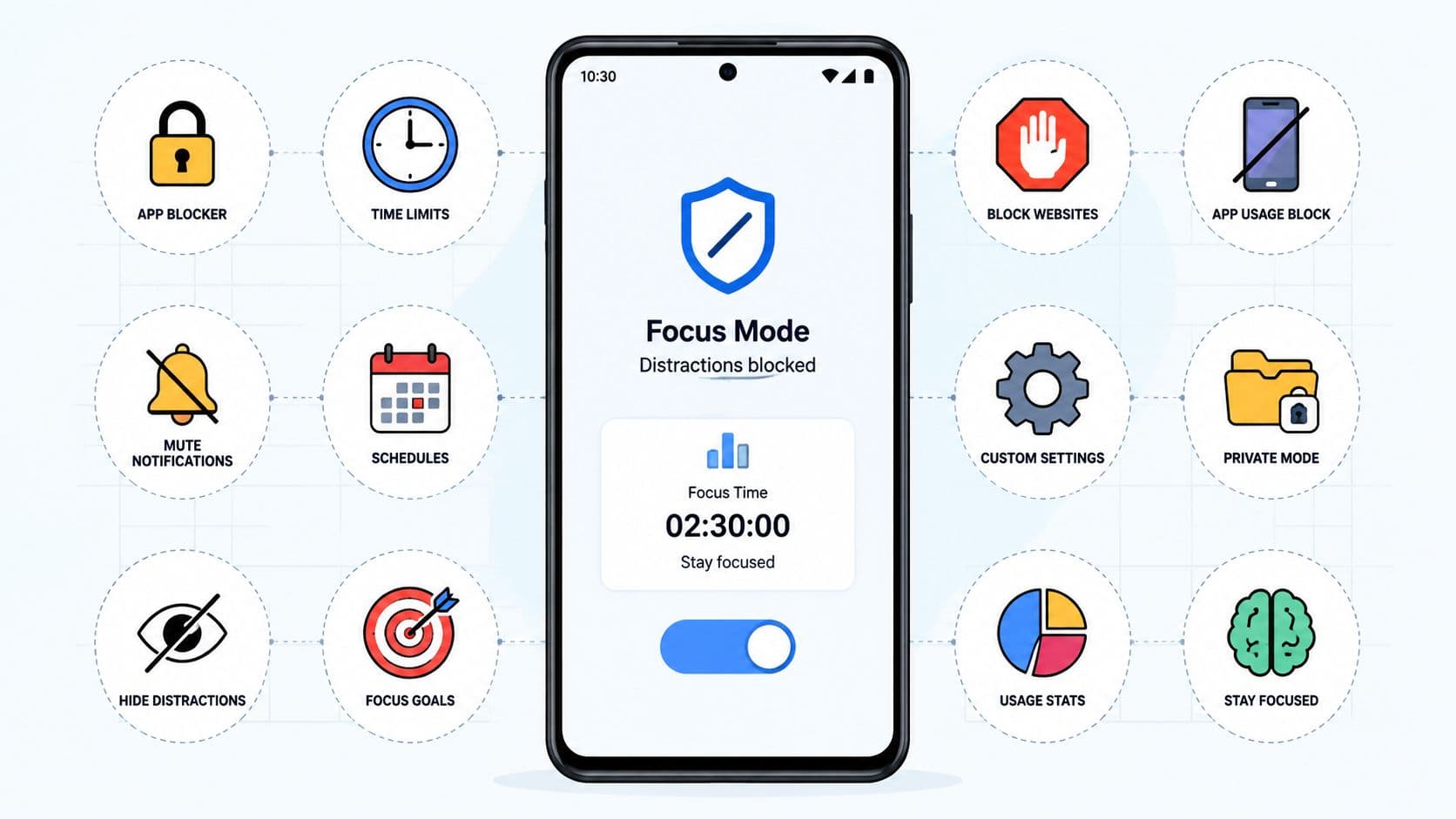
You installed a blocker because you knew the pattern. Work starts, the feed opens, and a few minutes later the task is gone. Or you set a sleep limit, reach for the phone at night, tap the blocker's settings, and turn the whole plan off before you've had time to reconsider.
That's the failure point this list focuses on. The best distraction blocking apps aren't ranked by the prettiest dashboard or the longest feature list. They're ranked by the friction they create when you want out, then separated by Android enforcement, desktop coverage, analytics, customization, setup effort, and recurring-session convenience.
Some tools remind you. Some add a pause. Others make the decision in advance and keep the session running until its timer ends. The right choice depends on whether you need Android-only app blocking, one session across several devices, strict desktop control, or better measurement of where your time goes.
One reason this category matters is the scale of daily screen use. A 2026 summary places global adult screen time at 6 hours and 51 minutes per day, while a separate U.S. breakdown reports 12 hours and 1 minute daily, including 4 hours and 5 minutes on smartphones. The same breakdown puts Gen Z at 15 hours and 19 minutes per day. These figures are reported in Screen Time Buddy's 2026 screen-time data, and they explain why a five-second off switch can undermine an otherwise sensible plan.
1. TiedSiren
Best for: Android users who disable blockers at the moment of impulse.
TiedSiren targets the point where distraction blocking usually fails. Select the apps, set the duration, and start a committed session. In Strict Mode, the timer determines when the session ends. The app does not provide an in-product early exit.
During an active session, TiedSiren blocks the Android Settings screen, adding friction before you can change permissions or disable the block. That makes it a stronger fit for Android users who repeatedly reach for Settings when tired, bored, or stressed. It raises the effort required, but it does not make every Android-level bypass impossible.

Why it ranks first for the impulse moment
TiedSiren uses Android's Accessibility Service for its sessions. Android and Google Play may require extra approval for sensitive accessibility permissions, including the “Allow restricted settings” step. Complete that setup before you need the blocker, or the initial friction will arrive at the worst time.
The app supports custom blocklists for different contexts. Create separate lists for work, study, or sleep instead of blocking the entire phone. Recurring schedules can run daily or weekly, which removes the need to start a session after the urge has already begun. An active focus timer displays the remaining time and gives the block a defined endpoint.
Practical rule: Set the blocklist and duration before the urge arrives. The protection comes from removing the decision, not from reviewing settings during the session.
TiedSiren runs on Android 8 and later, according to its product information. It is free, with no credit card or trial requirement. Its trade-off is platform coverage. This is an Android-focused tool, not a choice for native iOS, macOS, or Windows blocking.
Compared with desktop-oriented blockers, TiedSiren creates more friction at the Android Settings exit path. Compared with broader cross-device tools, it offers less desktop coverage and coordination. Its advantage is focused enforcement, recurring-session convenience, and context-specific blocklists rather than analytics or multi-device control.
Choose TiedSiren if: your blocker works until you disable it, your main device is Android, and you want fewer impulsive exit paths during a timed session.
Visit TiedSiren for the Android app and its current blocking flow.
2. Freedom
Best for: People who need one focus session across phones and computers.
Freedom's advantage is coverage. It blocks apps and websites across Mac, Windows, iOS, Android, and Chromebook, with sessions that can run across devices when the app is installed and running on each one. That makes it a better fit than an Android-only tool for someone who starts work on a laptop, checks a phone between tasks, and finishes on another computer.
The session model is clear. Start a block on demand or schedule recurring sessions, then use blocklists for apps, websites, or the entire internet. Its optional Locked Mode adds more friction against quitting early, while focus sounds and Pomodoro options support users who want a broader focus environment. Review the current device and session details on the Freedom blocker website.
Freedom ranks below TiedSiren for a phone-only impulse problem because its main strength is coordination across devices, not a narrow Android Settings barrier. It also requires the application to run on each device for cross-device blocking. On iOS and Android, website exceptions aren't available, which matters if you need fine-grained access rather than a broader block.
The commercial model is another trade-off. Freedom offers a lifetime license as an alternative to a subscription, but the right choice depends on whether you value a single cross-device system more than a local, focused Android setup.
Use Freedom when your distraction follows you from desktop to phone. If every device needs to enter the same session, that convenience can outweigh the extra setup.
3. Cold Turkey Blocker
Best for: Windows and macOS users who need hard desktop blocks.
Cold Turkey Blocker is built for the desktop moment when you know you're about to open one more site or application. It blocks websites and desktop apps, supports schedules and lock options, and includes Frozen Turkey, a mode designed to keep a block active for its set duration.
That makes it one of the strongest choices in this list for desktop enforcement. The product works offline for local blocking and doesn't require an account for that use. A one-time Pro license with lifetime updates is available, which suits users who'd rather pay once than maintain a subscription. Explore the current configuration options on the Cold Turkey Blocker website.
Strong enforcement with a real cost
Cold Turkey's strength is also its risk. A locked block can be unforgiving if you configure it too broadly or start it earlier than intended. You can predefine pause or break allowances, but the important decision still happens before the block begins.
It's desktop-only, with no native mobile app. That immediately rules it out as a complete phone solution, even if your laptop is where most of the distraction happens.
If the weak moment occurs in a browser or desktop app, don't use a mobile-first tool and hope it carries over. Block the device where the behavior actually starts.
Cold Turkey is the clear desktop pick for strict Windows and macOS sessions. It's not the right choice for Android users who need app blocking on the phone itself.
4. FocusMe
Best for: Users who want complex rules, automation, and broad desktop coverage.
FocusMe gives you more control than a simple list-and-timer blocker. It supports websites and apps, patterns and keywords, schedules, timers, grouped rules, and automation across Windows, macOS, Linux, and Android. That combination suits people who want separate behavior for different work contexts rather than one universal block.
On Android, the app includes optional uninstall and permissions protection. On desktop, its rule system is the main attraction. You can build detailed routines for work, study, or recurring projects, then let schedules and automation handle the repetition. The Android app is currently available free through the developer's site, while desktop plans are subscription-based. Check the current product details at FocusMe.
The downside is setup effort. FocusMe rewards careful configuration, but its deeper patterns and automation can create more decisions before the first useful session. That's acceptable if you have a complicated routine. It's unnecessary if you need to block a few Android apps for a fixed window.
For Android users comparing it with TiedSiren, the distinction is straightforward. TiedSiren's Android download page presents a narrower session flow, while FocusMe is better suited to users who want extensive rules across several operating systems.
Choose FocusMe when your blocker needs to understand schedules, categories, patterns, and multiple device types. Choose a simpler tool when configuration itself is likely to become another form of avoidance.
5. AppBlock
Best for: Mobile users who want schedules, usage data, and stricter controls on Android or iOS.
AppBlock combines app and website blocking with quick blocks, recurring schedules, usage limits, statistics, and a Strict Mode designed to limit changes during a block. It also offers browser extensions for desktop website blocking, so it sits between a mobile-first blocker and a broader website-control system.
Its strongest use case is a defined study or work window on a phone. You can create a block quickly, repeat it on a schedule, and use stricter settings when reminders aren't enough. Premium adds usage statistics, adult-content filtering, and other advanced controls. Review current platform and plan details on the AppBlock website.
The trade-off is feature access. The best controls require AppBlock Premium, and pricing can vary by store and region. The desktop extension coverage also isn't the same as native desktop app enforcement. If your problem is social apps on Android or iOS, that distinction may not matter. If you need to block desktop applications, it matters immediately.
AppBlock is a practical choice for someone who wants more measurement than TiedSiren provides and more mobile coverage than a desktop-first tool. Its Strict Mode adds useful friction, but users should configure the block before starting rather than depending on last-minute adjustments.
Use AppBlock when you want mobile blocking plus statistics and browser extensions. Pick TiedSiren when the priority is a focused Android session built around removing the easiest in-app exit path.
6. Lock Me Out
Best for: Android users who need configurable lockout behavior and tamper protection.
Lock Me Out is a strict Android app and website blocker with several lockout modes, including a lock-screen-only mode. It supports app blacklists and allowlists, password-protected prohibited changes, and protection against uninstall or permission tampering. The settings are designed for users who have already learned that a basic reminder won't hold.
Its granular rules are the main reason to choose it. You can shape lockouts around time, usage, location, and other conditions, then use stronger protection where a normal block would be too easy to change. The app also maintains an active changelog for new Android behaviors and browser issues. See the current product information on the Lock Me Out website.
This is a more configurable tool than TiedSiren. That's useful when your routines are irregular or your bypass pattern is specific. It also means more setup, more settings to understand, and more opportunities to create a rule you'll regret starting.
Some stricter options are premium features. Lock Me Out is Android-only, so it doesn't solve a cross-device problem.
Choose Lock Me Out when you want Android lockout behavior shaped around detailed conditions. Choose TiedSiren when you want a simpler commitment, recurring sessions, and a visible timer without building a large rule system.
7. BlockSite
Best for: Straightforward Android and browser blocking with account-based sync.
BlockSite keeps the initial setup accessible. It blocks websites and apps, supports schedules and usage limits, and adds keyword and category blocking in Premium. Browser extensions cover Chrome, Firefox, and other supported browsers, while an account can sync access across devices.
The product fits someone who wants a conventional blocker with a clear path from installation to a scheduled work period. It's easier to approach than a highly automated tool, and a lifetime plan is available for people who prefer a one-time purchase. Check current platform support on the BlockSite website.
BlockSite's friction depends heavily on its protection settings and the way you configure the session. Advanced functionality is gated behind Premium, and mobile Premium benefits require account sign-in for cross-device access. That makes it a reasonable choice for straightforward setup, but not automatically the best choice for someone whose main issue is impulsively changing settings on Android.
Use BlockSite for simple app and website lists, schedules, and browser coverage. If the problem is a single tap into Settings during a weak moment, choose a tool whose design addresses that exact route rather than relying on a general blocklist.
8. Stay Focused
Best for: Mobile-first users who want strict modes, schedules, and usage limits.
Stay Focused, from InnoxApps, combines app and website lists with schedules, screen-time limits, an activity timeline, and strict or lock modes. It's available on Android and iOS, with a Chrome extension for browser blocking. That makes it a useful fit for people whose distraction starts on the phone but sometimes shifts into the browser.
The app's strict modes add friction against mid-session changes. Its schedules and limits also suit recurring work or study routines, while the activity timeline gives you a way to review what happened after the session. Current access and product details are available at Stay Focused.
The main limitation is paid access to the best features. Past user reports have also mentioned changes to lifetime terms, so check the current terms before treating a purchase as a permanent arrangement. That isn't a reason to dismiss the tool. It's a reason to verify the offer you're buying.
Stay Focused is a strong mobile alternative for users who want iOS access alongside Android. TiedSiren remains the more focused pick for someone on Android who wants recurring sessions, custom context lists, and a timer-led commitment without broad productivity extras.
9. LeechBlock NG
Best for: Free, browser-only blocking on laptops and desktops.
LeechBlock NG is a browser extension for Chrome and Firefox that gives you detailed rule control without a subscription. You can create multiple block sets with separate time windows and daily limits, use keyword rules, set countdowns and temporary overrides, and define exceptions or allow-only modes. Its documentation is extensive, which helps when you want to build precise browser rules.
That precision makes it useful for students and laptop users who do almost all their distracting inside a browser. It's lightweight, free, and capable of much more than a simple “block this site” list. Visit the LeechBlock NG website for the extension and documentation.
The boundary is firm. LeechBlock NG doesn't block native desktop apps or mobile applications. It also depends on configuration, and users need to set the rules carefully enough that switching browsers doesn't become the easy escape.
Browser-only tools work best when the browser is the problem, not when the browser is merely one door into a larger phone or desktop habit.
Choose LeechBlock NG when cost and browser customization matter most. Choose Cold Turkey Blocker for native desktop app enforcement, or TiedSiren when the trigger lives on Android.
10. RescueTime
Best for: Users who need analytics before choosing stronger blocking.
RescueTime combines automatic activity tracking with timed Focus Sessions. When a session runs, it blocks selected websites and apps on each device where the application is active. Reports, goals, and activity records show where your time goes, so you can identify the sites, apps, or periods that deserve intervention. See the current product details on the RescueTime website.
The setup is lighter than an enforcement-first blocker. You review your habits, choose targets, then start a Focus Session when work begins. Mobile support extends this approach to iOS and Android, provided the required permissions are configured correctly. RescueTime fits users who want blocking tied to a deliberate work period, not a blocker that governs every distracting moment.
That distinction matters when the impulse arrives. Blocking mainly follows active Focus Sessions, rather than a continuous schedule that stays difficult to alter. This keeps RescueTime practical for planned work, but gives it less friction against someone who wants to stop the session and return to a distracting app.
Analytics are the product's advantage. Enforcement is its limit.
TiedSiren's feature overview describes a more Android-focused approach, with recurring sessions, custom blocklists, and an active timer designed around the moment users try to disable a blocker. RescueTime offers broader activity measurement and timed intervention, while TiedSiren puts more weight on Android session friction. Neither removes every possible bypass, so choose based on where your distractions occur and how much setup you will maintain.
Choose RescueTime if its reports will change your rules. Otherwise, use a tool built for stronger enforcement.
Top 10 Distraction-Blocking Apps: Quick Comparison
| Product | Core features ✨ | Quality ★ | Price / Value 💰 | Target audience 👥 | Unique selling point |
|---|---|---|---|---|---|
| 🏆 TiedSiren | Strict Mode; blocks Settings; custom blocklists; recurring sessions; focus timer | ★★★★☆ (enforcement-first) | 💰 Free on Android 8.0+, no CC | 👥 Students, knowledge workers, ADHD, people who disable blockers | 🏆 Enforced no-override sessions, removes the easy "off" switch |
| Freedom | Cross-device app & site blocking; scheduling; Locked Mode; focus sounds | ★★★★☆ (multi-device sync) | 💰 Subscription; lifetime license option | 👥 Users needing unified cross-device blocking | Syncs sessions across Mac/Win/iOS/Android; Locked Mode for stricter sessions |
| Cold Turkey Blocker | Desktop app/site blocking; powerful schedules; "Frozen Turkey" hard locks | ★★★★★ (very strict desktop) | 💰 One-time Pro license (lifetime) | 👥 Desktop users wanting uncompromising locks | Offline, very hard-to-bypass Frozen Turkey mode |
| FocusMe | Website/app patterns, schedules, automation; Android + desktop | ★★★★☆ (deeply configurable) | 💰 Subscription for desktop; Android free via dev site | 👥 Power users & automation-heavy routines | Granular rules, patterns and uninstall protection on Android |
| AppBlock | Quick blocks, recurring schedules, Strict Mode, stats; browser extensions | ★★★☆☆ (strong mobile features) | 💰 Freemium, premium features paid | 👥 Mobile users wanting easy session control | Mobile Strict Mode + desktop browser extension support |
| Lock Me Out | App/website blacklist/allowlist; multiple lockout modes; password protection | ★★★★☆ (strong tamper resistance) | 💰 Freemium; premium options | 👥 Android users needing tamper-resistant locks | Password-protected settings & uninstall/permission protection |
| BlockSite | Website & app blocking; keyword/category blocks; account sync; extensions | ★★★☆☆ (simple & mainstream) | 💰 Freemium; lifetime one-time plan available | 👥 Casual users wanting easy setup & sync | Easy setup + lifetime purchase option for cross-device sync |
| Stay Focused (InnoxApps) | Strict/lock modes, schedules, screen-time limits, Chrome extension | ★★★☆☆ (robust mobile controls) | 💰 Freemium; best features paid | 👥 Mobile users seeking stronger session control | Mobile strict/lock modes with Chrome extension |
| LeechBlock NG | Multiple block sets, time windows, keyword rules, temporary overrides | ★★★★☆ (powerful & free) | 💰 Free (browser extension) | 👥 Desktop/laptop browser users & students | Highly configurable, zero-cost browser blocking |
| RescueTime | Focus Sessions that block sites/apps; automatic activity tracking & reports | ★★★★☆ (analytics + blocking) | 💰 Subscription; team plans available | 👥 Users/teams wanting blocking + productivity insights | Combines blocking with automatic tracking and productivity reports |
Choose the Friction You'll Actually Use
The best distraction blocking apps solve different failure points. Start with the device and the moment you lose control, not with the longest feature list.
Choose TiedSiren when the main problem is impulsively disabling an Android blocker. It gives you Strict Mode, custom blocklists, recurring daily or weekly sessions, a visible timer, and Settings-screen friction during an active session. Choose Freedom when one session must cover several device types, including computers and phones. Its value is cross-device coordination, with Locked Mode available for more friction.
Choose Cold Turkey Blocker for strict desktop blocks on Windows and macOS. Choose FocusMe when you need complex automation, patterns, schedules, and grouped rules across desktop systems and Android. Choose AppBlock or Stay Focused for mobile-focused controls, especially when statistics, activity timelines, iOS coverage, or browser extensions matter.
Lock Me Out is the better fit for configurable Android lockout behavior and tamper protection. BlockSite suits straightforward app and website blocking with schedules and account-based sync. LeechBlock NG is the cleanest choice for free, browser-only control. RescueTime earns its place when analytics matter as much as blocking and you want reports to guide future decisions.
Digital wellbeing tools have a real adoption problem. One survey found that 80.48% of respondents knew about these tools, but only 36.94% reported occasional or regular use, while 63.06% had stopped using them or never used them. The same research found no meaningful difference in self-reported smartphone minutes between users and non-users. Read the findings in the 2023 digital wellbeing preprint. Installation alone doesn't create enforcement.
Research also separates feeling helped from changing behavior. A 2025 umbrella review described current digital-addiction interventions as weak, while a school-based meta-analysis found a much larger effect on problematic technology use, d = 1.47 after intervention and d = 1.13 at follow-up, than on screen time itself, d = 0.15 at both points. Those figures appear in the JMIR 2025 review and meta-analysis. The practical lesson is direct: a reminder may make you aware, but a structured session can address the moment when awareness isn't enough.
Set up your blocker around that moment.
- Block the triggers: Choose the apps that start the behavior instead of blocking every app on the phone.
- Set the duration early: Commit before work, study, or sleep begins, not after you've opened the distracting app.
- Separate contexts: Create different lists for work, study, and sleep so the block matches the situation.
- Schedule repeated windows: Use recurring sessions when the same routine happens every day or week.
- Test the commitment: Start with a short session, confirm the settings work as intended, then choose a longer window.
A 2025 Frontiers trial found no significant screen-time reduction from an active digital nudge combining time limits and downtime scheduling, although sleep improved when screen time fell. The Frontiers trial supports a useful distinction: scheduling alone isn't the same as strong enforcement, and the right intervention depends on the context.
Pick the tool that matches the device where you reach for the off switch. Then decide the apps and duration before the weak moment. Friction works best when you don't have to make a new decision while you're already trying to escape the block.
TiedSiren offers free Android app blocking with Strict Mode, custom blocklists, recurring sessions, a visible focus timer, and Settings-screen friction during active sessions. If you've already disabled blockers when the urge hit, visit TiedSiren, choose the apps that trigger the behavior, and start your next session before you need it.