
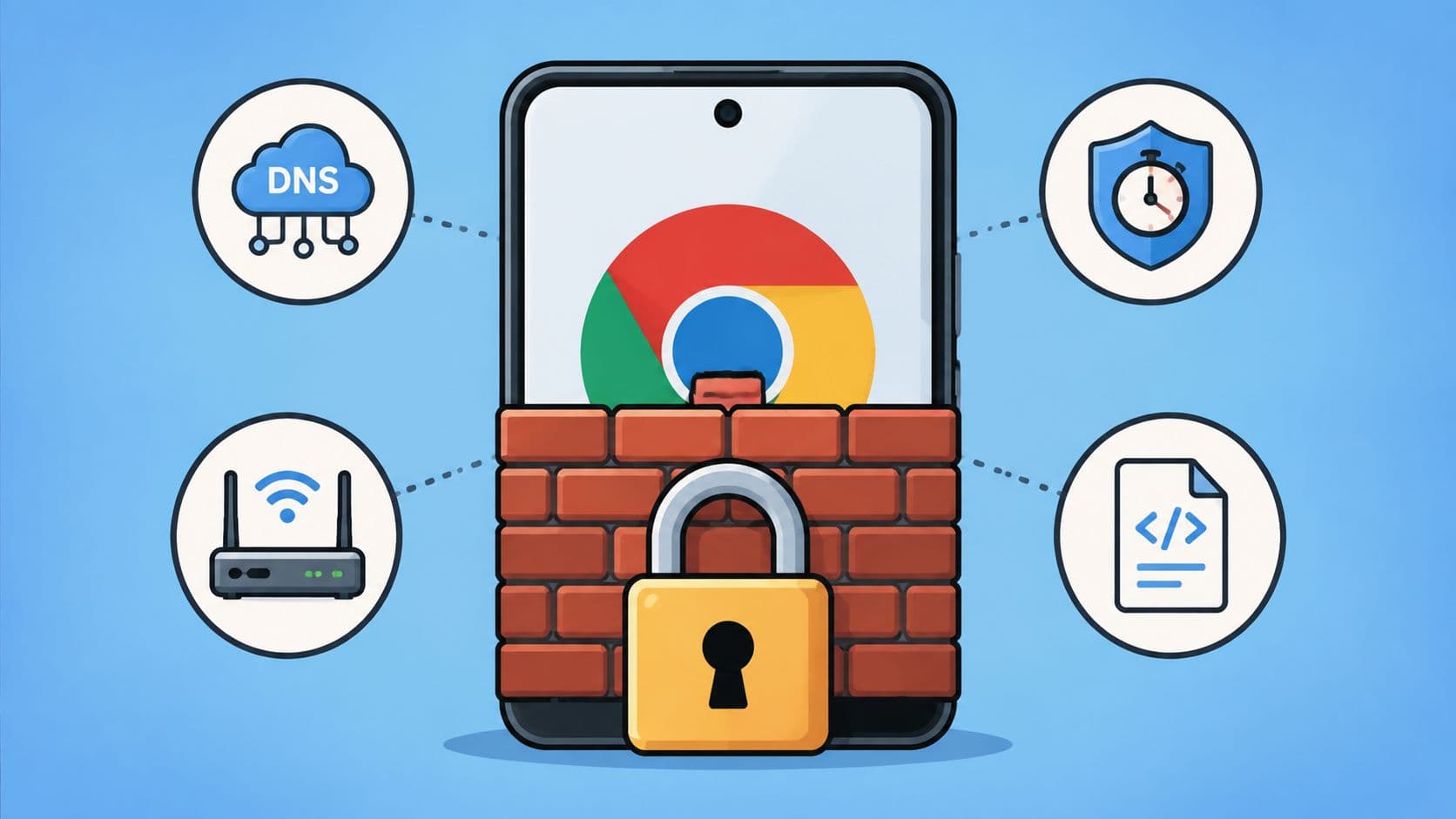
You set a block on Chrome Android, felt better for an hour, then the urge hit late at night and the off switch was right there. That's the part most guides skip. The setup isn't the hard part. Holding the line when you're tired, restless, or bored is.
Chrome on Android makes that easier to mess up than people expect. Google's own Android help focuses on history, cookies, and permissions, not a native per-site blocklist inside Chrome for Android, and blocking on Android has usually depended on external controls instead of a browser switch. Chrome on Android also sits inside a system where Settings stays close, uninstall is a few taps away, and browser controls are usually reversible by design. Google's Android help on site permissions shows how easy it is to reset browser-level settings from inside the app itself, which is exactly why the test happens at 11pm, not on the setup screen. Chrome for Android help
Why Blocking Sites on Chrome Android Is Harder Than It Looks
The failure usually looks boring. Someone installs a blocker, adds the site, watches it work, then disables it when the urge shows up after midnight. The problem wasn't the blocklist. It was the fact that the switch to undo it stayed within reach.
The weak point is always the off switch
On Android, Chrome isn't a neat desktop browser with a few extensions and a locked profile. It lives in a system where browser permissions, app settings, and device controls all sit close together. That matters because a block that takes one minute to set up can still be easy to tear down in one impulsive session.
A browser-level block is also weaker than people think because it only changes one layer. If the user can open another browser, reset permissions, or change device settings, the block can lose force fast. That's why the question isn't “Can I block this URL once?” It's “What happens when I'm tired enough to look for the easiest exit?”
Practical rule: if you can undo the block in the same emotional state that made you need it, it probably won't hold.
Desktop blocking tends to be more mature because extensions, admin controls, and system policies can be layered more cleanly. Android is messier. The operating system gives you plenty of ways to manage apps and permissions, but it also leaves the door open for the person holding the phone. That's fine for normal device management. It's weak for self-imposed limits.
The Built-In Android Routes You Should Try First
The built-in options exist, but they solve different problems. One filters at the network layer, the other is built for supervision, not self-control. If you want the shortest route to a working block, start there. If you want a block you won't casually undo, don't stop there.
Private DNS and Family Link solve different jobs
Private DNS sits under Android's network settings. You can reach it through the phone's settings path for network and internet, then set a filtering provider such as CleanBrowsing's family filter hostname or OpenDNS FamilyShield hostname. It works at the resolver level, so it can affect Chrome and other browsers on the device. The catch is simple. Anyone who can reach Settings can turn it off fast.
Family Link takes a different route. You set up a supervised Google account, then manage Chrome restrictions through the parent side of the setup. That's useful when the phone belongs to a child and the adult account controls the policy. It's a poor fit for an adult trying to supervise their own impulses, because the parent controls live in a separate account and don't create much self-imposed friction.

Where each one falls short
Private DNS is broad, but broad isn't the same as sticky. It's good when you want a device-wide filter that doesn't care which browser opens the site. It's weak when the same person who set it also knows exactly where to switch it off.
Family Link is stronger as a supervision model because the control lives outside the child's handset. That's the point. It works best when the user and the enforcer are not the same person. If they are the same person, the setup becomes another layer of self-authorization, and self-authorization is exactly what fails at the wrong hour.
If the device owner and the rule-maker are the same person, use a method that adds friction inside the device, not just a setting outside it.
How Dedicated App Blockers Compare on the Android Side
App blockers are where the difference shows up. Some apps just record a wish. Others hold a session open and make turning it off annoying enough that impulse alone doesn't win. That gap matters more than the brand name.
Compare by friction, not by promises
Here's the useful comparison.
| Blocker | Timer Enforcement | Settings Access During Session | Recurring Schedules | Chrome Coverage |
|---|---|---|---|---|
| BlockSite | Available in its scheduling and blocking flow | Depends on the app's permission model and plan | Yes, for scheduled blocking use cases | Can block sites used in Chrome |
| Stay Focused | Built around usage limits and scheduled control | Depends on configuration and permissions | Yes | Can cover Chrome-based browsing |
| Cold Turkey | Uses a stricter session model on Android | Designed to raise the cost of changes during a session | Yes | Can cover sites opened in Chrome |
| Digital Wellbeing plus screen pinning | Light restraint, not hard enforcement | Settings remain close | Limited compared with dedicated blockers | Not a full site blocker |
The point isn't that one app is magical. The point is that a timer-based session changes the moment of decision. A casual blocklist says no in theory. A session with friction says no when you're most likely to cave.
TiedSiren belongs in that same category of session-based blocking on Android 8.0 and later. It blocks selected apps for a duration you commit to up front, uses Strict Mode so the running session ends only when its timer ends, and blocks the Android Settings screen while a session runs. That doesn't make the phone untouchable. It does make the impulsive bypass expensive enough that people usually don't bother.
What matters when you're choosing
A lot of consumer blockers look similar until you test them under pressure. Scheduling is easy to add. Timer enforcement is harder. Blocking Settings during the session is harder still. That's where the line is drawn.
If you want a tool that's focused on the session itself, not just the reminder, the download path is straightforward: Get the Android blocker. If you want to see the feature set before installing anything, the product overview is here: TiedSiren features.
Setting Up a Strict-Mode Blocker That Holds the Line
The setup that matters starts before the first block runs. If the blocker asks for accessibility access, VPN-style control, or another permission, grant only what the app explicitly needs and read each prompt. Android 8.0's background limits and restricted settings flow exist for a reason, and the blocker has to survive those checks before it can do any real work.
Build the block around the urge, not around a URL
Don't start by typing a single site and calling it done. Group the things that pull you in by context, like social, news, video, or shopping. That way, a schedule can apply to a whole habit cluster instead of one domain you'll swap out in two days.
Then set a recurring window that matches your actual weak times. Weekdays during work hours are one pattern, late-night study windows are another. Android supports recurring scheduling at the platform level, and that's the part you want when you're tired and not in the mood to negotiate with yourself again.
A strict session should also make the off-ramp ugly enough to stop the reflex. That means the blocker's countdown has to be the thing that ends the session, not a quick override buried in a menu. It also means the app's Settings access needs to be out of easy reach while the session is active. If uninstall needs a PIN, use it.
Finish the setup like you mean it
Close Chrome completely after turning the session on. That keeps the next request from relying on whatever was already open in memory. If the app asks for battery-optimization exemptions or other Android permissions before enforcement kicks in, complete those prompts before you test anything. The block isn't real until the platform has stopped treating the blocker like a background suggestion.
The goal isn't to make the phone impossible to use. The goal is to make the five-second undo feel longer than the urge.

Here's the last part people skip. Test the block once, then leave it alone for a full session. If you keep adjusting it every ten minutes, you're not building a blocker. You're rehearsing how to defeat it.
Matching the Right Method to Your Actual Situation
Picking the wrong method is the most common mistake. People choose whatever looks strongest on paper, then wonder why it doesn't fit their life. The right match depends on who controls the device, where the browsing happens, and whether the problem is distraction, parenting, or self-restraint.
Use case should decide the tool
| Use Case | Best Method | Why It Fits | Weak Spot |
|---|---|---|---|
| Parent managing a child's phone | Family Link | Control sits in a separate supervising account | Not meant for self-imposed limits |
| Whole-home filtering | Private DNS or router-level filtering | Covers browsing across devices and browsers on the network | Easy to change if the same user controls the network |
| Deep work or study on one Android phone | Strict-mode app blocker | Timer pressure makes undoing the block less convenient | Stronger than DNS, but still a device-level control |
| Habit quitting on a personal phone | Session-based blocker with Settings friction | Holds up better when the urge to undo hits fast | Needs deliberate setup and discipline |
Router-level filtering is useful when the problem is shared. Tablets, smart TVs, and multiple phones all fall under the same network policy. That's a household solution, not a personal commitment device. If you leave the Wi-Fi, the protection changes shape.
For a single adult trying to stop checking one app or site at the worst time of day, a session-based blocker is usually a better fit. It creates friction right where the failure happens, on the phone that's already in your hand. That's why a product like TiedSiren makes sense in this category. It's built around committed sessions, recurring schedules, and a blocked Settings screen during an active block, which matters more than a long list of niche features.
The common mistake is treating the tool as the answer instead of the match. The answer is always: who can change the rule, and how quickly can they do it?
What These Blocks Can and Cannot Stop
A blocker can slow you down, but it does not make Android tamper-proof. Safe Mode can disable many third-party apps, then the blocker can be uninstalled or disabled before the phone boots normally again. ADB over USB debugging can remove packages from a connected computer, and a rooted device can bypass most consumer-grade controls. Those are practical bypass paths, not edge cases.
Know the bypass shape before you trust the block
DNS filtering has limits of its own. A different browser, a VPN that routes DNS differently, or a direct IP address can cut around the filter. That works for broad household filtering. It breaks down fast if the goal is self-imposed restraint on one phone.
App-based sessions hold up better because they add friction at the moment people usually give in. A blocked Settings screen, a committed timer, and recurring sessions make the undo slower and less convenient. That still leaves room for determined bypass. It just makes the fast, impulsive reversal harder to carry out.

Pick the method with a bypass cost you can live with in a weak moment. If the problem is a late-night reversal, use a tool that makes changing course slow enough to interrupt the impulse. If the problem is whole-network control, route it through DNS or the router. Layering DNS filtering with a strict-mode app blocker is the only way to cover both household-wide and personal-device gaps.