
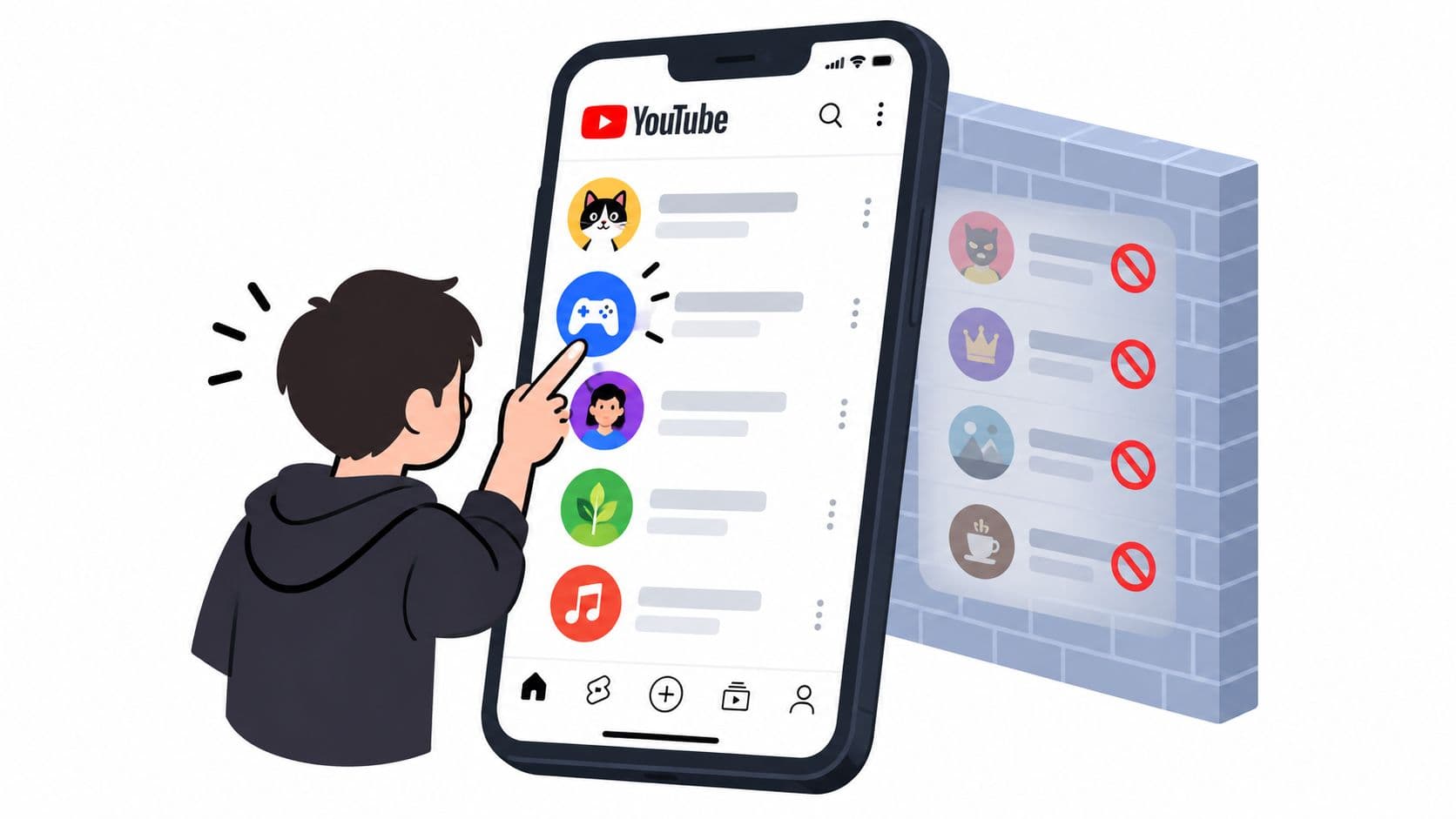
You're probably here because one creator keeps showing up where you don't want it, in Home, Shorts, or Watch Next, and you've already had the annoying moment where the menu says Block but the channel still isn't really gone. That's the part people miss. On YouTube, the word sounds stronger than the feature is.
If you're on iPhone, Mac, or Windows, the answer here still matters, but the Android-only app in the last section won't apply to you. If you're on Android, it does.
Why You Actually Want to Block a Channel on YouTube
You're not asking for a product tour. You want one channel out of your face, because it keeps hijacking your evening and dragging you back into a feed you were trying to leave alone.
That's the problem, not terminology. The menu item says Block channel, but on a normal account that mostly changes interaction, not discovery. It stops a channel from trading comments, live chat messages, and mentions with you, which is useful in its own narrow way, but it's not the same thing as removing the channel from your viewing life.
The gap between the label and the result
People get burned here. You block a channel, and the next video is still there through search, recommendations, or a direct link someone sent you. That's why the search phrase can you block channels on YouTube keeps coming up in the first place, because the label sounds like a clean fix and the result usually isn't one.
For adults, the honest answer is simple. YouTube's ordinary block is an interaction control, not a viewing boundary. If you want a feed cleanup, that's one thing. If you want the creator off the table during a work block or a study night, that's a different problem entirely.
What this article does instead
I'm not going to pretend every “block” button means the same thing. YouTube has three different controls people mix together, and they solve three different problems. One is for stopping interaction, one is for shaping a child's experience, and one is just recommendation tuning.
Practical rule: if you want to stop the habit, don't trust a label. Check whether the control changes comments, recommendations, or actual access.
For the Android side of the problem, there's also a separate answer when you need the YouTube app itself out of reach for a fixed window. I'll get to that later, because that's the only answer that matches the everyday moment many users are trying to solve.
What YouTube Means by Blocking
YouTube uses the word block in more than one way, and that's why people talk past each other about it. One control is about interaction, one is about a child's viewing environment, and one is about recommendations.
The standard block is about people, not videos
On a normal signed-in account, blocking a channel means the blocked account can't see your messages in live chat and comments, and it won't receive your mentions. YouTube's help text also makes clear that this is about account interaction, not a universal removal of the channel's content from the platform. The blocked account's comments can still be visible to the channel owner inside YouTube Studio, which is another sign that this is moderation, not disappearance.
That's the key distinction. It blocks contact, not content.
The child-account block is different
YouTube does give parents a stronger channel-specific control for supervised child accounts. That block applies to the selected channel's uploads, and the interface lets a parent reverse it later. But even there, YouTube says reuploads by other channels and similar content can still show up, which tells you exactly how far the control reaches and where it stops.
“Don't recommend channel” is not a block
Then there's Don't recommend channel, which is a recommendation signal on Home and Watch Next. It can reduce how often you see a creator, but it doesn't stop you from searching for the channel, opening it directly, or watching it through a shared link.
YouTube's vocabulary is doing a lot of work here. Stop, hide, prevent, and recommend are not the same verb, and they don't produce the same result.
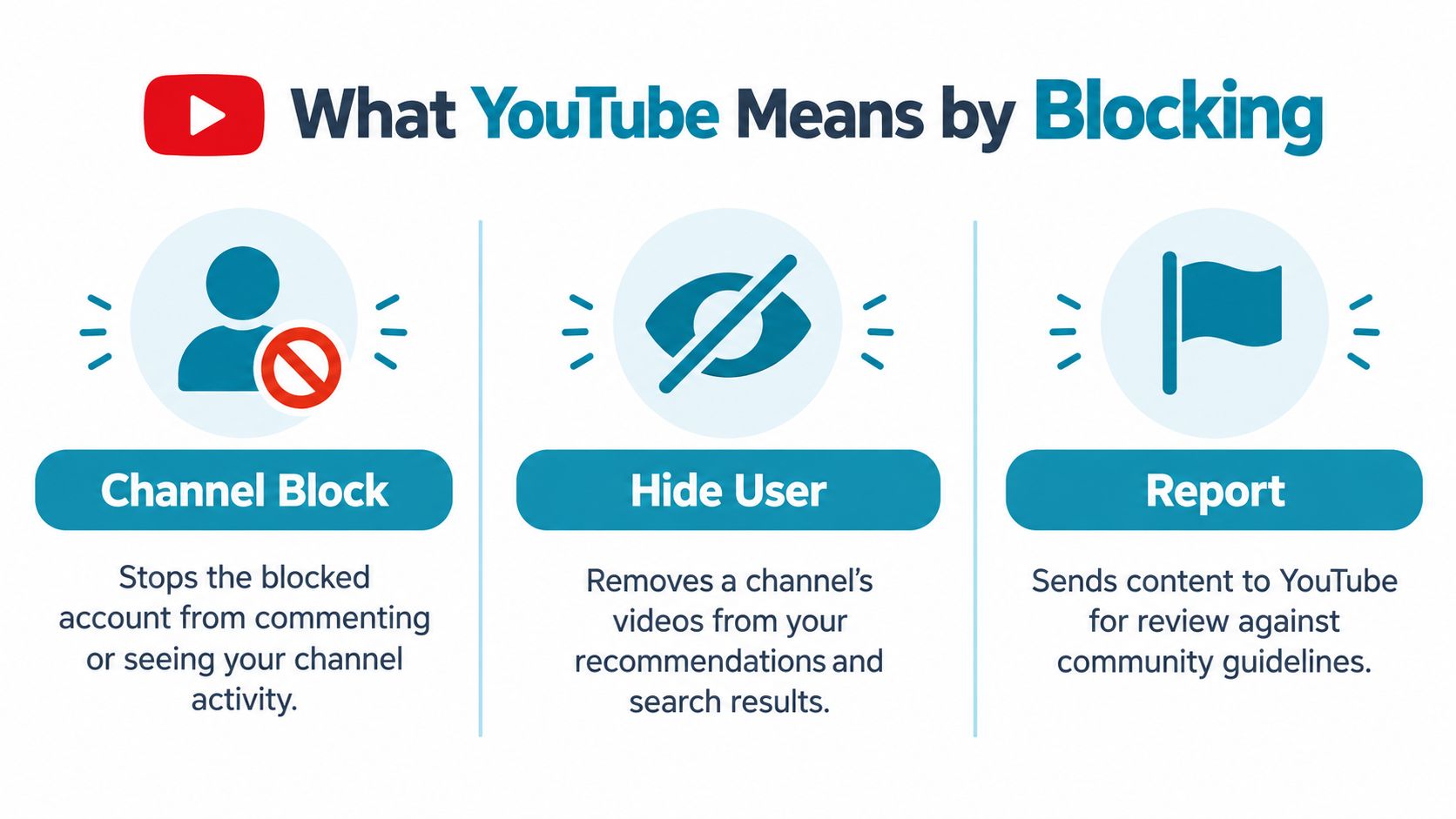
If you read the help pages carefully, the pattern is obvious. The standard block changes interaction, the supervised-child block changes access to a specific channel's uploads, and recommendation feedback changes what gets surfaced. None of those is a blanket adult account ban on a creator's presence everywhere.
Using YouTube's Standard Block on Android
If your goal is to stop one account from talking to you on YouTube, the standard block does the job it was built for. It stops that account from seeing your comments and live-chat messages, and it keeps its mentions out of your inbox. That's useful when the problem is harassment, spam, or a creator you don't want interacting with your account.
What it doesn't do is erase the channel from your feed. The videos can still turn up in search and recommendations, because that's not what this control was designed to change.
What changes when you use it
The effect is symmetrical in the way YouTube describes it. You stop seeing the other account's messages in comments and live chat, and the other account stops seeing yours in those places. That's the part people usually want when they're dealing with a noisy account.
The mistake is thinking the menu name guarantees more than that. It doesn't.
What doesn't change
The channel can still exist all over YouTube. If you already know the name, you can still look it up. If someone shares a video, you can still open it. If YouTube wants to recommend it, the block doesn't act like a universal filter.
That's why so many people block a creator, feel good for ten seconds, and then see the same creator again. The problem wasn't the block. The problem was the expectation.
Blocking a Channel for a Child on YouTube
If you're managing a supervised child account, YouTube gives you a more direct channel-content block. That's the one place where the platform tries to keep specific channel uploads out of a child's viewing environment.
A parent linked through a family setup can choose Block channel for kids, and the label changes to Unblock if they reverse it later. That part is straightforward. It's also the clearest proof that YouTube treats adult accounts and supervised child accounts differently.
The limit is built in
YouTube says the block applies to the selected channel's uploads only. Reuploads, clips, compilations, and similar material from other channels can still appear. So even here, the platform draws a line between one channel and the larger content ecosystem around it.
That matters because it tells you what this tool is for. It's meant to shape a child's feed, not to wipe a topic off the service. If a child keeps finding the same creator through reposts or related channels, the control has already reached its limit.
Which control matches which goal
| Your goal | Best YouTube control | What it does | What it doesn't do |
|---|---|---|---|
| Stop one person from commenting on your channel | Standard block | Stops comments, live chat messages, and mentions between the accounts | Doesn't remove the channel's videos from YouTube |
| Shape a child's viewing | Supervised-child block | Blocks uploads from the selected channel for that child | Doesn't stop reuploads or similar content on other channels |
| Reduce how often you see a creator | Don't recommend channel | Lowers that channel's presence in recommendations | Doesn't stop search, direct links, or deliberate visits |
If you're not managing a child's account, this doesn't give you the boundary you're looking for. It gives you moderation power for a supervised setup. That's useful, but it's not the same job.
You can read more technical product guidance on the TiedSiren developer page, but the point here is simpler than the tools around it. The strongest native YouTube block is still scoped to a specific account situation, not to your whole day.
Why Hiding One Channel Never Stops the Feed
The biggest mistake is treating one channel like the whole problem. It isn't. YouTube's own help text already warns you that reuploads and similar content can keep showing up, and that's exactly why a single block often feels pointless the next day.
The topic survives the creator
You block one channel, then the same subject comes back through Shorts, reaction uploads, clips, compilations, or another account with a different name. That's not a bug in your memory. That's how the ecosystem works.
The algorithm doesn't care about your clean personal boundary. It cares about themes, clicks, and adjacent engagement. So if you keep feeding it interest signals, it keeps serving versions of the same thing.
The lighter nudge is still just a nudge
Don't recommend channel can help on Home and Watch Next, and sometimes that's enough if all you want is a calmer feed. But it's still a suggestion to the system, not a lock on your own behavior.
If you can still search for it, open it, and watch it directly, you haven't blocked it. You've only reduced how often it shows up.
That's the line. If your goal is “make this show up less,” YouTube has some tools. If your goal is “make it unavailable during my work window,” YouTube's own tools stop short.
Restricted Mode and Other On-Platform Levers
YouTube does have a few more levers, but none of them turn into a hard boundary for an adult who can undo the setting later. They're useful as filters. They're not enforcement.
The remaining native tools
Restricted Mode is the bluntest one. YouTube describes it as a system-wide filter used for schools, libraries, and families, and it relies on community flagging plus signals to hide videos marked as inappropriate. That's broad, not precise.
Clearing watch history and search history can also quiet down recommendations, because YouTube has less signal to work with. Not interested does similar small-scale cleanup on individual videos in Home or Watch Next. These are feed-shaping moves, nothing more.
| Lever | Where it helps | What it really does |
|---|---|---|
| Restricted Mode | Shared devices, family settings, institutional use | Hides some flagged content system-wide |
| Clear history | Personal recommendations | Removes some viewing and search signal |
| Not interested | Home and Watch Next | Reduces similar suggestions |
| Pause history | Ongoing recommendations | Stops new watch activity from shaping suggestions |
The ceiling is obvious. Whoever controls the account can undo all of it. That's why these tools help with noise, but not with self-control when the urge hits.
If you're trying to cut down on distractions more broadly, YouTube's own controls can get you part of the way. For a deeper, recurring setup on Android, read the TiedSiren features page and judge the tool by what it blocks, not by the wording around it.
When You Actually Need to Block the YouTube App
If your problem is adult self-control, YouTube's native controls aren't enough. You already know the channel. You already know where it is. The issue is that the app is still one tap away when you get tired, bored, or annoyed.
The fix is to make YouTube unavailable for the window you choose, not to keep bargaining with the feed. On Android, that means an app blocker that holds the line for the duration you committed to.
Why app-level blocking is the honest answer
A committed session changes the decision point. You pick the apps to block, set the duration, and start the session. While it runs, the path back in is no longer a casual undo.
That's where TiedSiren fits on Android. It blocks selected apps for the duration you commit to, uses Strict Mode so the session ends when the timer ends, blocks the Android Settings screen while the session runs, and supports custom blocklists plus scheduled sessions with daily or weekly recurrence. It runs on Android 8.0 and later.
This is friction, not magic. It defeats the impulsive bypass, the one you'd do without thinking, not a determined technical workaround.
If you want the Android route, you can get it from the Google Play listing or from the download page.
The point isn't that app blocking is glamorous. It's that it matches the actual failure mode. If the app is still there, the habit is still alive.
Picking the Right Approach for Your Situation
If you want one person off your comments and live chat, use YouTube's standard block. It handles interaction, which is exactly what that control is for. Don't expect it to clean up your feed.
If you're managing a child's account, use the supervised-channel block. That's the only native YouTube control that really targets a specific channel's uploads for a supervised viewer, and even then it has a clear boundary around reuploads and similar content.
If you want fewer YouTube videos in your own evenings, neither of those solves the core issue. You don't need a nicer menu label. You need the app out of reach during the hours when your self-control usually folds.
For Android users, that means a committed session that blocks the YouTube app for the time you choose. Install from the TiedSiren site if that's the route you want, and keep the decision where it belongs, before the urge shows up.
If YouTube keeps slipping past your own rules, stop trusting the block button to do a job it wasn't built for. TiedSiren is the Android option that locks in a session you chose in advance, blocks the apps you picked, and keeps the fast undo out of reach while the timer runs. If that's the boundary you wanted, visit TiedSiren and set it up once, then let the session do the arguing for you.