
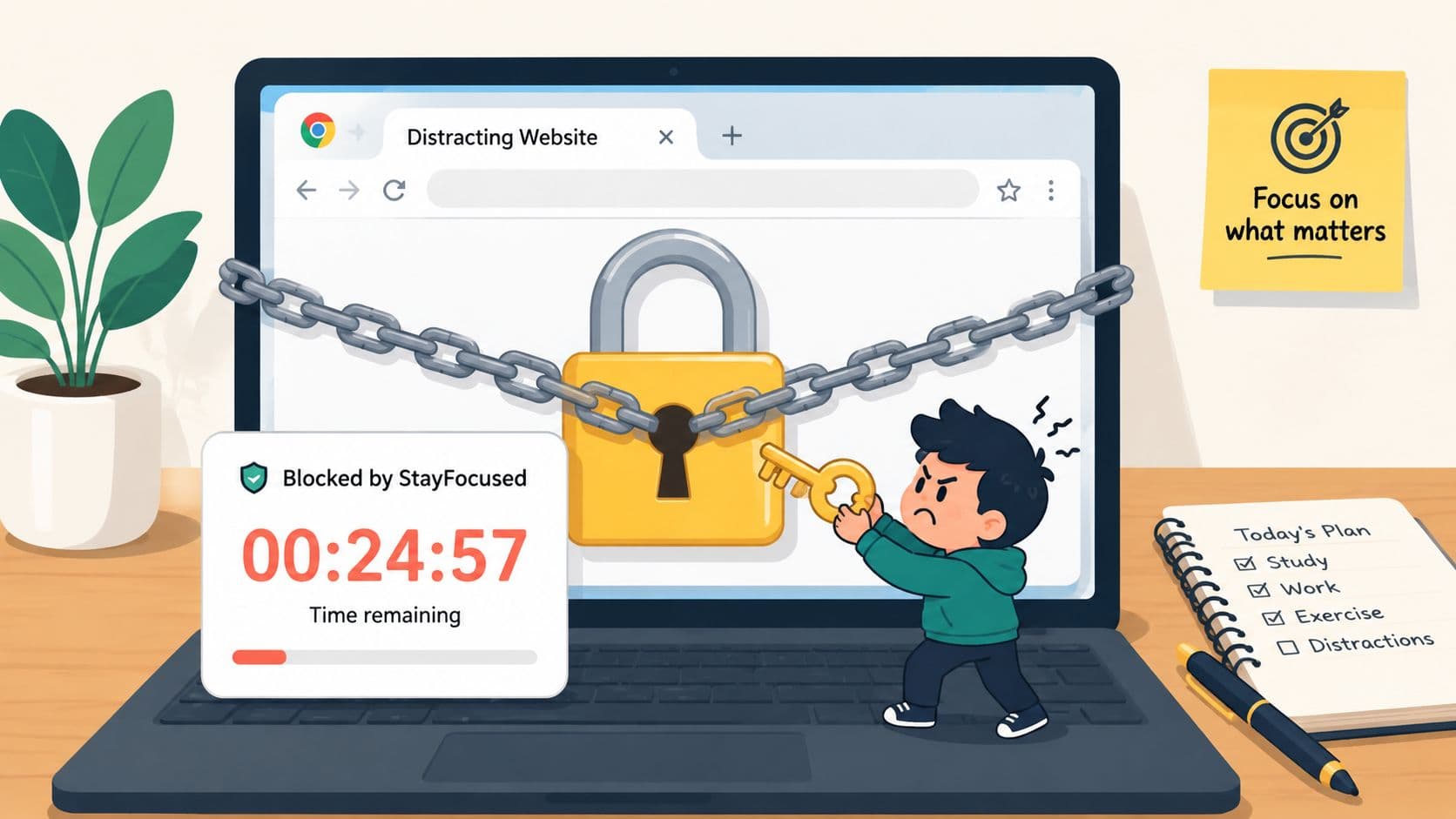
You install StayFocusd, tell yourself this time it'll be different, and for two days it is. Then it's late, you're tired, and the browser is still the same browser, with the same extension icon sitting there like a door handle. Five seconds later, the blocker is off and the site is open.
That's the ultimate test. Not whether the extension can block a website in a clean afternoon. Whether it changes the math when the off switch is one click away and your judgment is already slipping.
The Moment the Blocker Comes Off
I've watched this happen enough times to stop romanticizing browser blockers. Someone installs the StayFocusd Chrome extension, sets a limit, and gets a short burst of clean behavior because the setup itself feels like progress. Then the evening comes, the browser stays open, and the same person who meant it opens a new tab and disables the thing they trusted to protect them.
The failure isn't the website
The site loading is not the problem. The problem is that the disable path lives in the same place as the distraction, inside the same browser session, under the same tired brain. A blocker that depends on a calm decision at the exact moment of weakness is asking for the wrong kind of cooperation.
Practical rule: if turning the blocker off feels easier than resisting the site, the blocker is only adding friction, not solving the habit.
That doesn't make StayFocusd useless. It means you should judge it fairly. A browser extension can reduce impulsive wandering, slow the reflex to drift, and make the first bad click more annoying. It cannot change the fact that your judgment, not the code, still gets the final say inside Chrome.
What this guide is really asking
The useful question isn't whether StayFocusd blocks websites. It does. The core question is what you get when the blocker is trying to regulate behavior from inside the same environment you already know how to undo.
The answer matters because some users need a speed bump. Others need a lock.
What StayFocusd Actually Does in Chrome
StayFocusd's Chrome Web Store listing describes it as a productivity extension that restricts time spent on time-wasting websites, and independent tracking sources place it at about 700,000 active users with roughly 8,738 ratings averaging 4.4/5.0 as of mid-2026 (Chrome Web Store listing and extension tracking context). That scale says something simple. People have kept installing it for a long time because the basic idea is still useful.
The standard setup is blunt on purpose
You start by choosing the sites that pull you off track. Then you assign them a time limit, so Chrome lets you visit them only up to that allowance before the blocker starts refusing requests. That's the core behavior, and it's why the extension has lasted this long.
StayFocusd also includes the Nuclear Option, which is the hard stop mode people usually mean when they talk about the extension becoming serious. In that mode, the browsing window gets much tighter, and the point is to remove negotiation from the session. The Require Challenge option adds another layer by forcing an interruption before you can change settings.
Scheduling matters more than people admit
The extension also supports time-of-day scheduling, which is where it starts to feel less like a moral lecture and more like a rule you already made in a better mood. You can make the blocker matter during the hours when you usually drift, then ease up when you're done working. That's more useful than pretending your attention is equally fragile at noon and midnight.

The important thing is not the feature list by itself. It's what those features change in the browser session. You're not getting therapy. You're getting a set of precommitted rules that Chrome can enforce while the browser is running.
How Chrome Extensions Enforce Rules Now
Chrome's extension model changed in a way that matters here. Under Manifest V3, ordinary consumer installs no longer get the old request-interception model through webRequest, and network modification now runs through declarative rules evaluated by Chrome itself. Enterprise policy-installed extensions are the exception (Chrome's webRequest documentation).

What that means in plain English
The extension isn't sitting there thinking about every click in JavaScript and deciding, on the fly, whether to let you through. The rules have to be set in advance. Chrome checks them, matches them, and then blocks or allows the request without the extension doing heavy per-request work in the old way.
That reduces overhead and makes behavior more predictable. It also means the extension has less room for clever, reactive behavior. Body inspection and dynamic request-based decisions aren't available through declarativeNetRequest alone. For a site blocker, that's a real trade-off, not a footnote.
The limits are structural
Chrome's declarativeNetRequest system supports up to 30,000 static rules per extension, up to 30,000 dynamic rules in newer Chrome versions, up to 5,000 session rules, and only 1,000 regex-based rules across scopes (rule limit overview). That's plenty for normal site blocking, as long as the logic stays compact and host-based.
Practical rule: rule-based blockers work best when they're boring. The more they depend on regex gymnastics, the more brittle they get.
A browser extension can enforce rules at the browser layer. It can't reach into other apps, another browser profile, or the operating system itself. That gap is where browser-only blocking starts to leak.
See the broader product framing at TiedSiren's features page.
Where StayFocusd Quietly Fails
The Chrome listing makes StayFocusd sound sturdy, and in a narrow sense it is. But real users still describe weak spots, including disabling the extension, timers that don't behave, and limits that can be worked around. That doesn't make the tool fake. It makes it human-sized.
The off switch is still part of the system
The bigger issue is not whether the extension has a nuclear mode. It's whether a person can still get around it when the urge is hot. Third-party writeups and user reports mention bypass paths, timer weirdness, and cases where the rules don't hold up the way people hoped. The Require Challenge flow also depends on timing, and reports mention trouble when the clock state isn't right. The product page itself points to powerful controls, but the lived experience is still friction, not absolute enforcement (StayFocusd details page).
False positives are a real cost
Recent review complaints also talk about accidental blocking of unrelated sites, browser slowdown, timer bugs, and whitelist friction (Chrome Stats reviews). That's the part people understate when they recommend stronger blocking rules. A strict list makes loophole-hunting harder, but it also raises the cost of recovery when the wrong thing gets caught.
The extension page highlights page-level controls, subdomains, paths, in-page elements, and active days and hours. Those controls can be useful, but they also mean you need to think carefully about what you're allowing. A sloppy configuration turns a productivity tool into a support headache.

A browser blocker can absolutely make impulse behavior harder. It just shouldn't be described as a wall when it's really a fence with a gate.
Browser Blocking vs App Blocking
Chrome extension blocking and app-level blocking solve different problems. One lives in the browser and controls browser requests. The other lives lower in the stack and can enforce a session against the phone itself.
Where the browser stops
A browser extension can redirect URLs, hide page elements, and time-block pages inside Chrome. It can't stop a downloaded app, a messaging feed in another app, or a different browser profile that never touches the extension. That's the boundary you feel when a “website problem” turns out to be a “device problem.”
Here's the comparison in plain form.
| Enforcement Layer | Scope | Can Block | Cannot Block |
|---|---|---|---|
| Browser extension | Chrome browsing session | Websites and browser requests inside Chrome | Other apps, other browser profiles, system-level actions |
| App-level blocker | Android device behavior | App launches and device-level access during a session | Browser-only rules if the app isn't part of the chosen blocklist |
Why app-level friction changes the equation
Android gives you stronger levers when the problem is the off switch itself. Android 8.0 introduced enterprise controls that let a device owner or profile owner manage application restrictions through delegation methods like getApplicationRestrictionsManagingPackage() and setApplicationRestrictionsManagingPackage() (Android 8.0 enterprise controls). Google also documents restricted settings paths that make you go through Settings > Apps > app > More > Allow restricted settings before some app permissions can be changed (restricted settings help).
Google's Digital Wellbeing tools even include a unique 4-digit PIN flow for app time limits, and Google says you can set an app's time limit to zero to block access for another user (Digital Wellbeing PIN limits). That's a different category from a browser reminder. It's policy-style control.
TiedSiren fits that app-level side. It's a free Android app that blocks chosen apps for a set duration, with Strict Mode, scheduled sessions, a focus timer, and blocks on the Android Settings screen during a session. The point isn't that it's magical. The point is that it moves the friction out of the browser and into the device layer.
Getting More Out of StayFocusd Without Lying to Yourself
The worst way to use StayFocusd is to treat it like a moral victory. The better way is to make it annoying enough that the impulsive bypass takes real effort. That starts with the password.
Make the override painful on purpose
Set the challenge password to something you won't recall under pressure, then store it somewhere inconvenient. Not in the browser. Not in a note you habitually leave open. The goal is not secrecy for its own sake. The goal is to make the sleepy midnight version of you do a little more work before cheating.
Practical rule: if the override is easy to recover, it's easy to abuse.
Pair the extension with a second blocker so one disable path doesn't automatically free the whole evening. Keep the rule set narrow enough that you're blocking actual problem destinations, not building a giant curated distraction catalog. Broad keyword-based setups tend to create more false positives and more excuses to edit the rules.
Use the schedule against your worst hours
The Nuclear Option is most useful when it covers the hours you already know are bad. Don't schedule it around your good intentions. Schedule it around the time you usually start bargaining with yourself.
A simple way to keep the setup honest is to watch your own disable behavior for two weeks. If you keep turning the blocker off at the same hour, that's not a sign the tool is broken. That's a pattern showing up clearly enough to plan around. If you need another app with a harder session model on Android, the download path is documented at TiedSiren's site, but the main lesson stays the same. Friction beats wishful thinking.
Choosing the Right Layer of Blocking for You
The decision comes down to three questions. Do you mostly drift inside Chrome tabs, or does the problem spill into Android apps too. Have you already found yourself uninstalling or disabling a blocker when you were tired. Is this a chronic pattern, or just a situational mess around one project or exam.
If Chrome is the whole problem
If the distraction mostly lives in Chrome, and you haven't yet gone through the familiar ritual of turning the blocker off at the worst possible time, StayFocusd can still do useful work. A strict setup, a hard limit, and scheduled blocking windows are enough for a lot of people who mainly need fewer opportunities to wander.
If the off switch keeps winning
If the problem keeps being the off switch itself, that's the sign to add a second layer. A browser extension is still useful, but the gap is that Chrome only controls Chrome. Once the habit includes disabling the tool, the fix usually needs app-level enforcement or another system-level blocker.
If the problem is already beyond the browser
If your drift has moved into messaging apps, short-video feeds, games, or other mobile distractions, browser blocking won't move the needle much. At that point, the browser is only one small part of the problem. The right move is to block the apps themselves and use Chrome rules as a secondary layer, not the main defense.
A plain decision list works better than a philosophy:
- Tighten StayFocusd first if the issue is mostly browser wandering.
- Add a second blocker if the extension keeps getting disabled or ignored.
- Treat the browser as the whole solution only if you've stuck with it for two weeks without cheating.
If you're still wrestling with the same late-night bypass, try a blocker that moves the control point out of the browser and into the device. Visit TiedSiren if you want an Android app blocker built around committed sessions, app-level friction, and the exact failure mode this article keeps circling.