
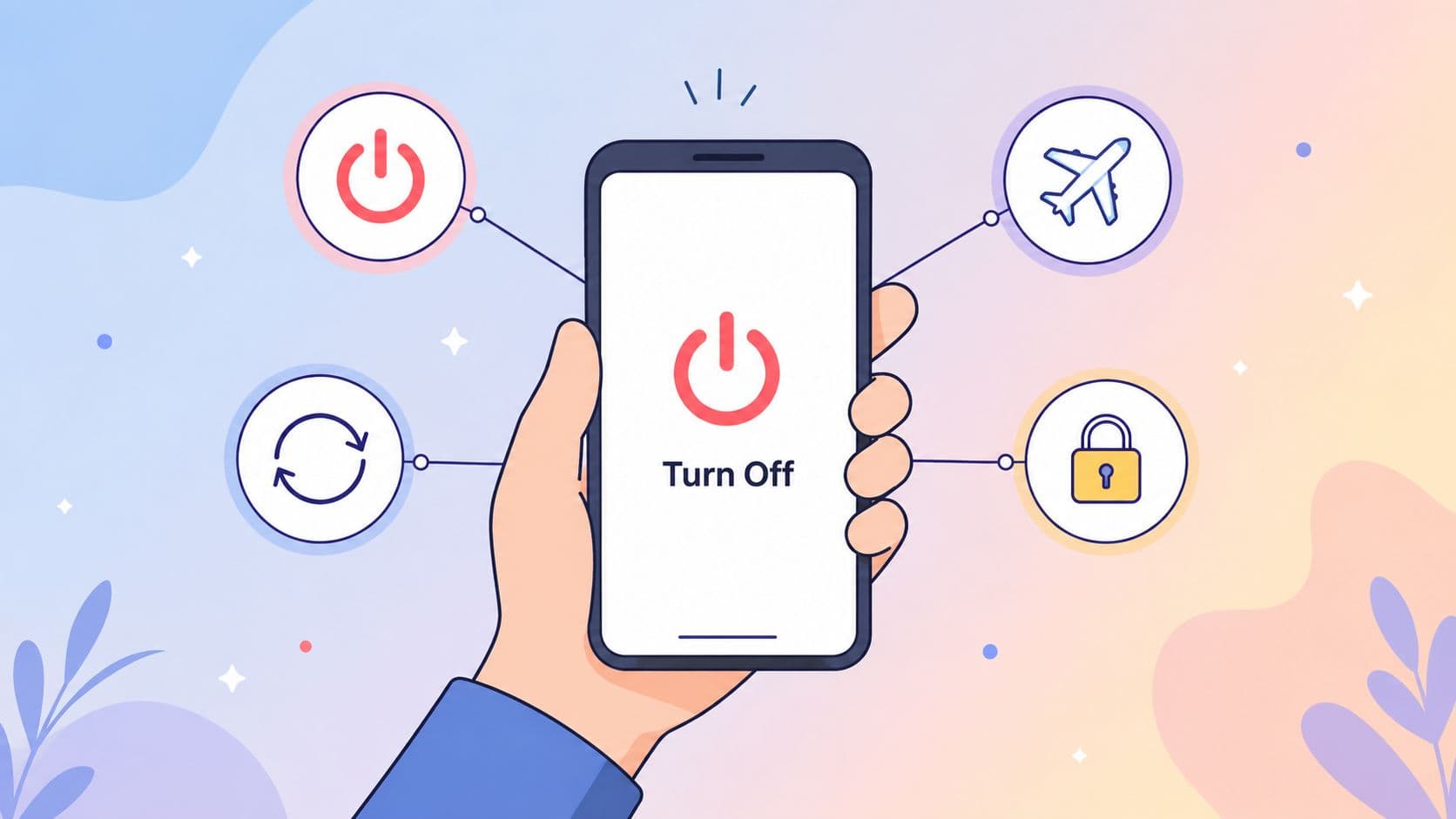
Turn my phone usually means one of four things, and the right move depends on which one you mean. You might want to power it off, switch on airplane mode, fix screen rotation, or lock it down so you stop opening the same apps again.
I care about the last one most, because that's where people get stuck at 11 p.m. with a thumb that keeps reaching for the same icon. That's also where a soft limit fails and a harder setup earns its keep.
What People Mean When They Say Turn My Phone
The phrase is sloppy because people use it for completely different jobs. If you pick the wrong one, you waste time tapping through the wrong settings and still end up distracted.
The four meanings
Power off is the simple one. The phone is dead, the battery is saved, and the device is done until you turn it back on.
Airplane mode is for flights, meetings, or any moment where you want the radios quiet without fully shutting down the phone. It cuts the connection layer, but it doesn't solve the deeper habit of opening apps out of reflex.
Screen rotation is what you mean when a video, recipe, or article should stay sideways or upright. That's a display setting problem, not a distraction problem.
Lock it down is the one that matters when you already know your own weakness. You're not asking how to make the phone sleep, you're asking how to stop yourself from undoing your own limit.

Why the search term is messy
People don't search with perfect wording. They type what they'd say out loud, then expect the phone to guess their intent.
That's fine until the intent is unclear. If you want focus, the issue isn't orientation or battery life, it's the off switch sitting too close to the urge.
Practical rule: if the problem is boredom, temptation, or sleep procrastination, don't start with settings trivia. Start with enforcement.
The rest of this article splits those meanings apart so you can stop doing the wrong thing for the job in front of you. The short version is simple. Use power-off or airplane mode when you want the device quiet. Use rotation when the screen is annoying you. Use real locking when you're trying to beat your own impulse.
How to Actually Power Off or Go Airplane Mode
On Android, the usual power path is boring and reliable. Hold the side button until the power menu appears, then tap Power off if you want the device fully down. If your phone uses a different button layout, the idea is the same, you're going through the system power menu, not an app menu.
On iPhone, the equivalent is the standard shutdown flow from the side button and volume button combination, then sliding to power off. The exact gesture varies a bit by model, but the goal is the same, a full shutdown instead of a temporary quiet mode.
When airplane mode is the smarter move
If you're trying to keep the phone available for alarms, offline notes, or basic device access, airplane mode is usually the better choice. It gives you a clean break from cellular traffic without the boot-up tax of powering the device all the way down.
Most phones still let you turn Wi-Fi back on after airplane mode is enabled. That's useful if you need local access or a network connection later, but it also means airplane mode isn't the same thing as total silence.
Practical rule: if you need true quiet, disable Wi-Fi separately. Airplane mode alone often leaves a back door open.
That matters because many people think they've shut the phone down when they've really just reduced the noise. The behavior problem doesn't disappear. It just moves to the next available app or network.
If you're doing this for sleep, keep it simple. Power off if you want no temptation. Use airplane mode if you want the device close by without the chatter.
Fixing Screen Rotation So It Stays Put
Rotation problems are usually not mysterious. The phone is either listening to orientation changes, ignoring them on purpose, or getting overridden by an app-level setting. Once you know which one you're dealing with, the fix is fast.

The Android toggles that control it
Most Android phones have a rotation tile in Quick Settings. If it's on, the screen follows orientation changes more freely. If it's off, the display usually stays fixed unless the app insists otherwise.
Recent Android versions also let some apps handle rotation on their own. That's why one app flips instantly while another refuses to budge. The app is making the call, not just the system.
There are a few common reasons rotation seems broken:
- The sensor path is off. The phone isn't reacting to tilt the way you expect.
- The app is locked to one orientation. Many apps force portrait because their layout is built that way.
- Accessibility or display settings override the default. Some users change enough system options that rotation behavior gets weird.
iPhone behaves a little differently
On iPhone, rotation often feels stricter because the system and app have tighter control over how the interface responds. Home screen rotation is also its own thing, and it doesn't behave exactly like app rotation.
The lock-screen experience confuses people too. A locked screen can look like rotation is broken when the phone is doing what it was told to do.
If you're fighting rotation, don't assume the phone is defective. Check the toggle first, then test the app itself. One app may obey rotation and the next one may ignore it entirely.
Later in the article, a short video shows the same idea in motion.
Why the Easy Off Switch Is the Real Problem
A lot of people set a limit, feel virtuous for ten minutes, and then open the app anyway. The issue isn't that they never cared. The issue is that the cost of breaking the rule was basically nothing.
That's why screen-time habits are hard to fix with reminders alone. People spend 18 hours and 36 minutes per week on social platforms, which works out to about 2 hours and 39 minutes per day, and the typical user actively uses 6.5 different platforms each month according to a 2026 global social media report Forbes Advisor's social media statistics. On the device side, a 2025 peer-reviewed study summarized in PubMed Central reported 6 hours and 37 minutes per day of global digital screen time in 2023, with mobile phones accounting for 3 hours and 46 minutes of that total smartphone usage facts and statistics. That's not a tiny habit. That's the daily architecture of attention.
Willpower loses when the exit is too easy
The phone isn't beating you because you're lazy. It's beating you because the override is one tap away, and the reward is immediate.
Soft blocks look helpful until the exact moment you want relief. A timer that disappears with a quick tap doesn't create enough friction to hold when you're tired, bored, anxious, or avoiding work. The same problem shows up with any setup that still leaves the Settings screen wide open.

What enforced blocking changes
The point of enforced blocking is not magic. It's friction.
A two-week smartphone internet-blocking intervention in a 467-adult study was associated with about 70% of participants reporting improved mental health and 73% reporting better well-being, and attention performance improved to a level the researchers compared with being roughly a decade younger AARP's summary of the study. A randomized study of digital nudges for social media screen time found an average reduction of about 193 minutes, or 35.8%, during the intervention week the study PDF. A 7-day social media restriction study also points to the basic mechanism, social media can consume attention needed for tasks ahead restriction study PDF.
That's the part people miss. The win is not just fewer minutes. It's fewer moments where you renegotiate with yourself under pressure.
Comparing Android Options That Hold the Line
Not every blocker behaves the same way. Some tools remind you, some tools slow you down, and some tools make the impulsive bypass annoying enough that you stop and think.
| Android Phone Lockdown Tools Compared | Blocks Settings | Cancel Cost | Survives Reboot | Auto-Schedule |
|---|---|---|---|---|
| Digital Wellbeing timers | No | Low | Limited | Yes |
| AppBlock and Stay Focused | Not as a core control | Medium | Depends on setup | Yes |
| TiedSiren | Yes, during a running session | Higher because session changes are harder to make on the fly | Yes, for scheduled sessions | Yes |
Digital Wellbeing is built into Android and is easy to reach, which is exactly why it's easy to dismiss. AppBlock and Stay Focused add real app-level blocking, and they're better than a reminder, but they still leave room for the user to back out if the urge gets loud enough.
TiedSiren takes a stricter route. It uses Strict Mode, which keeps a running session tied to its timer, and it blocks the Android Settings screen while that session runs. That's not absolute invincibility, and it doesn't pretend to be. It does make the impulsive five-second undo much harder.
If you still control the admin layer, you still control the escape hatch.
That's the part worth remembering. No blocker can help if you keep all the power over it.
If you want the product details, the feature overview is available at TiedSiren's features page.
Setting Up TiedSiren for Locked Sessions
The setup matters more than the branding. If you want a session to hold, you need to configure it before the urge shows up.
Start by installing TiedSiren from the Play Store and granting the permissions it asks for, especially accessibility and usage access. Those permissions let it detect when blocked apps are launched and respond in real time.
Build the blocklist first
Add the apps that usually pull you off task. That means social feeds, browsers if they're the problem, games, and any app you open on autopilot instead of intention.
Group them by context if your routine changes across the day. A work list should not look exactly like a sleep list, because your weak spots aren't identical at noon and midnight.
Turn on the part that raises the cost
Enable Strict Mode before you start the session. That's the enforcement layer that blocks the Android Settings screen during the running window, which makes the casual disable move much harder.
Set a sane first run
Don't start with a heroic schedule. Start with one hour, learn how you react, then stretch it later if you need to.
TiedSiren's download page is the cleanest place to start if you want to set up the app without hunting around the TiedSiren download page. Use the first few runs to learn where your own weak point is, because the first mistake is usually overcommitting and then quitting early.
Choosing the Right Move and Surviving the First Days
Use the right meaning of “turn my phone” for the situation in front of you. If the device is lost, stolen, or being shipped, power it off. If you're getting on a flight, sitting in a meeting, or trying to save battery overnight, airplane mode makes more sense. If the screen is rotating at the wrong time, fix the rotation tile and move on.
For attention problems, none of those first three options solve the core issue. A bored thumb will still find a way around a soft limit, which is why enforced locking is the only move that matches the problem.
The first 24 to 72 hours are the rough stretch. That's when people feel the urge to back out, check once, or “just make an exception.” Plan for it before you start.
- Pick substitutes in advance. Keep a book, a notebook, or an offline task ready so you're not inventing discipline in the moment.
- Charge the phone somewhere else at night. Distance helps when you're tired and weak-willed.
- Tell one person. Social cost makes backing out less casual.
After a few days, the pressure usually drops because the session has already changed your default behavior. That's the part most blockers miss, and it's why the stronger setup matters more than the prettier interface.
If you're done fighting the same loop every night, install the blocker that makes backing out annoying instead of easy. Visit TiedSiren and set up a session that holds when you're tempted to break it.