
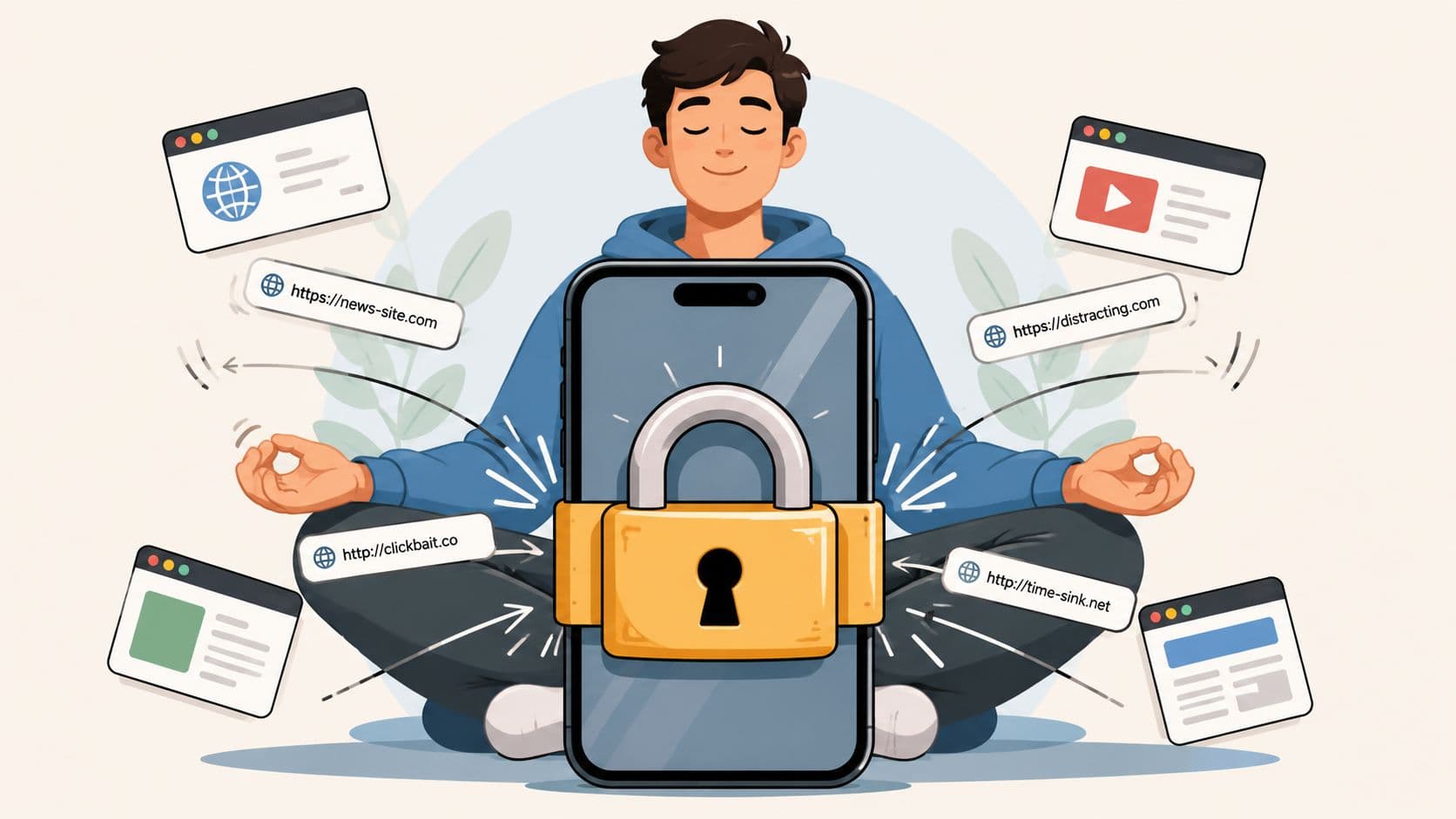
You already know the pattern. You install a blocker, feel relieved for one night, and then at 11 p.m. the urge hits, the app sits there on your phone, and the off switch is still one tap away. That's why people don't need more advice about screen time. They need a block that survives the exact minute they want to break it.
The core challenge isn't finding a way to block a site on phone. It's choosing a method that adds enough friction to outlast a bad impulse. On Android especially, the market for parental control software was estimated at about $1.12 billion in 2025, with demand projected to keep expanding at roughly 12% CAGR through 2032 because families and schools keep looking for stronger control over phones and content (MiniOrange). That scale says something uncomfortable. The tools are everywhere, but sustained use is still hard.
Why Most Phone Blocking Methods Fail
The failure usually starts with confidence, not ignorance. You find the settings, turn on the block, tell yourself this time will be different, and then the same device is still in your hand later that night. The issue is not that the blocker is missing features. The issue is that the undo path is too easy when your judgment is at its weakest.
A lot of blocking products are built like reminders. They nudge, warn, and ask for another decision. That works when you're calm. It falls apart when you're tired, restless, or already halfway into the habit you were trying to stop.
Practical rule: if the block can be reversed in a few seconds without leaving the phone, it's usually too soft for compulsive use.
That's the lens that matters. The best method is the one that makes the impulsive bypass annoying enough that you stop and think. Not impossible. Just inconvenient enough that the moment passes.
The reason this matters on phones is obvious if you look at how people use them. A 2026 compilation reported that the global average internet user spent 6 hours and 38 minutes online per day, and 50% of U.S. teens ages 12 to 17 spent four or more hours a day on screens (PMC article). That's the environment these tools live in. You're not fighting a rare event. You're fighting a habit that keeps finding the shortest route back in.
If you want a blocker built around that failure mode, TiedSiren is one example. It's an Android app blocker that commits you to a timed session and adds friction around the settings screen while that session runs. That's the kind of design that aims at the undo reflex, not just the site itself.
Blocking Sites Through Browser and OS Settings
The built-in options are fine for mild distraction. They're also the first place you stop, which is usually where the problem starts. Browser and OS controls can reduce casual wandering, but they're weak when the urge is strong because the next browser, private mode, or profile switch is often still sitting right there.
On Android, Chrome gives you the most familiar path. If you use supervised browsing with Family Link, you can open the supervised account, go into Chrome controls, and choose either “Try to block explicit sites” or “Only allow approved sites”. The first is looser and catches some obvious content. The second is much tighter, but it takes more setup because you're maintaining a whitelist instead of just tossing up a speed bump.
Android and Chrome
The exact route matters. In Chrome supervision, you're working inside the account structure, not just toggling a random app setting. That makes it more deliberate, which is useful, but it's still not a strong wall if the person using the phone can switch tools or change the environment.
Chrome-based blocking is best for low-stakes distraction control. It's not the right answer if you're trying to stop yourself at the moment of weakness. A browser block doesn't feel very serious when another browser is already installed.
iPhone and Safari
On iPhone, the built-in path runs through Screen Time. Open Settings, then Screen Time, then Content & Privacy Restrictions, then Content Restrictions, then Web Content. From there you can choose to limit adult content or restrict access to approved sites only. That's a clean setup for a household where the phone owner isn't trying to defeat the rule every night.
The weakness is the same one you see elsewhere. If the goal is only to make one browser less tempting, built-in controls can help. If the goal is to stop a determined user from bypassing the rule, browser-level filtering is too easy to work around.
Samsung Internet
Samsung Internet also supports content blocking through its add-on ecosystem. That gives you another layer if that browser is the one you use. But the trade-off doesn't change. Browser-specific controls are narrow by design, which means they're narrow in enforcement too.
If you're only trying to reduce casual drifting, browser settings are enough. If you're trying to stop a reflexive disable, they usually aren't.
The practical takeaway is simple. Use built-in browser and OS settings when you want light guardrails. Don't expect them to hold up against someone who already knows the phone well and knows how to undo them.
Network-Level Blocking with DNS and Router Settings
This is the layer that starts to feel serious. Instead of asking one app or one browser to do the job, you push the rule down to the network. That means more coverage, and also more consequences if you set it up loosely.
On Android, Private DNS is the cleanest place to start. Open Settings, go to Network & internet, then Private DNS, and enter the hostname for a family-safe or filtered resolver. That gives you a network-level layer that can catch browsing across apps and browsers instead of depending on one browser's idea of what should be blocked. Router controls do something similar for every device that joins the network, which is why they're so useful in homes with multiple phones and tablets.
Where DNS helps
DNS-based filtering is worth the effort when the phone keeps finding new paths around app-level rules. It's also helpful when you want the same rule to apply to more than one device. That's where the control gets broader than a single app block.
The trade-off is obvious. If the phone leaves that network, the coverage changes. And if someone switches to mobile data or another Wi-Fi network, the router-level rule doesn't follow them. So DNS is stronger than browser controls, but it still depends on the environment.
Where router rules fit
Router filtering makes more sense when the household wants one rule for everyone on the home network. It's also the better fit when the phone in question is just one device among many. The rule lives at the network edge instead of inside the device.
Practical rule: if you need the block to cover every browser and app on the phone while it's on a trusted network, use DNS or the router. If you need it to follow the device everywhere, you need a stronger device-level strategy.
This is also where Android's own settings matter. Google documents a restricted settings path that can only be changed if the user explicitly allows it through Settings > Apps > [app] > More > Allow restricted settings (Google Android help). That tells you something important. The Settings screen is a real control point, not just a cosmetic menu.
And if you're trying to reach around network controls by changing device behavior, Android's open ecosystem is why these methods are common in the first place. Independent reporting cited more than 3.3 billion active Android users worldwide by early 2025, which helps explain why third-party blocking and network tools are so widespread (PMC article).
Dedicated Blocking Apps That Hold
Most blocking apps fail for a simple reason. They can hide a site list, but the off switch is still too easy to reach when you have already talked yourself into “just this once.” That is the difference between a blocker that looks useful and one that survives the moment you want to break it.
The better question is not which app has the longest feature list. It is which app makes the impulsive undo annoying enough to stop. Independent research summarized in 2026 looked across 19 studies and 13 blocking apps. Only 4 reduced phone use long-term, and some apps did not reduce maladaptive use at all. One even increased addictive behavior (Blok). Surface-level blocking is easy. Holding behavior is harder.
What holds under pressure
Apps like Stay Focused, Cold Turkey, and BlockSite are all built around blocking rather than reminding, and that matters. They are in the right category. The question is what happens when the user tries to reverse the decision. If the reversal path is quick, the app fails at the exact moment it needs to hold.
TiedSiren takes a different approach on Android. It blocks the Settings screen while a session is active, which raises the cost of turning it off, and its Strict Mode ends the session when the timer ends, not when you feel like ending it. It also supports custom blocklists grouped by context, scheduled sessions with daily or weekly recurrence, and a focus timer that shows how much time is left. It works on Android 8.0 and later. You can see the product details on TiedSiren's features page.
A useful comparison is simple:
- Reminder-style tools work when you want a prompt.
- Timer-only tools work when you need a commitment.
- Settings-blocking tools matter when your main problem is the impulsive disable.
No Android blocker is absolute. Someone determined enough can still get around protections through deeper device access or other technical routes. But that is not the core test. The test is whether the app stops the five-second bypass you would do at 11 p.m. without thinking.
Override friction matters more than the blocklist itself. A blocked site helps. A blocked settings screen keeps the block alive long enough to matter.
Parental Controls for Supervising a Child's Device
A child's phone is a different problem from your own phone. The goal isn't self-control. It's supervision, clarity, and a setup that survives curiosity. The device owner may not even agree with the rule, so the controls need to live in the account structure, not just in a browser tab.
On Android, Google Family Link is the usual starting point. Create or supervise the child account, link it to the parent account, then open Chrome controls and set the web restrictions you want. If the child only needs a narrow set of approved sites, the tighter option is better because it gives fewer open doors. If the household just wants broad filtering, the lighter option is easier to maintain.
On iPhone, Screen Time is the built-in route. Open Settings, then Screen Time, then set up the child's device and use Content & Privacy Restrictions to manage web access. Apple's path is more structured than a random app install, which helps because supervision should be tied to the phone's own controls rather than left to a separate app that can be ignored.
The trade-off in both systems is the same. A motivated kid who understands phones can sometimes find a workaround if the settings are loose. That's why the more secure setup is the one that locks the relevant account layer first, then narrows web access after that.
A few practical choices matter more than the brand name:
- Use a supervised account first: That gives you a real control point instead of a loose app setting.
- Prefer approved-site lists when the child is young: A narrow list is easier to understand and harder to drift away from.
- Treat browser switching as a risk: If another browser is available, the rule has to account for that.
- Keep the setup boring: The more obvious the rule, the less room there is for accidental mistakes.
Parental controls are still the right answer. They're built for oversight, not self-negotiation. If the device belongs to a child, use the supervision tools that live at the account level instead of relying on a timer the child can close when nobody's looking.
Choosing the Right Method for Your Situation
The right setup depends on who's trying to get around it. If the person using the phone is cooperative, browser or OS controls may be enough. If the person already knows how to disable the blocker the moment the urge hits, you need more friction.
Start with three questions. Is this for self-control or for supervising someone else? How determined is the person who might bypass it? How much inconvenience are you willing to accept to keep the rule alive?

A few scenarios are easy to sort:
- Student during study hours: Use DNS or router filtering if the phone stays on a known network. It's broad enough to cover the main distraction paths without micromanaging each app.
- Parent managing a teenager's phone: Use Family Link on Android or Screen Time on iPhone. The supervisory structure matters more than the specific block.
- Adult with ADHD or compulsive scrolling: Use a blocking app that raises the cost of disabling it, not just a reminder or timer.
- Someone who just wants mild distraction reduction: Browser-level controls are fine. Keep it simple and low-friction.
The point is to match the tool to the failure mode. If your failure mode is a fast impulsive disable, a soft blocker won't hold. If your failure mode is casual wandering, you don't need the heaviest setup available.
If you want an Android app blocker that's built around that specific problem, download TiedSiren and use it for a timed session you commit to before the urge shows up. The product is straightforward about what it does, and it's built for the moment when the off switch is the problem.
If you're tired of blocks that vanish the second you get annoyed, TiedSiren is built for that exact moment. It gives Android users a timed session, settings friction, and a cleaner way to hold to the decision they already made. Visit TiedSiren and set up a block that's harder to talk yourself out of.