

You've got a half-finished task open, a feed within reach, and a blocker you disabled last week because it got in the way. Now you're searching for an Android lock app on screen, hoping a firmer restriction will hold when you stop wanting it.
Start by separating two jobs: keeping one app visible and making selected distracting apps unavailable. The right choice depends less on how forceful the lock sounds than on who can end it when you're tempted.
Four Ways to Lock an App on Android Compared
Android offers several restrictions that get called an app lock. They don't hold the same thing, and they don't give control to the same person.
Screen pinning keeps one app on screen. The person holding the phone can leave through the supported unpin action, with device authentication if that protection is configured. It's useful for handing someone a phone, but knowing your own credentials makes it a weak commitment against your own scrolling.
Kiosk mode, also called lock task mode, puts an administrator in charge. It restricts a managed device to allowlisted apps rather than asking its everyday user to respect a limit. That requires provisioning, not merely installing a stricter-looking consumer app.
Digital Wellbeing app timers regulate a daily allowance. They're appropriate when you want a budget for an app, but the person who can change that budget still has control.
A strict session blocker does a different job: you choose distracting apps and commit to a duration before the session starts. You can keep useful tools available rather than confining the whole phone to a single app.
Android lock options compared on the same criteria
| Method | What it holds | How it gives way | Setup needs |
|---|---|---|---|
| Screen pinning | One app stays on screen; the home screen and other apps are out of reach | Unpin gesture, plus device PIN, pattern or password when authentication is configured | Android with screen pinning enabled |
| Kiosk mode (lock task) | Only allowlisted apps can run | Device owner or device policy controller ends it | Device-owner or device-policy-controller provisioning |
| Digital Wellbeing app timers | Closes an app and dims its icon after the daily allowance | Timer deleted through the same settings before midnight; an App limits PIN adds friction | Built-in Android settings |
| Strict session blocker (TiedSiren) | Chosen apps stay closed for a timer you set | In Strict Mode, nothing inside the product ends a session before its timer does | Android 8.0 or later; Strict Mode requires Pro |
Blocking distracting apps and websites is free, and the app carries no ads. Strict Mode requires Pro, a subscription sold through Google Play. Those are separate purchasing decisions: free blocking and a committed session aren't interchangeable promises.
Read the How it gives way and Setup needs columns before choosing anything. They tell you who retains control, which matters more than a strong-sounding label.
Kiosk Modes and Which Phones Can Use Them
Kiosk mode isn't a setting you turn on to make your personal phone more disciplined. It's a device-management arrangement, with an administrator deciding what the device may run.
A managed kiosk uses lock task mode, an allowlist and device-policy control. A visitor signing in at reception shouldn't be able to leave the registration app and browse the device. That's the kind of problem this arrangement addresses.
Your own phone presents a different problem. You need useful access while preventing yourself from opening something distracting, and you usually remain the person controlling the device.
Which lock fits each situation
| Situation | Lock that fits | What it needs |
|---|---|---|
| Personal phone | Screen pinning or a strict session blocker | A restriction you can configure yourself, without enterprise provisioning |
| Shared family phone or tablet | Screen pinning with device authentication configured | A private credential and an exit you've tested |
| Company-managed phone | Lock task through the company's device management | Device-owner or device-policy-controller provisioning by the administrator |
| Dedicated single-purpose device | Lock task with an allowlist of apps | Device-owner provisioning and an allowlist of permitted apps |
A personal device can be repurposed for managed use, but that's a provisioning project, not an ordinary app installation. Don't confuse ownership of the hardware with Android's specific device-owner management role.
For a family handoff, pinning is usually the proportionate choice. You're restricting someone else's navigation temporarily, not building a permanently managed terminal.
For a company phone, involve the administrator. Attempting to layer personal restrictions over an employer's management can leave you with conflicting controls and no clear recovery plan.
Choose kiosk management when someone must administer the device, not merely when you want a more intimidating timer.
An ordinary consumer blocker shouldn't promise that enterprise-level controls protect every route through Settings, recovery, safe mode, debugging or forced stops. Pinning and kiosk management are different tools, not adjacent settings on a universal strength scale.
How to Pin One App With Screen Pinning
Use pinning when the requirement is literal: keep this app visible until someone deliberately leaves it. A recipe, a form or an app you're showing another person fits that requirement better than a study session needing several tools.
Android's lock task documentation distinguishes user-exitable screen pinning from managed lock task mode, both available from Android 5.0, and notes that Android 9.0 and later lets a device policy controller start another app's activity in lock task mode.
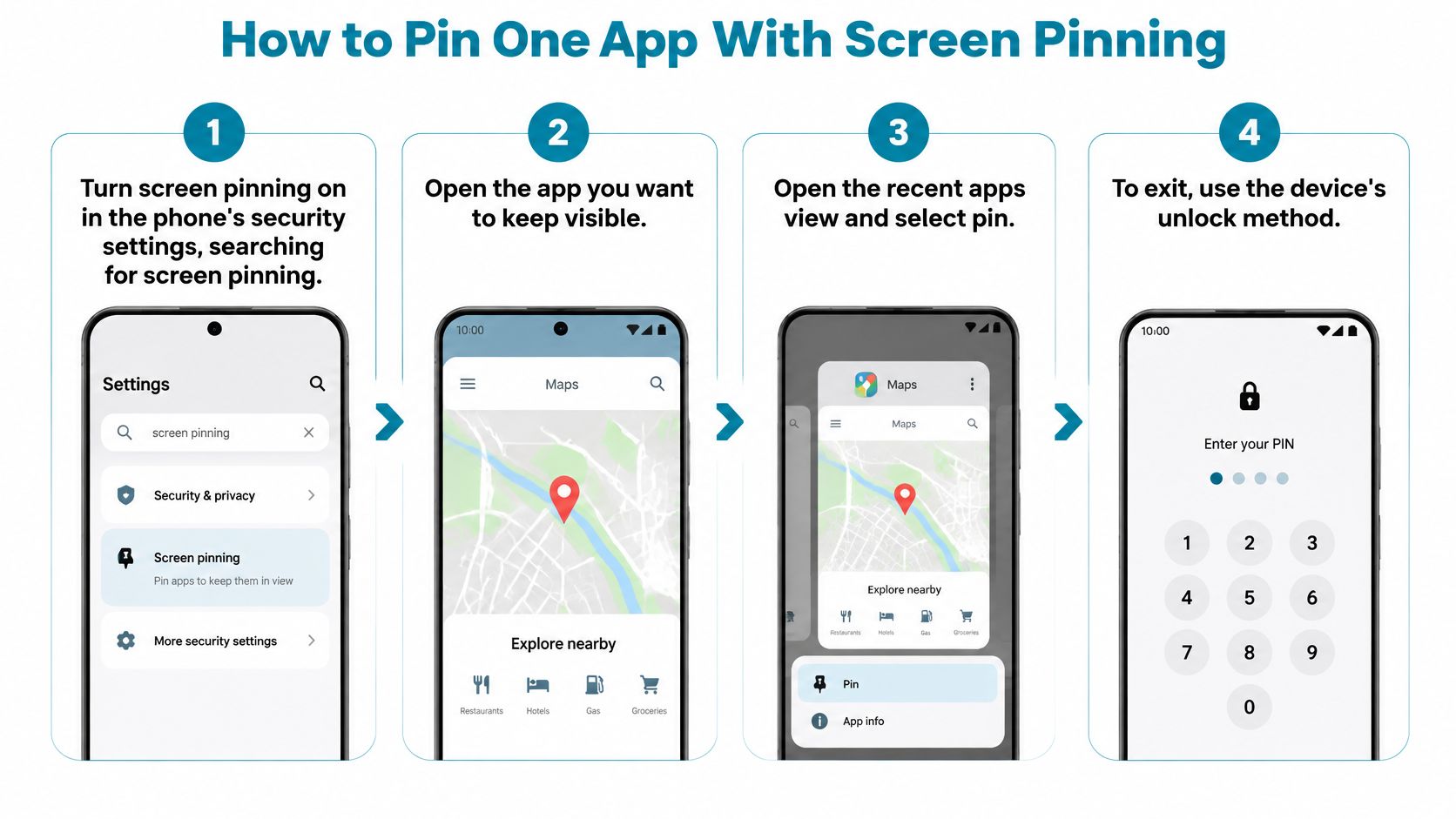
Configure the exit before the handoff
Enable screen pinning in the phone's security settings. Search the settings if its location isn't obvious. Manufacturers arrange these controls differently, so following a memorized menu path can send you to an unrelated app-lock feature.
Set a device PIN, pattern or password and enable authentication for leaving pinned mode. Don't assume that having a credential automatically enables every pinning protection. Check the authentication requirement, because leaving it disabled lets the person holding the phone exit without proving they know your credential.
Open the app you want to keep visible. Get it to the intended page first. Pinning the right app on the wrong screen still leaves the other person needing help.
Start pinning from that app's recent-apps entry. Confirm that you're pinning the intended app rather than bringing it to the foreground. An ordinary open app doesn't prevent navigation elsewhere.
Test the exit before relying on it. Find the supported unpin action for your gesture, two-button or three-button navigation, leave pinned mode and confirm whether authentication appears. Then restart the phone and check whether the restriction remains active.
Don't skip the exit test. Knowing how to start a restriction without knowing how it ends is a poor handoff plan, especially when someone else will hold the phone.
While active, pinning restricts ordinary navigation to the home screen and other apps, with notifications and navigation controls restricted. Your intended app should remain visible until the supported exit runs.
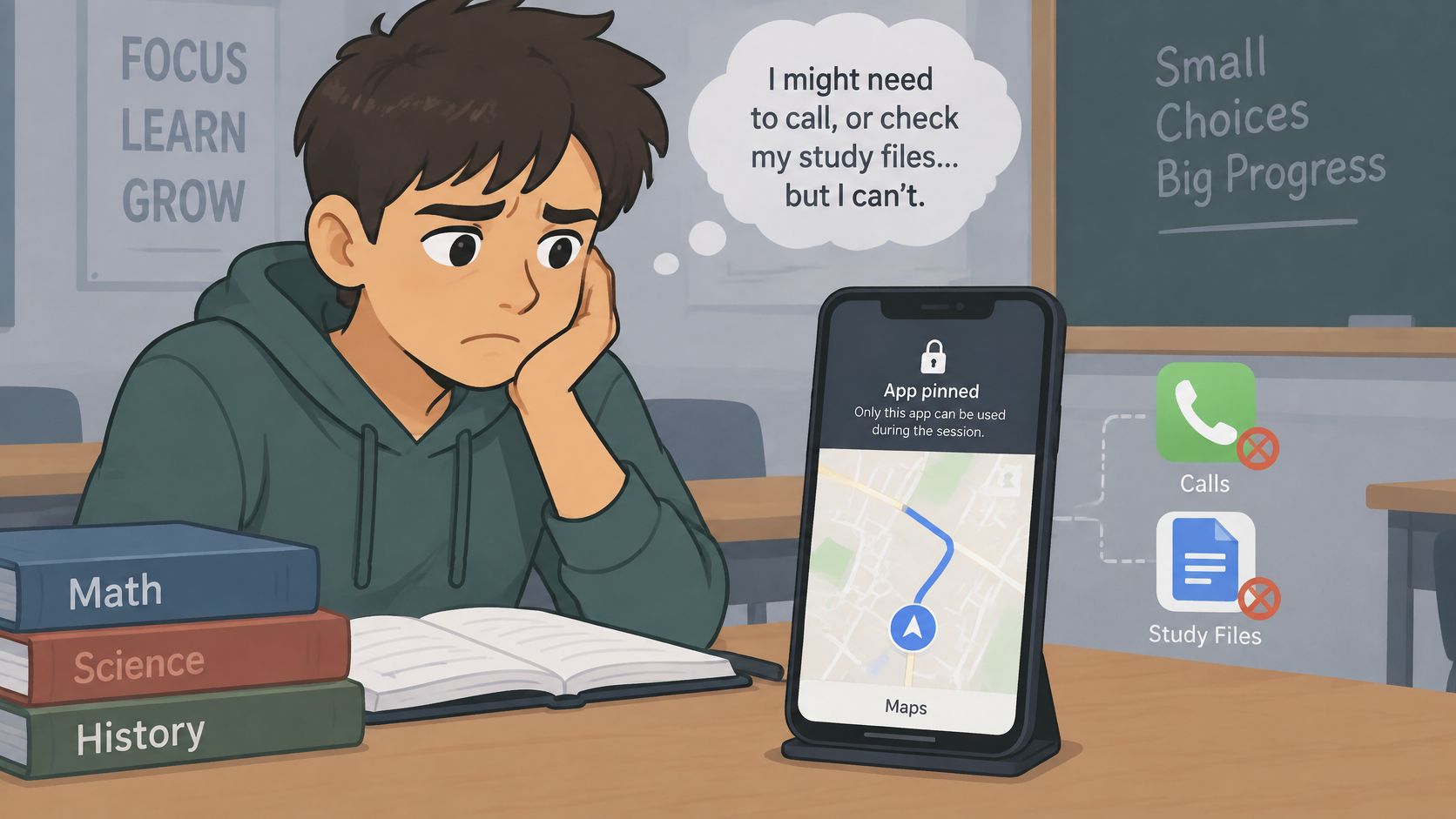
That also means you can't freely switch to maps, calls or study files. If those tools belong in the session, use selective blocking rather than pinning the entire workflow to one app.
Blocking Selected Apps Without Locking the Phone
Single-app pinning becomes inconvenient when your task needs a document reader, a browser and a calculator. Selective blocking lets you restrict the feeds and games without excluding the tools that make the task possible.
A review of long-term digital-media effects reports that a tracking study of Korean college students found smartphone distraction every three to four minutes during class, with phones used for about 25% of class time. That's a reason to protect a study window, not evidence that every blocker will improve every student's results.
Understand what detects the app
An accessibility-based blocker responds when the foreground app changes. Android's AccessibilityService documentation describes services receiving events from specified packages and accessing window information. Android also states that accessibility services are intended to assist users with disabilities.
This is event-driven enforcement, not a kernel-level lock. A service must receive the relevant event and respond, so test the response on your actual phone rather than trusting an unsupported blocking percentage.
Watch for these practical failure modes:
- Delayed callbacks: The target app appears before the blocking response.
- Background restrictions: The phone maker's power management interrupts the service.
- Permission changes: Someone switches off accessibility access.
- Alternate routes: Split-screen, picture-in-picture or the notification shade exposes a path the ordinary app launch didn't test.
TiedSiren blocks the applications you choose, with custom blocklists grouped by context, such as work, study or sleep. Its Accessibility Service checks the foreground app and browser address bar, and reads nothing else, such as messages or passwords.
Custom Blocklists can include Instagram, TikTok, YouTube, any installed app and websites. A new list starts with popular time-wasting sites already filled in, and a blocked site closes the moment it opens.
Test the paths you actually use
Use the Android screen-time app guide to distinguish access restrictions from simple usage tracking, then test a short block before depending on it.
- Launch from a cold start. Note how long the blocked app remains visible.
- Return through recent apps. Check whether resuming behaves differently from opening.
- Open a notification from that app. Watch whether it reaches content before the restriction appears.
In Strict Mode, the product's session ends when its timer ends, not through an in-session override. Still put this question to any blocker: What does it block, and what happens if its permission is switched off?
Scheduling Sessions Before the Urge Arrives
In a preregistered randomized controlled trial with 205 participants, notifications fell from an average of 154 per day during baseline to 8.17 per day during a week of disabling notifications, a 94.7% reduction calculated from those averages, with reported Cohen's d of 1.15. The intervention didn't reduce checking frequency or total screen time.
That distinction matters. Silencing alerts removes prompts from the phone, but it doesn't prevent you from opening a feed on your own.
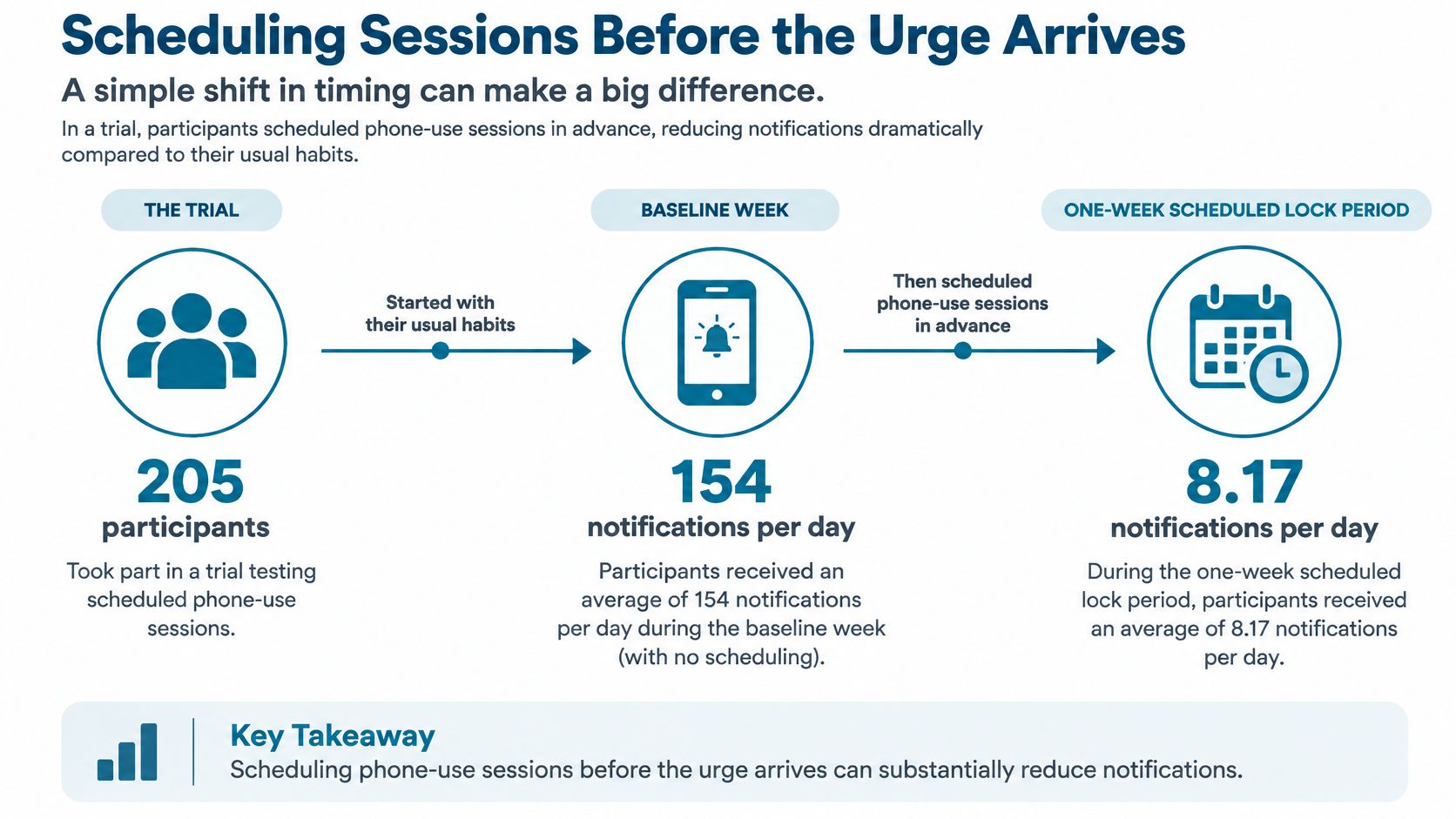
The trial tested notification disabling, not scheduled app blocking. The graphic's numbers shouldn't be read as a measured outcome from a lock session.
Put the decision on the calendar
Scheduled sessions let you make the decision before you want to reverse it. The session features overview describes recurring schedules and the focus countdown, which serve different purposes: one starts the planned window, while the other shows how much remains.
- Choose a window you already lose. For example, protect the weekday period after dinner when coursework usually turns into browsing. Match a real pattern rather than an ambitious ideal.
- Choose the relevant blocklist. A study list should remove distractions without excluding reading materials. A sleep list may target a different group of apps.
- Set daily or weekly recurrence. Daily suits a consistent routine; weekly suits particular workdays or classes.
- Use the focus timer for the time remaining. You shouldn't need to reopen a distracting app to decide whether the session is nearly finished.
- Commit before starting Strict Mode. Its duration is chosen beforehand, and the session can't be shortened from the phone once it starts.
A fixed window has a cost if you include a communication app you may urgently need. Selective blocking doesn't mean blocking calls, so choose the list carefully rather than assuming every form of contact must disappear.
If your chosen restrictions would prevent essential contact, arrange another route before starting, such as a separate phone available to the people who must reach you. Scheduling works best when the session is narrow enough to keep, not broad enough to disrupt the rest of your life.
Bypass Routes and Where Each Lock Gives Way
Google's Digital Wellbeing guidance explains that app timers close an app and dim its icon when the allowance runs out, but you can delete the timer through the same settings before midnight. An App limits PIN makes changes harder, but it's a separate configuration step and must remain private to create useful friction.
A limit you can edit during an urge remains a negotiable limit. That may be sufficient when you want feedback, but it's a poor match for someone who routinely revises the rule to keep scrolling.
Rank the exits, not the labels
For impulsive self-interruption, consider the routes in this order:
- A reminder can be dismissed immediately. It asks for cooperation without restricting access.
- An editable daily timer withholds the app until you change or remove the allowance.
- A PIN-protected limit requires the credential. If you know it, you still control the exception.
- Screen pinning requires the supported unpin action and authentication when configured. It also confines the wrong thing if you need several useful apps.
- A Strict Mode session removes the product's mid-session override and holds the chosen duration.
This is a ranking of ordinary exits, not a universal ranking of device security. A private PIN held by someone else can create more friction for a particular user than pinning their own phone.
The useful restriction is the one you can live with before the urge and can't casually renegotiate during it.
Separate impulsive undo from determined bypass
Blocking the Android Settings screen during a session raises the cost of the usual undo. It prevents the familiar move from a blocked feed straight into permission controls, rather than relying on another warning.
That doesn't turn a consumer blocker into enterprise device management. Safe mode, recovery, forced stops and ADB are system-level considerations; their availability and prerequisites differ across devices and configurations. ADB, in particular, isn't an automatically available escape on every phone.
The intended boundary is plain: defeat the impulsive bypass, the one done in five seconds without premeditation. Don't describe that as making an Android app impossible to beat.
When the off switch sits one tap away, extra friction can help. Removing every conceivable escape route, however, can interfere with legitimate access and encourage a restriction you'll abandon altogether.
When no Strict Mode timer is running, you can pause blocking or uninstall the app. That preserves your choice between sessions rather than offering a mid-session renegotiation.
Before starting, decide what would count as an emergency exception and write that rule somewhere outside the phone. Make it specific enough that boredom can't qualify.
Choose the Lock That Fits Your Next Session
Choose for the task you're about to do, not for the strongest label you can find. Handing someone a phone, managing a kiosk and protecting your own study time require different kinds of control.
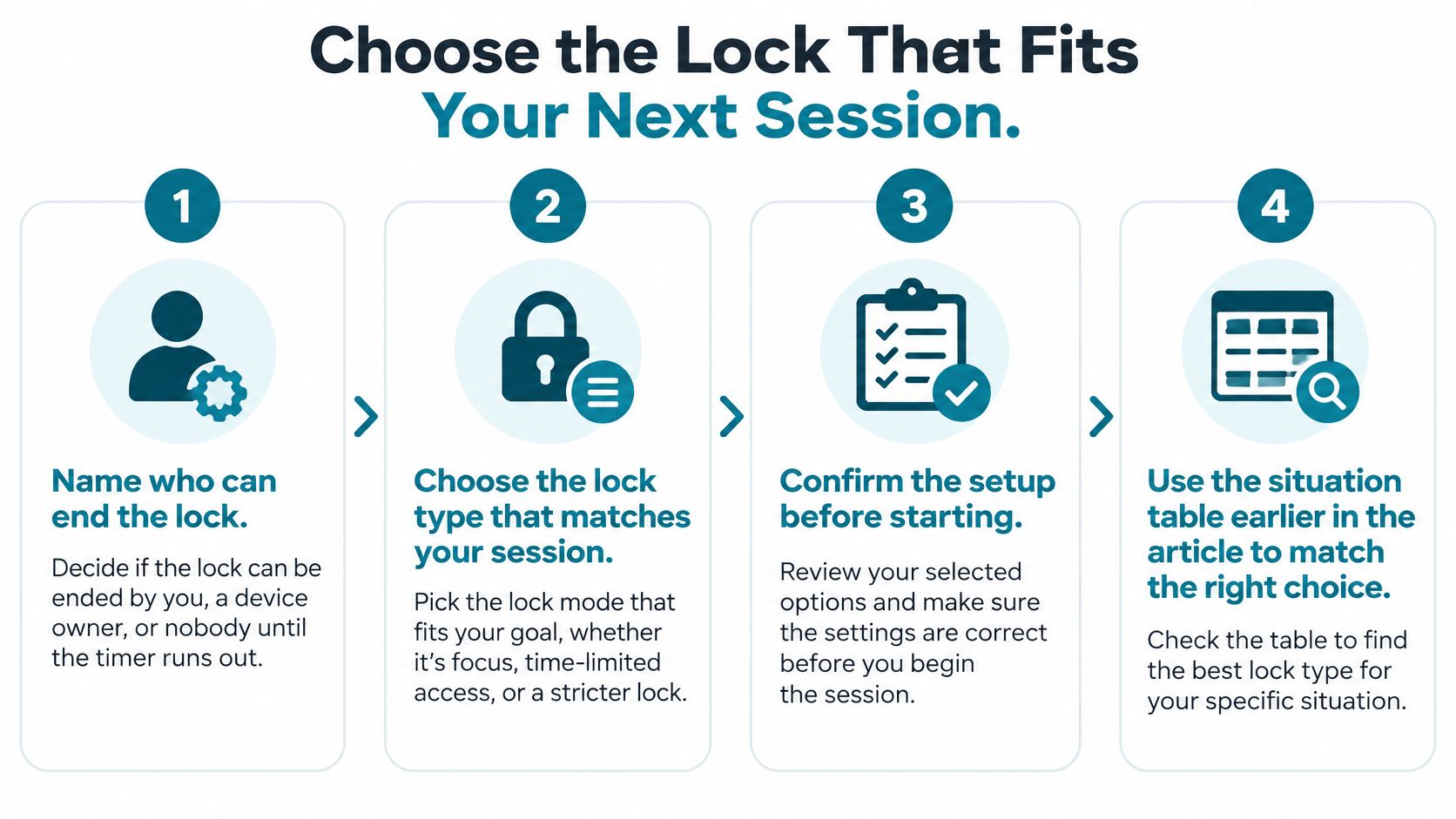
Run this checklist before starting
Name who can end the restriction. Is it you through a supported exit, an administrator through device management, or the session timer through the product's ordinary operation? Choose deliberately rather than discovering the answer when you're frustrated.
Match the window to the work. Protect a reading assignment, a writing session or your usual bedtime browsing period. Don't begin with an all-day commitment merely because you're annoyed with yesterday's screen time.
Confirm compatibility and setup. Check that your phone supports the chosen method and that necessary permissions are active. Our Android app requires Android 8.0 or later.
Set the exception rule beforehand. Keep essential access available where possible, and decide how you'll respond to a genuine interruption without improvising under pressure.
AppBlock, BlockSite, Cold Turkey and Stay Focused all block solidly. The useful comparison is what happens during a session, not a claim that one brand's blocking is stronger by nature.
TiedSiren's distinction is its Strict Mode commitment: no product override ends a running session before the timer. That's a decision about control, not a promise of superior blocking or an absolute device lock.
Install from Google Play, build a blocklist containing the apps that pull you away, and try a manageable session tonight. Learn how the restriction fits your routine before you depend on it for a deadline.
TiedSiren offers selective Android app blocking, recurring schedules and a focus timer, with Pro Strict Mode for sessions you commit to beforehand. Visit TiedSiren to choose a blocking window that keeps distracting apps out of your next task without confining your whole phone to one screen.