
Most advice on how to block YouTube Shorts on Android starts with a setting and ends before the first serious urge to scroll. That's the problem. Hiding a feed can reduce exposure, but it doesn't necessarily stop you from opening a Short directly, and a reminder won't help much when you've already decided to ignore it.
YouTube Shorts runs inside the standard YouTube Android app, not as a separate application. Google describes the Shorts camera as part of the YouTube app itself, which means Android generally treats YouTube as the unit you can restrict, not Shorts alone (Google's Android Shorts documentation). This guide is for Android phones, including devices running Android 8.0 or later when using TiedSiren.
Why a Single Setting Will Not Stop You
A YouTube setting can remove the obvious Shorts shelf and still leave a path to individual Shorts. That distinction matters if you've already tried hiding recommendations and then found yourself searching for the same content manually.
Shorts became deeply integrated into YouTube after launching in India on September 15, 2020, reaching a United States beta in March 2021, and expanding worldwide on July 12, 2021. YouTube reported 6.5 billion daily views by March 2021, more than 30 billion daily views in 2022, and over 70 billion daily views by 2023, alongside more than 2 billion signed-in monthly Shorts users in 2023 (YouTube Shorts history and milestones). The scale explains the product decision that causes the practical headache: Shorts is part of the same navigation, search, recommendations, and linking system as long-form YouTube.
Three different problems need three different levers
You may be trying to prevent one of three failures:
- Accidental exposure: You want the Shorts tab and home-feed shelf out of sight while keeping ordinary YouTube available.
- Intentional access: You don't want to reach Shorts through search, a creator's channel, or a shared link.
- Impulsive undoing: You want the limit to remain in place when you start looking for a way around it.
The first goal is about visibility. YouTube's own feed control can help there. The second is about access, which usually means restricting the whole YouTube app because Shorts isn't a separate Android package. The third is about friction, because a limit with an immediate override is still easy to renegotiate.
No built-in Android control provides an enforcement lock specifically for Shorts. The right method depends less on how quickly you can set it up and more on what you do after the urge starts.
Using YouTube's Built-In Shorts Feed Limit
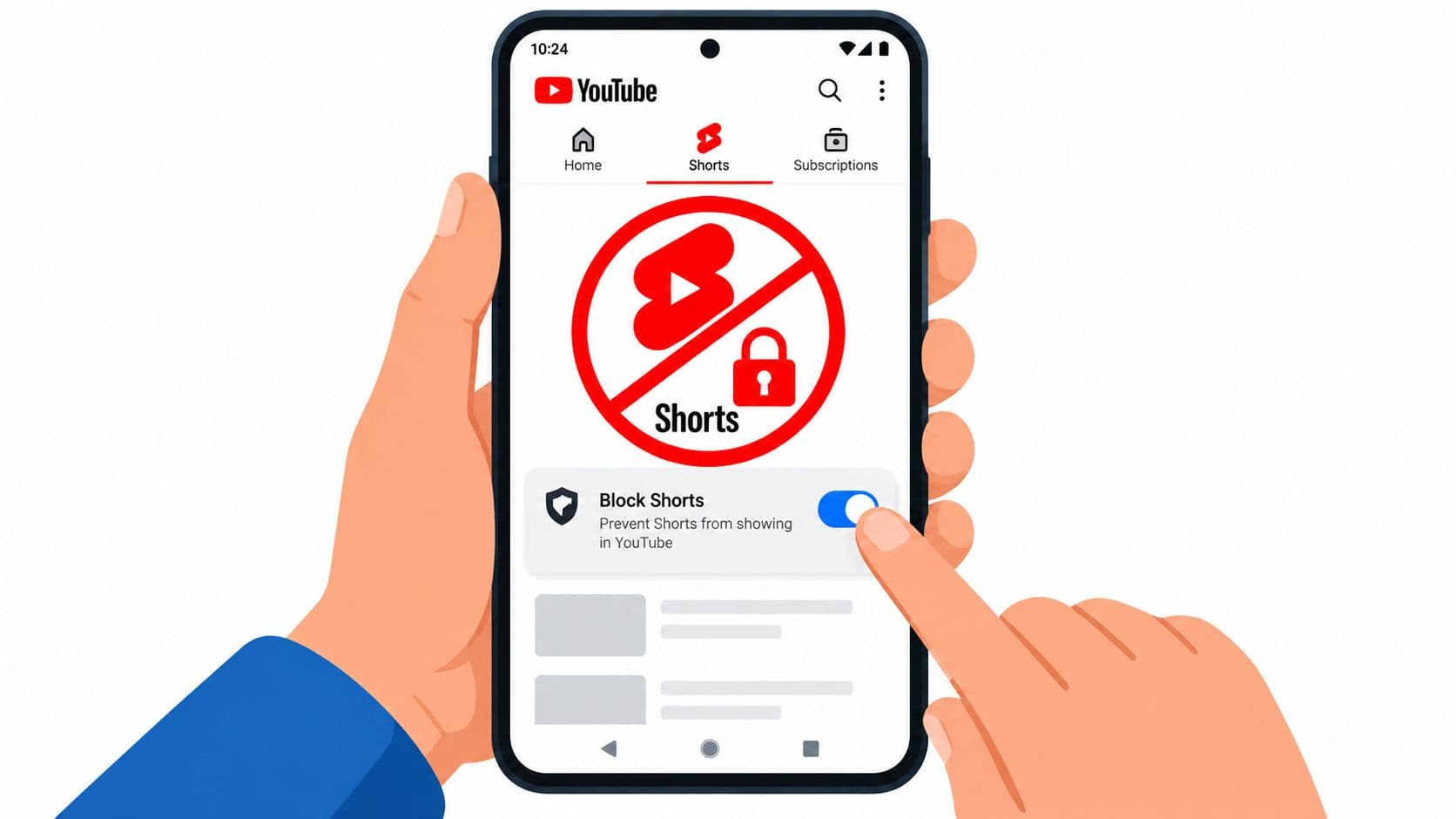
YouTube now offers a 0-minute Shorts feed limit in some Android experiences. The setting is useful because it targets the discovery surfaces that start most casual scrolling. It isn't the same as blocking every Short.
Open YouTube and look for the Shorts feed limit in the app's time-management or Shorts settings. Set the limit to 0 minutes and confirm it. YouTube can then remove the Shorts tab and the Shorts shelf from the home feed, giving you a cleaner starting screen.
That's the fast fix. It's also the weakest method against a deliberate search.
What the limit changes
The feed limit reduces accidental discovery. If you normally open YouTube, see a Shorts shelf, and start swiping without deciding to, removing that shelf cuts off the first trigger.
It may not prevent a specific Short from opening through search or a creator's channel. A shared link can also take you directly to a Short, depending on the current app behavior. Reporting on the feature also indicates that the setting may apply to the device rather than consistently following the account across devices (coverage of YouTube's Shorts feed limit).
Use it when your problem is the feed itself. Don't call it a complete block if you can still choose a route around the feed.
You can see the setting in context here:
A 0-minute setting is worth enabling even if you later use a stronger method. It removes temptation from the default interface, while an Android-level block handles the periods when you need YouTube unavailable altogether.
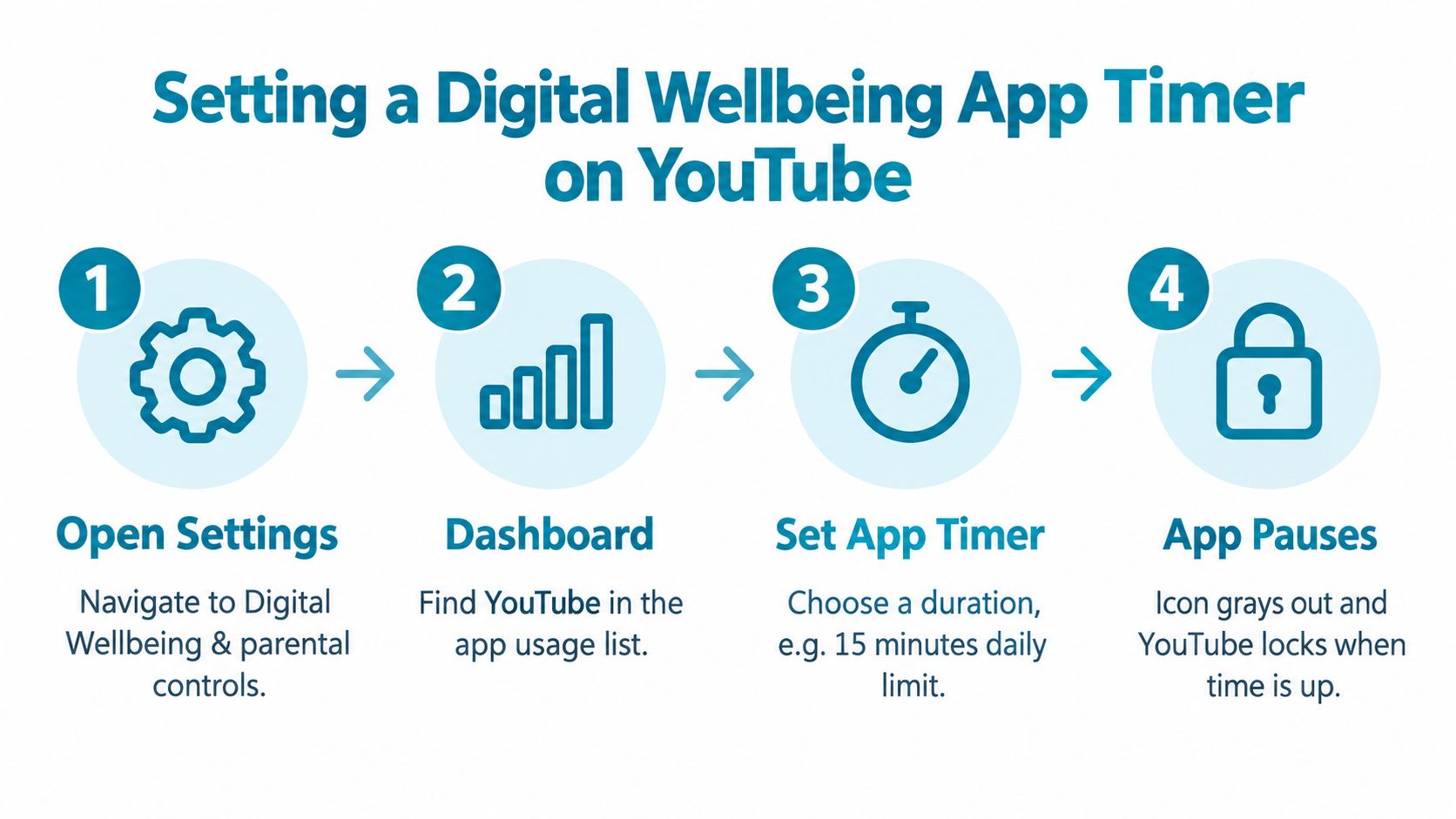
Setting a Digital Wellbeing App Timer on YouTube
Android's Digital Wellbeing timer works at the application level. It can restrict YouTube as a whole, which includes Shorts, long-form videos, comments, and other YouTube features. That's more forceful than hiding one shelf, but it also creates a clear trade-off: you lose access to useful YouTube content when the timer runs out.
Open Settings, go to Digital Wellbeing, choose App timers, select YouTube, set the allowed time, and confirm. When the daily allowance is used, Android pauses the app until the timer becomes available again.
What Android's timer actually enforces
The timer is a daily quota, not a permanent commitment. Android resets app timers at midnight, and you can remove the timer through the same Digital Wellbeing settings path. Some implementations also expose an option to ignore the limit for the rest of the day, so the reader who reaches for an override can often keep watching.
Google's official Android help explains the app-timer setup and its daily behavior (Android Digital Wellbeing app timers). Google also provides an App limits PIN, a separate four-digit credential intended to prevent changes to app limits. Creating it requires the device PIN, password, or pattern, and Google says the PIN shouldn't be shared (Google Pixel guidance for App limits PIN).
The PIN adds a barrier, but it remains part of the Settings-based timer system. It doesn't turn the daily quota into an irrevocable lock.
On Samsung devices running Android 10 or later, Digital Wellbeing supports scheduled app timers. You can create recurring YouTube windows for particular days and times, which suits study blocks, work periods, or sleep. The schedule removes some daily decision-making, but the underlying control still applies to the whole app.
If you want an Android app-blocking option that uses a precommitted session rather than a simple daily quota, TiedSiren for Android is another route to consider. Treat the distinction carefully. Digital Wellbeing limits your total YouTube time, while a strict session is designed around a chosen blocking window.
Google's own Digital Wellbeing announcement reported that app timers helped users stick to their goals more than 90 percent of the time in the company's internal March 2019 data. The same announcement reported a 27 percent average reduction in nightly usage among Wind Down users. Those were Google's internal results, not an independent universal success rate, so they're useful context rather than a guarantee (Google's Digital Wellbeing announcement).
What Happens When You Try to Bypass at 11 p.m.
Most blocking advice becomes unrealistic right here.
With YouTube's Shorts feed limit, you can look for a Short through another route. With Digital Wellbeing, you may be able to ignore the limit for the day or delete the timer in Settings. If you uninstall YouTube, you can reinstall it from Google Play. Each method works until the moment you decide that tonight's exception matters more than the rule.
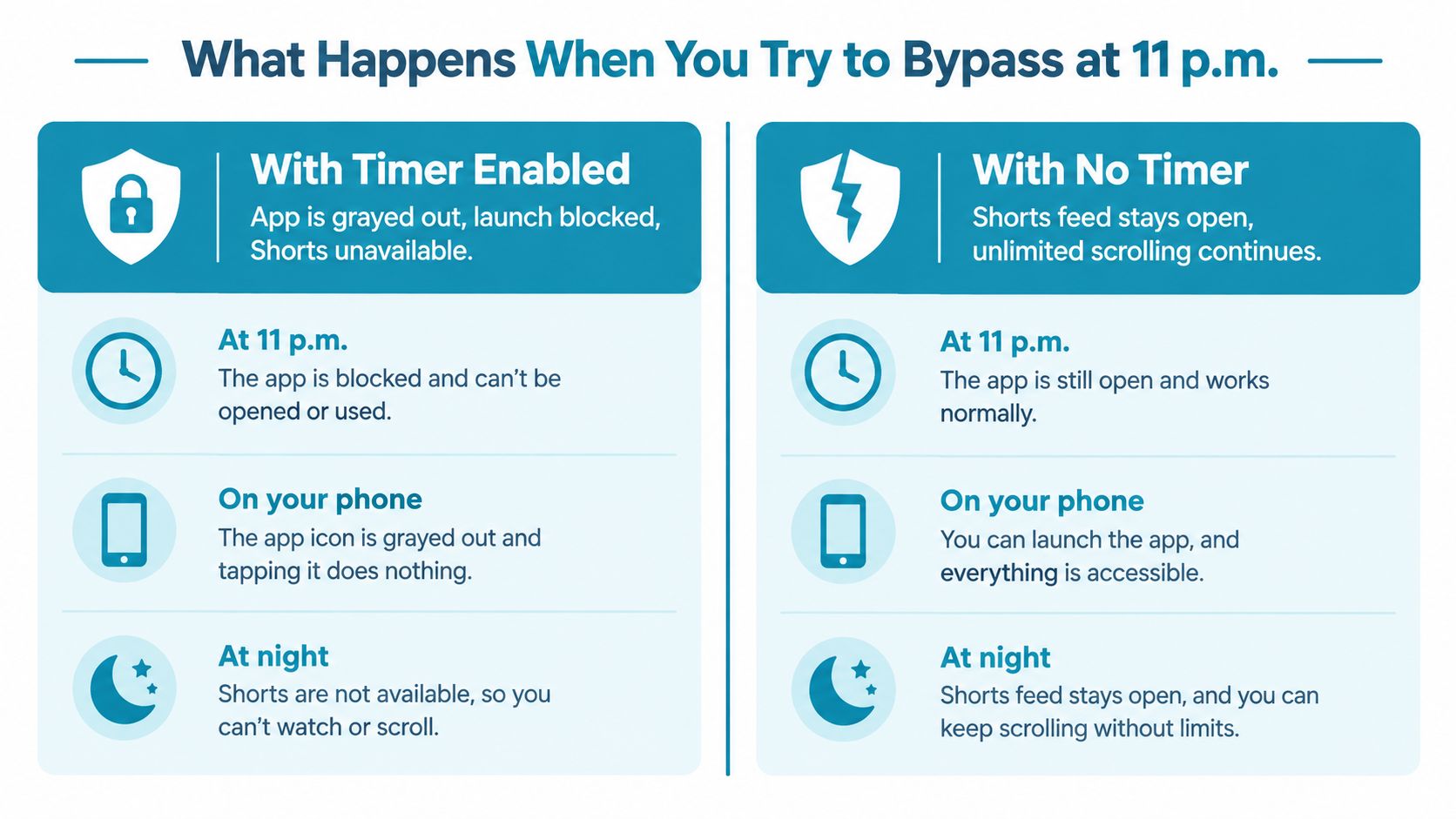
Visibility, limits, and enforcement
These tools solve different failure points:
| Method | What it changes | What happens during temptation |
|---|---|---|
| YouTube Shorts feed limit | Removes the main discovery surfaces | You can still seek out individual Shorts through available routes |
| Digital Wellbeing app timer | Restricts the entire YouTube app after the quota | You can manage the timer through Android settings |
| Strict app-blocking session | Blocks YouTube during a precommitted window | Settings access can be blocked while the session runs, adding friction |
A strict Android app blocker can detect when YouTube is opened and place a blocking screen over it. The stronger design choice is the committed session. During that session, the timer runs until it ends, and the product's own session doesn't provide another exit. Blocking the Android Settings screen makes the quickest route to changing the restriction harder.
That doesn't make Android impossible to bypass. Android users with enough determination may still find advanced routes such as ADB or safe mode. Android's AccessibilityService can observe foreground interface events, but the user must explicitly enable the service, can disable it, and Google Play policy limits how accessibility APIs may prevent people from disabling or uninstalling apps (Android AccessibilityService documentation).
The useful standard isn't absolute prevention. It's whether the blocker stops the unplanned decision you make before you've had time to reconsider.
A good blocker should be tested through the routes you normally use: launching YouTube from the home screen, opening it from a notification, following a shared link, using picture-in-picture, entering split screen, and reaching YouTube through a browser redirect. The relevant question is whether Shorts appears before the block catches it, and whether ordinary YouTube use gets blocked when it shouldn't.
For technical teams evaluating an Android blocker, TiedSiren's developer information is the appropriate destination. For an individual user, the practical issue is simpler. Choose the method that increases the effort required at the exact moment you normally give in.
Setting Up a Recurring Block That Runs Itself
If you fail at the same time each day, don't make yourself choose at that time. Set the restriction earlier and let the schedule carry it.
Use an Android app blocker that supports a custom blocklist, a duration committed before the session begins, and recurring schedules. Add YouTube to a list for the context you care about, such as study, work, or sleep. Set the session long enough to cover the full window, then schedule it to repeat daily or weekly.
A practical study setup might cover the hours when lectures, revision, or focused writing usually happen. A sleep setup might begin before you normally start scrolling and continue through the period when the phone should be out of reach. The exact hours should come from your routine, not from a generic preset.
Remove the daily negotiation
The useful part of recurrence isn't convenience. It's removing the decision to start the block every day.
Choose YouTube in the relevant custom list, select the blocking duration, and use a scheduled session with daily or weekly recurrence. During an active session, a focus timer showing the remaining time gives you a visible end point. Blocking the Android Settings screen during the session raises the cost of changing the rule while it's active.
This approach blocks the whole YouTube app, so it also blocks long-form videos during the selected window. If you rely on YouTube for lectures or tutorials, download or schedule that work outside the blocked period, or use a separate planned viewing window.
A recurring block works best when it covers the period you repeatedly regret, not every moment you might possibly watch YouTube.
The honest limit remains important. A scheduled session adds friction and defeats the quick, unplanned undo. It doesn't make Android impossible to bypass, and determined users may still investigate routes such as ADB or safe mode. For the normal failure pattern, though, the value is that the restriction is already running before the temptation arrives. More information about the product's stated capabilities is available on its Android blocking features page.
Picking the Right Method for Your Failure Pattern
Start with the behavior you're trying to stop, not the setting that takes the least time to find.
If Shorts appears while you're browsing ordinary YouTube and you rarely search for it deliberately, use YouTube's 0-minute Shorts feed limit. It reduces accidental exposure without removing the rest of the app. You're choosing a cleaner interface, not a hard access barrier.
If you need YouTube for education but want a daily ceiling, use Digital Wellbeing's app timer. It covers the whole app, so set the allowance with long-form use in mind. The timer fits someone who can accept a daily quota and doesn't usually remove it when the phone becomes boring.
If your actual pattern is changing the setting as soon as the urge arrives, use a strict Android app-blocking session with a precommitted duration and Settings access blocked while the session runs. That adds friction where the other methods leave an immediate route to renegotiate.
The trade-off is access. Blocking YouTube blocks educational videos as well as Shorts. Students who need tutorials during a study window should either move those videos outside the block or accept that removing the distraction also removes the useful material.
A layered setup usually makes more sense than searching for one perfect switch. Hide the Shorts feed to reduce casual exposure, use Digital Wellbeing when a daily quota is enough, and schedule a stricter YouTube block for the hours when you repeatedly override yourself. No Android tool offers absolute prevention, so choose the strongest friction that matches your failure pattern.
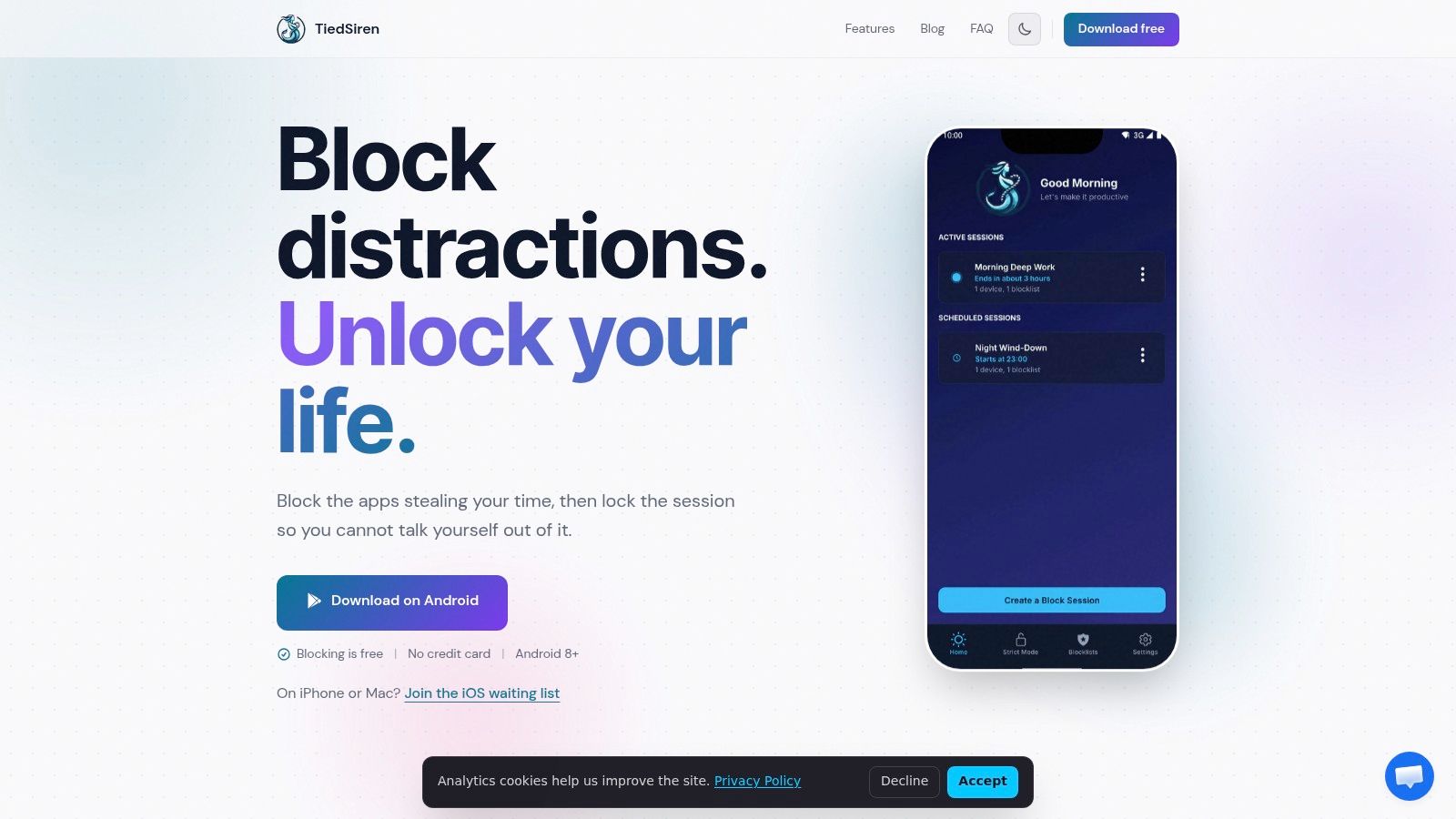
TiedSiren is a free Android app blocker for Android 8.0 and later that lets you choose YouTube, commit to a blocking duration, use recurring sessions, and block Android Settings while the session runs. Visit TiedSiren if you want the YouTube block to be decided before the urge arrives, rather than renegotiated in the moment.