
You're probably looking for a switch that makes Spotlight disappear, because you've opened Snapchat for one message and ended up watching public videos you never intended to see. You've searched Settings, backed out of the feed, and maybe even deleted Snapchat, only to reinstall it when you needed to contact someone.
The answer depends on what you mean by “turn off.” You can reduce personalized recommendations, delete Spotlight posts you uploaded, or block Snapchat access during the hours when you know you'll override your own settings. TiedSiren is an Android app, so the blocking option applies to Android phones running Android 8.0 or later, not iPhones or desktop devices.
Why There Is No Simple Off Switch for Spotlight
The first time you look for a Spotlight setting, the search feels absurdly simple. You open Snapchat, scan the main settings, and expect a switch labelled something like “Show Spotlight” or “Hide Spotlight.” It isn't there. You keep checking because surely you've missed it.
You haven't.
Snapchat launched Spotlight on November 23, 2020, across 11 initial markets, including the United States, Canada, Australia, New Zealand, the United Kingdom, Ireland, Norway, Sweden, Denmark, Germany, and France, according to Snapchat's official explanation of how Spotlight content is ranked. Snapchat designed it as a centralized, continuously browsable feed of public user-generated videos, so the app treats it as part of the wider product rather than a removable add-on.
That design creates the confusion. Snapchat documents controls for personalization, not a global switch that removes the Spotlight tab. Changing what the feed recommends is possible. Making the feature vanish from the app is not covered by Snapchat's documented controls.
You're not failing to find the setting. You're looking for a control Snapchat doesn't document as available.
The practical choice is between three different outcomes:
- Less targeted content: Change personalization settings and reset suggested content.
- No personal posts: Delete your own submissions from your profile.
- No access during vulnerable periods: Block Snapchat itself on Android with an app blocker.
The first two options change what Snapchat shows or what you've published. They don't create a hard boundary around your own use. If your problem is that you keep reopening the feed after deciding not to, read how TiedSiren approaches committed app blocking before spending another hour searching for a master toggle.
How to Turn Off Personalized Spotlight Recommendations
If the feed feels customized to your habits, Snapchat gives you a way to reduce that personalization. This is the closest official route to turning off Spotlight recommendations, but it doesn't remove the Spotlight tab.
Open Spotlight or Discover and find a recommendation. Tap the three-dot menu on the post, choose “Why am I seeing this content?”, and open Personalisation Controls. Snapchat also says you can reach those controls directly through Settings. From there, disable personalized content if the option is available on your account.
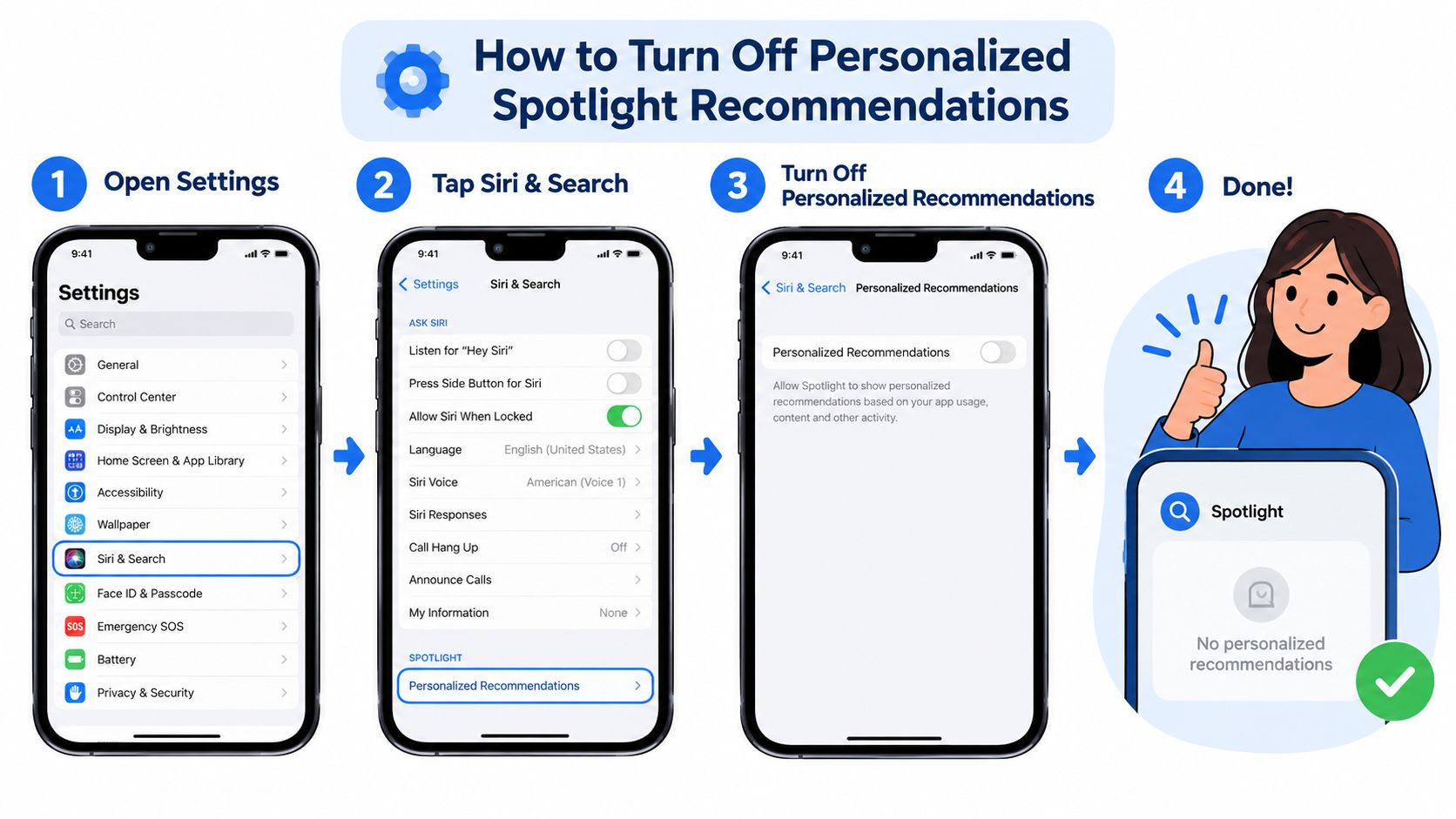
Snapchat documents this opt-out for people in the European Economic Area, the United Kingdom, and Switzerland in its support guidance on Spotlight ranking and personalization. If you're outside those regions, you may not see the same controls.
Resetting recommendations
You may also see Reset Suggested Content. Use it when your immediate goal is to refresh the recommendations rather than remove Spotlight. Snapchat says this resets most, but not all, signals used for personalization.
That distinction matters. A reset won't necessarily produce a completely neutral feed. Previously followed, blocked, or disliked creators may still affect what appears, and Snapchat says content matched to demographics can remain relevant. The result is a less personalized recommendation system, not an empty feed.
The trade-off is straightforward:
| What you change | What happens | What doesn't happen |
|---|---|---|
| Disable personalized content | Recommendations rely less on your activity and more on factors such as language, age, and country | Spotlight remains visible |
| Reset suggested content | Most recommendation signals refresh | Every signal isn't erased |
| Leave Spotlight or Discover | You stop viewing it for the moment | Snapchat doesn't remove the feature |
If your goal is to stop seeing videos selected around your behaviour, this setting is worth using. If your goal is to stop yourself opening Snapchat when you're tired or distracted, personalization controls won't be enough. They change the feed, not your access to the app.
Deleting Your Own Spotlight Submissions
Maybe the feed isn't your concern. Maybe you posted a video months ago and now want it gone.
A Spotlight submission is public content. Snapchat says a post can also appear in Search results and in Stories on or off Snapchat, either immediately or later, as described in its guidance on posting Snaps to Spotlight. Leaving the Spotlight screen doesn't remove a post, and changing recommendation settings doesn't affect something you already uploaded.
To delete one of your own submissions:
- Open Snapchat and go to your profile.
- Scroll to Spotlight & Snap Map.
- Press and hold the relevant Snap.
- Select Delete Snap.
The workflow is manual. If you've posted several videos, you'll need to locate and remove each relevant Snap rather than applying one account-wide deletion command.
This is also where people expect more control than Snapchat documents. Deleting a post removes it from your profile through the supported post-level workflow, but it can't guarantee that every copy disappears. Someone may already have saved, screen-recorded, or shared the video outside Snapchat.
Deleting the original reduces exposure from your account. It can't retrieve copies another person has already redistributed.
Use the deletion step when your concern is your own public content. Don't mistake it for a way to disable Spotlight for everyone else, or for a way to stop yourself watching other people's posts.
If you need a visual walkthrough before removing a submission, this video can help you identify the relevant part of the Snapchat profile:
Stopping Spotlight Notifications and Alerts
Sometimes Spotlight doesn't need to disappear. Your phone needs to stop calling you back to it.
Open Snapchat's Settings and go to the Notifications area. Review the alerts connected to Spotlight, Discover, suggested content, and other recommendation activity, then disable the ones you don't want. The exact labels can vary with Snapchat's app version, so focus on the notification category rather than hunting for one universal wording.
This works on a different part of the problem. You're not changing the feed or deleting posts. You're removing the sound, banner, and lock-screen prompt that turns a passing thought into an app opening.
What notification controls can solve
Muting alerts helps when you open Snapchat because your phone prompted you. It's particularly useful if you're checking automatically whenever a new suggestion appears, even when you had no original reason to use the app.
It won't help much when you already open Snapchat deliberately. Once the app is in front of you, silent notifications don't stop you from navigating to Spotlight.
What they can't solve
Notification settings don't remove the Spotlight tab. They also don't delete personalized recommendations, and they don't prevent access to Snapchat when you decide to reopen it.
That makes this a useful supporting measure, not a complete answer. Turn off the alerts if they're the trigger. Pair that change with personalization controls if the recommendations are the problem. If you've already tried both and still reverse the decision during a session, you need a barrier that operates after Snapchat is closed.
Blocking the Feed Entirely with TiedSiren
Settings work when you're calm. The problem arrives later, when you've had a long day and decide that checking one video won't matter.
TiedSiren is a free Android app blocker that lets you choose Snapchat, commit to a duration, and run a blocking session. Its Strict Mode means the session ends when the timer ends. Nothing else ends it. During an active session, it also blocks the Android Settings screen, which raises the cost of trying to disable the block through the quickest route.
That creates friction rather than an absolute guarantee. A determined person may still find technical workarounds, but the casual, impulsive bypass becomes harder. The point is to move the decision earlier, while you're choosing the duration, instead of asking yourself to negotiate with the feed after you've already opened Snapchat.
TiedSiren also supports:
- Custom blocklists: Group apps by context, such as work, study, or sleep.
- Scheduled sessions: Set daily or weekly recurrence so a blocking window starts without another decision.
- Focus timer: See how much time remains in the current session.
- Android compatibility: Use it on Android 8.0 and later.
That's different from a reminder-based limit. AppBlock, BlockSite, Cold Turkey, and Stay Focused all provide solid blocking approaches, but the relevant comparison here isn't whether they can block an app. The practical difference is whether the product gives you an easy way to renegotiate the block while the session is active.
If you want to block Snapchat, including Spotlight access, during a defined period, download TiedSiren for Android. It's the option for readers who already know the settings path and also know they'll undo it when the urge arrives.
Putting It All Together for Lasting Focus
No single Snapchat setting solves every version of this problem. Personalization controls change recommendations, deleting posts handles your own uploads, and notification settings remove prompts. None of those steps prevents you from reopening Snapchat when you've decided you're done.
Use the lightest measure that matches the actual failure:
- You dislike the recommendations: Disable personalized content and reset suggested content where available.
- You regret what you posted: Delete each relevant Snap from Spotlight & Snap Map.
- Your phone keeps pulling you back: Turn off Spotlight and Discover-related alerts.
- You keep overriding your own limits: Schedule a blocking session for Snapchat on Android.
The order matters less than matching the tool to the behaviour. Don't delete your account just because you wanted to stop a public video feed. Don't expect a recommendation reset to protect a study session. Don't rely on notification silence if you're the person opening Snapchat without receiving an alert.
Make the decision while you still have distance from the feed, then use the setting or block that protects that decision.
For many people, the workable combination is simple. Reduce personalization, remove posts you no longer want public, silence the alerts, then use a committed Android session during the hours when you're most likely to reopen the app. The TiedSiren features page outlines the blocking model without pretending that any Android tool creates an impossible-to-bypass lock.
TiedSiren lets you block Snapchat on Android for a duration you choose, with Strict Mode, scheduled sessions, custom blocklists, and a remaining-time display. If you're tired of undoing your own limits when Spotlight starts pulling you in, visit TiedSiren and set the boundary before you open the app.