
You set a block for the next two hours. Twenty minutes in, your hand is already looking for the pause button, not because anything urgent happened, but because the urge showed up and the exit is sitting right there. You've done this before. You probably did it yesterday.
A schedule blocking app only earns its keep if it handles that moment. The start and end need to happen on their own, on a daily or weekly recurrence you chose earlier, and ending early needs to cost more than a quick tap. Otherwise you've installed a reminder with a timer attached.
This list is Android first. TiedSiren is the strict session option here. It's a free Android app for Android 8.0 and later built around sessions that end when the timer ends. Nothing in this list makes a phone impossible to get around. That's not the standard. The standard is whether the app stops you renegotiating a decision you already made.
The scale behind that problem isn't small. At the start of 2025, 5.78 billion people used a mobile phone, 70.5% of the world's population, according to DataReportal's Digital 2025 global overview. A handful of high engagement apps eat real hours every day. Scheduling the block in advance beats deciding in the moment.
1. TiedSiren
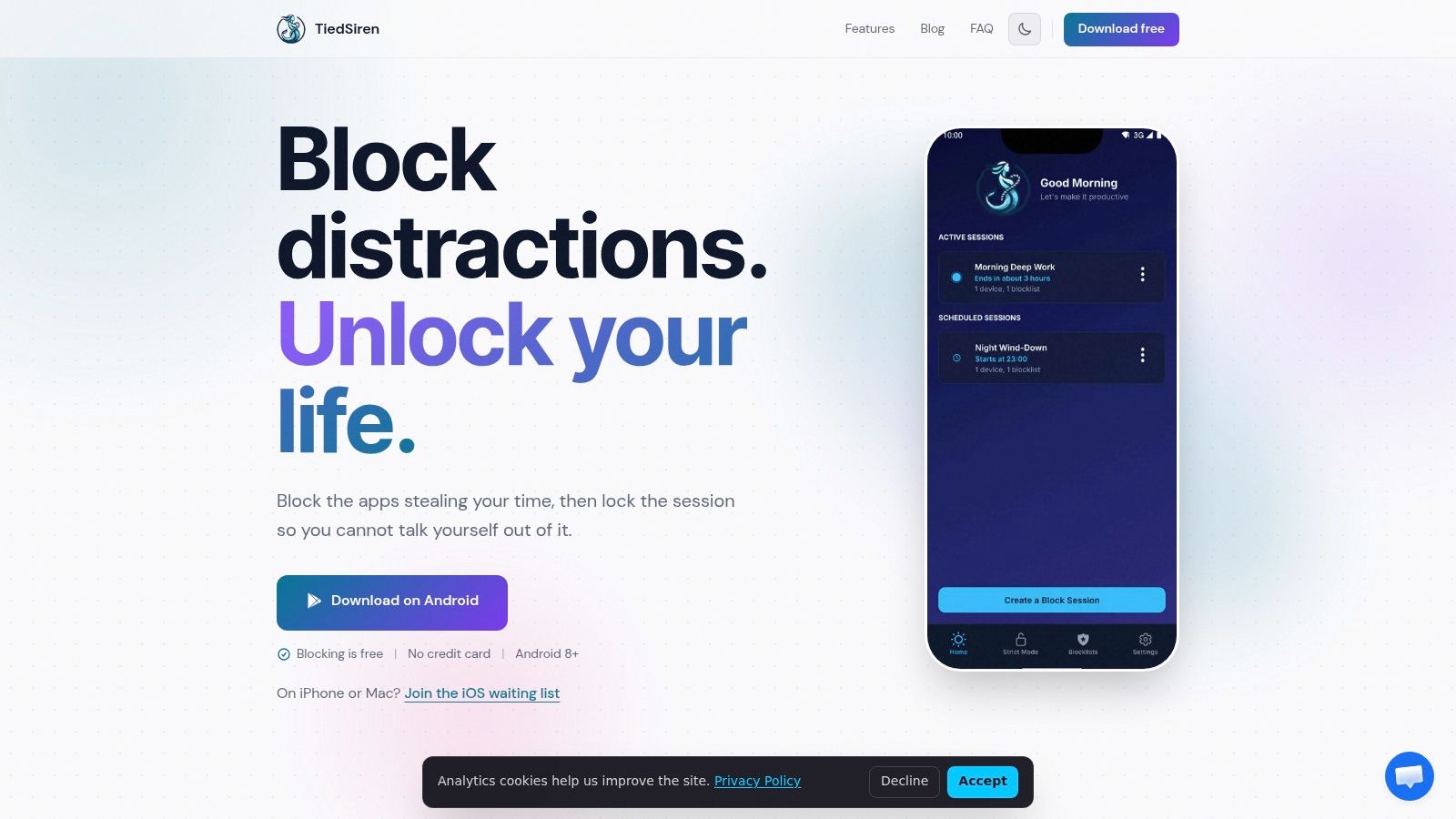
Pick TiedSiren if your actual failure is ending sessions early. You choose the applications to block, you commit to a duration up front, and in Strict Mode a running session ends when its timer ends. Nothing else ends it. There's no in session pause to talk yourself into.
What holds the session in place
While a session runs, TiedSiren blocks the Android Settings screen. That's the practical part. Settings is the fastest route most users rely on to turn a blocker off, so putting that screen out of reach raises the cost of backing out. It defeats the impulsive bypass, the one you do in five seconds without premeditation. It doesn't pretend to be an absolute lock, and you shouldn't treat any Android blocker that way.
- Custom blocklists grouped by context: Keep separate lists for work, study, and sleep instead of running one blunt list all day.
- Scheduled sessions with daily or weekly recurrence: Set the window once and let it start and end on its own.
- Focus timer: You can see the time left in the session, which helps more than people expect when an urge is peaking.
That structure suits a student who blocks social apps through a morning study window, or a knowledge worker who wants the same apps gone every weekday without setting it up again each time. You're deciding once, calmly, and removing the decision from the bad moment.
It's free and runs on Android 8.0 and later, so the test is cheap. Put one recurring window on your riskiest app during a normal day and watch what happens when you reach for it. If your problem was never knowing your screen time, this won't change your life. If your problem was turning the last blocker off, it's built for exactly that.
2. AppBlock
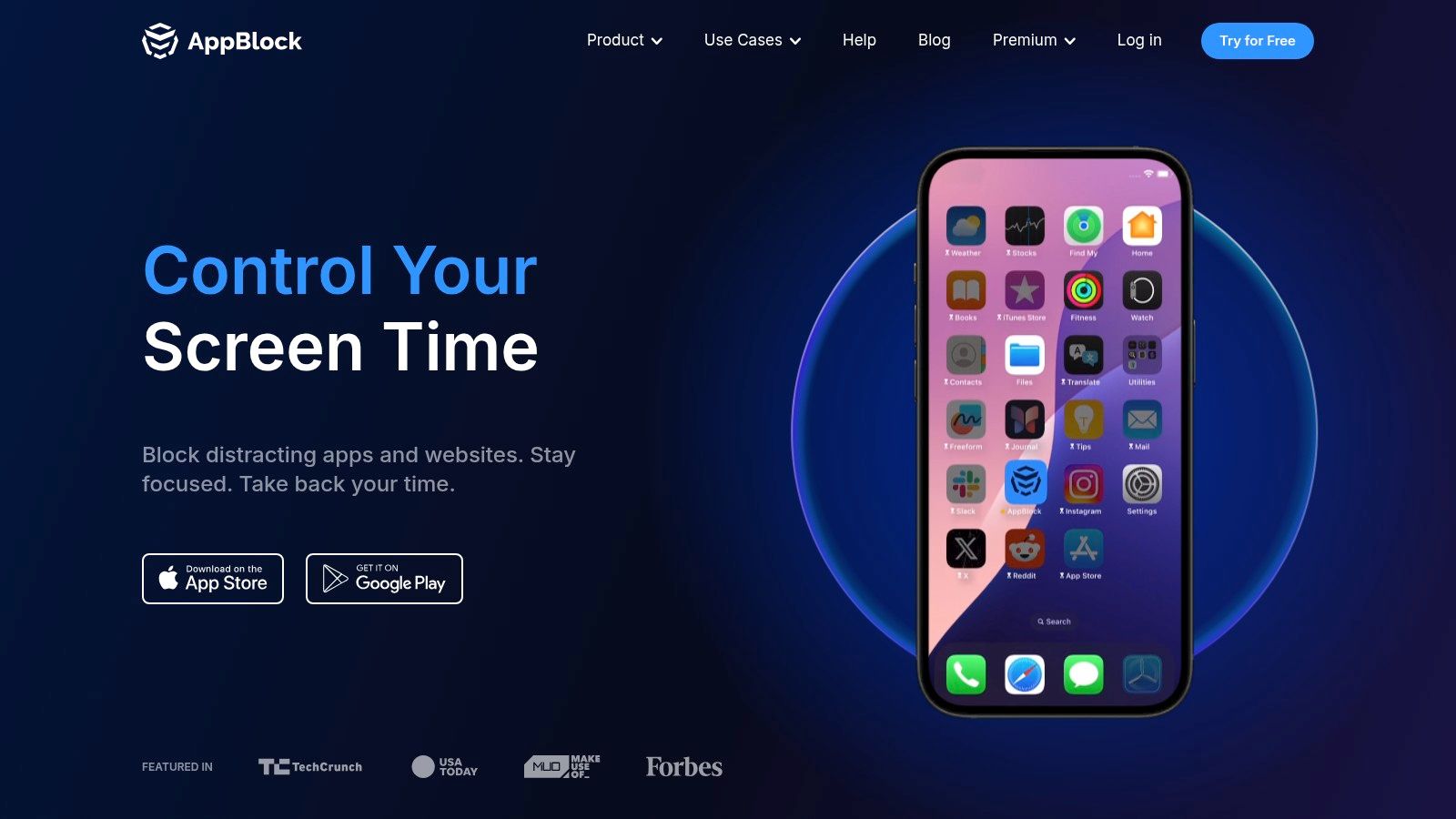
AppBlock is the pick when you want a lot of control over how schedules fire. It runs on Android and iOS, blocks apps and websites, and lets you build recurring schedules for work, study, or sleep, plus location based schedules for places like an office or a library.
The detail that matters for many people is in app targeting. AppBlock can block keywords and selected in app content such as Reels and Shorts, so you don't have to kill an entire app to remove the part that eats your time. Quick Block covers one off sessions when a schedule isn't running.
Its Strict Mode adds resistance to pausing or changing a block once it's set, which is the right idea for anyone who edits their own rules mid urge. The free tier is usable on both platforms, but free tier limits apply to schedules and blocked items and differ by platform, so check your setup against them before you build six routines.
Setup takes some patience. Strict settings need the right permissions, and protection depends partly on your device and operating system. That's normal for this category, not a flaw unique to AppBlock. Android users comparing strictness levels can see how that differs on the TiedSiren features page.
Choose AppBlock if you want routine based blocking with fine grained content rules and you don't mind spending ten minutes configuring it properly.
3. Freedom
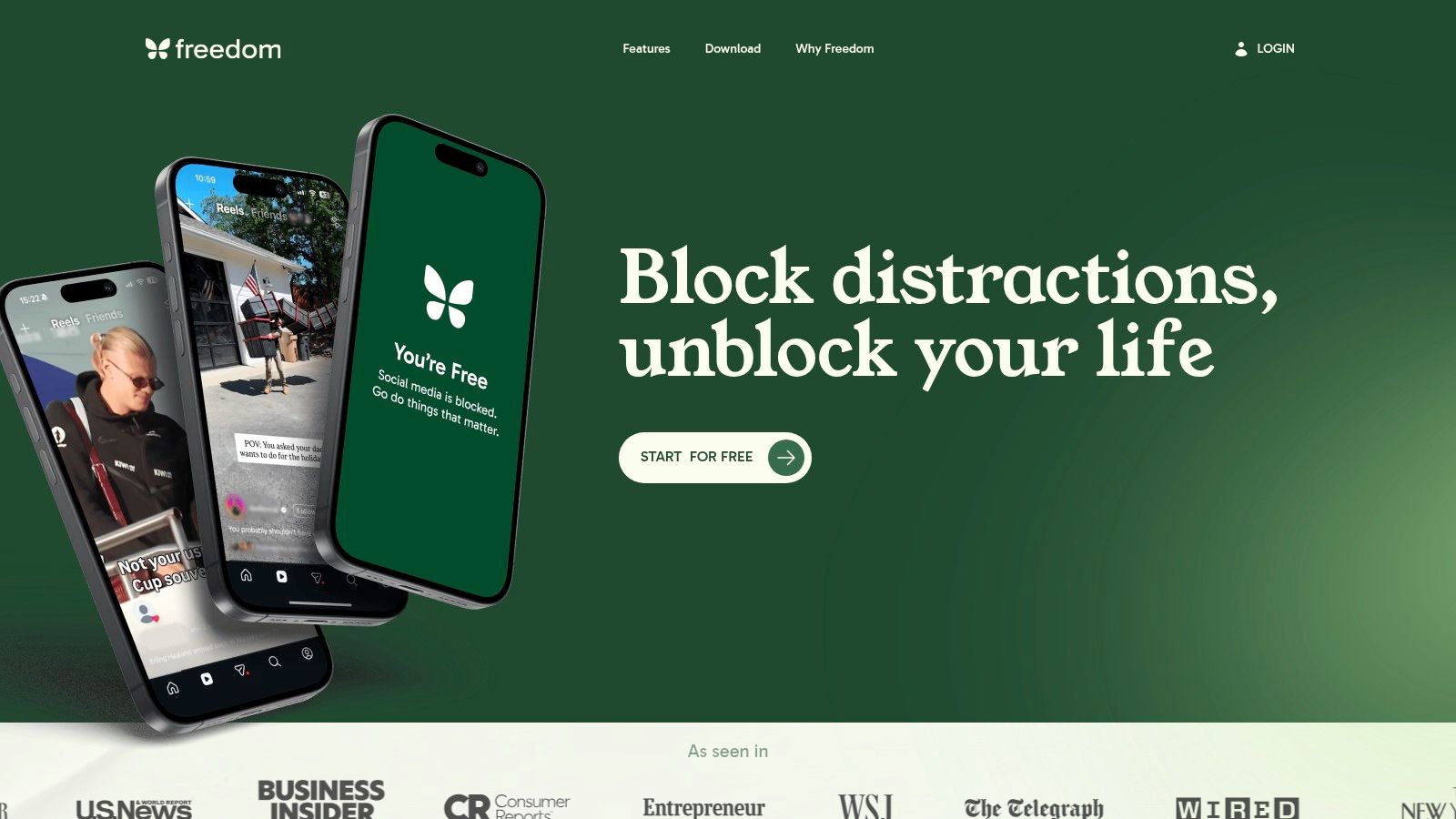
Freedom solves a problem the phone only apps on this list don't touch. It blocks apps and websites across Android, iOS, Windows, Mac, and Chromebook, and a session syncs across your devices through one account. Block a feed on your phone and it's blocked on your laptop too.
That cross device point is worth taking seriously. In controlled research where smartphones were made inaccessible, phone use fell from 29 minutes to about 15 minutes, but computer use rose from 3 hours 58 minutes to 4 hours 27 minutes, as reported in the peer reviewed study on smartphone use and productivity. Blocking one screen can push the habit to another one. Freedom is built for that reality.
Where it fits your routine
You can run sessions immediately, later, or on a recurring schedule, with custom blocklists per context. Locked Mode makes ending an active session harder, which matters if your usual move is quitting the session on whichever device is closest.
The tradeoffs are practical. Recurring scheduling and some key features require Premium, though there's free Android access and a Premium trial to test with. And if your distraction lives only on your phone, the cross device setup is more than you need. Android only readers who want the narrower tool can go straight to the TiedSiren download page instead.
Pick Freedom when your phone block keeps failing because your computer picks up where the phone left off.
4. Stay Focused
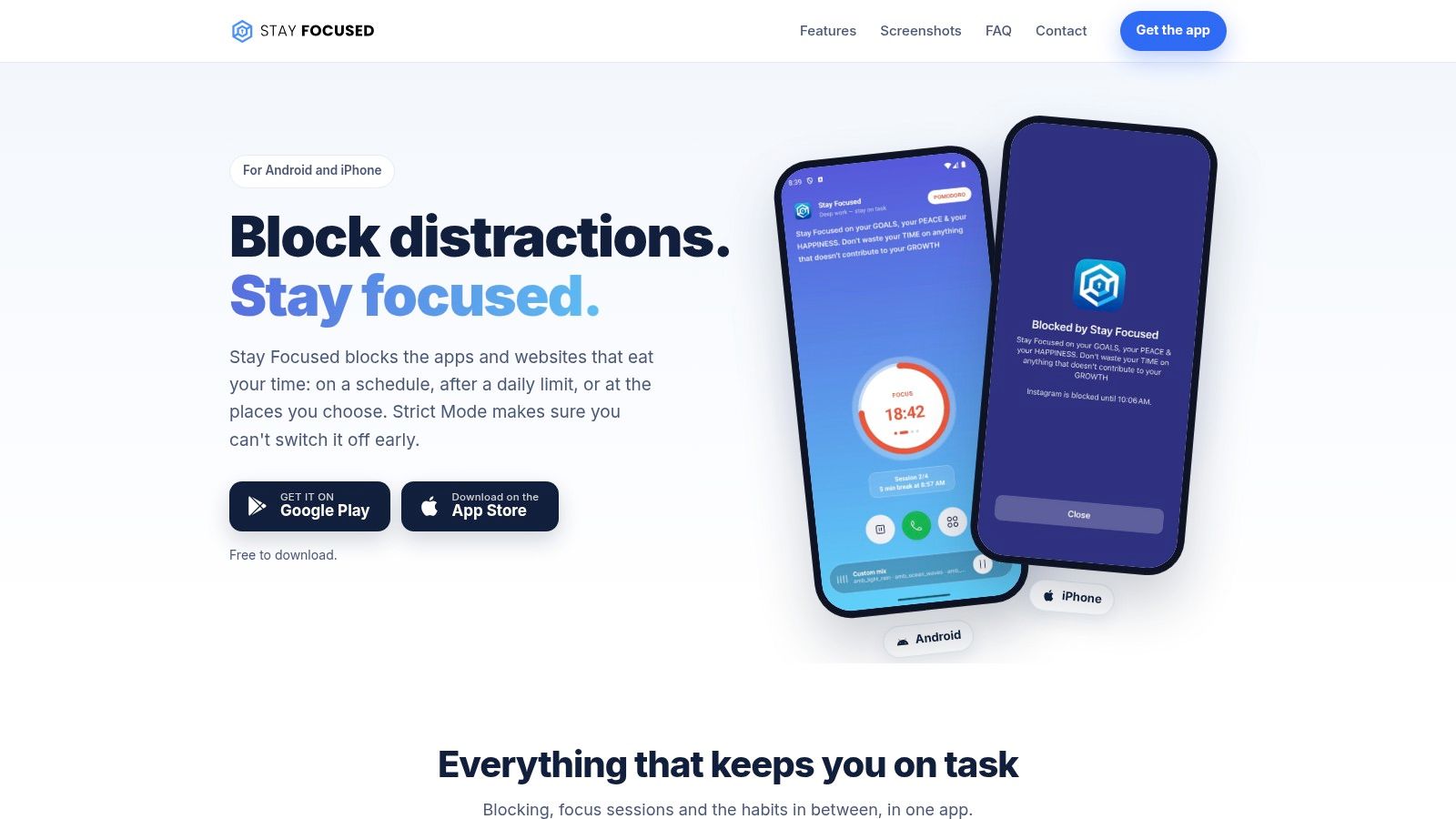
Stay Focused is a solid routine based option for people who want schedules and daily limits in the same app. That combination is useful. A schedule handles your predictable windows, like class hours or a workday. A daily usage limit handles the app you don't want gone entirely, just capped.
Profiles keep those setups separate, so your work, study, and sleep configurations don't collapse into one compromise list. It blocks apps and websites, runs on Android and iPhone, and adds location based blocking plus controls for selected short video content like Reels and Shorts.
Keep your study profile and your sleep profile separate. One list stretched across both contexts usually ends up too weak for study and too annoying at night.
Its Strict Mode makes early changes harder, which addresses the mid session edit that undoes a lot of schedules. It adds friction, though device specific bypasses can remain possible, so test it on your own phone before you rely on it for an exam week.
Two practical notes. On Android, reliability can depend on accessibility permissions and battery optimization settings, so if blocks stop firing, check those first. And some features and limits sit behind the paid tier.
Choose Stay Focused if you want several trigger types, schedules, locations, and limits, rather than a single strict timer.
5. Lock Me Out
Lock Me Out is the Android option for people who want the block to escalate beyond a list of apps. It can restrict selected apps or websites during scheduled windows, or lock down nearly the whole phone and allow only the apps you've chosen. That allow only approach suits late night use, when a blocklist always seems to miss one app.
Its other useful trick is the usage triggered lockout. Instead of only following the clock, a lockout can fire based on time spent or app launches, covering the days your routine shifts but your habit doesn't.
- Scheduled and usage triggered lockouts: Two ways to start a block, depending on whether your problem is time based or behavior based.
- Optional Do Not Disturb and notification hiding: The block stays quieter when notifications aren't pulling at you.
- Location conditions: Rules can apply where you lose control, usually home.
Premium adds password protection and anti tampering options, and you'll likely want them, since parts of the protection against uninstalling or tampering sit there. The free version limits lockouts, apps, websites, and locations.
Phone specific battery management can interfere with background operation, so confirm lockouts fire on time during a low stakes test. Pick Lock Me Out if a schedule plus usage triggers fits your pattern better than a schedule alone.
6. Digital Detox
Digital Detox takes a narrower, blunter approach. It's an Android only app built around timed detox sessions that block distracting apps, with protection features meant to make leaving a session early difficult. You're not managing a complex routine here. You're committing to a fixed window and finishing it.
That simplicity has value. A student who needs ninety clean minutes before an exam doesn't need profiles or location rules. They need the session to hold. The optional device admin permission makes uninstalling during a session harder, which targets one of the most common escape routes directly.
Two things to weigh before you install it. First, any claim of being unbreakable should not be taken at face value, for this app or any other on this list. Judge it by the friction it creates, not by the marketing word. Second, the pay if you break model is the price of quitting early, and that won't suit everyone. Some people find a financial sting clarifying. Others find it a reason to never start a session.
The listing describes free use when a session is completed successfully, which tells you exactly what behavior the app is designed to reward.
Choose Digital Detox if you want commitment based timed sessions and you're comfortable with that penalty structure. Skip it if you need one system spanning your phone and your computer, since there's no unified setup for that.
7. FocusMe
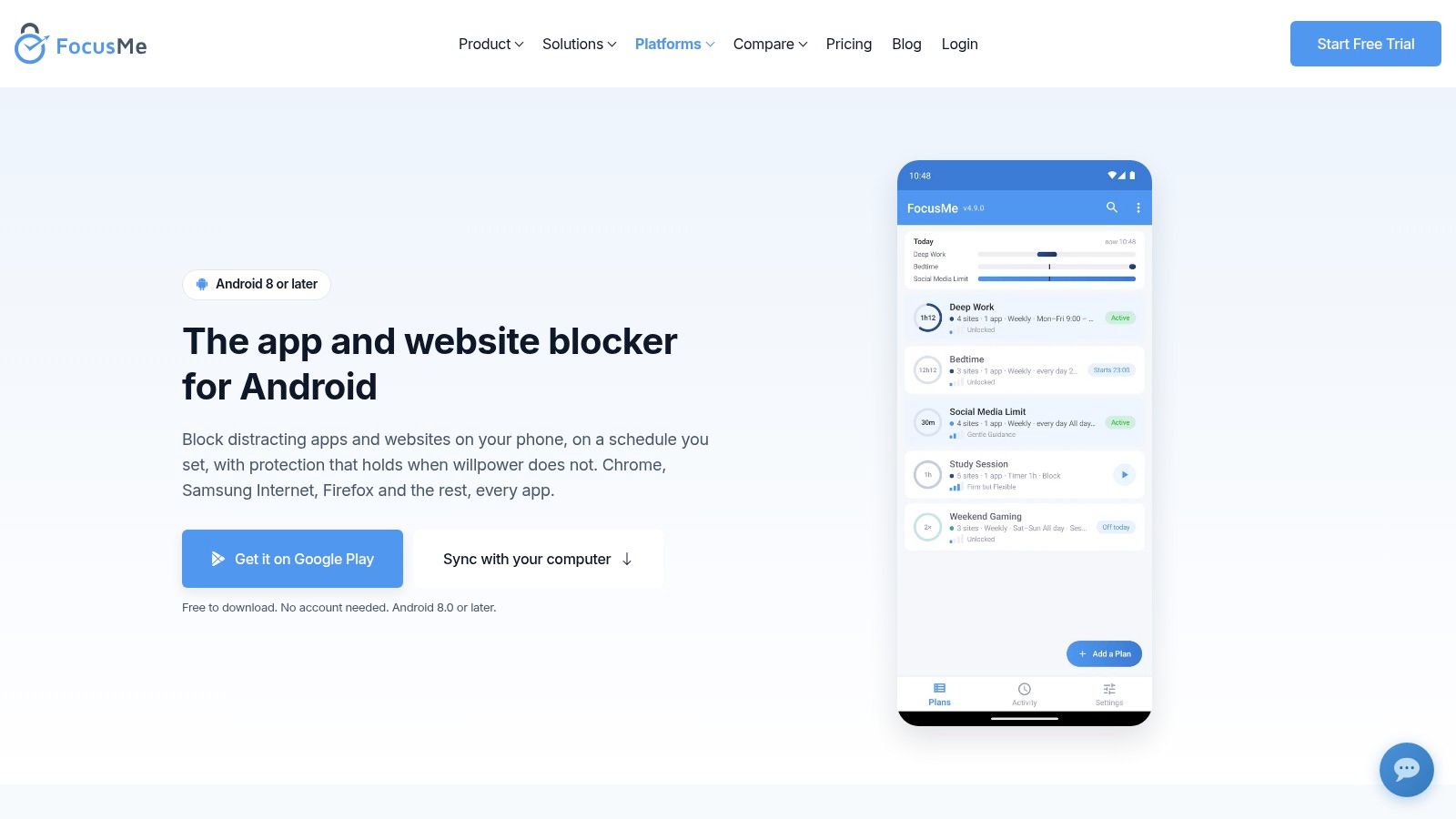
FocusMe is for people who want lots of rule types and don't mind a busy settings screen to get them. On Android it offers weekly schedules, quick timers, and overnight plans, and it blocks apps and websites across supported browsers.
More than a clock
Beyond schedules, you get daily or hourly usage limits, launch limits, and enforced breaks between launches. Launch limits deserve attention. Some people don't spend long in an app. They open it forty times. A schedule alone won't fix that pattern outside the scheduled window, and a launch cap might.
Early stop protection comes in levels, from a simple stop to a typing challenge to a Lock it Down option that keeps a plan active until its end time. Start with the typing challenge if you're unsure. It's enough friction to interrupt an automatic quit without locking you into a plan you've misconfigured.
Core Android blocking, schedules, and limits work without an account or payment, according to its official page. Syncing plans with desktop requires Premium.
The honest downside is complexity. The variety of plan types can feel involved, and store reviews report limitations and bypass concerns, so test protections on your device. Pick FocusMe if granular limits matter more to you than a minimal setup.
8. ScreenZen
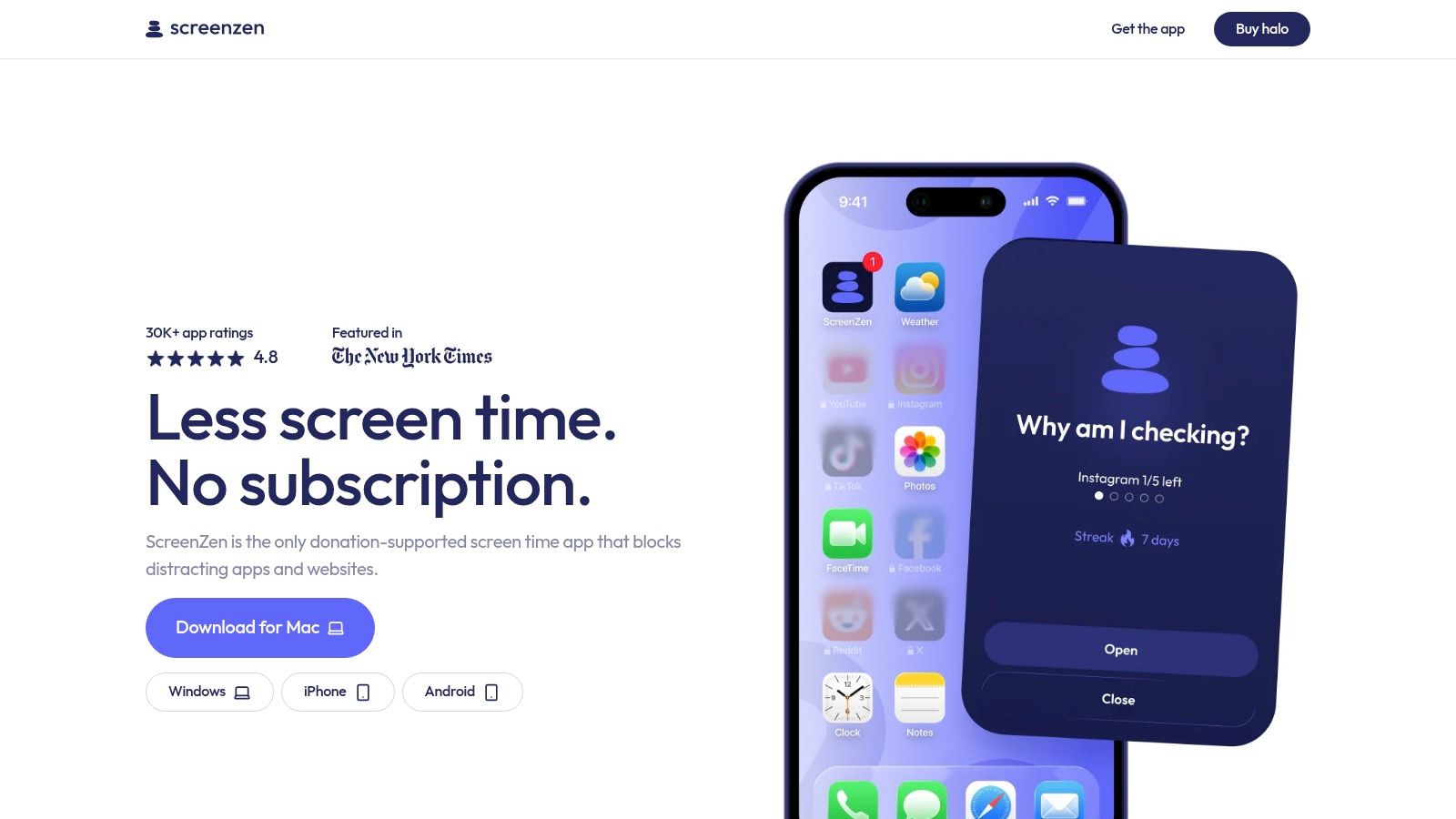
ScreenZen works on a different theory from the strict apps above it. Instead of hard locking everything, it puts delays and steps before opening selected apps, so the habitual tap gets interrupted and you have to want the app. For automatic checking, that pause is often enough.
It still covers the scheduling basics. You get scheduled blocks and daily app limits, plus app and website controls across Android and other platforms. An optional lock mode is intended to make common workarounds harder if you want more resistance than a delay provides.
The context here is habit frequency. A 2025 survey cited by Nature reported that U.S. adults checked their phones an average of 186 times per day, as noted in Nature's coverage of phone checking research. If checking is the behavior, friction at the moment of opening targets it directly.
ScreenZen is free, supported by donations, which makes it easy to trial alongside another approach. The limitation is real, though. A delay won't satisfy someone who needs a strict, no override session for study or sleep, and behavior can vary with OS permissions and device settings.
Choose ScreenZen if your problem is mindless opening rather than long sessions, and you want less checking without all day blocking.
9. Opal
Opal is the option for people who want scheduled blocking wrapped in a broader focus product. Its Android app offers scheduled blocking sessions and focus timers, app and website blocking, and screen time insights alongside the blocking itself. If you like seeing your numbers next to your rules, that combination works.
It also includes break and protection level controls, so you can decide how much flexibility a session allows. That's a genuine design choice, not a weakness. Some people quit hard blockers entirely because a session with no break option feels unworkable on a day full of interruptions from family or work.
Opal's more established product is on iOS, and it's available on Android as well, which makes it reasonable for households or individuals split across mobile platforms. Just go in clear eyed. Android support and available features may differ from iOS, and Google Play reviews include feedback about changes to timer behavior, so verify that scheduled sessions behave the way you expect during your first week.
Some features are subscription based, which is worth confirming against the specific controls you plan to use before you build a routine around them.
Choose Opal if you want scheduled sessions plus focus reporting in one product and you prefer adjustable protection over a fixed strict session.
10. Android Digital Wellbeing Focus Mode
Start here if you've never tried scheduled blocking at all. Android Digital Wellbeing Focus Mode is built into supported Android devices, so there's nothing to install, no account to create, and no subscription to weigh up. You select distracting apps, it pauses them and silences their notifications, and on supported devices you can schedule it for chosen days and times.
That's a clean way to test whether a scheduled pause during work or study hours changes your behavior at all. Run it for a week. If you never touch the exit, you may not need anything stronger, and you've saved yourself money and setup.
Try the built in option first, honestly. If you keep taking breaks from it, you've learned something useful about yourself, and that tells you which app on this list you actually need.
The limits are clear. Focus Mode is a lighter intervention than a dedicated blocker because you can take breaks or turn it off early. It also doesn't offer the range of custom blocklists and strict session controls the specialist apps provide, and scheduling menus vary across devices and Android versions.
Treat it as your diagnostic tool. It tells you whether your problem is forgetting to start a block, which scheduling fixes, or ending the block early, which it doesn't.
Top 10 Schedule Blocking Apps Compared
Every app here can start a block on schedule. The test comes mid-session, when the urge to renegotiate hits and you try to end things early. Read the enforcement column first; scheduling features look alike across this list, but early exit rules do not.
| App | Core blocking & scheduling | Enforcement & standout features | Platform | Price / value | Best for |
|---|---|---|---|---|---|
| TiedSiren | Apps and websites; custom lists and recurring sessions | ★ Strict Mode locks sessions until the timer ends; the Android Settings screen is blocked while a session runs | Android 8.0+ | 💰 Free on Android 8.0+; no credit card and no trial | 👥 Android users who tend to disable blockers on impulse |
| AppBlock | Apps, websites, keywords, and selected in-app content; schedules and Quick Block | Strict Mode; location-based schedules | Android, iOS | 💰 Free tier with limits; some features require payment | 👥 Users wanting detailed controls, including selected social-media content |
| Freedom | Apps and websites; one-off and recurring sessions | Locked Mode; syncs blocks across devices | Android, iOS, Windows, Mac, Chromebook | 💰 Free Android access; Premium trial and paid features | 👥 People who want to block distractions across phone and computer |
| Stay Focused | Apps and websites; schedules, daily limits, and profiles | Strict Mode; location-based blocking and selected Reels/Shorts controls | Android, iOS | 💰 Free and paid features; some limits depend on tier | 👥 Users who want flexible work, study, and sleep profiles |
| Lock Me Out | Apps or websites; scheduled and usage-triggered lockouts | Restrictive lockout modes; Premium adds anti-tampering options | Android | 💰 Free version has limits; some protections require Premium | 👥 Users seeking usage-based triggers and strong lockout options |
| Digital Detox | Timed sessions blocking distracting apps | Commitment-focused sessions; optional uninstall protection | Android | 💰 Listing describes free use when sessions are completed; pay-if-you-break model | 👥 Users motivated by a fixed-session commitment |
| FocusMe | Apps and websites; schedules, timers, usage and launch limits | Multiple early-stop protection levels | Android; desktop sync with Premium | 💰 Core Android blocking and schedules are free; Premium adds computer sync | 👥 Users who want detailed usage rules alongside blocking |
| ScreenZen | Scheduled blocks and daily limits; opening delays | Adds friction before opening apps; optional lock mode | Android and other platforms | 💰 Free; donations optional | 👥 Users who prefer a pause before opening apps over strict blocking |
| Opal | Apps and websites; scheduled sessions and focus timers | Break and protection-level controls; screen-time insights | Android, iOS | 💰 Some features require a subscription | 👥 Users seeking blocking plus focus and screen-time features |
| Android Digital Wellbeing Focus Mode | Pauses selected apps; scheduling on supported devices | Silences notifications; can be turned off or paused early | Supported Android devices | 💰 Included at no extra cost | 👥 Users who want a simple built-in option |
Treat the price column as a snapshot. Tiers and feature gates change, so confirm current terms on each app's store listing before paying for anything.
Choose the Rule You Will Actually Keep
Don't pick by feature count. Pick by the failure you keep repeating.
If you've never scheduled a block, start with Android Digital Wellbeing Focus Mode. It's already on your phone, it costs nothing, and a week of honest use tells you whether a light scheduled pause is enough. If it is, stop there. There's no prize for installing a stricter app than you need.
If you want proper routine based control, with profiles, locations, and in app content rules, go with AppBlock or Stay Focused. Both block solidly. Both let you shape different setups for work, study, and sleep instead of forcing one list onto your whole life. If your distraction moves between your phone and your computer, choose Freedom, because blocking one device while the other stays wide open usually just relocates the habit. If you want granular limits, launch caps, usage triggers, and overnight plans, look at FocusMe or Lock Me Out.
That leaves the reader this list was really written for. You've installed a blocker before. It worked until the moment it mattered, and then you turned it off. A 2025 peer reviewed study of 55 digital disconnection apps and 1,193 user reviews found people consistently asking for help with excessive screen time, mindless scrolling, and focus, as described in the Mobile Media and Communication analysis of disconnection apps. What those users rarely get is an answer for deliberate circumvention, the moment they disable the tool themselves.
TiedSiren is the Android choice for that specific problem. Its scheduled sessions run on daily or weekly recurrence, so the block starts without you. Its custom blocklists grouped by context keep a study list separate from a sleep list. And in Strict Mode, a session ends when its timer ends, with the Android Settings screen blocked while it runs. The difference isn't superior blocking. The apps above block fine. The difference is the absence of an in session override, which removes the renegotiation entirely.
Whichever app you choose, test one schedule during a normal workday before you build five. Do an exception audit first. Check that calls, maps, authentication, and anything you need for safety or work stay reachable, and keep your emergency access clear. Blocking something essential mid session is how people learn to hate a tool that was otherwise working.
Keep the first window short and predictable. A two hour study block you complete teaches you more than an ambitious all day block you abandon. If you find yourself hunting for the exit anyway, that's your answer about how much enforcement you need.
Android readers who are ready to try the strict approach can install it from the TiedSiren Google Play listing. Set one recurring window, pick the apps that pull you in, and let the timer make the decision you already made this morning.
If you keep ending your own blocks early, TiedSiren gives you scheduled Android sessions on a daily or weekly recurrence, custom blocklists by context, and a Strict Mode session that ends when the timer ends. Set one window for your worst app today and see what changes when there's no pause button waiting for you.