
You installed a blocker on Sunday night, picked the distracting apps, and felt reasonably pleased with yourself. By Tuesday you'd switched it off because something in the feed seemed worth checking.
You probably don't need another report showing where your evening went. You need more resistance between wanting to scroll and really getting through.
This comparison covers the Android versions of TiedSiren, AppBlock, Stay Focused, Lock Me Out, ScreenZen, Freedom, and FocusMe. TiedSiren, for instance, requires a recent Android release, and the iPhone and desktop editions of these tools aren't interchangeable with what's described below.
The ranking weighs enforcement, Strict Mode, bypass resistance, and ease of use. Different picks suit different failure patterns, so there's no single winner and no claim of hands-on benchmark results.
No Android blocker is impossible to bypass. The useful question is which one defeats the impulsive undo, before you've started planning a workaround.
1. TiedSiren Holds You to a Timed Commitment
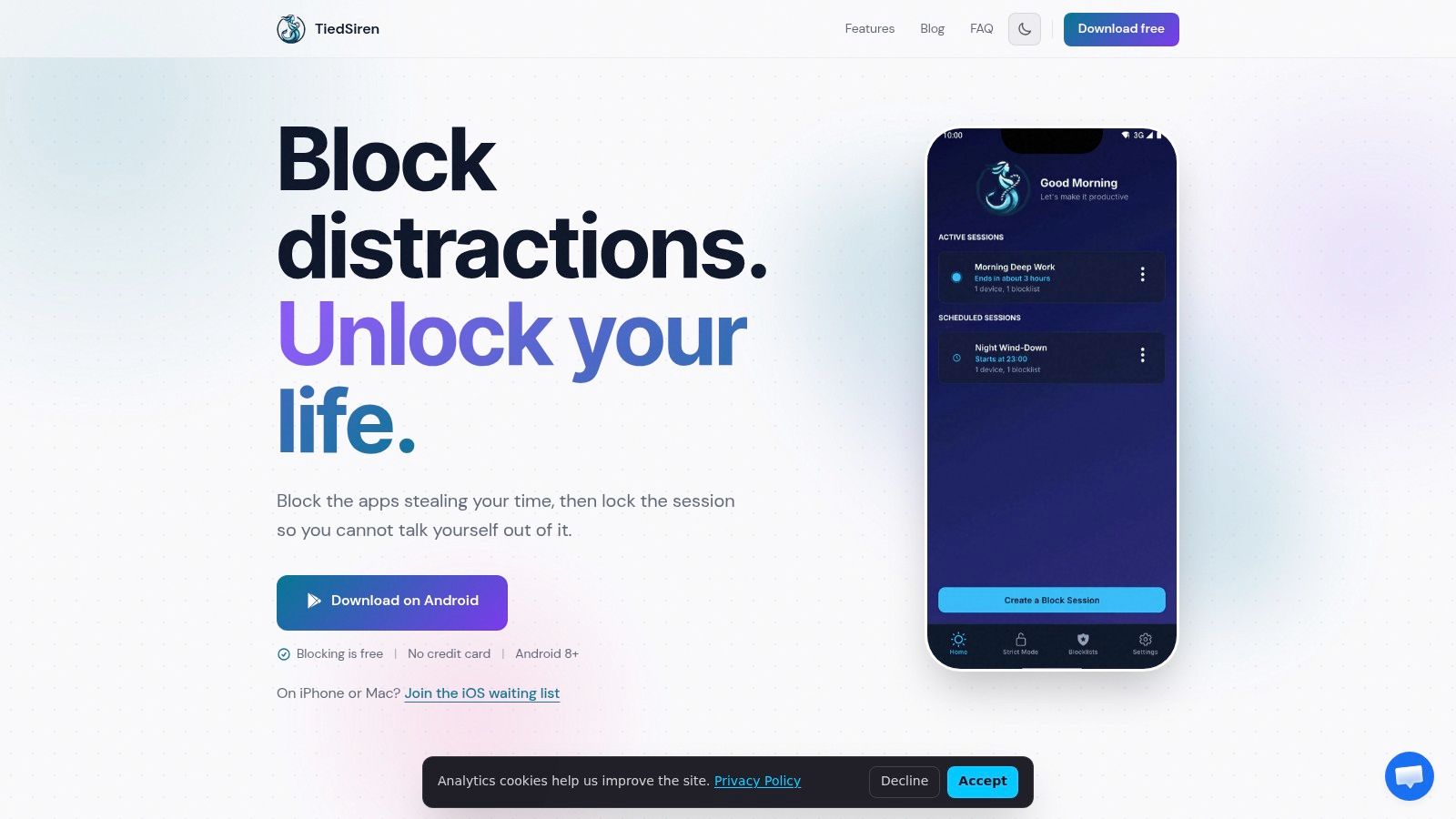
Best fit for fixed sessions you tend to cancel when temptation arrives. TiedSiren is a free Android app that blocks the applications you choose for a duration you commit to up front. Its difference is the absence of an in-product override during a session, not a claim that competitors block poorly.
Strict Mode keeps the session running until its timer ends. There's no pause or early exit inside the product, so the duration you chose while thinking clearly stays in place when your priorities suddenly become more negotiable.
While the session runs, TiedSiren also blocks the Android Settings screen. That raises the cost of taking the familiar route toward disabling protection.
The Commitment Is Useful Only If You Choose It Carefully
The supporting controls keep the commitment practical rather than making every session identical:
- Custom blocklists group applications by context, such as work, study, or sleep.
- Recurring schedules start sessions on a daily or weekly basis, removing the need to make the same decision again.
- A focus timer shows how much time remains in the active session.
For studying, that means selecting the feeds and games that interrupt revision while leaving necessary applications outside that blocklist. For evening use, it means choosing the window before you're already browsing.
The trade-off is deliberate inflexibility. Don't commit to a long session with an unexamined blocklist and assume you'll tidy it up halfway through.
Settings blocking is friction, not a security boundary. Google's Accessibility API policy limits how apps can interfere with disabling or uninstalling services outside authorized parental-control and enterprise contexts. TiedSiren should therefore be judged on resisting an impulsive reversal, not on making Android impossible to alter.
Choose it when your recurring problem is ending an otherwise useful block early. Choose the duration conservatively enough that you can accept the commitment.
2. AppBlock Offers Configurable Strictness for Different Routines
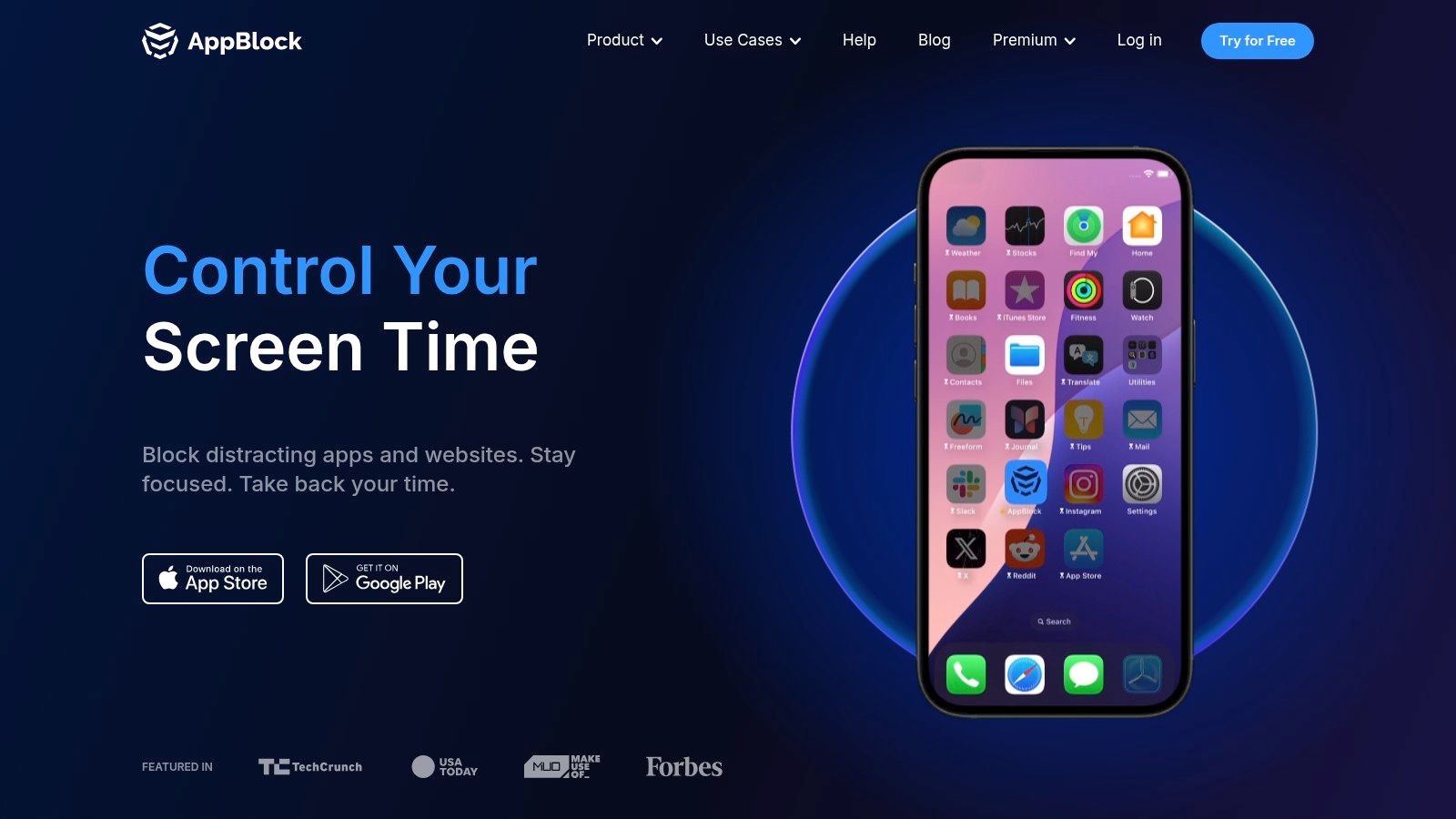
A workday schedule and an unexpected study session don't need the same blocking arrangement. AppBlock combines schedules, usage limits, Quick Block sessions, and configurable Strict Mode, making it a strong candidate when your routine needs more than a fixed countdown.
It blocks selected apps, websites, and keywords. Strict Mode can restrict changes to schedules and blocklists for a chosen period or while schedules are active, which makes the configuration of that mode central to the comparison.
The important distinction is between having strict controls available and applying them to the rules you rely on.
Judge the protected schedule you'll actually use, not the strongest configuration you could theoretically create.
More Control Means More Decisions Up Front
AppBlock's strength is breadth. You can build recurring restrictions for ordinary days and use a quick session when something unexpected needs your attention. That suits people whose distraction patterns vary with their calendar.
Its free version provides basic blocking, while premium subscription and lifetime options provide broader access. Free use has caps on schedules, blocked items, and Strict Mode duration, so check whether your intended arrangement fits before depending on it.
- Enforcement trade-off comes from how you configure Strict Mode and which changes it restricts.
- Ease-of-use trade-off is the extra setup involved in coordinating schedules, limits, and strictness.
- Purchase consideration is that pricing varies by plan and region, so use the current offer rather than an old comparison price.
AppBlock belongs on the shortlist when you want detailed control and will spend the time configuring it. Its flexibility is useful, provided you finish setting the rules before you need them.
3. Stay Focused Suits Context-Specific Restrictions
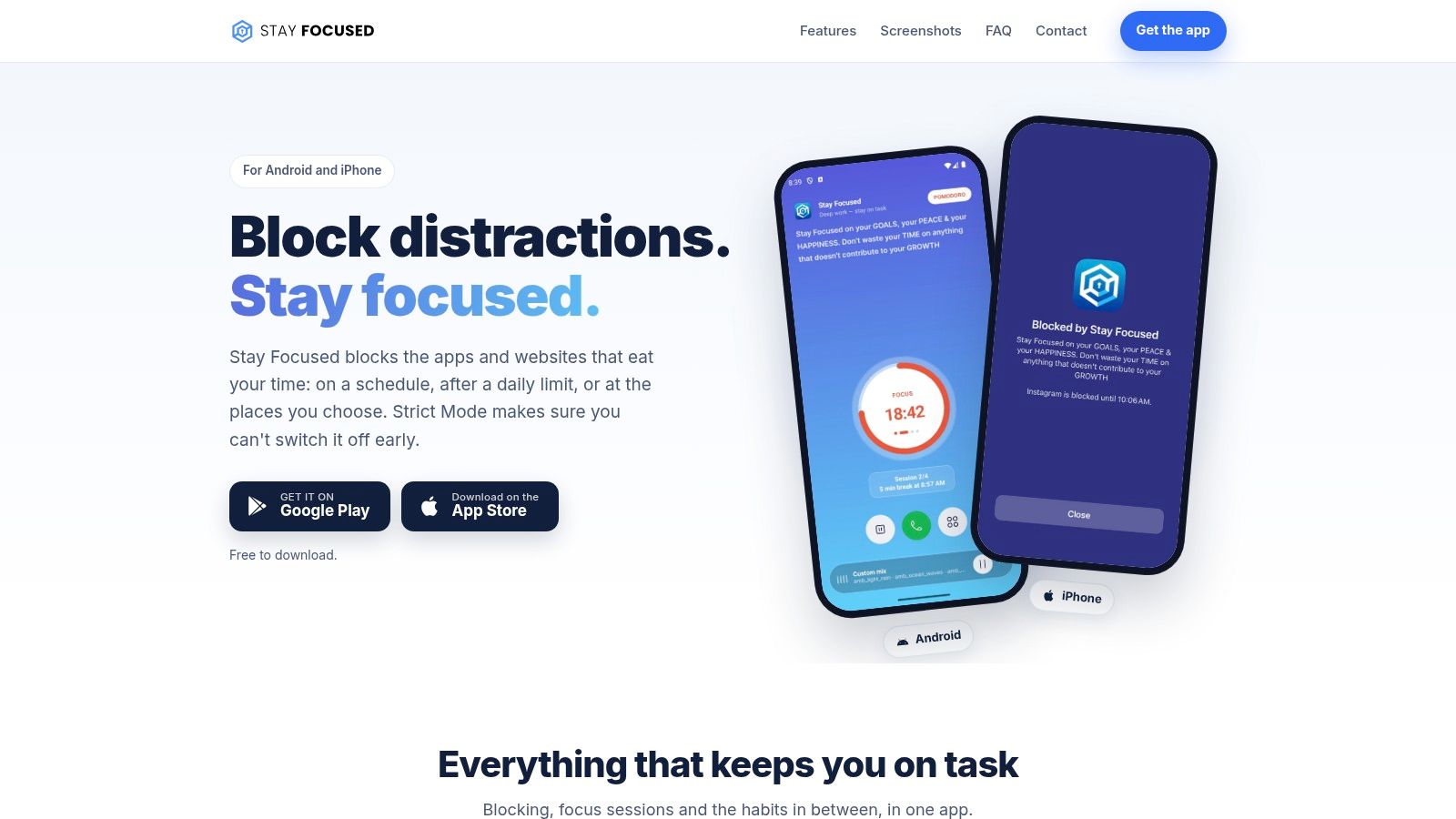
You may need a social app for messages during work but want tighter restrictions around its distracting content. Stay Focused offers app and website blocking, profiles, scheduled restrictions, daily limits, location-based rules, and controls for selected parts of some social apps.
That makes it a useful option when blocking an entire application would be too blunt. Profiles can separate work, sleep, and study rather than forcing every situation into the same arrangement.
Its Strict Mode can make restrictions harder to pause or disable. For this comparison, that matters more than the accompanying usage insights, although those can help you decide what to restrict.
Build Around the Situation You Actually Repeat
A study profile should reflect what studying requires. A work profile should account for necessary communication rather than copying the study list and hoping it fits.
- Best reason to choose it is the ability to express different rules for different contexts.
- Main setup cost is coordinating profiles, schedules, and location rules without making them unnecessarily complicated.
- Android check is confirming background operation and Strict Mode behavior on your own phone, including relevant battery and manufacturer settings.
More configuration isn't automatically a drawback. It's worthwhile when each rule solves a real access problem.
It becomes wasted effort when you keep redesigning profiles instead of using a stable arrangement. Start with the context in which you most often abandon a limit, then expand only if another recurring problem needs a different rule.
Stay Focused is a strong fit for detailed restrictions. TiedSiren's fixed commitment addresses a narrower decision: whether you can end the session from inside the product once it has started.
4. Lock Me Out Can Start Restrictions After Usage Thresholds
Forgetting to start a session is a different problem from canceling one. Lock Me Out addresses that distinction with automatic lockouts based on app time, app launches, or device sign-ins.
It can block selected apps and websites, allow only selected apps, or restrict broader phone access. Its options also include notification suppression, Do Not Disturb controls, location-based lockouts, password protection, and temporary emergency access.
The appeal is straightforward: restrictions can begin when you reach a usage threshold rather than depending entirely on a fresh decision to stop.
If you consistently remember your limit only after exceeding it, consider a usage-triggered lockout rather than relying solely on a manually started session.
Examine the Access That Remains
An allowlist deserves careful thought. You want necessary functions to remain available without accidentally preserving the application you repeatedly use as a substitute distraction.
Temporary emergency access also deserves attention before a demanding day. Understand its role in the configuration you choose rather than assuming that every lockout arrangement creates the same resistance.
Lock Me Out is an Android-only option, available as a free download with in-app purchases. Some features require a paid upgrade, and background reliability can depend on battery and app-management settings.
Its strongest use case is threshold-based enforcement. Someone who repeatedly exceeds an app-time budget may find that more appropriate than a preselected focus window.
The practical trade-off is setup breadth. App time, launches, phone checks, locations, and allowlists describe different behaviors. Pick the trigger that matches your failure pattern instead of enabling restrictions just because they're available.
Before relying on a broad lockout, check that your necessary applications remain accessible and that the trigger behaves as intended on your phone.
5. ScreenZen Offers Customizable Limits Without a Required Subscription
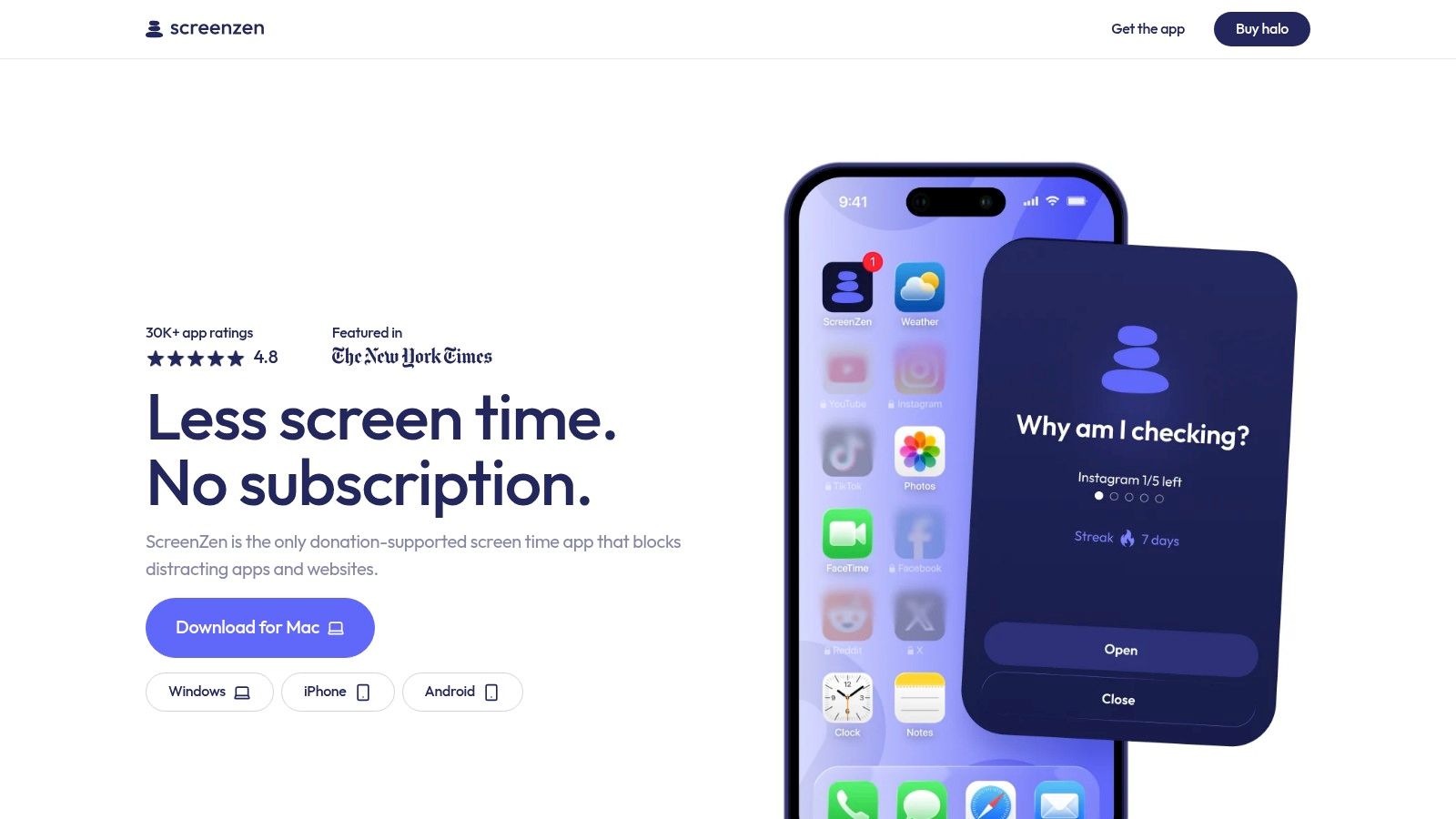
Mid-urge is the wrong time to discover that your blocker only wanted to remind you. ScreenZen is worth a look if you want app and website selection, schedules, daily limits, and a lock mode without making a subscription the entry fee; it also lists optional donations and Android, iOS, macOS, and Windows versions.
Platform breadth helps if distraction moves devices. It still leaves the Android question open: when a limit trips, what exactly stands between you and the exit?
Set the Lock Before the Urge
With ScreenZen, check the interaction in plain terms. Pick one problem app, set a daily limit and a schedule, then try to break it while the rule is active. Does lock mode only show a nudge, add a delay, or block edits to that rule until the window ends?
Also test the boring exits: uninstalling, changing the clock, force-stopping the app, and opening a browser instead. No Android blocker is impossible to bypass. The useful measure is how many extra steps ScreenZen puts in the way while you're still capable of taking them.
That setup cost is the trade-off. More configurable limits can fit real life better than a single fixed countdown, but each option is another decision you can weaken later if the lock is too easy to undo.
A systematic review of digital self-control interventions described the evidence as low confidence, while reading friction-based approaches as more promising than awareness-only prompts. Promising is enough to justify testing a real limit, not enough to assume the strictest preset will fit you.
Choose ScreenZen if you want adjustable Android limits and you're willing to tune them. If your history is negotiating around flexible rules, weight that pattern more than the appeal of customization.
6. Freedom Addresses Distraction That Moves Between Devices

Blocking your phone won't solve much if you immediately open the same website on your laptop. Freedom is particularly relevant when the alternate route is another device, rather than another setting on your Android phone.
It blocks apps and websites during scheduled or on-demand sessions, with blocklists and sessions that sync across supported devices. Those include Android, iOS, Windows, and macOS.
Its broader offering also includes sessions that block all websites, plus focus sounds and music. For this decision, cross-device coverage matters more than the audio.
A phone restriction can be doing its job perfectly while you continue the same browsing session on a computer.
Account for the Other Screen
Freedom's practical advantage is coordinating restrictions wherever you really work. If your phone is blocked but your desktop browser remains an open invitation, adding more phone-side friction may address the wrong escape route.
A limited free tier lets you try the service, while fuller ongoing access requires Premium. Website blocking can require additional setup depending on the platform and browser.
The trade-off is scope. Someone who only wants selected Android apps blocked during a fixed window may find the wider service more than they need. Someone who routinely changes devices should consider that wider scope a requirement rather than an extra.
Check the Android behavior you need alongside the desktop configuration you intend to use. Don't assume that synchronized sessions remove every platform-specific setup requirement.
Freedom is the shortlist pick for a cross-device distraction pattern. Its position here reflects that fit, not a claim that it universally provides stronger Android enforcement than the other tools.
7. FocusMe Combines Usage Allowances With Enforcement Levels
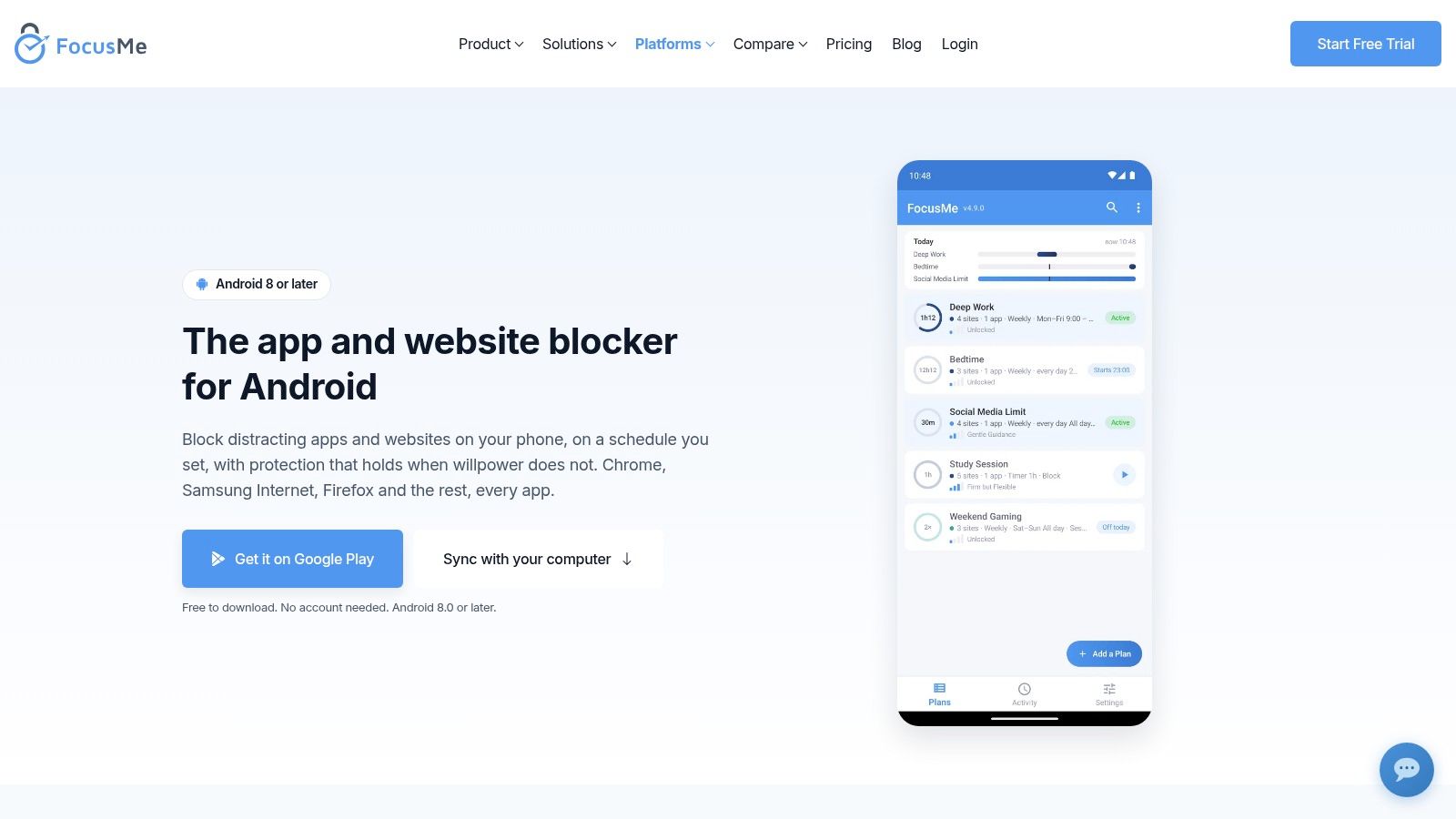
FocusMe's Android offering combines app and website restrictions, schedules, daily or hourly allowances, app-launch limits, and several enforcement levels. The key question is exit friction: confirm in the plan settings whether the level you pick can be paused, edited, or ended early inside the app, and treat the strict options as commitments.
That mix fits a phone where not every app deserves the same rule. A work tool might get a small allowance, while a video app stays blocked during study hours.
Website blocking covers supported browsers, including some in-app browsers. That matters if blocking the app would only push you to its web version.
Decide How Firm Each Plan Should Be
Choose enforcement by lapse scenario, not by intent at setup time. If you tend to rationalize, a plan you can edit in seconds will fail exactly when it is needed.
- Allowances fit tools you need in measured doses.
- Launch limits fit apps that turn one check into a session.
- Complete blocks fit apps with no legitimate use during the window.
- Stricter enforcement needs a pre-check for banking, maps, calls, and work tools before you commit.
Confirm the current Android free and paid terms on FocusMe's site before relying on a feature. The app itself requires accessibility and display-over-other-apps permissions.
The trade-off is setup judgment. FocusMe can separate “a little access” from “no access” better than a single switch, but only if each app is assigned the right kind of limit before the urge starts.
How the seven Android app blockers compare on enforcement, scheduling and free access
Read the enforcement column as the friction between a mid-urge tap and an exit. Scheduling shows when restrictions apply. Free access reflects what each tool's listing states, so where a cell looks thin, confirm pricing on the current Play Store page before installing.
No Android blocker is impossible to bypass, which is why there's no overall winner here.
| Item | Enforcement model | Scheduling | Free access | Best for |
|---|---|---|---|---|
| TiedSiren | Strict timed sessions; blocks Android Settings during sessions | Daily or weekly recurring sessions | Free Android app | Android users who want a fixed, hard-to-undo focus session |
| AppBlock | Configurable Strict Mode restricts changes to blocks and schedules | Recurring schedules, usage limits, and one-off sessions | Free tier with feature caps | Users who want flexible routines and multiple blocking controls |
| Stay Focused | Strict Mode makes restrictions harder to pause or disable | Schedules, daily limits, and location-based rules | Free access and pricing aren't covered here; check the current listing | Users who need detailed rules and separate profiles for different contexts |
| Lock Me Out | Automatic lockouts based on usage; can restrict access to selected apps or an allowlist | Usage-triggered and location-based lockouts | Free download with some paid features | Android users who want lockouts to start automatically after usage thresholds |
| ScreenZen | Lock mode makes common bypasses harder | Schedules and daily limits | Core app is free, with optional donations | Users seeking customizable restrictions across multiple platforms |
| Freedom | Blocks apps and websites during sessions synced across devices | Scheduled or on-demand sessions | Limited free tier; fuller access requires Premium | Users who want to block distractions across phones and computers |
| FocusMe | Multiple enforcement levels, including plans that cannot be ended early in the app | Schedules, allowances, and app launch limits | Android blocking, schedules, and time limits are free | Android users who want detailed limits and strong enforcement options |
Pick the Blocker That Holds When You Don't Want It To
Match the blocker to the way you really quit. A longer feature list won't answer that, and a Strict Mode label won't either. What counts is how much friction sits between you mid-urge and the exit.
If you only need a nudge about total screen time, a usage tracker does the job. If you dismiss limits the moment they appear, look for resistance to changing them. If your failure point is cancelling a session mid-urge without anyone noticing, pick a timer that ends only when it ends.
Make that call before the urge arrives.
- Choose fixed commitment when you already know which apps need blocking and when they need to stay blocked.
- Choose configurable rules when work, study, and sleep need different access arrangements.
- Choose usage triggers when you tend to overshoot a limit before remembering to act.
- Choose cross-device coverage when you just move the same distraction to another screen.
Strict is not the same as impractical. Check your blocklist, keep the access you actually need, and commit to a duration you can sit with.
TiedSiren's Settings block raises the cost of turning a session off, as covered earlier. It won't stop a determined user, and no Android blocker should be sold as impossible to bypass. The useful outcome is stopping a passing impulse from reversing a decision you already made.
Installing an app proves nothing by itself. Watch whether you complete the sessions you set, whether you keep hunting for alternate access, and whether your next configuration needs to be firmer or better aimed.
If fixed-duration commitment fits your Android routine, install TiedSiren through its Google Play listing or download page, then set a manageable session before your next work or study window.
TiedSiren offers free Android app blocking with committed sessions, recurring schedules, custom blocklists, and Settings-screen friction, built around keeping the decision you made before you wanted to scroll.