
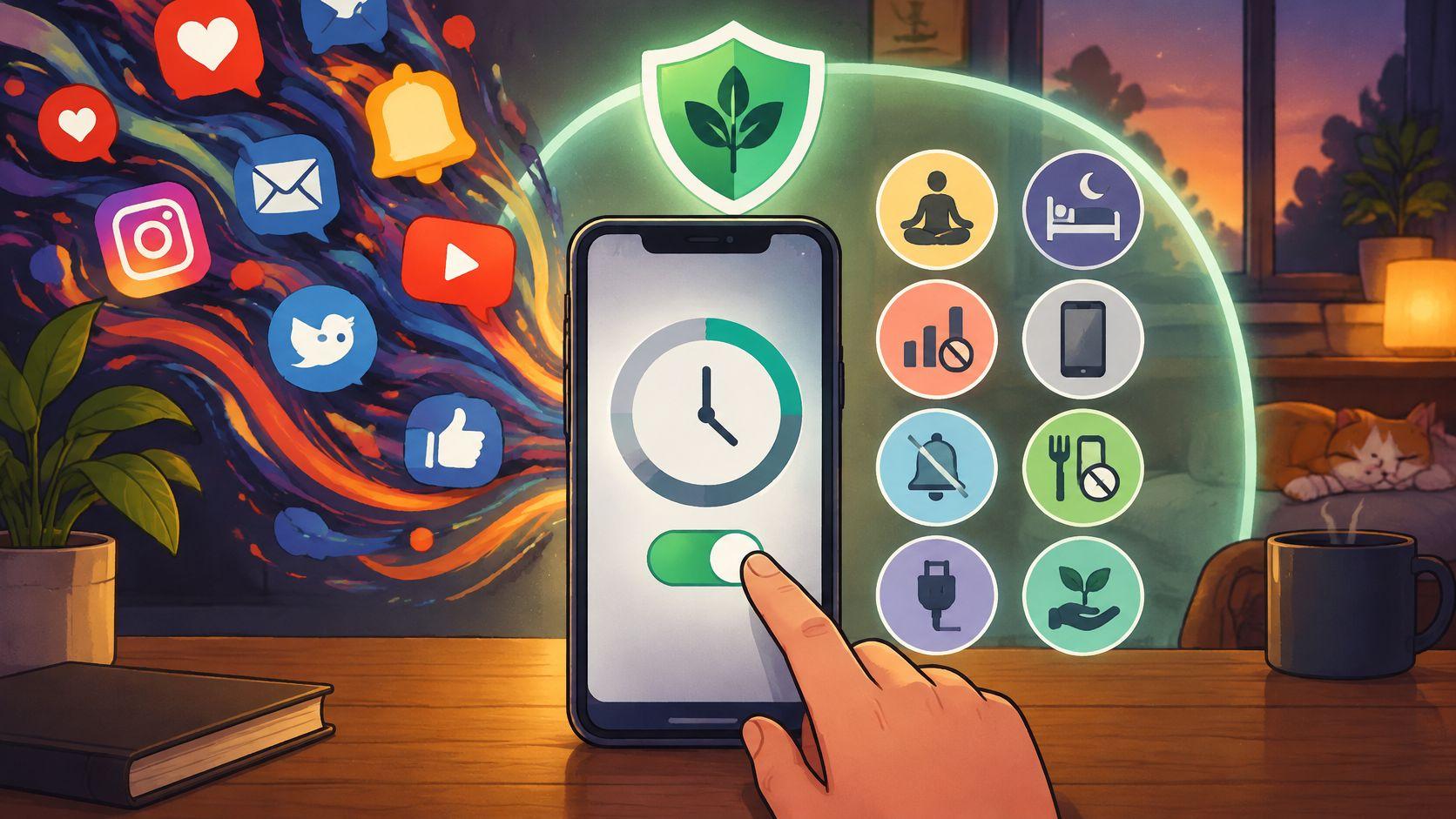
You installed a blocker on a calm Sunday. By Wednesday night you had turned it off in the middle of a session because a notification looked urgent. Most digital wellbeing tips assume you need more information about your screen time. You probably don't. The hard part is that the way out is always right there.
This list gives you eight practical changes for reducing digital distractions and setting phone-use boundaries that hold up on bad days. You'll learn how to:
- Choose session lengths before distraction takes over.
- Build blocklists for work, study, and personal time.
- Add friction to impulsive exits.
- Schedule limits instead of making daily decisions.
- Reduce notification-triggered checking.
- Keep the phone away from sleep and charging routines.
- Remove your most tempting apps from easy reach.
- Review screen time and cut the biggest time sinks.
If you're on Android, TiedSiren is a free app that blocks the apps you choose for a duration you commit to up front. Its Strict Mode ends a running session only when its timer ends, and it blocks the Android Settings screen while a session runs.
The advice applies beyond Android, but the examples here assume an Android phone. Use these digital wellbeing tips to build limits that still work when motivation is low.
1. Set the Session Length Before You Open the Feed
The urge to scroll rarely shows up with a plan. It arrives when you're tired, bored, or stuck on something hard, and by then "use the phone less" sounds like a suggestion you can renegotiate. Choosing the length in advance ends that negotiation. You decide while you're calm, and the timer decides when the distraction stops.
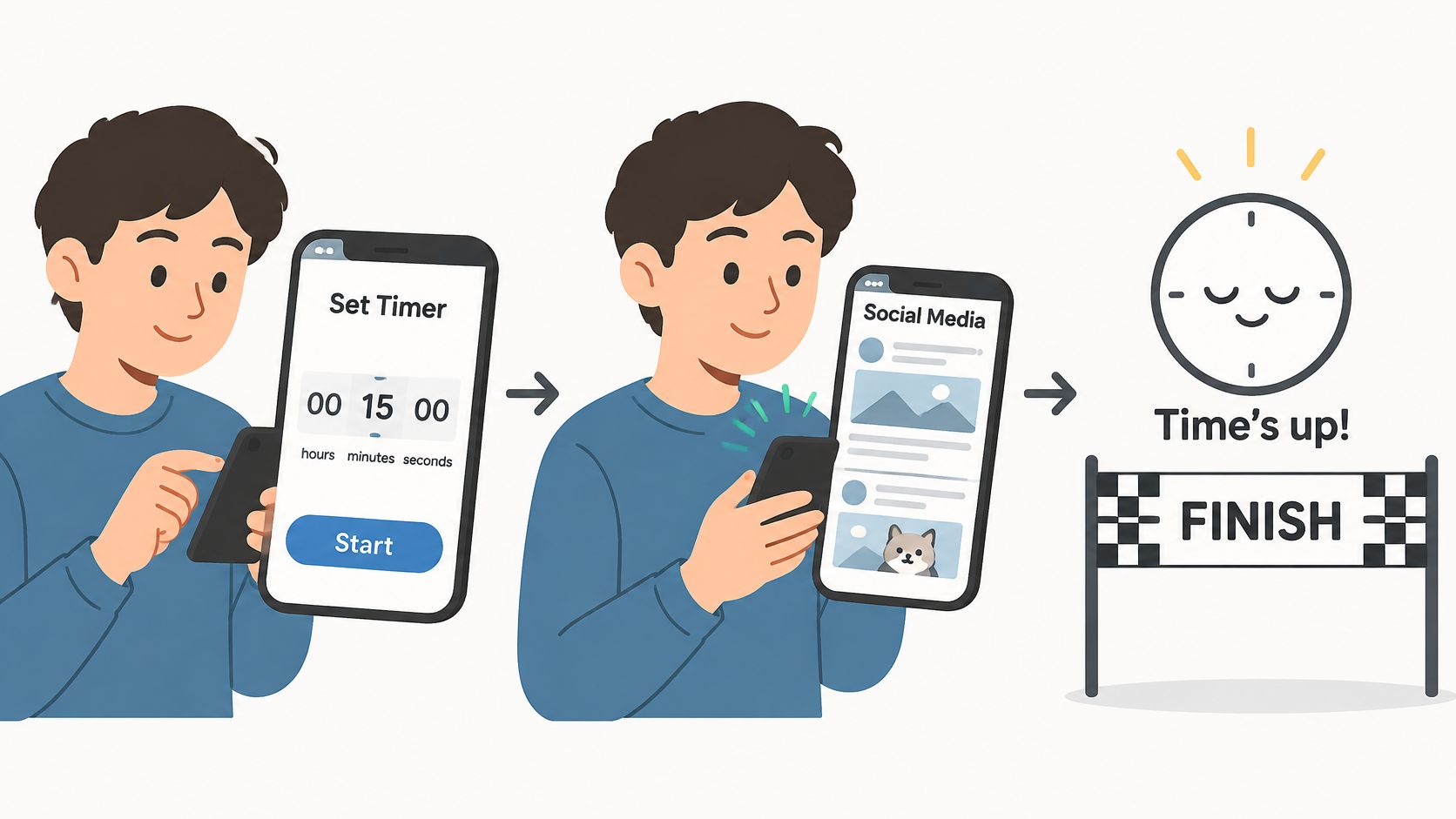
On Android, TiedSiren has a focus timer that shows the time left in your session and blocks the apps you choose until it finishes. Strict Mode means the session ends when its timer ends, and nothing else ends it. The same principle works with any timer you trust.
A practical way to use it
- Choose a duration you can finish, such as 45 minutes, rather than an impressive number you'll abandon by lunch.
- Start the session before opening the feed or game you want to avoid.
- Put your phone on the other side of the desk if you can. The timer can run while you work.
- If you feel the urge to stop early, notice it without acting on it. It tells you when your attention shifts. It doesn't prove the session was badly designed.
This is one of the most effective digital wellbeing tips because it sets the boundary before distraction gets a vote. It suits study sessions, coding sprints, writing blocks, and evenings when social media starts eating time you meant to rest.
Cal Newport's idea of bounded focus blocks in Deep Work gives the broader principle. A defined period is easier to protect because the finish line is already visible.
Decide when you are disciplined. Let the timer decide when the temptation arrives.
The first week is the hardest. Most of the urges you feel will come up inside the session, and the timer is what lets you sit with them until they pass.
2. Group Distracting Apps Into Blocklists for Each Context
A single blocklist sounds tidy until real life asks for three different phones. Work needs feeds and games shut down, sleep needs only the apps you reach for in bed, and study may need every trigger blocked except the reference tool you still use.
On Android, TiedSiren's custom blocklists let you group the apps you choose by context, such as Work, Sleep, and Study. Each rule matches the moment it covers, so you're not forcing one list to handle everything.
A practical way to split it
- Start with three lists: work, study, and sleep.
- Put only the apps you open on autopilot in each list.
- Review every two weeks and remove anything you no longer reach for.
This earns a place among digital wellbeing tips because narrow rules are easier to keep than total bans. A block that runs all day is the one most people end up switching off. For setup details, see the guide to custom block lists.
The apps that pull hardest are usually the ones you open without deciding to. A context list aims at exactly those moments.
Block what the moment calls for, not every app you own.
3. Make Turning the Blocker Off Harder Than Using the Phone
Most people who quit a blocker do it in seconds: open Settings, find the app, switch it off. Willpower in the moment rarely wins that race. What helps is making the exit cost more than the urge is worth, so the impulsive undo gets a pause.
On Android, TiedSiren blocks the Android Settings screen while a session runs, which raises the cost of disabling it mid-session. It defeats the impulsive bypass, the one done in five seconds without premeditation. It won't stop someone who plans a workaround in advance, and it doesn't claim to. Its job is to make you wait long enough for the urge to fade.
A practical way to use it
- Choose a blocker that makes leaving a session cost more than a tap.
- Decide before you start that you won't cancel early. Check back only when the timer ends.
- Notice when you start hunting for a way out mid-session. That hunt is a sign the plan is working.
This is one of the more underrated digital wellbeing tips because it protects your decision at the exact moment you're most likely to reverse it. Tristan Harris, a co-founder of the Center for Humane Technology, has spent years arguing that products should respect attention. Your own rules have to do that job from your side of the screen.
Friction on the way out matters more than motivation on the way in.
4. Schedule Blocking Windows So You Stop Deciding Every Day
A daily decision is a daily chance to lose. If the blocker only runs when you remember to start it, the tired version of you gets a vote. A recurring window removes that vote. You set it once, and the block starts and ends without you touching the phone.
On Android, TiedSiren's scheduled sessions repeat daily or weekly, which suits fixed work blocks and irregular routines alike.
A practical way to use it
- Start with one window, usually the one that costs you the most.
- Anchor the start time to a routine you already keep, like after breakfast.
- Use separate windows for weekday focus and nighttime sleep if you need both.
- Review after two weeks and adjust only if the fit is genuinely wrong.
Cal Newport's fixed-block approach in Deep Work follows the same logic. Boundaries hold better when they're already decided. For setup details, see how to schedule blocking windows.
Make the boundary automatic, so willpower is not part of the schedule.
5. Turn Off Notifications From Apps You Don't Need to Hear From
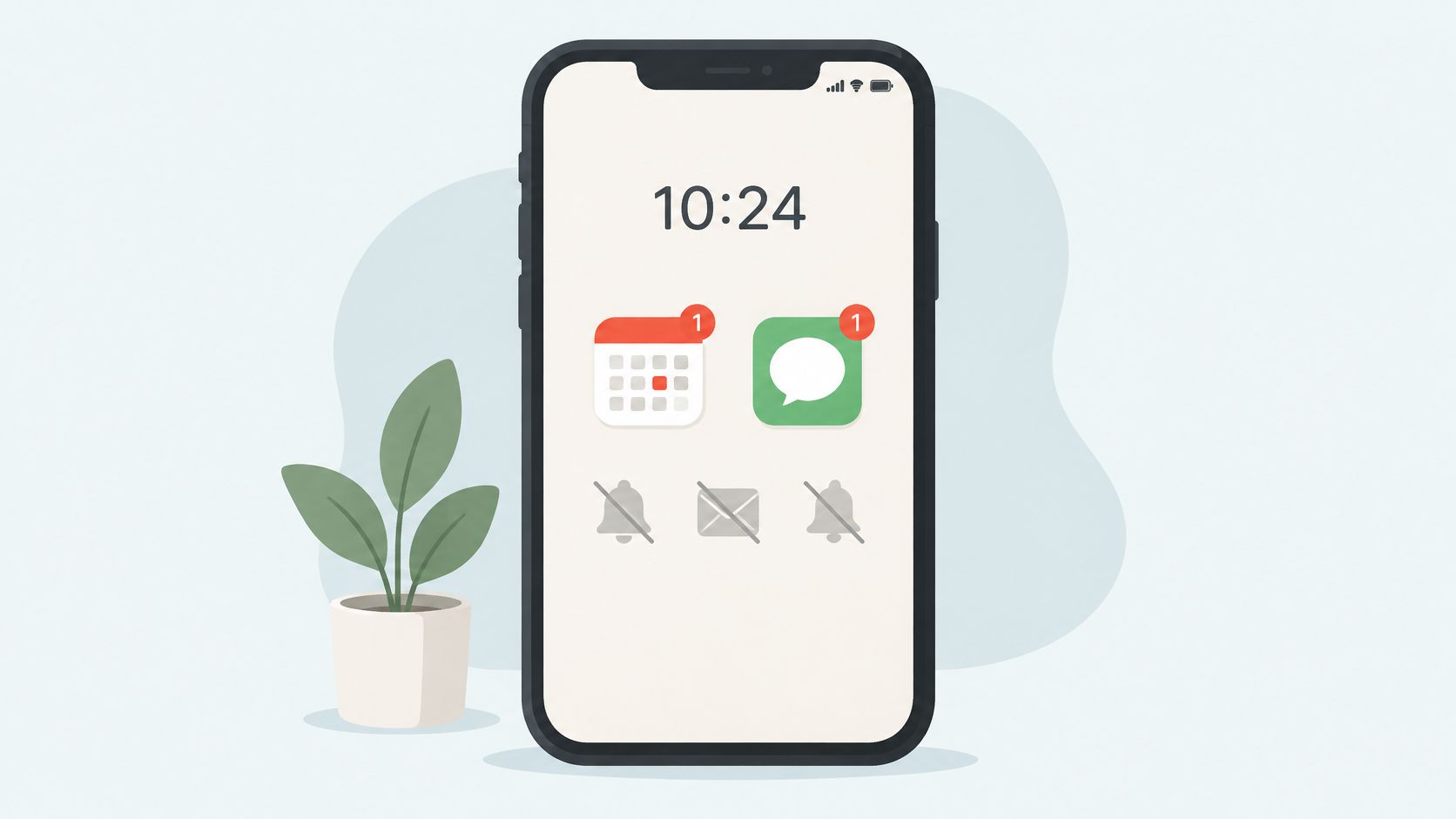
Notifications are the quiet recruiters for the apps you're trying to leave. Each one promises something new, and the scroll starts before you've decided anything. Android's Digital Wellbeing is one place to review how your apps reach you, and silencing the ones you don't need is the fastest fix.
A practical way to use it
- Turn off social and game notifications first, then add back only the ones you actually need.
- Keep calls, direct messages, and calendar alerts on, so plans still reach you without an app open.
- Check notification settings after app updates, since some reset them.
An app you open on purpose is a choice. An app a notification opens is a reflex.
This is one of the simplest digital wellbeing tips because it removes the trigger instead of fighting the response. It suits anyone whose phone use is driven by pings, especially people who've already deleted an app and drifted back to it.
6. Charge Your Phone Outside the Bedroom
A phone on the nightstand is the shortest route to a late-night feed. You wake up, it's there, and the check happens before you've decided anything. Moving the charger to another room changes the math. Now checking means getting up and walking, which most people won't do half asleep.
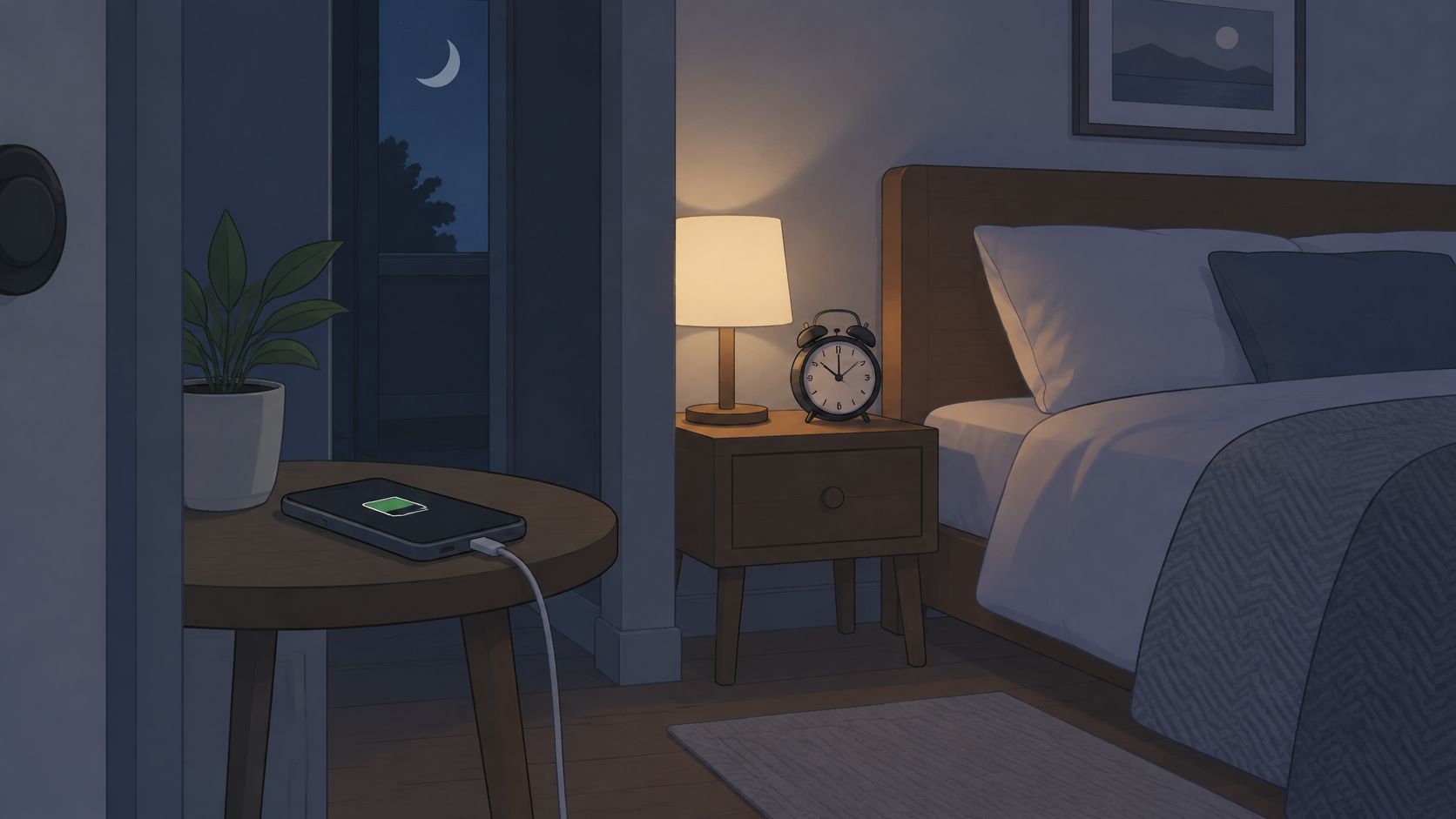
A plain alarm clock takes over the wake-up job, so the phone loses its last excuse to stay in reach. It's one of the simplest digital wellbeing tips here because it relies on distance instead of willpower.
A practical way to use it
- Buy a cheap alarm clock before you move the phone, so the first night isn't a negotiation.
- Pick a charging spot you pass on the way out of the bedroom. The habit holds when it's already on your path.
- If you need the phone for emergencies, keep the ringer loud enough to hear from the next room.
For a lot of people, this is the change that makes the first ten minutes of the day feel less hijacked.
If the late-night pull comes from one specific app, TiedSiren on Android can block that app for a session you set in advance.
You can't reach for a phone that isn't there. Put the barrier where your willpower runs out.
7. Remove the Apps That Pull You In From the Home Screen
The home screen is where thumbs go before thought catches up. If the first thing you see is a red badge or a familiar icon, the tap happens on reflex. Moving the apps that pull you in doesn't delete them. It adds one extra step to a reflex, and that step is often enough to make you notice it.
A practical way to use it
- Move the one app you open most often into a folder on a later page, not the first screen.
- Turn off its badge so the counter can't call you back.
- Keep calls, messages, maps, and calendar on the first screen if that covers your day.
- Put the tempting page more than one swipe away, so checking it becomes a choice.
This earns a place among digital wellbeing tips because it changes the moment before the habit starts. Fewer taps mean fewer reflexive checks. For study or work, this pairs well with a committed blocker when hiding the app isn't enough.
Keep the tools handy. Move the traps out of sight.
8. Read Your Weekly Screen Time Report and Cut the Top Offenders
Many people underestimate how long they spend in certain apps. The weekly report in Digital Wellbeing on Android or Screen Time on iPhone shows which apps actually took the hours, so your next move is based on evidence instead of mood.
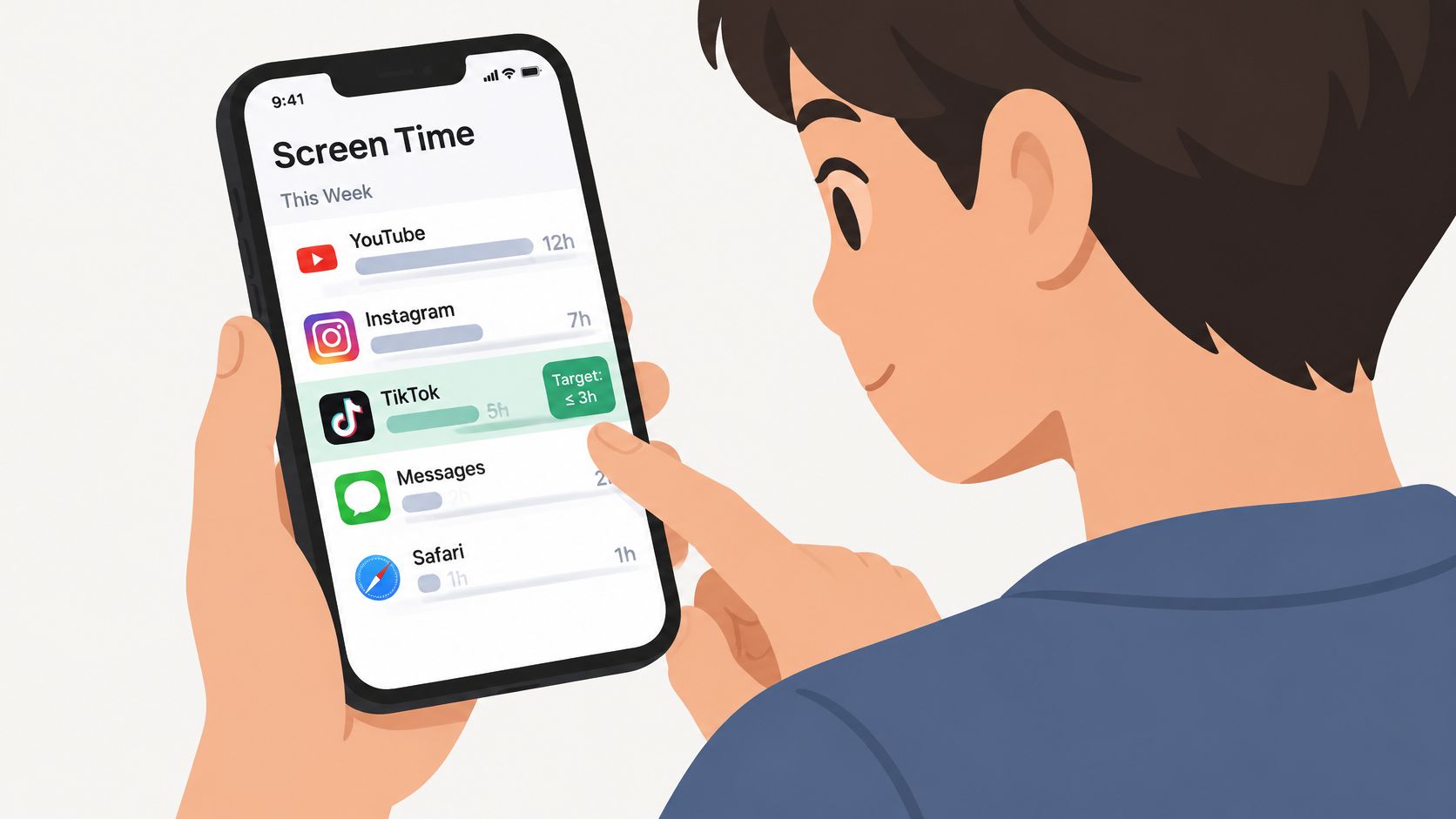
Treat the report like a target list, not a verdict. Google's Digital Wellbeing documentation covers per-app usage by day and week. If you're wondering where your own line sits, read how much screen time is too much after you've checked yours.
A practical way to use it
- Review it on the same day each week, such as Sunday evening.
- Pick one target app and set its limit before changing anything else.
- On Android, a scheduled TiedSiren session can keep that app blocked during the hours you usually lose.
- Compare week two with week one. Tighten the rule only if the top app didn't drop.
This is one of the more reliable digital wellbeing tips because it turns a vague worry into one named app and one rule.
The point isn't lower screen time everywhere. It's less time in the one app that keeps winning.
A weekly check is what makes small changes visible. Without it, the feeling that you're "doing better" is hard to test.
8 Digital Wellbeing Tips: Side-by-Side Comparison
| Strategy | Implementation Complexity | Resources | Expected Outcome | Ideal Use and Key Advantage |
|---|---|---|---|---|
| Set a session length before opening the feed | Low; choose a fixed duration in advance | Timer or app blocker; no purchase required | Clear stopping point and less mid-session renegotiation | Focus sessions; creates a concrete boundary |
| Create context-specific app blocklists | Medium; set up and review lists periodically | Blocker with custom blocklists; initial planning time | Restrictions matched to work, study, and sleep | Different daily contexts; keeps useful apps available |
| Make disabling the blocker harder | Low to medium; start sessions with restrictions on | Blocker with settings restriction or strict mode | Reduces impulsive overrides; deliberate workarounds remain possible | Users who often disable limits in the moment; protects committed sessions |
| Schedule recurring blocking windows | Low to medium; define and refine a schedule | Scheduling blocker; brief setup | Automatic, consistent restrictions with fewer daily decisions | Regular work or sleep routines; keeps working on low-motivation days |
| Turn off nonessential notifications | Low; adjust app notification settings | Built-in phone settings; no cost | Fewer notification-triggered checks | Anyone distracted by alerts; easy to test and reverse |
| Charge the phone outside the bedroom | Low; move the charging spot and set up an alarm alternative | Charger in another room; optional alarm clock | Adds friction to nighttime checking and separates phone from sleep space | Late-night scrolling; works without apps or blockers |
| Remove distracting apps from the home screen | Low; move apps to folders or later pages | Existing phone settings; no cost | Interrupts automatic unlock-and-tap behavior | Users wanting a simple, reversible change; keeps app access |
| Review weekly screen-time reports | Low; check usage and pick targets weekly | Built-in Digital Wellbeing or Screen Time tools | Identifies high-use apps and tracks changes over time | Users unsure where their time goes; replaces guesses with usage data |
Pick the First Tip for Tonight
Eight digital wellbeing tips is a menu, not homework. You don't need all of them this week, and trying to change everything at once is how most plans die by Thursday.
Pick the one that matches the moment you usually lose:
- Bedtime scroller? Charge the phone outside the bedroom tonight.
- Work blocks keep breaking? Set a recurring blocking session for your deep work hours.
- One app owns you? Read your weekly screen time report and cut the top offender first.
- Keep turning your blocker off mid-session? Start with a session timer and the Strict Mode rule in tip three.
Then run it for two weeks. At the end, check whether the top app actually dropped, because "it feels better" isn't data.
The real test isn't a good day. It's a bad day, when you're tired and the feed is one tap away. If the rule holds then, it holds.
That's the thread through every tip above: take the decision out of the weak moment. A schedule decides for you at 9 a.m. so you don't have to decide at 9 p.m. A charger in the hallway removes the option entirely. A session that won't end early makes quitting cost more than continuing.
Start small. Start tonight. Let the report tell you when it's time to add the next one.
TiedSiren is the Android option for tip three: a free app for Android 8.0 and later, with Strict Mode sessions that end when the timer ends and nothing else does. It defeats the impulsive bypass, which is the one most people reach for first. If these digital wellbeing tips keep failing at the same point, TiedSiren makes the quick exit harder. Grab it from the Google Play listing and start a session you can finish tonight.