
You're halfway through a work session when your hand opens Instagram without permission. You tell yourself it'll be five minutes. The feed is ready, the timer is easy to dismiss, and the quickest route back to your task is suddenly the one that requires the most effort.
That's why another generic screen-time warning rarely fixes the problem. You already know which apps consume your attention. The missing piece is a custom block list that matches the situation, starts before the impulse, and creates enough friction to stop a five-second decision from undoing a promise you made earlier.
Why Custom Block Lists Beat Generic Screen Time Limits
The usual failure pattern is familiar. You open YouTube during a break, watch one video, and keep watching after the break ends. A daily limit appears, but it arrives after the habit has already taken over. You dismiss it, extend the limit, or open another app that serves the same distraction.
A blanket rule treats every part of your day as identical. Work, studying, meals, and sleep get pushed into one screen-time calculation, even though they create different problems. A social app might be tolerable during a planned break and destructive during deep work. YouTube might help with research in the afternoon and keep you awake at night.
Android's built-in Digital Wellbeing already established the basic pattern. Google introduced it in 2018, and its tools let people view daily app use, set per-app timers, and protect time limits with a 4-digit PIN. Google's documentation also says users can see their top 3 apps used each day. That design assumes different apps deserve different limits, rather than one universal cap. See the practical model described in Android's custom blocking approach.
The list should match the moment
Name the list after the routine you're protecting, not after the category of apps inside it.
“Work focus” is more useful than “Social media,” because it tells you when the rule belongs. “Sleep” is more useful than “Entertainment,” because it connects the restriction to a specific decision you're trying to make before bed.
Research treats scheduled blocking as a distinct intervention, not merely a reminder. A 2023 systematic review defined scheduled tools as systems that can schedule a blocklist or off-time, disconnect distracting apps, activate do-not-disturb behavior, or lock apps until a password or PIN is entered. The design matters because the restriction follows time and context, not just total usage. The findings are discussed in research on scheduled mobile-phone interventions.
A custom block list changes the sequence:
- You identify the apps that pull you away.
- You group them by the situation where they cause trouble.
- You choose a duration before the urge arrives.
- You let the session run without renegotiating halfway through.
The point isn't to learn how to block Instagram, TikTok, or Reddit. You already know how to name the offenders. The point is to organize those blocks so they're active during the hours when your attention needs protection.
Creating Your First Custom Block List in TiedSiren
Start with one routine, not your entire life. A work list is usually easier to test because you can see the interruption clearly and adjust the duration after the session.
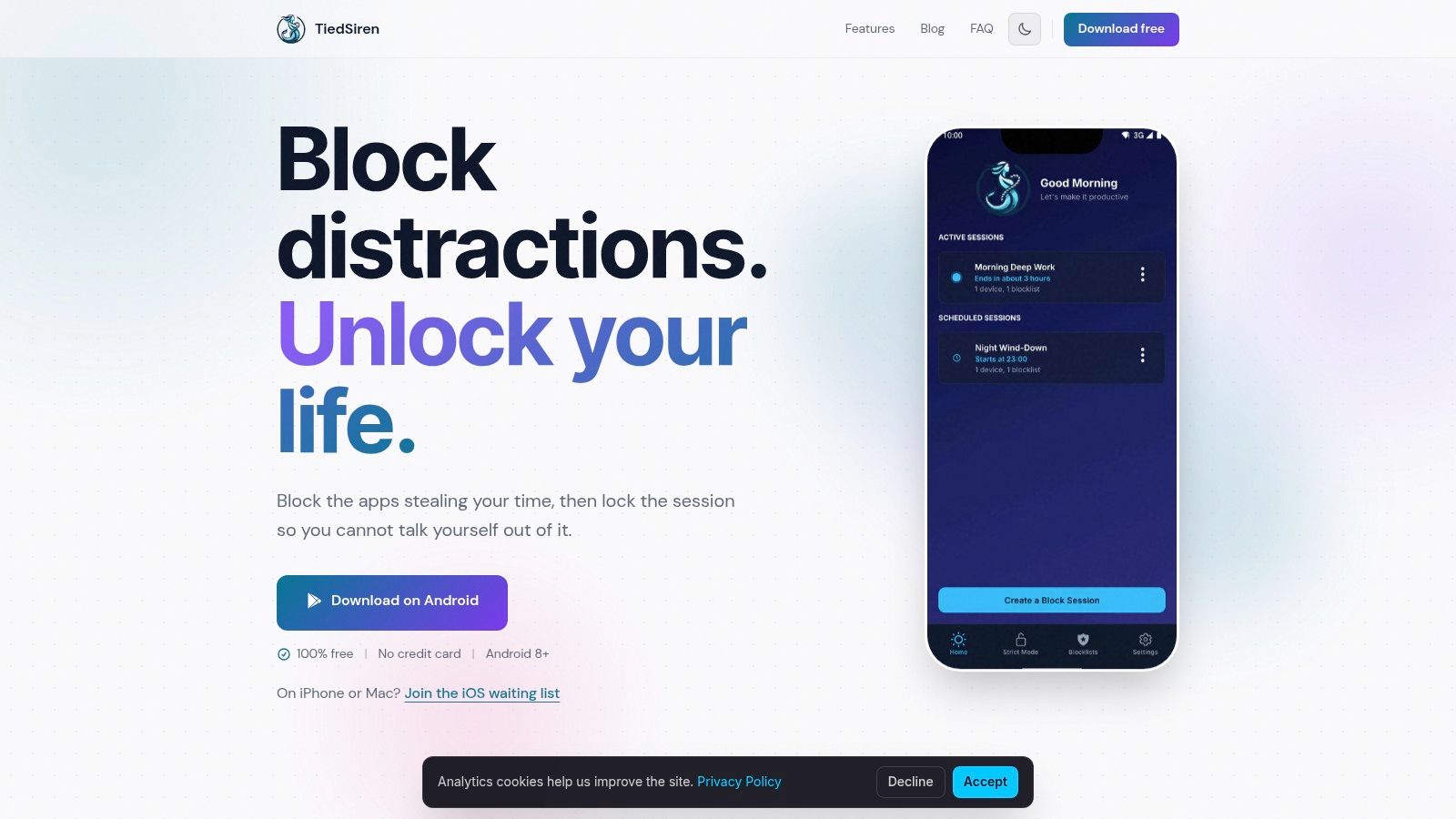
Open TiedSiren and choose Add blocklist. Give the list a context-based name such as Work focus, select the applications you want restricted, choose how long the session should run, and start it. The focus timer then shows how much time remains.
Name the list for the decision
The label does practical work. If you call the list “Social media,” you may later add apps that belong to studying, sleep, or weekends because they fit the same category. That makes the list harder to trust.
Use a naming pattern that answers three questions:
- Situation: Work focus, Exam study, or Sleep.
- Purpose: Protect writing, revision, or bedtime.
- Duration: Add a duration in the name only if it helps you distinguish recurring versions.
Then select only the apps that interfere with that situation. A work list might include Reddit, TikTok, Instagram, and YouTube. Don't add an app merely because it's distracting in general. Add it because it creates a problem during the routine this list represents.
Once the session starts, the selected applications are blocked for the duration you chose, and the timer keeps the remaining time visible. With TiedSiren, the session is built around a commitment made before the block begins. You can find the Android download through TiedSiren's download page.
The important part is the order. Choose the apps, choose the time, then start. Don't wait until you're already scrolling to decide whether the block should exist.
Here's the session flow in practice:
- Create the list: Tap Add blocklist and give it a name tied to a routine.
- Choose applications: Select the apps that interrupt that routine.
- Set the duration: Pick the time you're willing to commit up front.
- Start the session: Begin when you're ready to work, study, or wind down.
- Use the timer: Check the remaining time without reopening the blocked apps.
The list is useful only if the name, apps, and duration describe a real situation. Keep those three parts aligned.
Building Three Context-Specific Lists for Work Study and Sleep
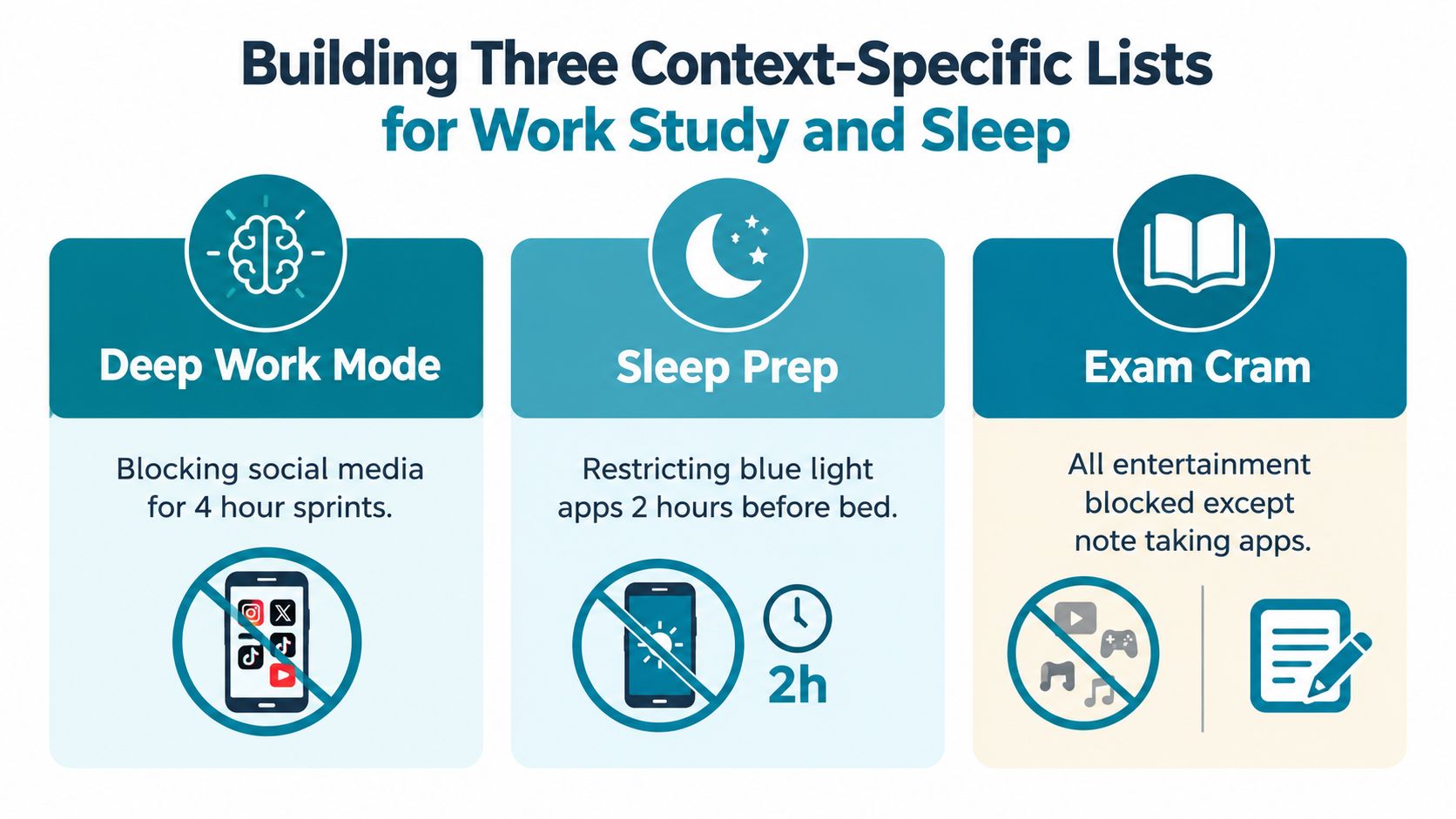
One long list looks efficient until it starts blocking the wrong things. Work and study may share Instagram or Reddit, but studying might require access to research or note-taking tools. Sleep needs a different start time and often a longer window because late-night browsing grows after the day's demands are over.
Build three lists as separate routines.
Work focus
Use this list for deep work, writing, coding, or administrative tasks. Block the entertainment and social apps that make you reach for your phone when a task becomes difficult. You might include Reddit, TikTok, YouTube, and Instagram, then schedule the list around the part of the day when interruptions cost you the most.
Keep the list narrow enough that necessary communication and work tools remain available. A block that prevents you from doing the work defeats its own purpose.
Study
The study list can share several blocked apps with Work focus, but it should reflect how you learn. Keep study and research tools available when you need them, including Quizlet or Google Scholar, while restricting the feeds and video apps that turn a short break into an open-ended detour.
Use a shorter session when you're testing the setup. If the duration feels wrong, change the list rather than abandoning the whole system. Your first version is a working draft of your study routine.
Sleep
Sleep is where many people underbuild the rule. The list should block the apps that keep you alert or invite one more check, then start before you're in bed with the phone already in your hand. A recurring night session can protect the transition rather than relying on a tired decision at the end of the evening.
| List name | Typical blocked apps | Recommended duration | Best use case |
|---|---|---|---|
| Work focus | Reddit, TikTok, YouTube, Instagram | A defined work session | Deep work and writing |
| Study | Social and entertainment apps, while keeping study tools available | A revision or exam-preparation session | Focused learning |
| Sleep | Social feeds, video, and other attention-grabbing apps | An evening and overnight routine | Protecting the move toward bed |
Switch between lists according to the routine, not according to whichever app annoyed you most recently. A list called “Work focus” should remain useful on every workday. If you keep adding exceptions, create a separate list instead.
Practical rule: list name equals situation, and situation determines duration.
The research case for this structure is stronger than the usual static blacklist. A recent review of digital wellbeing tools describes daily resets, ignore windows, category-level limits, and context-based activation, while noting that only a minority of tools support multiple profiles. The unresolved design problem isn't which apps deserve blame. It's how much access should remain in each real-life context, as outlined in research on active nudging and app limits.
Strict Mode and Why Blocking Settings Matters
Most blockers don't fail because they can't restrict an app. They fail because the escape route is too close. A session starts, the urge arrives, and your thumb opens Settings before you've thought through the decision.
TiedSiren's Strict Mode addresses that moment by making the session timer the controlling boundary. Once the session starts, it ends when the timer ends. Nothing else ends it. The app also blocks the Android Settings screen while the session runs, which raises the cost of switching the rule off.
That isn't an absolute lock. A determined person may still look for a technical route around a restriction. The useful question is narrower: does the setup defeat the impulsive bypass, the one made in five seconds without preparation?
A field study of digital wellbeing apps recorded blockers being triggered 245 times. Users respected the block in 115 cases, or 46.94%, and snoozed it in 130 cases, or 54.06%. The study also reported that all phone and app blockers were deleted before its collection phase ended. Those findings are reported in the digital wellbeing field study.
Friction changes the first move
The difference between a reminder and a restriction is what happens after the first impulse.
Android provides system-level mechanisms that can suspend selected packages and show them as grayed out in the launcher. Its parental-control instructions also show that blocking an app can hide it from the All apps view. These controls demonstrate the practical value of adding a visible barrier instead of relying on a notification that asks you to behave differently.
TiedSiren uses a product-level version of that principle. During an active session, blocking Settings closes the fastest route to changing the rule. Strict Mode then removes the normal pause or override path inside the running session.
The timing matters more than the language. Make the difficult choice while you're calm, select the apps, set the duration, and begin. When the impulse arrives, you're no longer deciding whether to block. You're deciding whether to wait.
That distinction won't eliminate every workaround. It can, however, interrupt the easy sequence of urge, Settings, disable, and regret.
Scheduling Sessions for Daily and Weekly Recurrence
A one-off session depends on remembering to start it. That makes the moment of activation another negotiation with yourself. If you're already distracted, you have a reason to postpone the block. If you're tired, you have a reason to shorten it.
Recurring sessions remove that opening.
Set a work list to run on the days you normally work, with the start and end times chosen in advance. Set a study list for the evenings you revise. Set a sleep list to begin before the period when you usually start browsing in bed. Daily or weekly recurrence turns a block from an intention into part of the routine.
One recurring rule beats a perfect setup
Don't configure every possible context on the first day. Start with the routine that causes the clearest damage, then observe whether the schedule fits your actual day.
A simple rollout looks like this:
- Choose one routine: Work, study, or sleep.
- Create one list: Include only the apps that interfere with that routine.
- Set recurrence: Use daily or weekly scheduling to match the days involved.
- Run it for a week: Notice whether the start time and duration fit.
- Add another list: Build the next context only after the first schedule feels ordinary.
A recurring work block might begin when your morning focus period starts and repeat across your working days. A study session might recur on selected evenings. Sleep scheduling deserves special care because the decision to go to bed is easier before you pick up the phone than after a feed has already captured your attention.
The value isn't automation for its own sake. Each manual start reminds you that stopping is still available. A scheduled session begins without asking for a fresh vote from the distracted version of you.
The best schedule is the one that starts before you need to be persuaded.
Keep the first schedule realistic. If the start time regularly collides with travel, dinner, or an unpredictable meeting, adjust it. A system that reflects your real routine can create useful friction. One that ignores your routine becomes another notification to dismiss.
Making the System Stick Without Pretending It Is Perfect
A custom block list works when it changes the moment before the impulse. It gives your intended routine a prepared response, so you do not have to negotiate with yourself after opening the distracting app.
Some sessions will expose a poor fit. The duration may run past your usable focus, an important app may be missing, or the schedule may collide with real life. Treat that result as feedback, not a verdict on blocking. Adjust one variable, then run the revised setup again.
Two checks keep the system useful:
- Read failed sessions as evidence: Note whether the problem was timing, list design, or a bypass you had not anticipated. Change the smallest part that caused the failure.
- Aim friction at the impulsive bypass: Strict Mode and Settings blocking should stop the easy escape route. They do not need to defeat every determined technical workaround.
Short restrictions also do not automatically remove the urge to check. Blocking reduces access during a chosen window, while the habit behind that urge may need longer and more deliberate work. Expecting one schedule to solve the whole problem makes ordinary setbacks look like proof that the system failed.
A practical standard is simpler: does the setup help your future self follow the decision your present self made? If a block repeatedly creates problems, redesign it. If it prevents the five-second detour often enough to protect work, study, or sleep, keep it.
TiedSiren is free on Android 8.0 and later, with no credit card and no trial. iOS, macOS, and Windows access is waitlist-only. You can create separate lists, set durations, and schedule recurring sessions on Android. Visit TiedSiren to try one routine first.