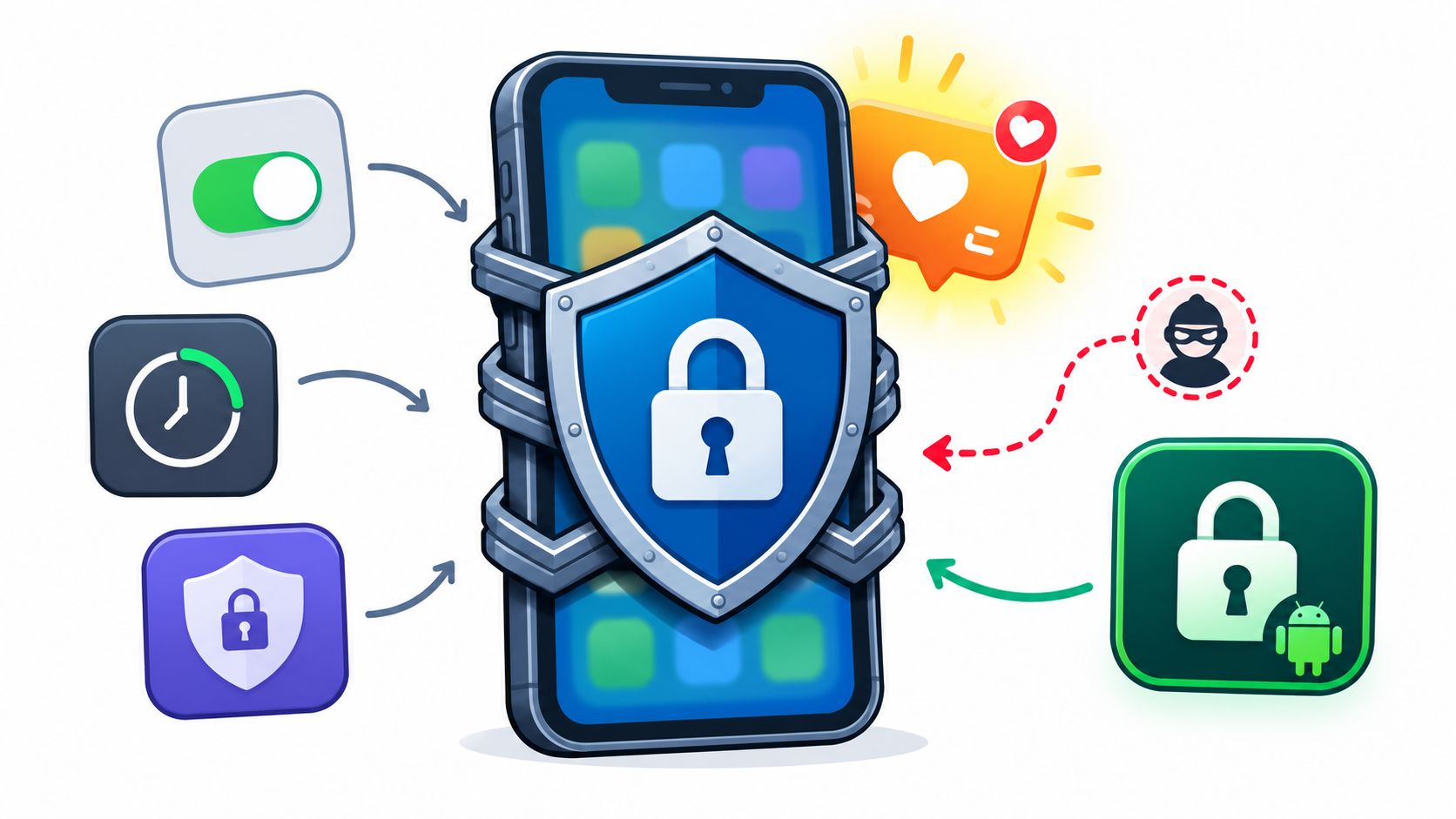
You're searching for anti procrastination apps with the work still open in another tab. Your last screen-time limit lasted until you wanted to scroll, then you disabled it in under a minute. Installing another blocker feels pointless if you can dismiss it just as easily.
The problem is the off switch sitting one tap away when the task gets uncomfortable. You already know which apps waste your time. What you need to know is what happens when you try to undo the restriction.
TiedSiren runs on Android 8.0 and later, so its recommendation applies to Android phones, not your iPhone or desktop. Other tools below cover different platforms and different kinds of resistance, from cross-device locked sessions to a breathing pause before Instagram opens.
These tools aren't interchangeable:
- Timed commitment suits someone who repeatedly disables a block midway through work.
- Selective blocking suits someone who needs messages but keeps wandering into feeds.
- Interruptions and accountability suit someone who needs a reason to reconsider, rather than a locked session.
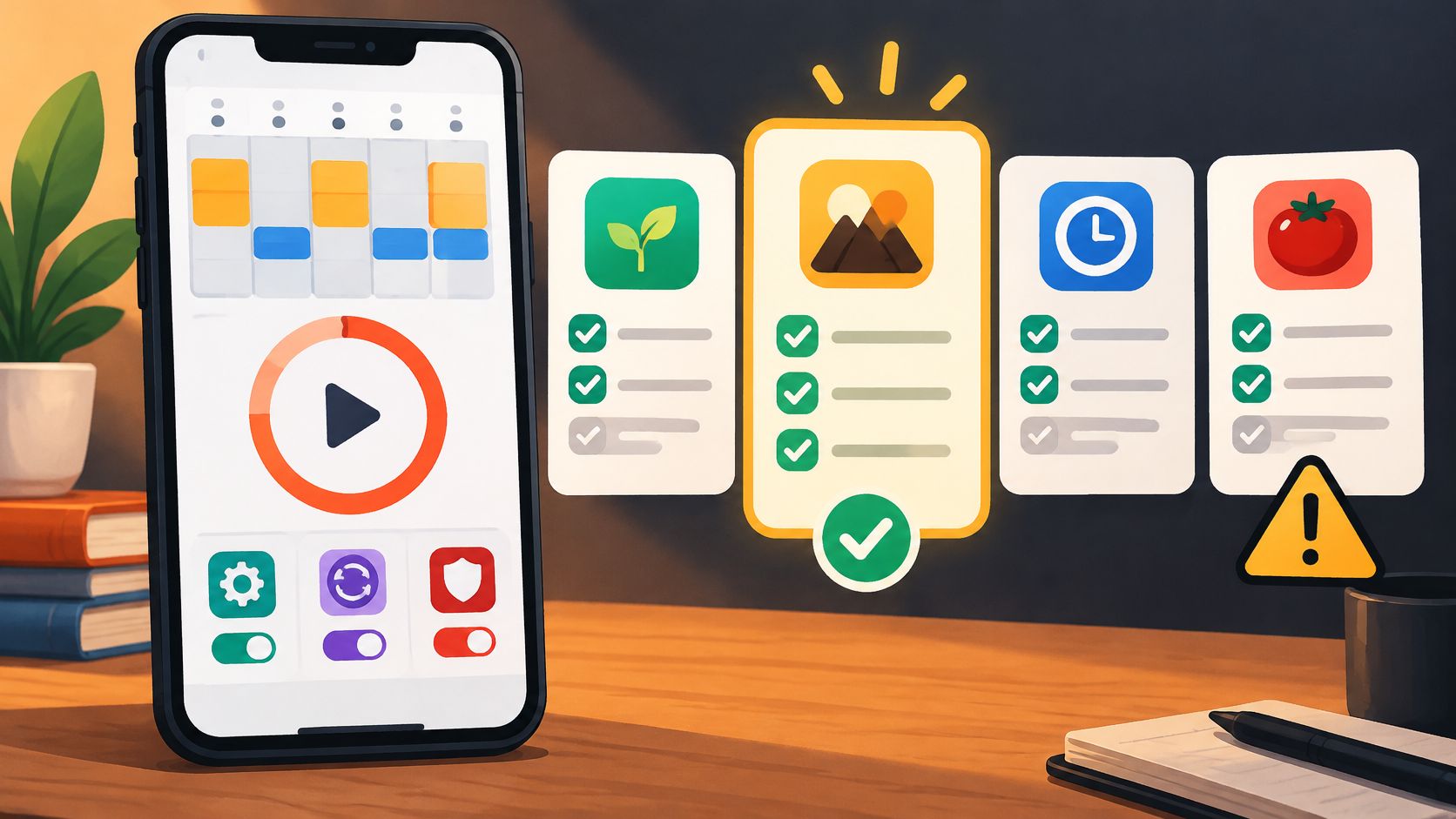
The useful comparison isn't how many features each app includes. It's how much deliberate effort separates an urge from unrestricted access, and whether that friction fits the way you tend to procrastinate.
1. TiedSiren
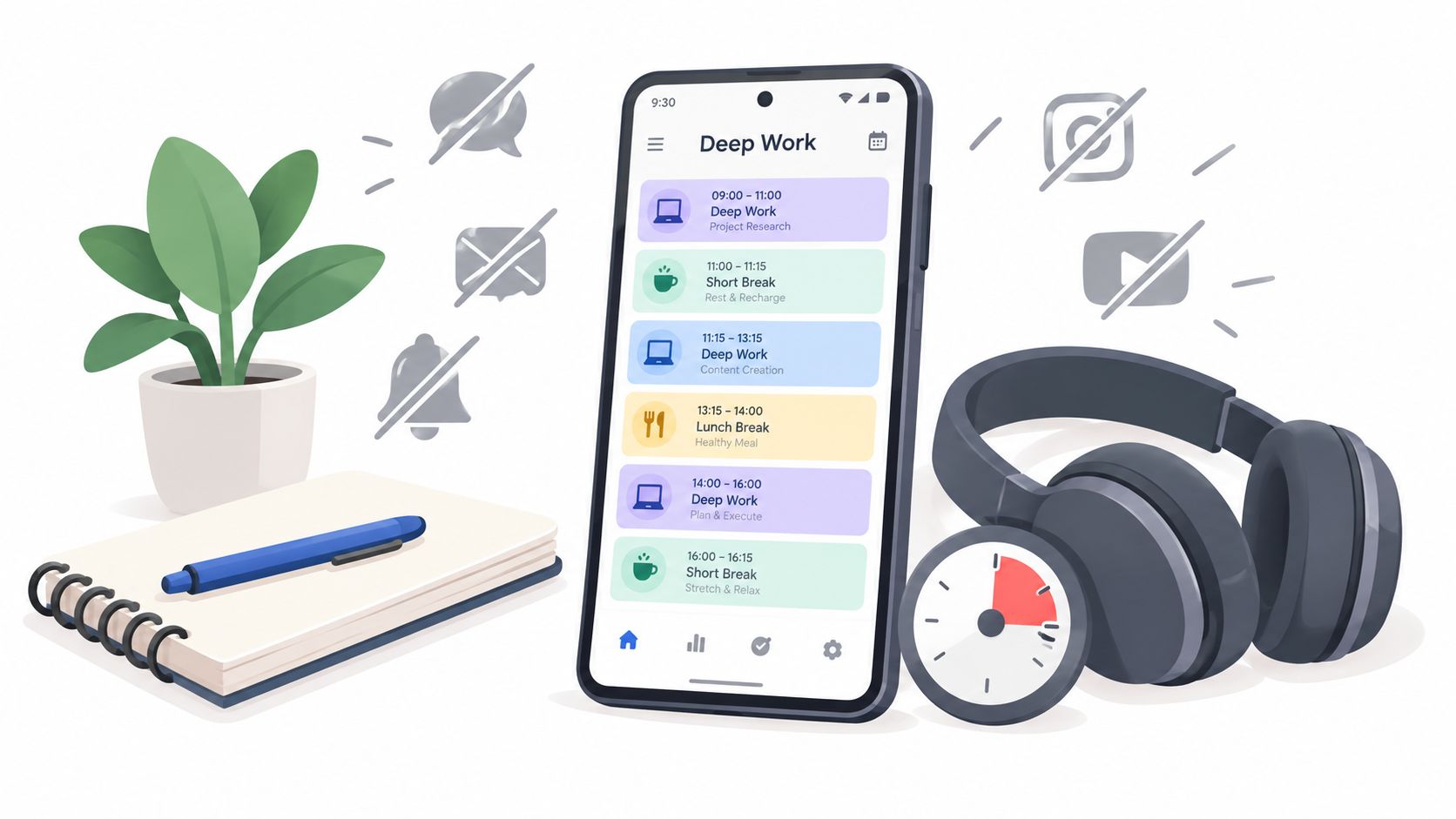
TiedSiren is for the point when a self-imposed limit starts to feel negotiable. Choose the apps to block, set a duration, and start a Strict Mode session. The blocked apps and websites stay closed until the countdown ends.
It's a free Android app with custom blocklists, scheduled sessions, and a focus timer that shows how much time remains. Blocking, blocklists, and scheduled sessions are free, with no credit card required.
What Happens When You Try to Stop
Strict Mode leaves no in-app override: the session ends when the timer does. An optional Settings lock, turned on before the timer starts, keeps the Settings app closed, including the Wi-Fi, Bluetooth, and permission screens, until the timer ends.
That adds friction, not an absolute device lock. A determined person can still pursue system-level methods such as ADB or safe mode. The point is to make an impulsive bypass harder, not to claim every possible route is closed.
- Best fit: You've found that reminders and easily reversed limits don't hold during study or work.
- Useful setup: Keep separate study, work, and sleep blocklists, then switch to the list that fits the task.
- Real trade-off: Choose a realistic duration and include any apps you'll need before starting.
The countdown gives the session a defined endpoint. Start with a duration you can finish, rather than an ambitious restriction meant to make up for earlier scrolling.
2. Freedom
Your phone can be blocked perfectly while the same distraction remains open on your laptop. Freedom is worth considering when you move between devices instead of staying with the work.
It combines selected-app and website blocking with custom blocklists, recurring schedules, and synchronized sessions across supported devices. Locked Mode makes ending an active session early harder, which matters more here than its focus sounds or music.
Block the route you actually take to distraction, including the computer beside your phone.
Where the Friction Ends
Freedom's advantage is coverage. If you reach for a browser whenever your phone becomes inconvenient, coordinated restrictions address that escape route more directly than a phone-only setup.
Don't interpret Locked Mode as an absolute device lock. Check its behavior on the devices you intend to use, and distinguish restrictions on changing a running session from restrictions on changing future schedules.
The Android free version is more limited than Premium, and cross-device setup adds work you may not need. If your entire problem happens inside a phone app, synchronizing a computer doesn't automatically improve the intervention.
Choose Freedom when device-hopping is your failure mode. Prepare the relevant blocklist before the work begins, then judge whether you stay with the task rather than merely switching screens.
3. AppBlock
AppBlock suits people whose restrictions need more detail than a single list and timer. It supports apps, websites, specific URLs, keywords, usage limits, and quick blocking.
Its Strict Mode and Cooldown deserve attention if your usual move is to change the rules during an urge. AppBlock blocks solidly; the practical question is whether you've configured its protections to match the way you normally undo a restriction.
- Targeted blocking: Restrict known distractions while keeping unrelated tools available.
- Allowlist Mode: Keep only chosen essential apps available when a narrow blocklist leaves too many alternatives.
- Usage limits and reports: Useful for understanding and limiting particular habits, but separate from committing to uninterrupted work.
Configuration Is Part of the Commitment
Say you need a calculator, an authentication app, and a learning platform during revision. An allowlist can make more sense than repeatedly adding newly discovered distractions to a blocklist.
The trade-off is configuration effort. More rules mean more opportunities to create a setup that technically works but doesn't cover your actual escape route.
Some features require a paid plan, and strict enforcement depends on configuration and device behavior. Before relying on it for an important deadline, run a low-stakes session and try your usual impulsive exit. Evaluate the configured restriction, not the feature name.
4. Stay Focused
Blocking an entire social app can be excessive when you need its messages but not its endless video feed. Stay Focused offers Android options for hiding supported surfaces such as Reels, Shorts, Stories, and Spotlight.
That selectivity has a sensible basis. In classroom trials examining smartphone use, teacher-guided smartphone use improved learning gains while unstructured access reduced them, supporting the distinction between useful access and distraction.
Keep the Function, Restrict the Detour
Stay Focused also provides app and website blocking, profiles, repeating schedules, and daily limits. Strict Mode makes pausing profiles harder, so it can provide commitment as well as selective restriction.
A practical profile might preserve useful communication while blocking the feed you habitually open afterward. That's preferable to creating an unnecessarily broad ban and then needing to dismantle it to finish legitimate work.
- Best fit: Your distraction happens inside particular parts of apps you otherwise need.
- Operational caution: Android background restrictions and battery optimization can interfere with operation.
- Boundary: Split-screen blocking isn't reliable, and Android Safe Mode can disable installed apps, including Stay Focused.
Those boundaries don't make its normal blocking weak. They mean you should test the exact combination of apps, browser, and phone behavior you intend to rely on.
5. Lock Me Out
Some people need a scheduled work block. Others need a restriction that activates after repeated app openings or device checking. Lock Me Out supports both scheduled and usage-triggered lockouts.
Its lockout styles include blocking selected apps, allowing only selected apps, and restricting use to the lock screen. Rules can respond to time spent in selected apps, app openings, or device access.
The important choice is whether you want prevention or a limit that activates after use. A usage trigger can address repeated checking, but it won't protect the beginning of a work session in the same way as a restriction that starts beforehand.
Understand the Exit Before Starting
Lock Me Out includes emergency access options. Read how those options interact with your chosen lockout, rather than discovering the exit behavior when you're frustrated.
- Strength: Several lockout styles let you choose how much of the phone remains usable.
- Trade-off: The settings can be excessive if you only want a straightforward committed session.
- Reliability consideration: Android battery management can interfere with background operation, and some stronger protections require Premium.
The distinction between a dismissible allowance and a committed restriction matters when choosing an app timer lock. Don't judge a timer by its countdown alone. Judge what happens when you try to change the conditions after it starts.
6. FocusMe
FocusMe for Android offers a range of session strictness rather than treating every restriction as the same kind of commitment. It combines app and website blocking with quick timers, weekly schedules, and usage limits.
Its browser coverage includes several browsers and certain in-app browsers. That matters if blocking a social app merely sends you to the same service through another route.
Test the replacement behavior you already know you use, not an imaginary version of yourself who accepts the first block.
Choose the Enforcement Level Deliberately
FocusMe's core Android blocking, schedules, and limits are available without payment or an account. Premium can synchronize plans with desktop devices.
The useful question is which enforcement level you'll use during real work. A flexible block is appropriate when plans change. Stronger session protections make more sense when changing the plan has become your standard excuse.
- Choose it for: Configurable enforcement and restrictions spanning apps and browser access.
- Allow time for: Android permissions and the settings needed for your intended blocking behavior.
- Avoid overbuilding: Don't turn configuring plans into a substitute for beginning the task.
App usage and blocking activity can help you review what happened, but a detailed report isn't the outcome. A completed work period with fewer interruptions is the outcome. Keep the configuration only as complicated as the distraction pattern requires.
7. Digital Detox Focus & Live
Digital Detox: Focus & Live uses commitment and accountability around detox periods. Depending on configuration, ending early can involve a cost or a quit code.
That changes the decision from casually dismissing a warning to accepting a consequence or meeting an exit condition. It may suit someone who ignores ordinary limits but responds to accountability.
Read the Exit Conditions Carefully
A penalty-based approach needs more thought than a normal reminder. Understand what an early exit involves before starting a restriction that covers a period when your needs might change.
- Available controls: Scheduled detox periods and optional blocking protections using Accessibility and Device Administrator permissions.
- Routine support: Automation tools such as Tasker can start a detox.
- Practical caution: Some phones need battery-optimization changes to keep the app running.
The developer describes the app as ad-free. Its stronger anti-circumvention protections require additional permissions, which should be a deliberate choice rather than something accepted without reading.
Choose it if consequences help you keep a commitment. Don't choose it because paying for failure sounds harsher and therefore more effective. A consequence you resent, avoid configuring, or repeatedly work around won't help you establish a usable routine.
The test remains behavioral: do you start the intended work, and do you stay with it when you want to leave?
8. one sec
You open Instagram automatically, sometimes before you've decided to use it. one sec targets that opening moment by inserting an intervention screen, pause, or breathing exercise.
Its friction comes before access, not from a strict timed lockout. That makes it a different tool from blockers designed to hold a committed work window.
A controlled self-nudging study involving 63 students attributed weak outcomes partly to low engagement and the absence of enforcement mechanisms, including users' ability to bypass controls. That study didn't test one sec specifically, but it explains why activating a wellbeing feature shouldn't be mistaken for effective commitment.
A Pause Works Only If You Use It
one sec may fit when you still want occasional intentional access and need help noticing automatic app openings. Android interventions use Accessibility permission to detect launches; a free Android download and additional paid options are available.
- Good match: You open an app reflexively, then reconsider when interrupted.
- Poor match: You already know you'll dismiss the intervention to escape difficult work.
- Useful distinction: Reducing automatic openings and enforcing uninterrupted sessions are different jobs.
When deciding how to limit time on apps, identify which job you need. A pause is a reasonable intervention, but don't buy it expecting the behavior of a committed lockout.
9. Detox Block Apps & Focus
A planned break from a game or social feed needs a different shape from an afternoon study session. Detox: Block Apps & Focus centers on multi-day challenges for selected apps.
Its progress dashboard shows challenge time remaining, and its block screen reminds you of your stated intention. That can make a longer commitment easier to understand than a restriction with no visible endpoint.
Longer Isn't Automatically Better
Choose the apps carefully. Blocking a game you don't need for work is a different commitment from blocking a communication app that contains practical information.
- Best fit: You want a defined break from selected apps rather than flexible access throughout the day.
- Useful feature: The remaining challenge period stays visible.
- Important boundary: Claims about bypass resistance shouldn't be interpreted as proof that circumvention is impossible.
Before committing, review the current Google Play listing and its data-safety disclosure. The listing indicates potential collection of location, financial information, and other data, which deserves attention alongside the blocking behavior.
Don't use a longer restriction to compensate for an unrealistic plan. Decide what you'll do when you normally open the blocked app, and make that alternative available. A challenge can restrict access; it doesn't decide how you'll spend the reclaimed time or resolve the task you're avoiding.
10. Digital Detox Block Scrolling
You may need the conversation but not the feed that follows it. Digital Detox: Block Scrolling targets supported scrolling surfaces, including Reels, Explore, Shorts, Stories, and Spotlight.
It uses Android Accessibility permission to detect supported screens while leaving other parts of supported social apps available. That's a narrower intervention than general app or website blocking.
Selective Blocking With a Reversible Exit
The listing says users can reset or turn blocks off. That's the decisive trade-off for this comparison: selective access may fit your daily needs, but the restriction remains reversible.
The developer-provided listing says detection runs locally and reports no data collected or shared. It also describes no subscription after installation; treat those statements as developer disclosures, not independent certification.
- Choose it when: Messaging is useful, but a particular scrolling surface repeatedly diverts you.
- Test carefully: Confirm that it detects the surfaces you use.
- Choose differently when: Your main habit is disabling restrictions as soon as they become inconvenient.
A plan for how to stop doom scrolling on Android should distinguish automatic feed entry from deliberate removal of a block. Selective restriction can address the first without necessarily holding against the second.
This is a useful category of tool. It answers a different question from a locked work session.
All 10 Anti Procrastination Apps at a Glance
Feature counts don't show what happens when you try to undo a block. This comparison focuses on each app's blocking approach and the friction between you and its off switch.
| App | Platform | Blocking style | Free version | Best for |
|---|---|---|---|---|
| TiedSiren | Android; iOS, macOS, and Windows are not released | App and website blocks, recurring schedules, Strict Mode | Blocking, blocklists, and scheduled sessions are free, with no credit card required | Android users who want scheduled blocks that can't be paused while Strict Mode runs |
| Freedom | Android, iOS, Windows, macOS, and other supported devices | App and website blocks, synced focus sessions, optional Locked Mode | Android free version has limited features | Blocking distractions across phones and computers |
| AppBlock | Android and iOS | App, website, URL, and keyword blocks; limits and Strict Mode | Some features require a paid plan | Users who want detailed blocking rules and controls |
| Stay Focused | Android | App and website blocks, schedules, limits, selective feed blocking | Free version details aren't specified | Users who want to block social-media feeds selectively |
| Lock Me Out | Android | Scheduled or usage-triggered lockouts, allowlists, lock-screen-only mode | Some stronger protections are Premium-only | Users who want configurable, usage-triggered lockouts |
| FocusMe | Android, with desktop sync available | App and website blocks, schedules, limits, adjustable strictness | Core Android blocking, schedules, and limits are free | Users who want flexible blocking with optional stronger enforcement |
| Digital Detox: Focus & Live | Android | Scheduled detox periods with optional accountability for early exits | Free version details aren't specified | Users motivated by commitment and accountability |
| one sec | Android and other platforms | Pause or breathing intervention before opening selected apps | Free Android download available | Users who want a lighter interruption rather than a full lockout |
| Detox: Block Apps & Focus | Android | Multi-day challenges that lock selected apps | Available with in-app purchases | Users planning a longer break from selected apps |
| Digital Detox: Block Scrolling | Android | Blocks selected social-media feeds and scrolling surfaces | Listing describes no subscription after install | Users who want to avoid feeds while keeping other app features |
Pick the Tool You Cannot Talk Yourself Out Of
Choose anti procrastination apps by your actual failure mode, not the size of their feature list. If you move from phone to laptop, consider cross-device coverage. If you need messages but lose time in feeds, consider selective blocking. If you dismiss every interruption, another reminder is unlikely to be the right next experiment.
For readers who keep disabling a blocker midway through work, TiedSiren's Strict Mode is built around that exact failure. The timer ends the session, and nothing else ends it inside the product. Daily or weekly schedules activate blocks automatically, and blocking, blocklists, and scheduled sessions are free with no credit card required.
That commitment still needs sensible boundaries. Keep the applications required for your intended work available, choose a duration you can reasonably honor, and don't describe system-level resistance as an impossible-to-bypass lock.
Judge the Work, Not the Installation
A review of commercial digital-wellbeing apps distinguishes strong obstacles such as app blocks from weaker interventions such as notifications. Those categories help explain the choice, but they don't establish that every person needs the strongest restriction.
Use a real task to evaluate your choice:
- Notice the escape attempt: Did you dismiss a prompt, change a rule, open a browser, or pick up another device?
- Check task progress: Did you write, revise, study, or build something during the protected period?
- Adjust the boundary: Restrict the distraction route without removing tools the task requires.
Blocking is a behavioral aid, not treatment for ADHD or problematic phone use. It also won't make an unclear assignment clear or remove anxiety about producing a rough draft. Give yourself a concrete starting action before the restriction begins, such as opening the practice paper and answering the first available question.
Keep the tool that makes your usual impulsive exit inconvenient enough to reconsider. You don't need to prove that you can outsmart your own blocker.
If committed Android sessions match the problem you're trying to solve, install TiedSiren from Google Play. Choose the distracting apps, commit to a realistic duration, and begin the work before you find another reason to postpone it.
TiedSiren offers chosen-app blocking, recurring schedules, and Strict Mode for Android users whose limits keep getting disabled mid-session. Visit TiedSiren and put a committed boundary around your next study or work period.