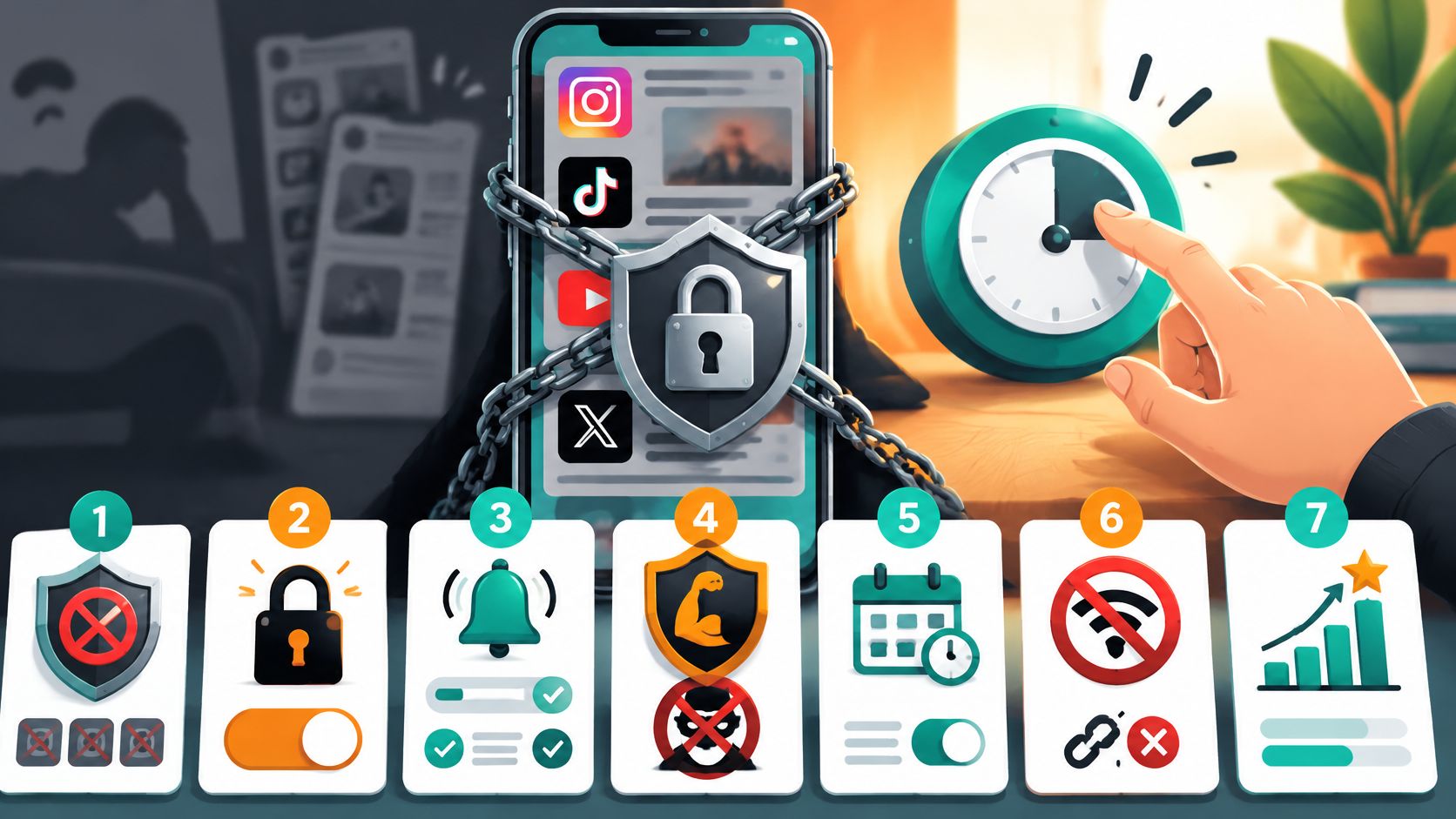
You installed a blocker on Sunday. By Tuesday, you'd turned it off halfway through a scroll, promising you'd put the limit back afterward. Now you're looking up how to block apps because knowing your screen time hasn't changed what happens when you want another look.
This guide covers Android phones, including built-in controls and TiedSiren, an Android app blocker. The useful comparison isn't how many features each method has. It's how much deliberate effort stands between an urge and getting the app open again.
Pick the Blocking Method That Fits Your Weak Moment
Android blocking methods compared
| Method | What it blocks | Can you undo it mid-urge? | Best for |
|---|---|---|---|
| Digital Wellbeing app timers | Pauses an app once its daily limit is reached | Yes, the limit can be removed for the day | Soft daily caps on feeds and games |
| Focus mode | Pauses chosen apps during a set window | Yes, it can be turned off | Scheduled work or study windows |
| Revoked app permissions | Selected access to location, contacts and media, with background activity controlled separately | Yes, permissions can be granted again | Cutting the pull of apps you still need |
| Third-party strict session | Chosen apps and, with a Settings block, the Android Settings screen for the timer's duration | No override inside the session; the timer ends it | Impulsive bypass during a planned block |
Built-in timers cost nothing to try and suit someone who needs a clear stopping point but will usually respect it. Focus mode suits a predictable window when you don't want selected apps available, provided you won't immediately switch it off.
Permission changes reduce what an app can access, but they don't prevent you from opening its feed. Strict sessions suit the person whose usual response to a limit is to remove it before thinking.
Don't count taps from a specification sheet. Test your own route back into the app: dismissing a warning, changing a limit, or opening Settings. That route tells you more than a long feature comparison.
Choose according to your last failed block
If a reminder would help you stop, start with built-in limits. If you already dismiss reminders and undo restrictions automatically, choose a method that holds for the session you committed to.
The Android screen-time app guide offers another way to assess that choice. For the no-install starting point, use Digital Wellbeing.
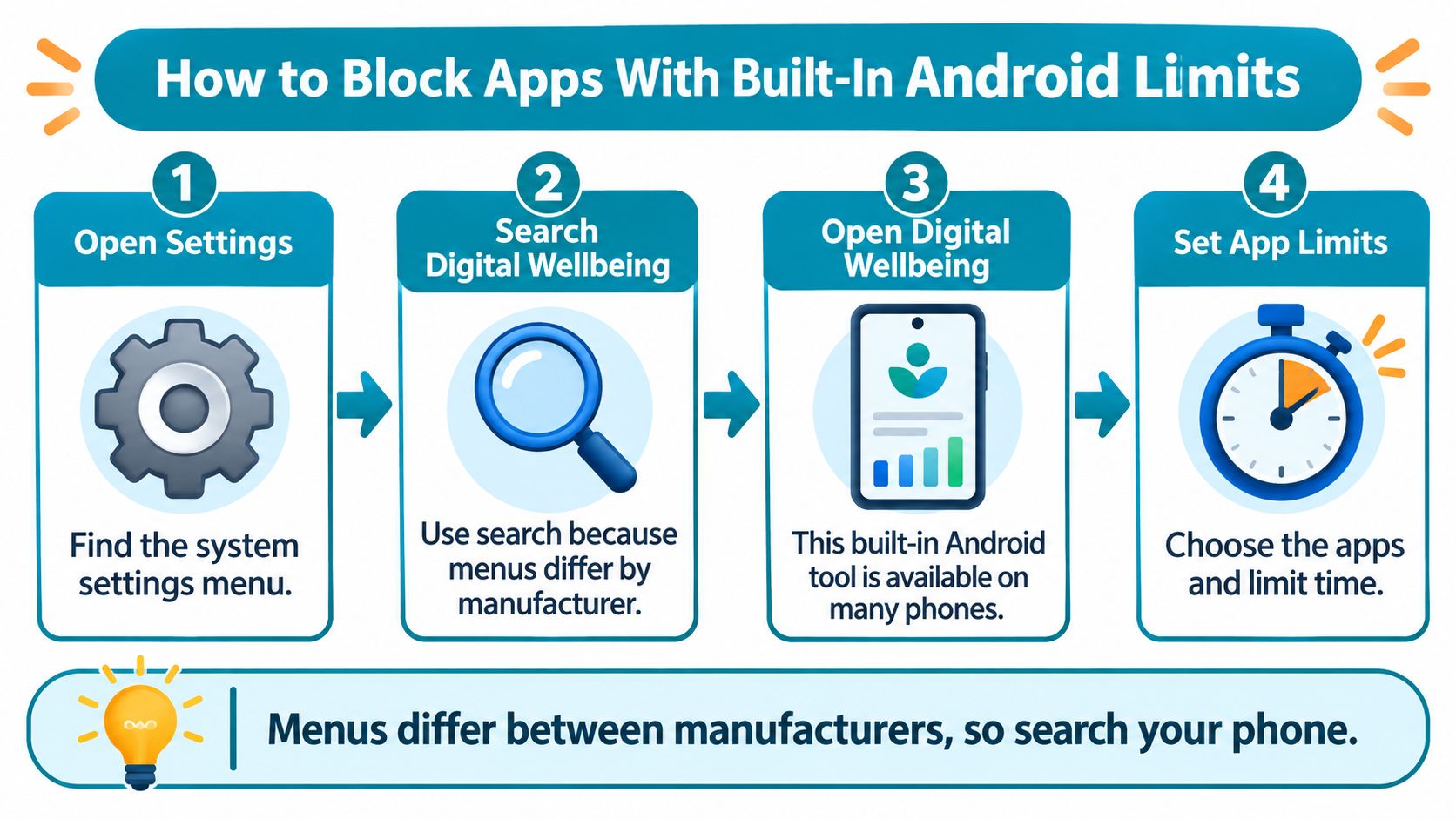
How to Block Apps With Built-In Android Limits
Digital Wellbeing is built into many Android phones. Manufacturers arrange Settings differently, so search your phone's settings for Digital Wellbeing rather than following a menu path that might not exist on your device.
Start with the apps you open, not the ones you think you ought to dislike. A browser, shopping app or news feed can deserve a limit just as much as Instagram.
Set up the limits and test the exit
Review your usage dashboard. Open Digital Wellbeing and inspect app usage across the available recent days, using the weekly view if your phone offers it. Choose the apps that repeatedly take time from something you intended to do.
Set a daily app timer. Give each high-pull app an allowance you're willing to keep on an ordinary day, including a tiring one. Daily timers reset each day, so an overrun doesn't become a restriction hanging over the rest of the week.
Configure Focus mode. Select the apps you want paused during work or study, then schedule that window if your device offers scheduling. Leave tools needed for the task available, or you'll create a reason to switch the whole mode off.
Test what happens at the limit. Open an app after its allowance has run out and inspect the available controls. Check whether you can remove the timer or stop Focus mode easily, because that's the route you'll be tempted to use later.
Respond to the actual failure. If you dismiss the restriction without hesitation, stop making the allowance smaller. Use the context-specific blocklists and strict-session approach below instead of adding another warning you already know how to ignore.
The visual below shows the basic route into Android's built-in controls.
Check that the routine runs without prompting
A working setup has an observable result: the app pauses at its allowance, and the scheduled Focus window begins without you remembering to activate it. Check both before relying on the arrangement for an important deadline.
Keep ordinary recreation available outside the protected window. Blocking every enjoyable app all day creates an unnecessarily large commitment when the task might be finishing a report before lunch.
Test the restriction while you're calm. Discovering an easy exit during a craving is a poor time to decide whether you'll use it.
Choose Which Apps to Block and for How Long
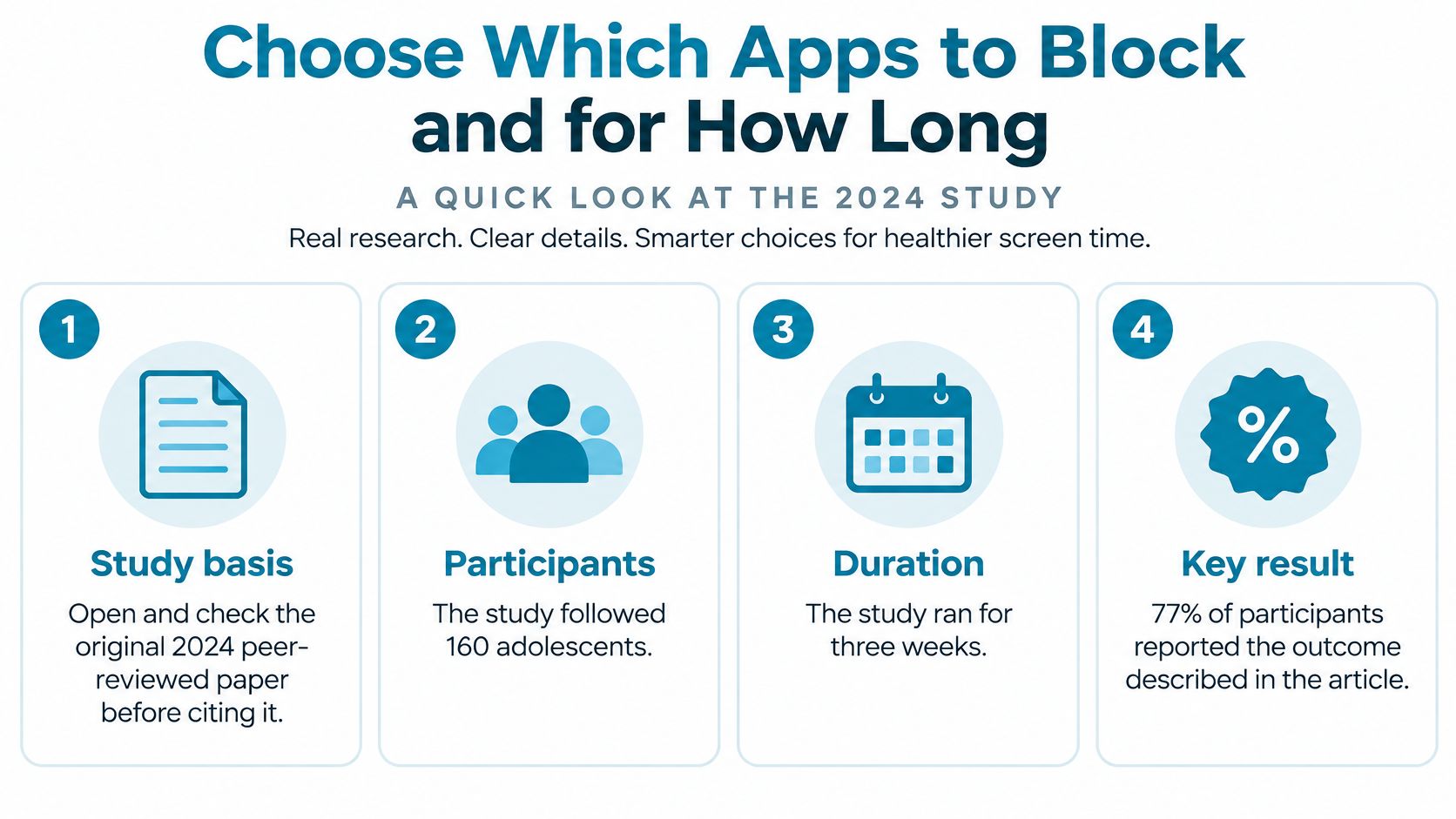
In a 2024 peer-reviewed study, 77% of 160 adolescents followed for three weeks showed increased distraction with more fragmented smartphone use, while 55% showed increased distraction with sticky use, meaning use that was harder to disengage from. That's an adolescent sample, not a measured prediction for adults, but it gives a useful reason to target both repeated checking and apps you struggle to leave.
Block the apps that interrupt the task, for the period the task needs. Don't make your whole phone inconvenient just to stop opening a feed.
Worked blocklists by context
| Context | Apps blocked | Window | Exception |
|---|---|---|---|
| Work | Social feeds and video apps | The work block, daily or weekly | A video platform used for coursework gets its own list |
| Study | Games, messaging and feeds | The study window | Notes stay available; group-work messaging gets its own list |
| Sleep | Feeds, video and messaging apps | The hours before bed | The alarm app stays available |
For Work, put a necessary research platform on a separate list. That lets you plan a research window without reopening every social app alongside it.
For Study, preserve your note app and decide whether messaging is essential for the particular assignment. A solo revision session and a live group project shouldn't use identical restrictions.
For Sleep, leave the alarm available and check any other practical bedtime needs before starting. Don't block an app because it belongs to a broad category.
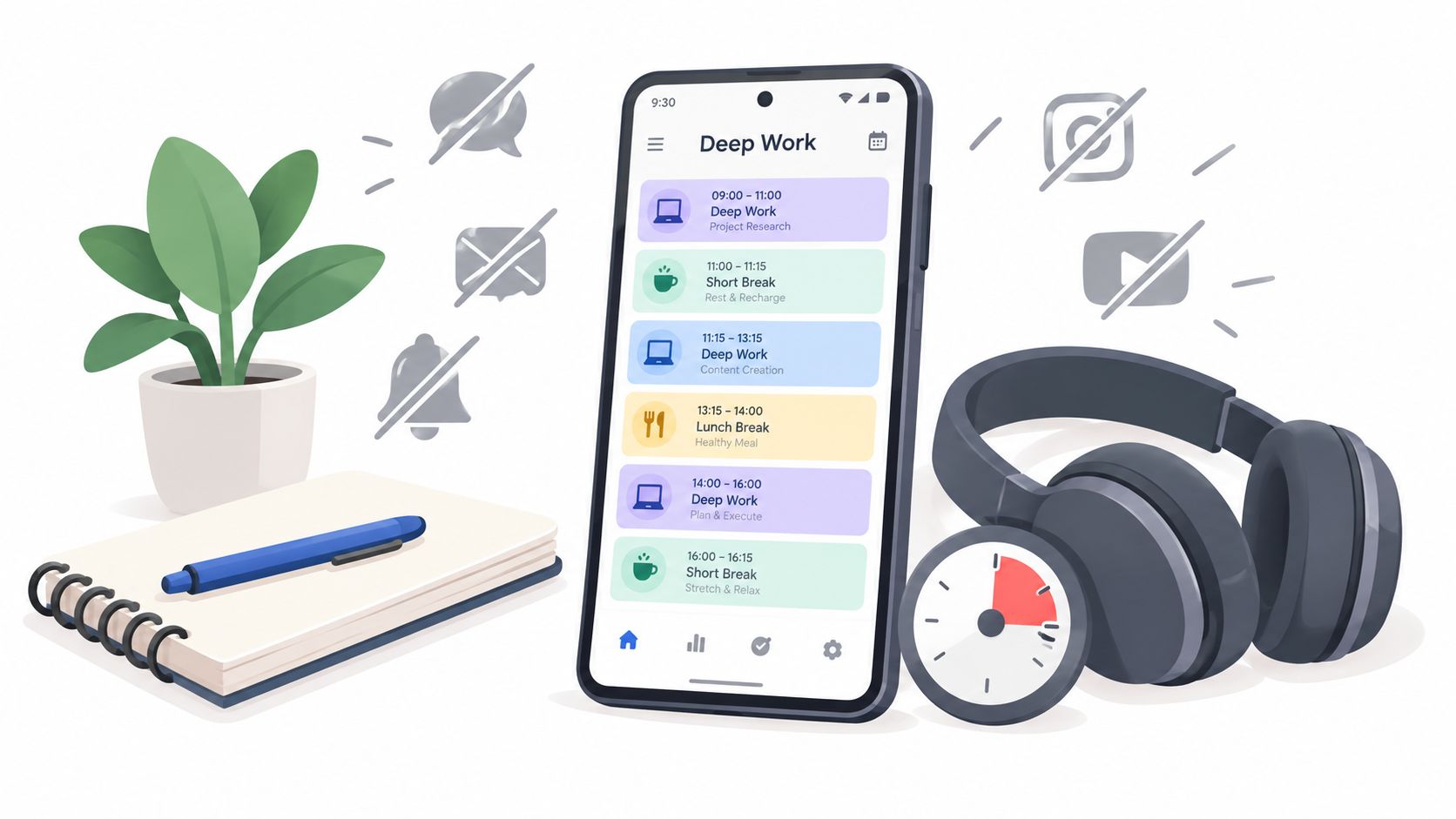
The visual summarizes the study context behind choosing targeted blocks.
Make the duration fit a finishable task
Choose the shortest session that fits the task, including whatever you need to save or submit it. Change the duration before the next session, not while you're trying to escape the current one.
- Name the context: Work, Study or Sleep.
- Choose a short list: Include only the apps you're likely to reach for.
- Set the window: Match it to a task or bedtime routine.
- Write the exception: Identify what must remain available and why.
Run a Strict Session That Only the Timer Can End
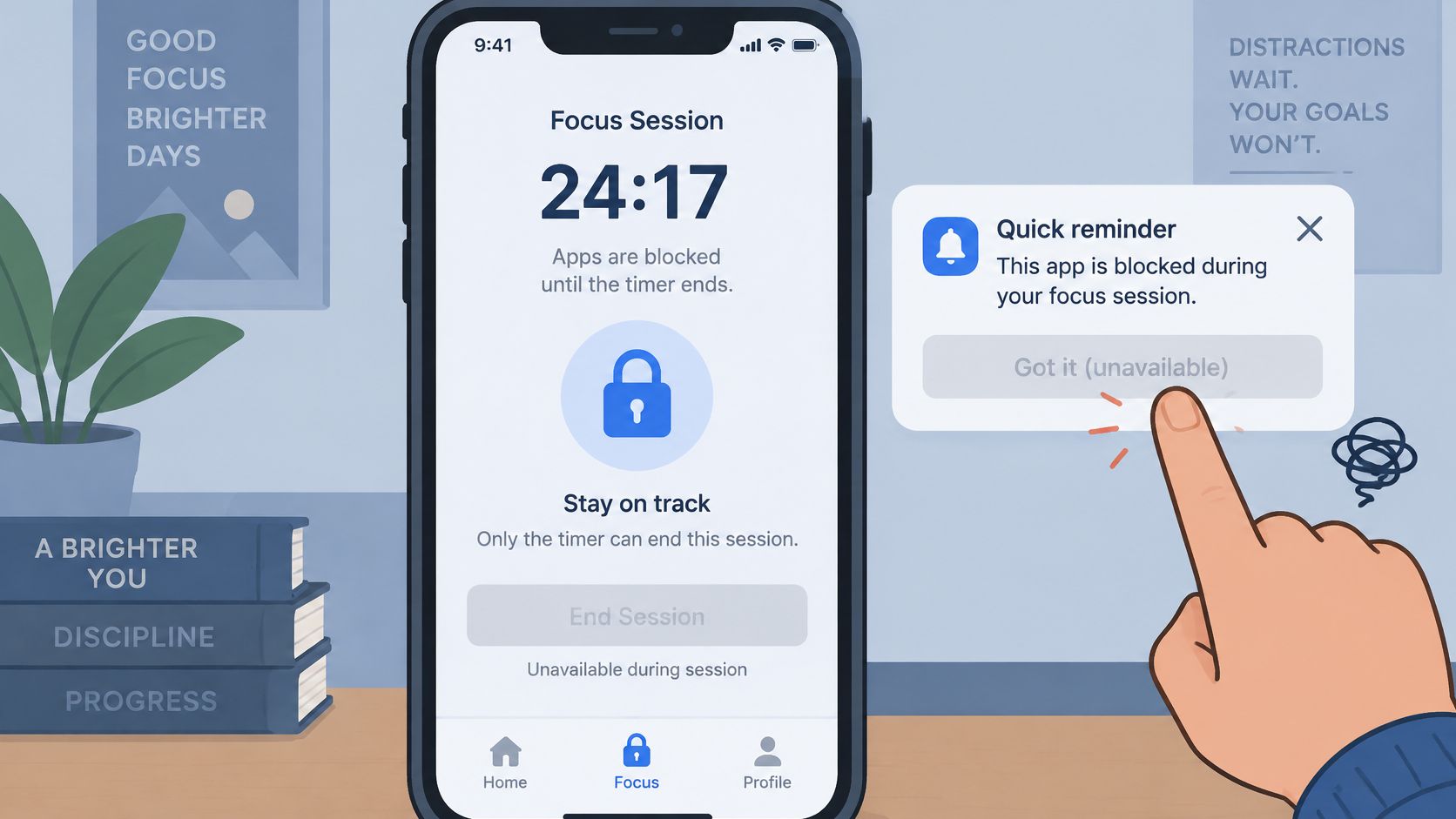
A reminder leaves the decision with you at the exact moment you're least interested in keeping it. An immediate override leaves the same problem, even when the app successfully blocks access first.
A strict session moves that decision earlier. You choose the apps and duration before starting, rather than deciding again whenever you reach for a blocked app.
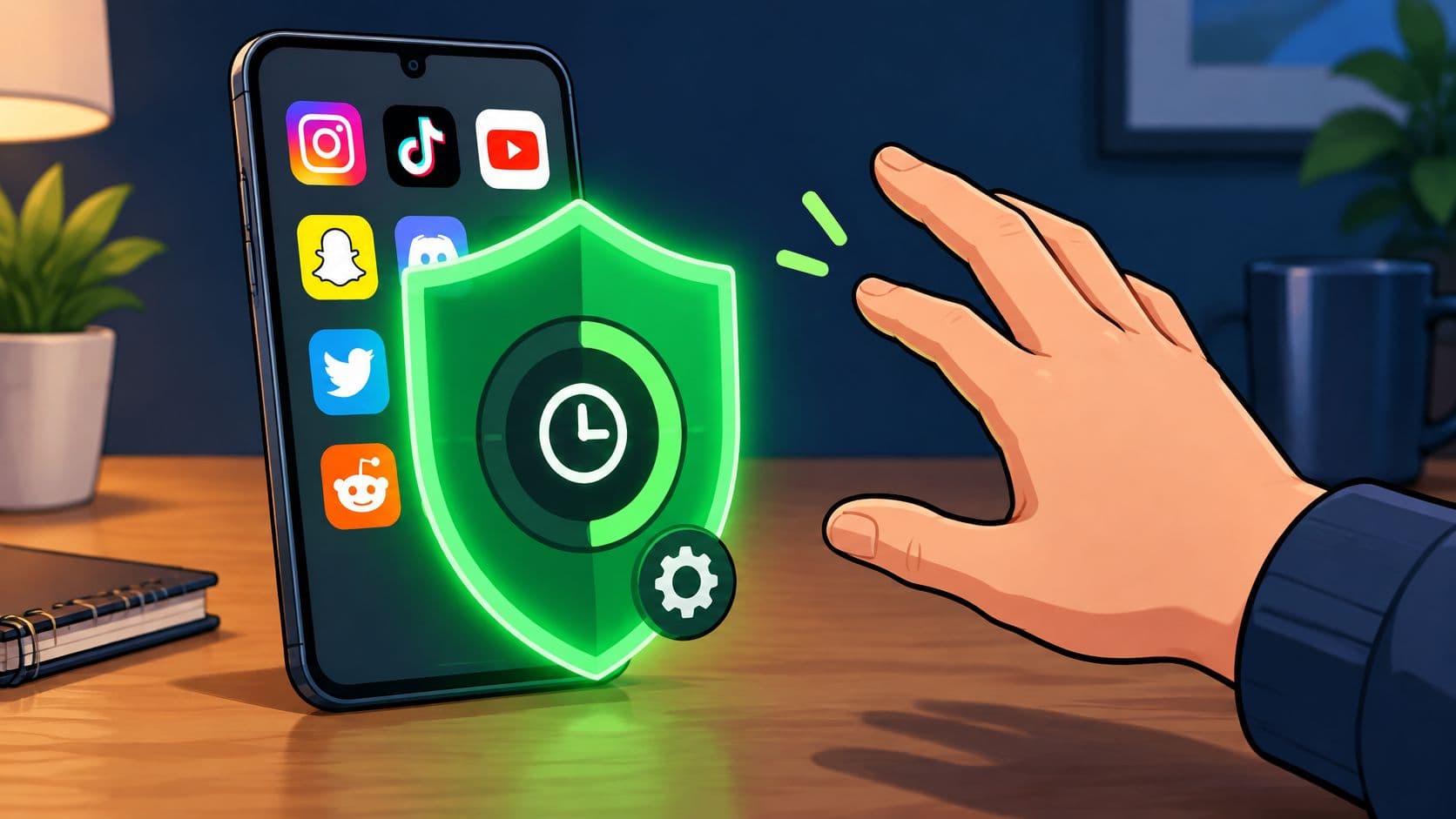
This image illustrates a scheduled focus session.
Commit before the urge arrives
TiedSiren's Strict Mode makes the timer the session's only in-app exit. It supports custom blocklists grouped by context, scheduled sessions with daily or weekly recurrence, and a focus timer showing the time left.
While a session runs, its Android Settings block raises the effort required to turn blocking off. Review the TiedSiren features when deciding whether that commitment matches your usual bypass behavior.
Use this order without guessing at menu labels:
- Install on a compatible phone. TiedSiren runs on Android 8.0 and later.
- Build a context-specific blocklist. Choose a purpose such as Work or Sleep.
- Add the apps you reach for. Instagram, TikTok, YouTube and Reddit are examples, not a mandatory list.
- Choose the timing. Schedule daily or weekly recurrence for a repeating window, or commit to a duration for the current sitting.
- Prepare before starting. Check your list, duration and Settings-block configuration before the session begins.
The Settings restriction applies during a running session. Waiting until you're already reaching for a feed gives you another decision to negotiate.
The video offers a further look at the app-blocking approach.
Understand the limit of the commitment
This is friction, not an absolute lock. It's intended to defeat the impulsive bypass, the one done in five seconds without premeditation, rather than guarantee that a determined phone owner can't find an advanced workaround.
AppBlock, BlockSite, Cold Turkey and Stay Focused also block solidly. The distinction here is the absence of an override inside a running session, not a claim of stronger blocking.
Choose that trade-off deliberately. A committed session is useful precisely because changing your mind won't produce an immediate in-app escape.
Cut the Notifications and Background Access That Pull You Back
An app doesn't need to be open to prompt you to return. Depending on how it's restricted, notifications and background activity can remain separate issues, so check them rather than assuming an access block handles everything.
Say a shopping app advertises a deal during lunch. Removing that notification removes the invitation you were responding to, even though you can still open the shop deliberately.
Remove prompts at the app level
- Open the app's information page. Find it in Android's app list, or use the app icon's information shortcut if your phone provides one.
- Turn off unwanted notifications. Disable them entirely, or silence the promotional notification channel while keeping something useful, such as delivery updates.
- Review background activity. Restrict it where appropriate to reduce what the app does while you're away. Don't assume every manufacturer uses the same battery-control labels.
- Revoke unnecessary permissions. Review location, contacts and media access against the app's actual purpose. A shopping app doesn't need your contacts merely to display products.
- Check the notification shade afterward. Identify any remaining prompts and adjust the specific app or channel responsible.
Keep useful alerts working
Background restrictions can delay or prevent alerts from some messaging apps. Test message delivery before relying on a restricted app for something time-sensitive, and restore the relevant setting if necessary.
These changes need no additional app and cost nothing, but you can reverse them through Settings. They reduce an app's pull without preventing access to its content.
Keep access restrictions and notification controls separate in your testing. Being unable to open an app doesn't tell you whether its alerts can still reach you.
The expected result is modest and useful: fewer prompts, less background activity where you've restricted it, and a phone that gives you fewer reasons to interrupt yourself.
Fixing Blocks That Fail or Let You Through
The app opens even though you thought you'd blocked it. Start by checking whether you've reached a daily allowance, entered a scheduled window, or started a committed session, because those are different conditions.
Don't rebuild every setting at once. Match the symptom to a likely cause, change the relevant control, and test again.
Block failures, causes and fixes
| Symptom | Likely cause | Fix |
|---|---|---|
| Blocked app still opens after the limit | The built-in limit was removed for the day | Move that app into the strict-session setup |
| Notifications keep pulling you back | Notifications remain allowed | Silence the app's notification channel using the notification controls above |
| A blocker stops during a session | Battery saver or background restrictions may have closed it | Exclude the blocker from battery optimization |
| A session cannot be ended early | The timer controls the session | Plan a suitable duration before the next session |
Retest the suspected failure
If Android appears to have stopped the blocker, search Settings for its battery controls and allow the background operation it needs. Labels differ across phones, so inspect the setting for that particular app rather than disabling battery protections indiscriminately.
After changing it, restart the session and test a blocked app. Check again after restarting the phone, rather than assuming the first successful test settles the issue.
A timer-controlled session that won't end early is behaving as designed. Don't treat the absence of an override as a fault; use the experience to choose a more suitable duration next time.
Diagnose in a sensible order
- Session first: Confirm that the intended list and window are active.
- Permissions next: Check that the blocker retains the access it requires.
- Battery settings last: Investigate whether Android is interrupting its background operation.
This order avoids changing unrelated settings when the actual problem is an inactive session or the wrong list.
Set Up Your First Strict Session Tonight
If you've already tried reminders and dismissed them, a strict session is the next step. Pick the context that costs you the most time, such as the period before bed or the beginning of your workday.
Make tonight's commitment narrow. Protect a task you can describe clearly, rather than trying to repair your entire relationship with your phone in one sitting.
Decide what a successful session means
Use the context, apps, window and exception checklist to make the decision before starting. If that window repeats, schedule it daily or weekly, and check that the Settings restriction applies while the session runs.
- Choose a finish line: Put away the phone for bedtime, or finish a defined piece of work.
- Preserve the essentials: Check that the tools needed for that activity remain available.
- Review afterward: Note whether the session held, whether you found another distraction, or whether you blocked something necessary.
The next morning, adjust the list or duration based on what happened. Don't respond to an imperfect session by making the next commitment harsher; correct the specific mismatch.
Install when you're ready to commit
The app is free on Android 8.0 and later. Install it from the Google Play listing, or use the Android download page to get started.
Your first session should feel short, dull and easy to keep.
TiedSiren blocks the Android apps you choose for a duration you commit to beforehand, with Strict Mode removing the in-session override. Visit TiedSiren and choose a small, specific window to protect before your next automatic scroll.