You've already installed a blocker. It worked until the moment you wanted to scroll, check one app, or play one more game. Then the off switch was close enough to reach without thinking, and the restriction disappeared before your better judgment caught up.
That's the failure point this list takes seriously. These seven Android options are compared by what happens during that moment: what they block, whether you can renegotiate a session, how much friction sits between an impulse and the off switch, and whether they fit students, knowledge workers, or adults with ADHD. AppBlock, Stay Focused, and BlockSite all block solidly. TiedSiren's distinction is different. Its Strict Mode commits the session to a timer and can block Android Settings while the session runs, raising the cost of an impulsive shutdown.
The best Android app blocker isn't the one with the longest feature list. It's the one you'll still be using when you want to disable it.
1. TiedSiren
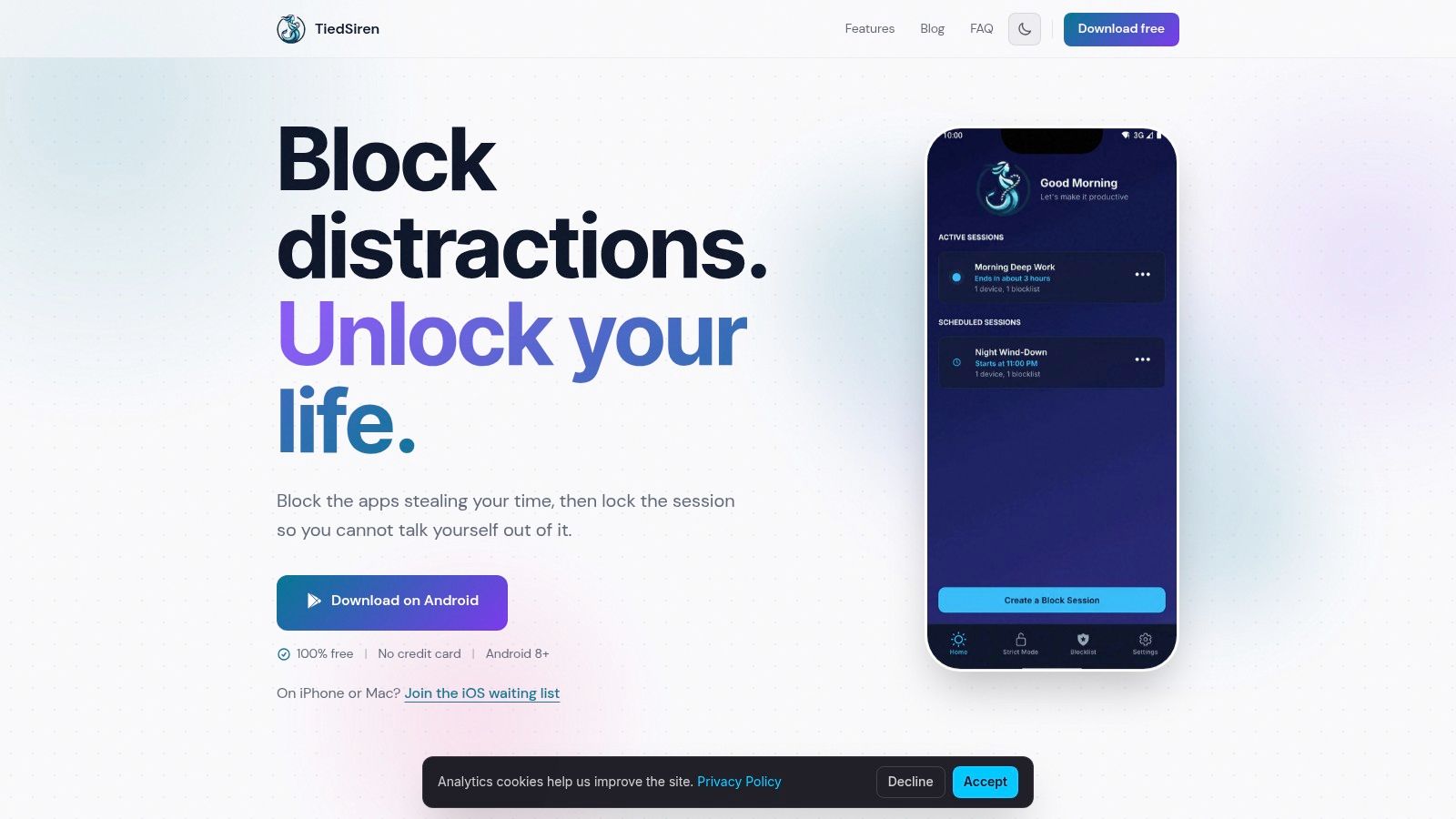
If you usually disable a blocker as soon as the urge appears, TiedSiren is built for that failure point. Choose the apps, set a duration, and start a session. With Strict Mode, the session continues until the timer ends. The app does not provide an in-session option to end it early.
That changes the decision from resisting Instagram in the moment to committing before the impulse arrives. TiedSiren can also block the Android Settings screen during an active session. This is not an absolute lock, but it removes the quickest casual route to changing permissions or disabling the restriction.
Best for committed sessions
The main advantage is Strict Mode plus Settings friction. There is no pause, five-minute override, or confirmation prompt inside the session that lets you casually renegotiate the commitment. TiedSiren also supports custom blocklists by context, scheduled sessions with daily or weekly recurrence, and a focus timer showing the remaining time.
That setup fits several recurring needs:
- Study blocks: Keep social apps and games unavailable during a planned revision window.
- Deep work: Start a session before writing, coding, or other concentrated work.
- Sleep routines: Schedule a recurring block for apps that pull you into late-night scrolling.
- Specific triggers: Block a betting app, endless feed, or mobile game without restricting the whole phone.
This makes TiedSiren a focused choice for students, knowledge workers, and adults with ADHD who need more friction at the off switch rather than a long list of settings. It asks for less ongoing renegotiation than a flexible profile system, though that also means less room to change the rules once a session begins.
TiedSiren is free on Android 8.0 and later, with no credit card or trial required. Android 8.0 matters because Android's minSdkVersion sets the lowest platform version an app supports, while targetSdkVersion identifies the highest version it is designed and tested against, as explained in Android's compatibility documentation.
Practical rule: Start the session before temptation starts. A blocker is more effective when the decision is made in advance.
TiedSiren raises friction rather than promising an impossible bypass. A determined user may still try technical routes such as ADB or safe mode, or uninstall the app when no session is active. Its purpose is to interrupt the impulsive five-second undo, not to defeat every deliberate workaround.
The app is Android-only, and website blocking is outside the stated product scope. Choose it when app access is the problem and the phone's nearby off switch keeps winning. Visit the TiedSiren website to assess whether its committed-session model suits your routine.
2. AppBlock
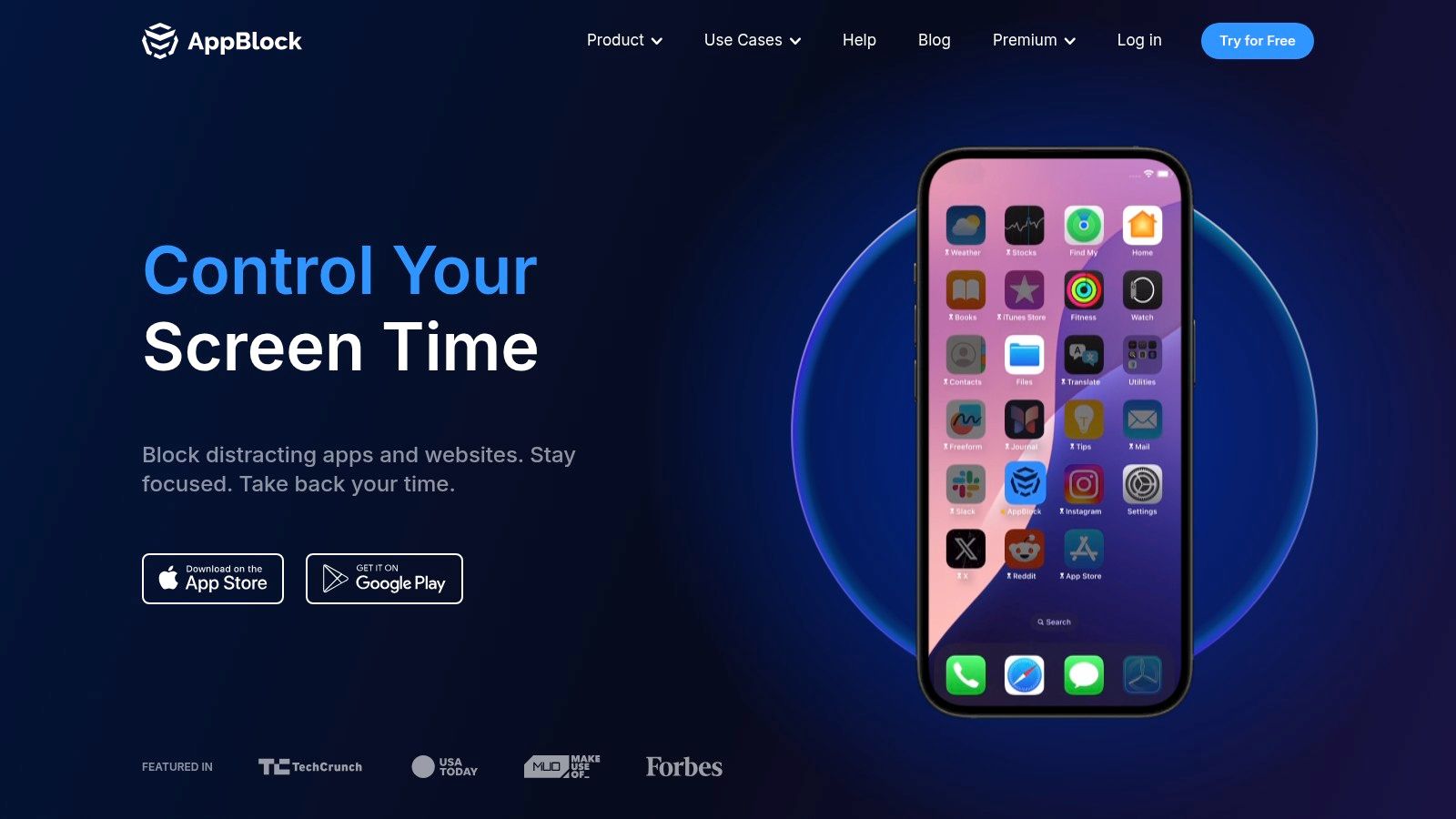
AppBlock fits users who need different rules for work, study, evenings, and other recurring situations. It supports app and website blocklists, schedules, usage limits, and profiles, so you can change the blocked set by context instead of maintaining one permanent list.
The point of failure is flexibility. AppBlock gives you several ways to structure a block, but that also leaves more decisions to review before and during a session. Check the selected mode carefully. Some capabilities require Premium, and feature availability can vary by platform.
Best for configurable routines
A study profile can block one group of apps, while a night profile blocks another. Location and usage-based triggers can start those rules without asking you to make the same manual choice each time.
The trade-off is setup work. You must decide which apps belong in each profile and which triggers match your routine. That effort pays off for students and knowledge workers who move between distinct contexts. It is less suitable for someone who wants to commit to a timer and remove negotiation from the session.
- Choose AppBlock for: Granular lists, multiple contexts, and recurring routines.
- Check before paying: Which controls are included in the current Premium plan and on Android specifically.
- Compare enforcement directly: Read the TiedSiren feature overview if your main concern is stopping an impulsive mid-session change.
AppBlock also covers more than Android, including iOS and browser extensions. Use that broader coverage when distraction shifts between devices. Evaluate the off switch on each platform, because a flexible setup can still provide an easy route back to the blocked app.
For students and knowledge workers who want profiles, schedules, and several trigger types, AppBlock is the stronger configurable choice. Adults with ADHD should examine whether those options support planned exceptions or create more chances to renegotiate. TiedSiren is more focused on committed sessions, while AppBlock is better when your routine needs separate rules.
3. Stay Focused
Stay Focused is a practical starting point for people who want app and website blocking without building an elaborate system first. It combines scheduled blocking with a built-in Focus Mode and study timer tools, so the workflow is easy to understand: select distractions, set a window, and work inside it.
The app is particularly suitable for students who need straightforward study sessions and users who want familiar daily or weekly routines. Its blocking is solid, but the key question is what controls remain available during a session. Break and whitelist controls can matter when you need exceptions, yet those same options can create a negotiation path for someone who tends to make exceptions under pressure.
Best for simple study and work blocks
Stay Focused gives you a familiar set of tools rather than forcing a highly technical setup. One-tap modes and recurring windows keep the basic workflow accessible, and the focus timer gives the session a clear endpoint.
That simplicity helps when you're setting up a blocker for the first time. It also means you should test the exact session behavior before relying on it for your highest-risk period. A blocker that offers breaks and whitelists can be useful for planned interruptions, but it may be less suitable when your known failure is overriding the block during an impulse.
The 2023 survey preprint on digital wellbeing applications found a large gap between awareness and use. It reported that 80.48% of respondents knew about these tools, while only 36.94% used them occasionally or regularly. Among Android owners, 27.74% were classified as users, compared with 49.81% of iPhone owners, according to the 2023 digital wellbeing survey preprint. The practical lesson is simple: installing a blocker is easy; continuing to rely on it is the ultimate test.
Stay Focused is a good fit if you want an approachable Android blocker for study, work, or ordinary distraction control. Advanced features require a subscription, and current licensing terms should be checked before purchase on the Stay Focused website. If you've already disabled softer limits at the worst moment, compare its session controls with a tool built around a committed timer.
4. Lock Me Out
Lock Me Out is the enforcement-focused option for Android users who want lockout sessions designed to be difficult to stop casually. It supports immediate or scheduled lockouts for selected apps and sites, with password-protected prohibited changes and anti-tamper options.
Its strength is the deliberate cost of changing your mind. Instead of treating a block as a reminder, Lock Me Out puts more steps between the impulse and the settings that would cancel it. That's the right design direction for someone who has already proved that a visible warning isn't enough.
Best for hard-to-stop lockouts
You can configure lockouts around time of day, usage, or an immediate start. This makes the app useful for work hours, study periods, sleep, or a sudden need to remove a high-risk app from the next part of the day.
The trade-off is focus. Lock Me Out is Android-only, so it isn't the best choice when you need one session coordinated across a phone, laptop, and tablet. Some advanced options require Premium, which means you should verify the current plan before building your routine around a paid control.
A strict session only works if you choose rules you'll accept before starting it.
For adults with ADHD or strong impulsivity, the relevant comparison isn't the number of features. It's whether the app makes an impulsive change sufficiently inconvenient to interrupt the sequence. Lock Me Out is built for that question. It doesn't need to persuade you that scrolling is unhelpful. It makes the immediate escape route harder to use.
Choose Lock Me Out when you want Android-only lockouts and password or anti-tamper controls. Review the available settings on the Lock Me Out website, then run a short test session before depending on it for an important exam block or work deadline.
5. BlockSite
BlockSite suits users who need one blocklist for apps and websites across Android, iOS, and browsers. You can schedule unavailable periods, set usage limits, and apply category or keyword blocking when those controls are included in the Premium plan. That coverage matters when a restricted phone app sends you to the browser instead.
Its setup is quick: select the apps and sites that trigger the habit, choose the schedule, then review the list in the main interface. Password protection adds another step before changes, but it is a paid feature. On Android, enforcement depends on Accessibility permissions, so the setup deserves a test before you trust it during study or work.
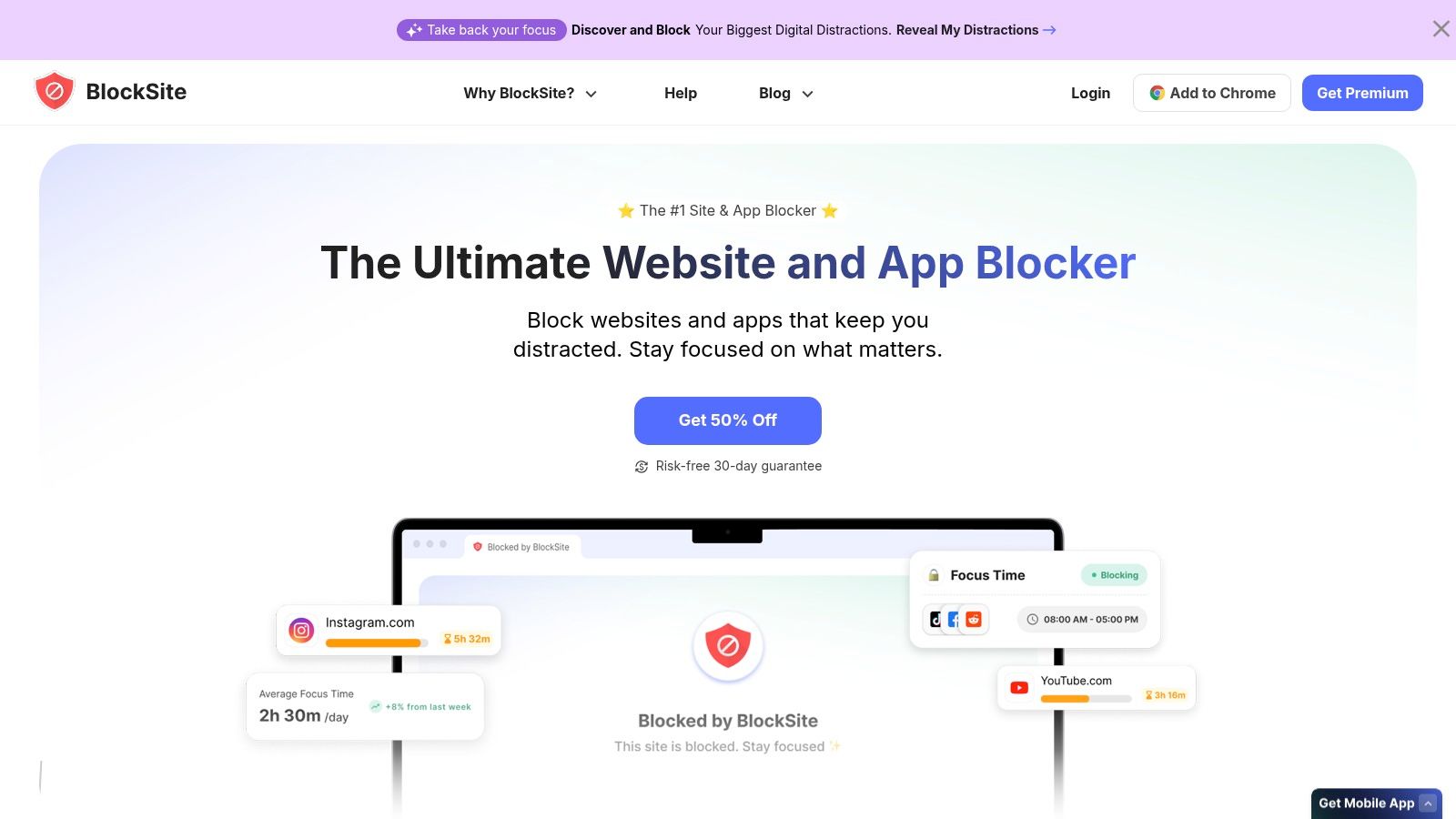
The key question is what happens when you want the off switch. BlockSite gives you broad coverage and can add password friction, yet a user who controls the password may renegotiate the block quickly. Its value is convenience across devices, not an absolute barrier against a determined attempt to change settings.
Most useful extras, including password protection and unlimited categories, are Premium-only. Check the current plan before building your routine around them.
- Use BlockSite when: You want shared app and website lists across Android, iOS, and browsers.
- Pay attention to: Which category, keyword, scheduling, and protection controls your plan includes.
- Avoid false confidence: Accessibility-based enforcement can still be challenged by a determined user.
Android's restricted-settings flow creates another point of failure. Google says users can restore restricted settings for a specific app by opening Settings, viewing its info page, and selecting “Allow restricted settings,” as described in Android Help. If you often disable blockers during an impulse, check how the app handles Settings and permissions rather than judging it only by its blocklist.
Choose BlockSite for fast, cross-platform setup. Students and knowledge workers who switch between a phone and browser will benefit most. Adults with ADHD should choose it only when the available password and permission friction is enough to interrupt the usual escape route. For a narrower Android-focused approach, compare the TiedSiren approach to friction around the moment a blocker gets disabled.
6. Freedom
Freedom suits people whose distraction extends beyond an Android phone. It blocks selected apps, websites, and categories on Android, while scheduled focus sessions can cover Windows, Mac, iOS, ChromeOS, and other supported devices. Its main advantage is keeping the same focus period active across the devices you use.
A phone-only block leaves an easy escape route if you switch to a laptop. Freedom addresses that failure point with unified sessions across mobile and desktop. The trade-off is setup: Android app selection must be managed per device instead of entirely from the web dashboard.
Best for cross-device focus
Freedom is a strong fit for students, knowledge workers, and developers who move between a phone and computer during one study or work session. Review its current plans and supported devices on the Freedom website before building a routine around a particular feature or discount.
Its Android workflow is less convenient across several phones. One-device users may not care, but anyone maintaining identical app lists on multiple Android devices should account for the extra setup.
Freedom's key decision is where the failure happens. If the impulse is to leave your phone and open a laptop, cross-device coverage adds useful friction. If the impulse is to cancel a session by changing Android settings, Freedom is a less direct answer than a blocker built around that off switch. Compare enforcement directly in the TiedSiren download page.
- Choose Freedom for: Focus sessions that must cover Android, computers, and supported browsers together.
- Choose another tool for: One Android phone where Settings access is the main escape route.
- Verify before installing: Current plan terms, supported devices, and which platforms your intended session will cover.
Freedom is my recommendation for multi-device routines. Students and knowledge workers gain the most when their work spans phone and computer. Adults with ADHD should choose it when switching devices is the usual bypass, not when the problem is repeatedly renegotiating a block on one phone. For that failure point, TiedSiren or Lock Me Out is more directly aligned with the moment the blocker gets disabled.
7. Unpluq
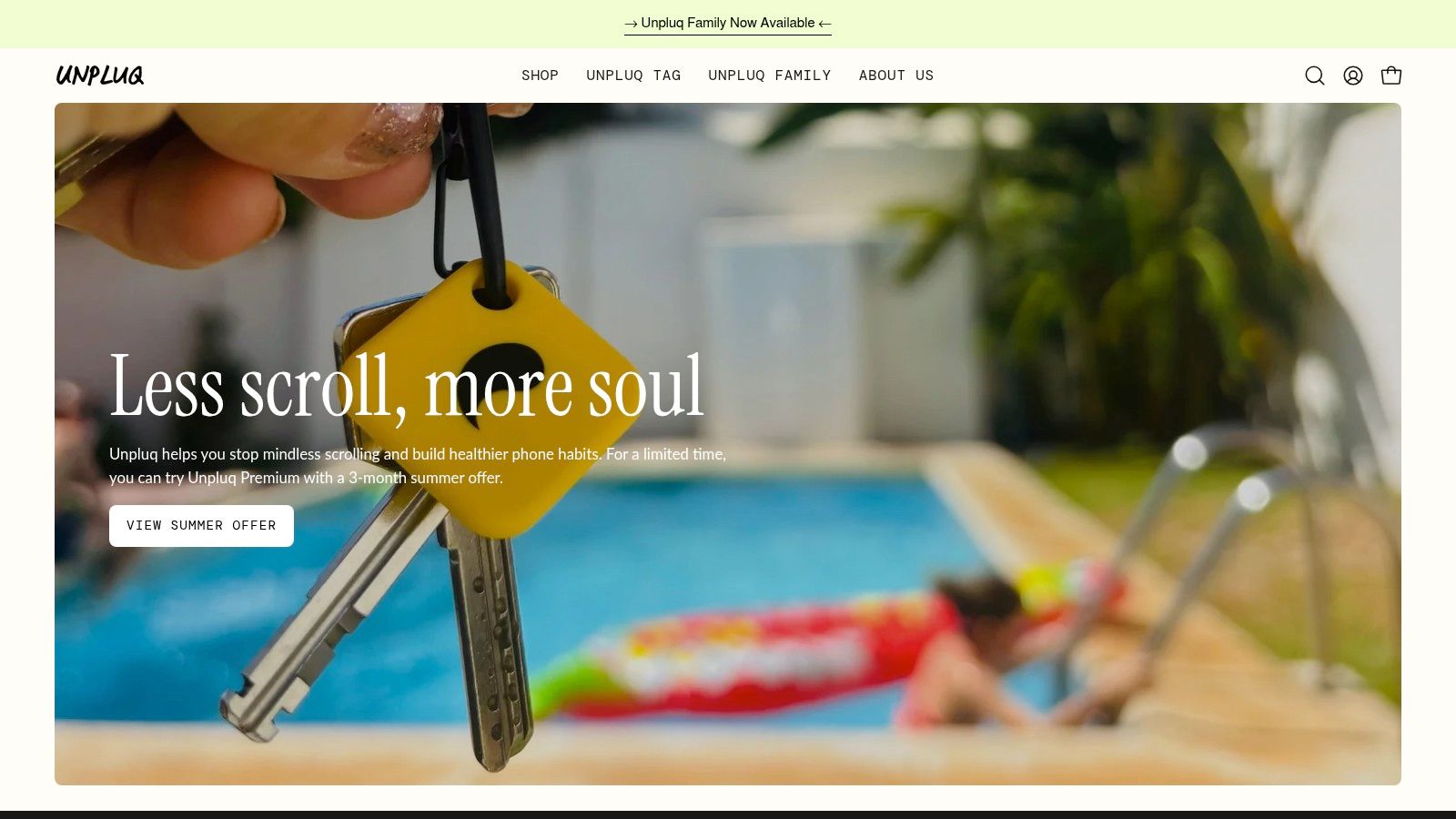
Unpluq takes a different approach. Instead of relying only on a scheduled block, it adds deliberate work before selected distracting apps open. Its customizable tasks can require a more conscious action, and its optional NFC Unpluq Tag can add a physical step for users who want to interrupt automatic opening.
That physical requirement is the distinctive form of friction here. A person who opens an app without thinking has to stop, perform the required task, or reach for the tag. The pause creates space for a decision before the feed or game takes over.
Best for physical interruption
Unpluq is a good fit for people who respond to tangible friction better than to a timer or warning. The NFC option makes the bypass less automatic because the phone alone isn't enough for the chosen flow. That's useful for habitual opening, especially when the person doesn't want a fully strict lockout.
The cost is greater commitment to the product's setup. The best experience requires a Premium subscription and purchasing an NFC tag. Account-based setup, migration, restore guidance, and device-admin protections also deserve attention before you make it part of a daily routine.
Unpluq is not the same kind of tool as TiedSiren. TiedSiren commits the user to a timed session and raises friction around Android Settings while that session runs. Unpluq makes opening selected apps more deliberate through tasks and, optionally, a physical object. Both target automatic behavior, but they interrupt it in different places.
If your hand opens the app before you've made a decision, put the friction before the app loads.
Choose Unpluq when a physical action is more useful to you than a strict countdown. It supports Android and broader device use through its own ecosystem, but check current compatibility and plan terms on the Unpluq website. Determined users can still look for bypass routes under Android's constraints, so judge it by the interruption it creates, not by an absolute promise.
Top 7 Android App Blockers, Feature Comparison
| Tool | Implementation 🔄 | Resource requirements ⚡ | Expected outcomes ⭐📊 | Ideal use cases 💡 | Key advantages ⭐ |
|---|---|---|---|---|---|
| TiedSiren | Moderate, Android Accessibility + Strict Mode; simple UI | Lightweight; free; Android 8.0+; minimal battery/storage | High enforcement; users report substantial screen-time drops (e.g., ~40%) ⭐⭐⭐⭐ 📊 | People who impulsively disable blockers, students, ADHD, deep-work sessions | True enforcement (Strict Mode); Settings lock; recurring schedules; privacy-forward |
| AppBlock (MobileSoft) | Medium–High, many triggers, profiles and fine-grained rules | Moderate, free tier; Premium for advanced features; cross-platform coverage | Flexible outcomes depending on config; strong when tuned ⭐⭐⭐ 📊 | Power users needing profiles, complex schedules, cross-device coverage | Granular triggers; profiles; cross-platform browser/iOS support |
| Stay Focused | Low, straightforward one‑tap modes and timers | Light/basic free use; subscription for advanced features | Good for common focus routines; reliable for simple workflows ⭐⭐⭐ 📊 | Casual users who want quick study/work blocks and timers | Easy setup; built-in focus timer; large user base |
| Lock Me Out | Moderate, device-admin & anti‑tamper options require setup | Android-only; some premium features | High enforcement during sessions; raises bypass friction ⭐⭐⭐⭐ 📊 | Users who want hard-to-stop lockouts and strong session enforcement | Strong anti-tamper options; password-protected settings; responsive support |
| BlockSite | Low, very quick to configure lists and schedules | Multi-device (Android, iOS, browsers); Premium for extras | Good multi-device convenience; enforcement depends on platform limitations ⭐⭐⭐ 📊 | Users needing simple cross-device blocking and fast setup | Fast setup; cross-platform ecosystem; keyword/category blocking |
| Freedom | Medium, setup across devices + syncing configuration | Paid plans for full sync; supports many platforms | High effectiveness for unified phone+computer sessions ⭐⭐⭐⭐ 📊 | Users who want synchronized focus across desktop and mobile | Cross-device syncing; proven, well-documented ecosystem |
| Unpluq | Medium, configure unlock tasks; optional NFC pairing | Best with Premium + NFC tag purchase; account-based setup | Effective at interrupting impulsive use via physical friction ⭐⭐⭐⭐ 📊 | Users who benefit from physical friction (NFC) to prevent impulsive unlocking | Physical NFC friction; customizable unlock tasks; clear device-admin guidance |
Choose the Friction You'll Actually Use
There isn't one best Android app blocker for every failure pattern. The right choice depends on what you do when the restriction appears. If you close the blocked app and continue working, a configurable routine may be enough. If you immediately search for Settings, disable permissions, or cancel the session, you need a tool that makes that sequence harder before the urge arrives.
Choose TiedSiren if you use Android and repeatedly disable blockers during an active impulse. Its free committed timer, Strict Mode, custom blocklists, recurring sessions, focus timer, and Settings friction target the specific problem of the nearby off switch. It's the clearest recommendation for people who want to decide in advance and remove the in-session negotiation.
Choose AppBlock or Stay Focused for configurable routines. AppBlock is stronger for profiles and granular triggers. Stay Focused is better when you want a simpler workflow for study or work blocks. Choose Lock Me Out when enforcement-focused lockouts and anti-tamper controls matter more than cross-platform coverage.
For broader device coverage, choose BlockSite or Freedom. BlockSite is the simpler option for app and website lists across Android, iOS, and browsers. Freedom is the better fit when your focus session needs to cover an Android phone and desktop devices together. Choose Unpluq when physical interaction friction is the interruption you'll respect.
Before installing, compare four things:
- Apps you need to block: Include the exact triggers, not a vague “social media” category.
- Session rules you'll accept: Decide whether breaks, whitelists, or overrides help you or give you an escape route.
- Platforms you use: A phone-only blocker won't cover a laptop you reach for during work.
- Current plan terms: Premium features, subscriptions, and platform coverage can change, so check the product website before paying.
The 2019 CHI review of digital wellbeing interventions found that 26% of surveyed app-focused interventions were app-blockers, 31% notified users when they had used an app too long, and 19% blocked notifications. In the same review of 99 app-store reviews, timers and blockers were mentioned in 59 reviews, or 5%, showing that enforcement tools have long been a recognized category rather than an unusual approach. You can read the CHI 2019 paper on digital wellbeing interventions for the underlying review.
Set up the tool today around one specific trigger. Block the app that reliably pulls you away, choose a realistic work, study, or sleep window, and schedule recurring sessions if daily decisions keep failing. Don't build a perfect system you won't start. Build a boundary that survives the next bad moment.
TiedSiren is a free Android app blocker for committed sessions, with Strict Mode, custom blocklists, recurring schedules, a focus timer, and Settings friction while a session runs. If your current blocker keeps losing at the off switch, visit TiedSiren and set a timed block around the app that causes the problem.