

You start a focus session with good intentions. Then a distracting site opens in a new tab, you remove the browser extension, and five minutes later the work you meant to do is still untouched. The block didn't fail because the software couldn't recognize the site. It failed because the off switch was easier to reach than your better judgment.
Learning how to block sites on the computer is therefore only half the job. The useful question is how much friction you need between an impulse and a bypass. Browser controls work for light distraction, hosts-file rules go deeper on one computer, and router or DNS controls cover a wider network. The right setup depends on where you break your own rules.
Why Simple Blocks Often Fail
Many people who search for a blocking guide have already tried one. They installed an extension, added a few social networks, and felt in control until the next difficult task arrived. At that moment, removing the extension or opening another browser took less effort than continuing with the work.

That pattern matters because a block is only as durable as the path around it. A warning asks you to make a good decision at the exact moment you're least interested in making one. A stronger setup makes the unwanted action slower, more deliberate, or dependent on access you don't have during the session.
Practical rule: Choose a barrier that matches the way you actually fail, not the way you behave on a productive morning.
The problem is broader than one browser. Early filtering research showed that web blocking had already reached national infrastructure scale by the early 2000s. A Harvard overview of web filtering research describes studies that tested more than 200,000 sites in China and identified nearly 20,000 as blocked, while separate research in Saudi Arabia identified 2,038 blocked pages. The same work documented overblocking, including 6,777 pages that appeared to fall outside the filtering companies' own definitions.
Those findings still apply to personal blocking. A broad category filter can block useful pages along with distractions, while a simple URL rule can miss alternate domains. A 2026 review also reports that digital wellbeing tools still lack strong evidence on long-term effectiveness, and that users often treat blockers as a temporary pause rather than a lasting habit change. See the review of digital wellbeing tools and adherence for that limitation.
Start with the softest method that holds under pressure. If you remove it automatically, move one level deeper.
Browser Extensions for Quick Blocking
Browser extensions are the fastest way to block a short list of sites on one browser. They suit a person who wants a visible boundary around social feeds, news sites, or shopping pages without changing the rest of the computer.
The trade-off is equally clear. An extension usually operates inside the browser where it was installed. Opening another browser, using a guest profile, or removing the extension may provide an easy escape, depending on the configuration.
Comparing the common options
QuickBlock, StayFocusd, and Cold Turkey all belong in the same first-choice category, but they appeal to different levels of commitment. StayFocusd is familiar for time limits and site restrictions. Cold Turkey is known for more forceful blocking controls. QuickBlock is suited to a simpler, faster setup.
Exact pricing and available controls can change, so check each product's current listing before choosing a paid option. Don't assume that a feature called “strict” has the same meaning across products.
| Extension | Price | Strict Mode | Best For |
|---|---|---|---|
| QuickBlock | Check the current listing | Depends on the current configuration | A quick list of distracting sites |
| StayFocusd | Check the current listing | Depends on the current configuration | Time limits and routine browser restrictions |
| Cold Turkey | Check the current listing | Strong blocking options are available in its current product offering | People who need firmer browser-level enforcement |
Install only one at first. Adding several blockers can create confusing conflicts, especially when one extension changes a page before another has finished loading it.
Configure the block around a real failure
Add the exact sites you open when work becomes uncomfortable. Include the domains you reach through habit, not only the ones you think you should block. Then set a schedule for the period when you usually lose control.
Avoid creating an enormous list on day one. A smaller list is easier to test, update, and exempt when a legitimate work page gets caught. If your distractions are mainly on Android rather than the computer, TiedSiren's download page describes a separate app-blocking approach built around committed sessions.
Use the extension for a week and watch what you do when it activates. If you switch browsers, the browser layer is too shallow for your problem. If you keep working, it may be enough.
Editing the Hosts File for System-Level Blocking
The hosts file is a foundational local technique. It tells the operating system to resolve a selected domain to 127.0.0.1, a loopback address on the same computer, rather than sending the request to the intended site. The method requires administrator access and affects only the local machine unless you repeat it on other devices, as explained in this hosts-file blocking guide.
It works across browsers on that computer because the rule sits below the browser. It doesn't provide a friendly dashboard, category controls, or a convenient exception workflow. A typo can also produce confusing results, so keep a backup of the original file.
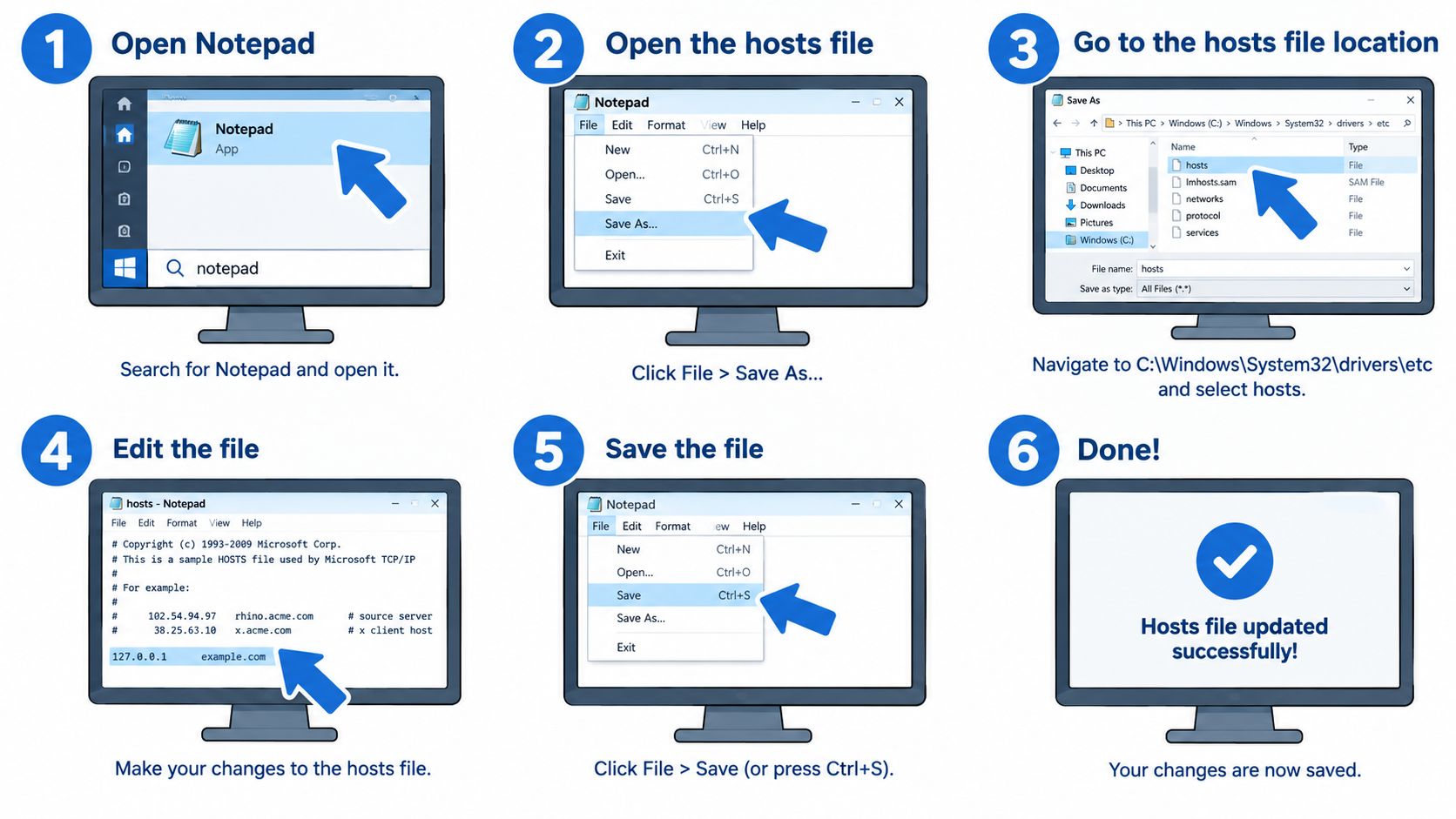
Windows steps
- Open Notepad with administrator privileges. Search for Notepad, right-click it, and choose the administrator option.
- In Notepad, open the hosts file at
C:\Windows\System32\drivers\etc\hosts. Change the file picker from text documents to all files if the file doesn't appear. - Add a new line for each domain you want to redirect. The basic pattern is
127.0.0.1 example.com. Add the relevant host variant if the site uses a separate address for it. - Save the file without adding a
.txtextension. - Close and reopen the browser. If the old result still appears, flush the Windows DNS cache from an administrator Command Prompt with
ipconfig /flushdns. - Test the domain in the browser you normally use.
The local redirect is deliberately crude. It doesn't know whether a particular page is useful, harmful, or required for work. It also won't stop access from a phone, another computer, or a different network.
macOS steps
On macOS, open Terminal and edit /etc/hosts with administrator permission. A command such as sudo nano /etc/hosts opens the file for editing. Add the redirect line, save it, and exit the editor.
macOS cache behavior can vary by version. Restarting the browser is the simplest first test. If the rule hasn't taken effect, flush the system's name-resolution cache with the appropriate sudo dscacheutil and sudo killall commands for the installed macOS version, then test again.
Keep a recovery copy: Remove only the lines you added. Don't delete the system's existing entries because you're trying to restore access to one site.
This method is useful when you control the computer and want a browser-independent rule. It isn't a good fit when several people use the network, when you need recurring schedules, or when you know you'll edit the file back during an impulse.
Router-Level Blocking for Whole-Home Protection
A router rule helps when the same distraction appears on a laptop, phone, and tablet. It blocks requests before a browser on the local network reaches the site, so one policy can cover a household or shared workspace. Router menus differ, but look for parental controls, access restrictions, or website filtering.
Open the router's administration page, sign in, and find its filtering controls. Add the domains, select the devices or schedule if those options exist, save the rule, and test it from each type of connected device. Keep the router administrator credentials separate from the credentials used by anyone who may be tempted to remove the block.
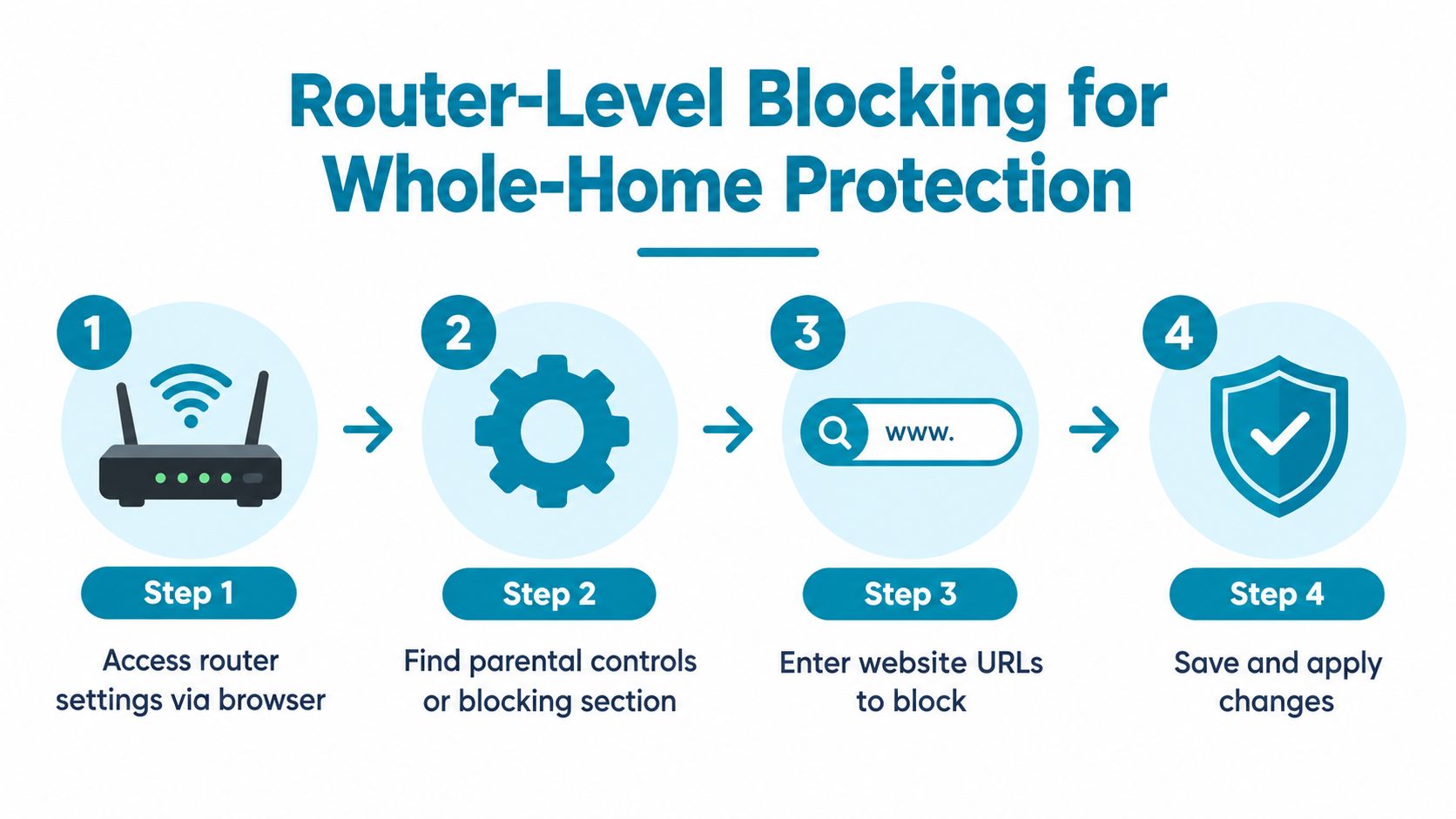
Where router rules help
Router filtering covers devices that use that network, without requiring a separate browser extension or hosts-file change on each computer. It is a practical middle tier between a quick browser fix and deeper device-level enforcement. Its limits depend on the router's features, the accuracy of its block list, and whether users can change networks.
Many routers block domains rather than individual pages. If one page causes the problem but other pages on the same domain support work or study, the rule may create collateral damage. DNS blacklist approaches have the same limitation, since blocking a domain can also remove access to legitimate content.
A router rule also stops applying when a device switches to mobile data, another Wi-Fi network, or a connection outside the home. Network enforcement works best when the router remains the user's actual point of access. It is weaker as a self-control measure when bypassing the network is easy.
Schools and enterprises use filtering as an institutional control, but broad rules can interfere with legitimate tasks. A 2025 analysis of school web filtering reported that virtually all schools use some type of web filter, while about 70% of surveyed teachers and students said filters interfered with assignments. The same trade-off appears at home: wider coverage can mean more false positives.
Test work, study, banking, and communication sites before making the policy permanent. Keep a deliberate exception process, such as temporarily changing an approved rule with administrator access, rather than leaving an instant bypass available.
DNS Filtering as a Network-Wide Solution
A DNS filter applies before a browser connects to a site. The router or device sends each domain request to a filtering DNS service, which checks it against defined policies before returning an address. That gives you a network control without installing an extension in every browser.
Free services such as OpenDNS can work for households that need basic category filtering and do not want local software. Paid enterprise services add policy management, reporting, threat controls, and centralized oversight. The practical choice depends on the operating environment. A household may need one shared rule, while an organization may need different policies for users, devices, and departments.
What DNS filtering gets right
A maintained DNS policy can cover multiple browsers and devices using the configured network. Category rules are also easier to adjust than a long hosts file, particularly when the blocked list changes over time. This makes DNS a useful middle layer between a single-browser fix and device-by-device enforcement.
The WIPO-cited enforcement study reported an average 89% reduction in visits to targeted piracy websites after blocking, showing that network blocking can materially reduce access when enforcement and list maintenance support it. The report also describes dynamic blocking for targets that change frequently. See the WIPO report on blocking effectiveness and dynamic updates for the underlying findings.
That result does not guarantee the same outcome on a personal network. A filter may miss a newly created domain, block an entire domain that contains useful pages, or be bypassed by changing DNS settings or joining another network. It also cannot decide whether you will keep working once access is available. For long-term adherence, pair the network rule with a control that makes impulsive removal inconvenient.
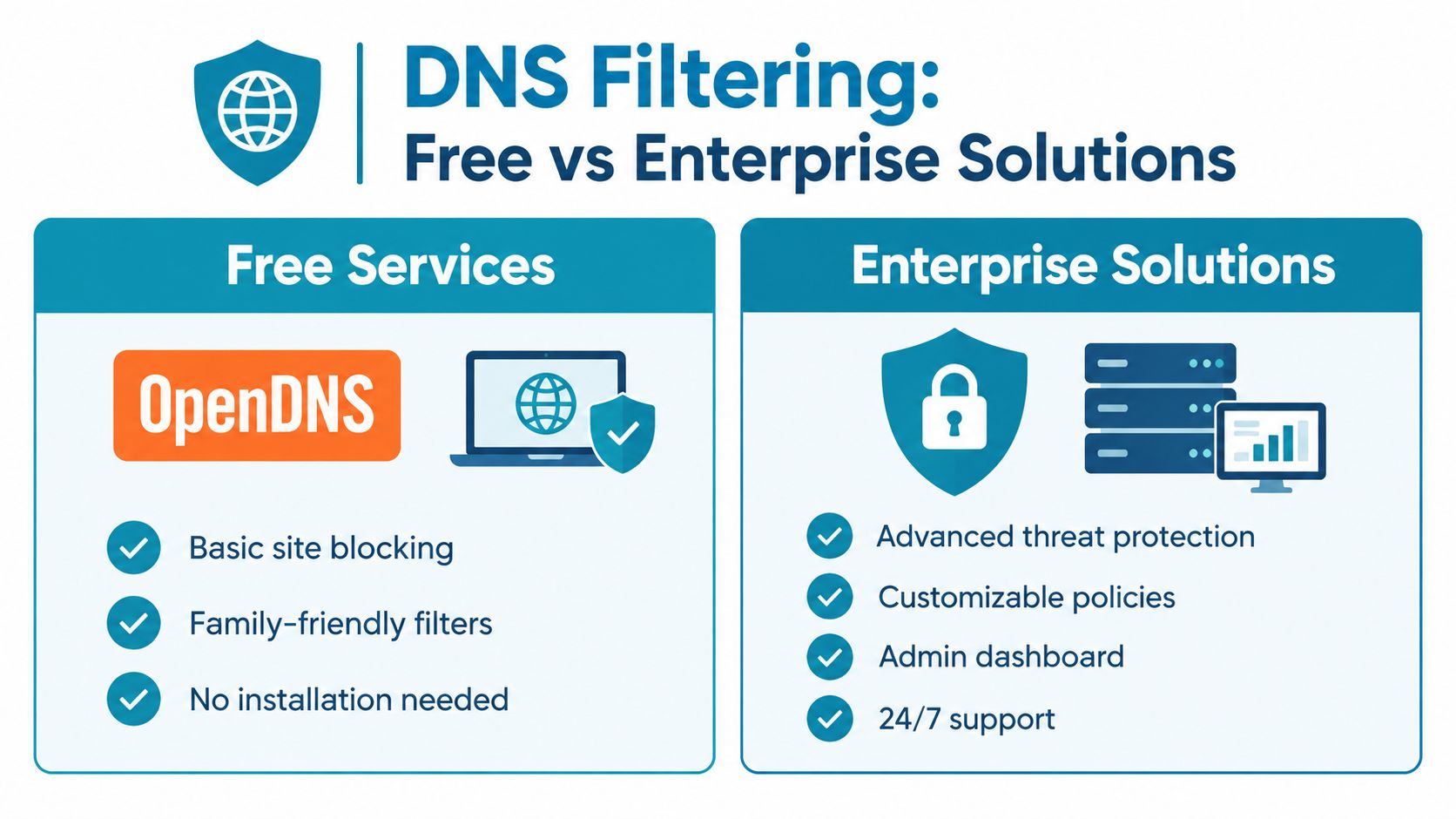
Free and enterprise choices
For a home setup, check whether the router accepts custom DNS servers and applies them to the intended network. Choose a family or security policy, add deliberate exceptions, and test the result from multiple browsers and devices. Record the settings so a future router reset does not quietly remove the control.
Organizations need finer controls. Check for user and device groups, policy granularity, update frequency, audit records, and a clear process for false positives. A dashboard helps when several people maintain rules. It adds little value for one person managing a short list.
DNS does not replace local controls. It governs the network path, while a hosts-file rule covers one machine and a browser extension covers one browser. Layering can improve coverage, but each layer creates another policy to maintain. Keep the rules coordinated and test changes before relying on them during focused work.
Choosing the Right Method for Your Needs
Choose based on where the temptation appears and how easily you can undo the control. A technical solution that you can remove in seconds isn't a strict solution for you, even if it looks good on paper.
| Your situation | Start with | Move deeper when |
|---|---|---|
| One browser and mild distraction | A browser extension | You switch browsers or profiles |
| One computer and repeated bypasses | Hosts-file rules | You need schedules or other devices covered |
| Several devices on one home network | Router filtering | Devices regularly leave the network |
| Multiple users or managed systems | DNS filtering | You need device-specific enforcement |
| The problem is an impulsive phone check | A committed Android app session | Browser and network rules don't address the trigger |
Technical comfort matters too. Browser extensions are easy to adjust. Hosts files demand administrator access and careful editing. Router and DNS controls require you to understand which devices use the policy and how exceptions work.
A block should be inconvenient to remove, but not so opaque that you can't recover from a mistake.
Use the TiedSiren features page to review its listed Android app-blocking controls if your weak point is the phone rather than the computer. For computer sites, choose the smallest layer that survives your normal bypass. Then test it during a difficult task, not during a calm planning session.
Troubleshooting Common Blocking Issues
When a block seems broken, identify which layer failed before changing everything. If one browser still opens the site, restart the browser and clear its cached data. If every device ignores a router rule, confirm that the devices are using that router and that the policy was saved.
For hosts-file changes, check the spelling and file extension first. Flush the computer's DNS cache, then close and reopen the browser. For DNS filtering, confirm that the device hasn't switched to another DNS configuration and that the service's category or custom list contains the correct domain.
Keep exceptions narrow. If a work resource is blocked, exempt the required domain rather than disabling the entire category. Update lists when targets change, and remove obsolete entries so you don't create unnecessary failures.
If you're building a browser-based control or need to understand how web requests interact with your product, the TiedSiren developer resources provide a relevant starting point. The core troubleshooting principle remains the same: test one device, one browser, and one rule at a time.
TiedSiren is a free Android app for blocking chosen applications during a committed session, with Strict Mode, scheduled daily or weekly sessions, custom blocklists, a focus timer, and Settings-screen blocking that raises the cost of an impulsive bypass. If your computer blocks aren't enough because the underlying trigger is your phone, visit TiedSiren and start with the session length you can realistically commit to.