
You set a Screen Time passcode years ago, handed the iPad to your child, and forgot the four digits. Now the code you created to manage access has become a wall between you and the settings you own.
That's frustrating, but it doesn't call for guessing, hacking, or a third-party recovery tool. Apple and Google built official identity checks for this problem. On iPhone and iPad, recovery depends on the Apple Account used when recovery was configured. On Android, app limits are tied to the device's screen lock credentials and, for family controls, the parent's account.
The extra verification is deliberate. A Screen Time passcode controls limits, Downtime, and restrictions, so the platform needs to confirm that the person changing them has the right authority. Apple's path is the stricter one, because the exact Apple Account matters.
The Passcode You Set to Protect Yourself
The most common reason people search how to find out screen time passcode is simple: the code was set long ago, then disappeared from memory. You may remember creating it, but not the digits. The passcode was never meant to permanently lock out the owner, yet it can feel exactly like that when the recovery account isn't obvious.
Apple documents the Screen Time code as a four-digit passcode on iPhone and iPad. Its purpose is to stop someone from changing limits, turning off Downtime, or removing app restrictions without authorization. Apple also recommends using a different code from the device access code, which makes the protection stronger but creates another credential to remember. Apple's Screen Time recovery guidance explains why the reset process goes through account verification instead of a universal bypass.
Practical rule: Don't start with code guesses. Start by identifying who has authority over the device.
There are two legitimate recovery patterns:
- Apple devices: Use Screen Time Passcode Recovery with the same Apple Account used during setup.
- Android devices: Reach the Digital Wellbeing controls and authenticate with the device's PIN, password, or pattern. Google documents that setting an app-limit PIN first requires the device access credential. Google's Digital Wellbeing instructions confirm that the device lock is part of the control chain.
Family controls add another layer. Apple says that when a child's device is managed through Family Sharing, the family organizer or parent can change the child's Screen Time passcode from Settings. That's administrative control, not a secret workaround.
The extra step is annoying when you're the legitimate owner. It's also the reason a child, guest, or casual user can't remove the limits. If you still have the correct account or device credential, recovery is usually a settings task. If you don't, the official path stops there.
Finding Your Screen Time Passcode on iPhone and iPad
Apple doesn't show the forgotten digits. It gives you a reset route. The important distinction is that you're not finding the old passcode, you're proving that you control the Apple Account authorized to replace it.
Use the Apple Account recovery path
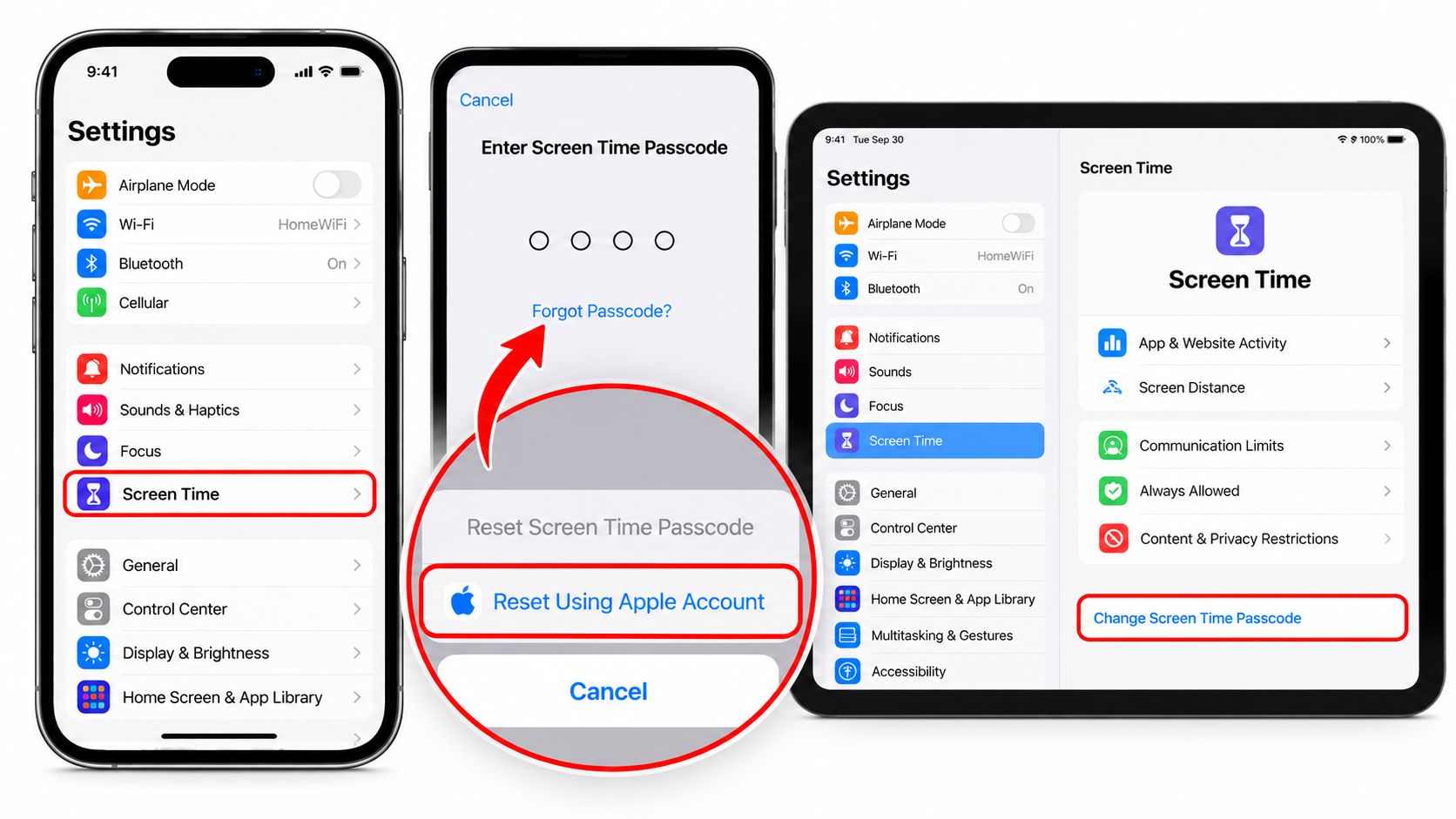
On the iPhone or iPad, open Settings and tap Screen Time. Select Change Screen Time Passcode, tap Change Screen Time Passcode again if prompted, then choose Forgot Passcode?
The device should ask for the Apple Account email address and password connected to Screen Time Passcode Recovery. Use the account that was signed in when recovery was set up. Being signed in to the device isn't enough if Screen Time recovery was tied to a different account.
Apple specifically warns that users with more than one Apple Account must use the exact account selected during recovery setup. Don't substitute a child's Apple ID, a newer account, or an account that only appears in the App Store. The relevant account is the one that authorized recovery.
Understand why the reset may not appear
If Forgot Passcode? isn't available, the device may not have Screen Time Passcode Recovery configured. It can also mean that you're checking the wrong account or that the device is managed through Family Sharing.
For a child's device, the family organizer or parent can change the child's Screen Time passcode from their own Settings flow, according to Apple's support documentation. That means the child's Apple ID isn't necessarily the account you need. Check the organizer's account first.
Apple's documented recovery path uses the Apple Account that was used during setup. If you can't authenticate with that account, don't keep cycling through unrelated credentials. Contact Apple Support if you need help identifying account ownership, but don't expect a third-party utility to reveal the code.
Don't confuse a reset with a bypass
The passcode remains a four-digit control code, but the authority to reset it comes from the Apple Account. Apple's security documentation also describes anonymized Screen Time analytics for usage events, including app-limit activity, ignored limits, and deleted limits. That design shows the feature is built around managed behavior and account-backed controls, not secrecy alone.
A factory reset is not the first move. It destroys local content and settings, while the documented recovery model is based on account verification. Recover the account path first, then set a new Screen Time passcode you can store safely.
Android uses a different authority chain. Its equivalent starts with the device passcode rather than Apple Account recovery.
Finding Your Screen Time Passcode on Android
Android doesn't use one universal Screen Time passcode system across every device. The relevant controls usually sit under Digital Wellbeing and parental controls, while family-managed limits may be administered through a parent account.
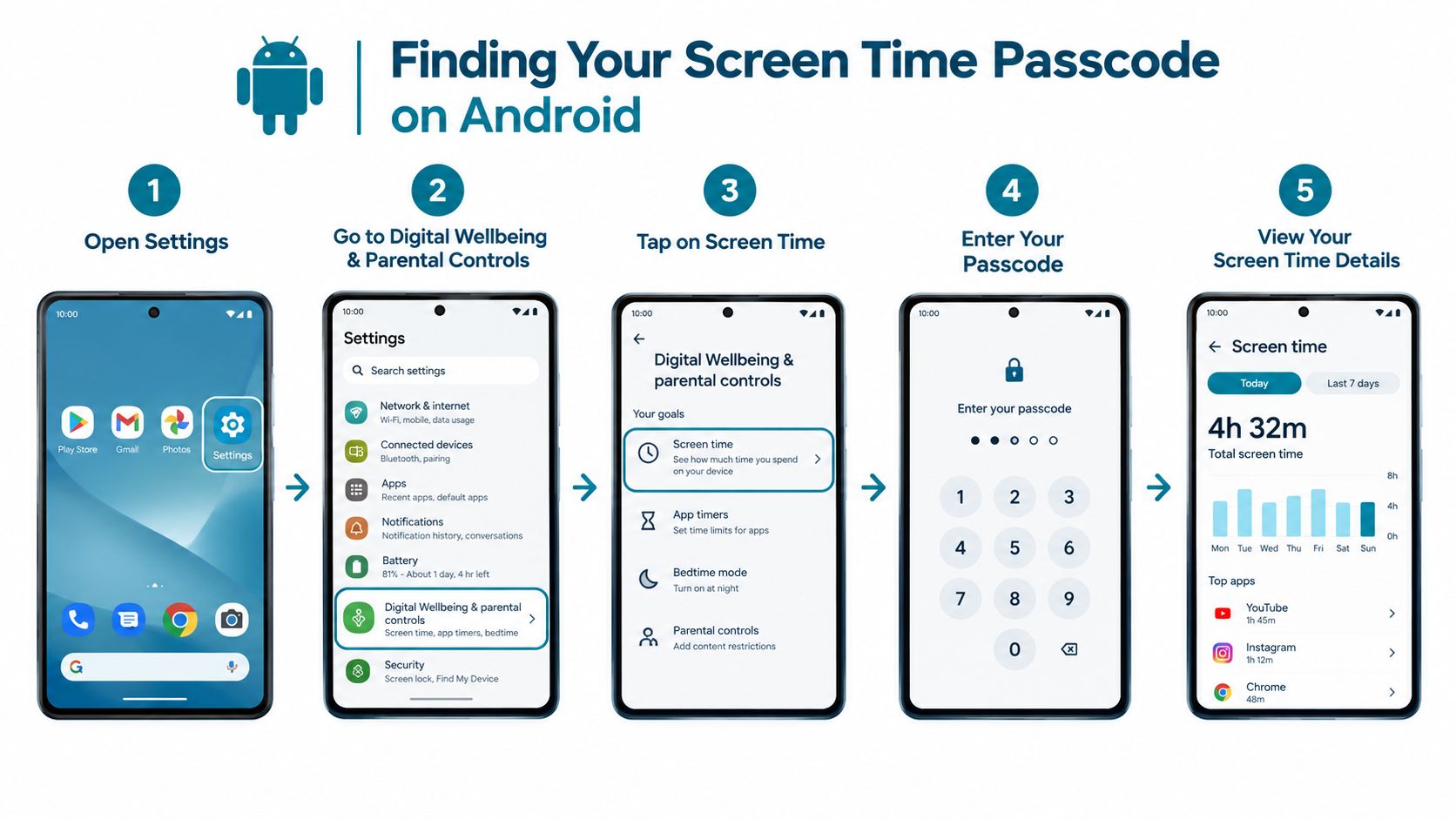
Start with the device's own lock credential. Google says app time limits are managed through Settings > Digital Wellbeing > App limits, and creating a PIN for app time limits requires first entering the device's PIN, password, or pattern. That makes the device access method the first credential to test, not a guessed app-specific code.
Check Digital Wellbeing
Open Settings, then go to Digital Wellbeing and parental controls. On stock Android, look for the three-dot menu and open Manage your data. If the phone asks for the screen lock, enter the current PIN, password, or pattern.
If you've forgotten the device passcode, Digital Wellbeing can't provide a separate shortcut around it. The control is deliberately attached to the credential that already protects the phone.
Google also documents app-specific limits through a settings flow where you choose an app, set hours and minutes, and turn the limit on. Google's guide to setting app limits describes that per-app process and confirms that Android's controls are organized around individual applications and timed limits.
Check the family administrator
If a parent manages the phone through Family Link, the parent's account is the relevant authority. A child's device may show the restriction, but the parent account controls the family configuration.
That's the key difference from trying to recover a forgotten local code. Ask which account created the family group and whether that parent can still sign in. If the parent account is unavailable, recover that account through Google's official process rather than trying random codes on the child's phone.
A phone reset may change the local device state, but it doesn't replace the account that manages family controls.
Android menus vary by manufacturer and software version, so Samsung, Pixel, and other devices may label the settings differently. Follow the account and screen-lock requirements shown on the device. Don't treat a menu variation as evidence that a bypass exists.
Once you've restored access, you can use the Android app blocker download page if your problem is no longer recovery, but preventing the off switch from being available during a committed session.
When Recovery Is Not Possible and a Reset Is the Only Path
There's a point where recovery stops being a settings problem. If you don't have the Apple Account required by Screen Time Passcode Recovery, or you don't have the Android device credential or authorized parent account, the official route won't turn into a universal bypass.
That's where people make expensive decisions too quickly. A wipe may remove local settings, but it also removes personal content, app data, and device configuration. Choose it only after checking whether the account itself can still be recovered.
Compare the available choices
| Reset Method | What It Deletes | What It Preserves | Requires |
|---|---|---|---|
| Change or turn off Screen Time through Apple recovery | Screen Time restrictions you remove | Apps, photos, messages, and other device content | The Apple Account used for Screen Time Passcode Recovery |
| Change the child's Screen Time passcode through Family Sharing | The existing child passcode, if changed | The child's device content and other settings | The family organizer or parent authority |
| Erase All Content and Settings | Local content, apps, settings, and account state on the device | Anything already stored safely in a backup or account service | Device authorization and any credentials requested during setup |
| Reset Android controls through the authorized device or parent path | The selected local limits or managed settings | Other data, when you change only the relevant control | The device PIN, password, pattern, or authorized parent account |
The first option is the lightest touch. It changes the restriction without treating the phone or tablet as disposable. Use it when the correct Apple Account or family authority is available.
A full erase is different. It returns the device to setup state and can remove everything stored locally. Android's family controls also require care, because a local reset doesn't automatically mean the parent's account configuration has been cleared.
Backups matter before any wipe. An iCloud or Google backup made before the reset can help restore the device afterward, but restoration depends on what was backed up and whether you can sign back in. Don't assume that a backup preserves every app state or setting.
Before wiping: Verify the backup, identify the account you'll need after setup, and accept that local data not included in the backup may be gone.
Every wipe path destroys something. If the only missing item is a passcode, exhausting the official account route is safer than erasing the device first.
Why Bypass Tools and Guessing Both Fail
The bypass-tool industry sells desktop utilities, jailbreak packages, and paid lists of possible four-digit codes. The pitch is attractive because the problem feels small. You see a short code on the screen and assume software can read or remove it.
That assumption is wrong. Apple and Google place these controls inside their own account and device-management flows. A normal app doesn't have authority to replace the Apple Account verification required by Screen Time recovery, and it can't legitimately manufacture the device credential Android asks for.
Some tools do nothing. Others move the problem behind a payment screen. The worst ones ask for account credentials or install software you can't verify. That's a poor trade for a problem with an official recovery route.
Guessing is also the wrong strategy. Apple documents that the Screen Time code is four digits, but the number of possible combinations doesn't change the central issue: a guess doesn't prove account ownership. Even if you remember setting a familiar code, repeated attempts can create more friction and still leave the recovery requirement untouched.
Don't pay for a bypass that promises to replace identity verification. Recover the account or device credential instead.
On Android, begin with the screen lock and then the parent account if Family Link is involved. On Apple devices, use the exact Apple Account connected to Screen Time Passcode Recovery. Those are the paths the platforms support.
If you're setting up stronger friction for app use rather than recovering an old code, review Android blocking features and choose a method that makes impulsive changes harder before the urge arrives.
Stopping the Same Problem From Happening Again
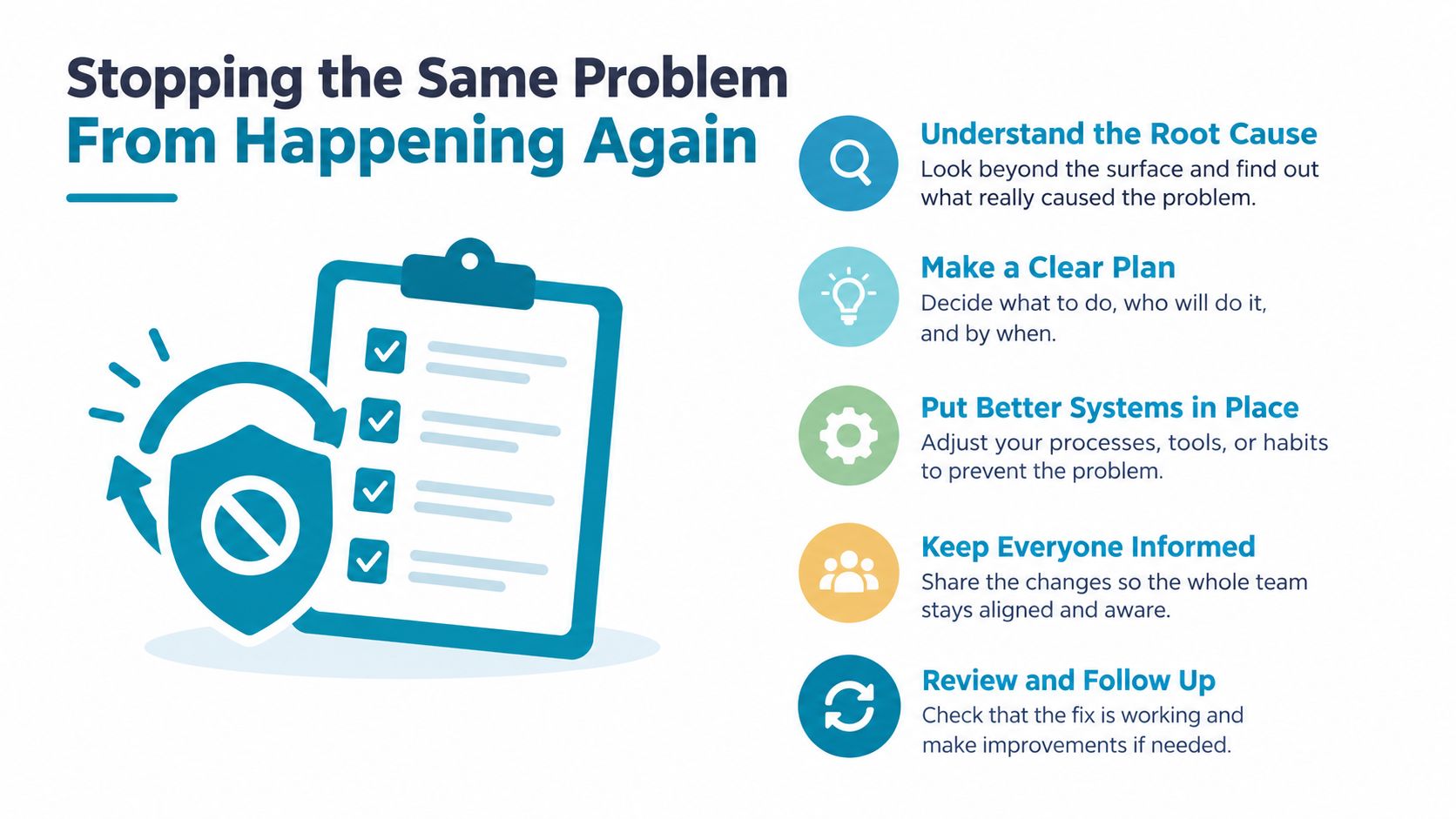
Recovery should end with a small change to your habits. The moment you replace the passcode, record it where you'll find it. Don't bury it in an Apple Account note that contains unrelated details.
Store the credential with the right account
Create a password-manager entry named Screen Time. Add the device name, the account responsible for recovery, and the date you changed the code. The passcode protects the limits, while the account protects the recovery path, so record both relationships.
For Android, keep the device PIN, password, or pattern information in the same secure system. Don't assume that knowing the app limit matters if the phone's access credential is what the settings screen requests.
Protect the recovery account
Enable two-factor authentication on the Apple Account or Google account that controls recovery. Add a trusted phone number and a recovery email address that you check. If codes go to an abandoned inbox or an old number, a manageable settings problem can become an account-recovery problem.
Keep a paper copy of the device PIN in a sealed envelope at home. Treat it like a spare key. That copy shouldn't sit beside the phone, but it should exist somewhere you can reach when memory fails.
The deeper lesson is about the off switch. It sat one tap away because the device was designed to let its authorized owner change course. The passcode adds friction at that valve, so a child, guest, or tired version of you can't immediately undo the decision.
That friction only works when you can still recover the authority behind it. Store the code, secure the account, and check the recovery details before you need them. If you need help with your setup, use the TiedSiren contact page.
If you want fewer impulsive overrides on Android, TiedSiren lets you choose apps, commit to a session duration, and use Strict Mode while blocking the Android Settings screen during the session. Visit the app page and set up a focused block for work, study, sleep, or the apps you keep disabling limits to reach.