You set a Facebook limit on Sunday night, felt proud of it, and opened Settings by Tuesday because the feed was right there. The cap was real until the moment you wanted it gone. If that sounds familiar, the job is not another tip about screen time. It is a setup that still holds after you have already talked yourself out of one.
This is for Android phones. iPhone and desktop limits work differently, and the steps below will not match those menus. On Android, the question is which method still says no when you reach for the off switch.
Four Ways to Limit Facebook on Android Compared
A limit you can clear from the same screen that warned you is a reminder with extra taps. Rank the options by how fast you can undo them during an urge, not by how many toggles they offer. The same ranking shows up when you look at how to block apps on Android.
| Method | Where it runs | What it stops | How easily it is overridden during an urge |
|---|---|---|---|
| Facebook app's own time-management features | Inside the Facebook app | Reminders and usage summaries | Easy, since a reminder can be dismissed |
| Digital Wellbeing app timers | Android system settings | Opening Facebook after a daily limit | Easy to extend or remove in the same settings |
| Android focus and bedtime schedules | Android system settings | Notifications and chosen apps during set hours | Can be turned off from the same settings |
| Strict blocker such as TiedSiren | Android 8.0 and later | Facebook and chosen apps for a fixed session | No override during a running Strict Mode session, which ends only when its timer ends |
What each row actually survives
Facebook's own time tools live inside the app. They show usage and nudge you. You dismiss the card and keep scrolling.
Digital Wellbeing app timers sit in Android system settings. After the daily Facebook limit, the phone can stop the app from opening. The same settings screen lets you add minutes or delete the timer while the urge is hot.
Focus mode and Bedtime mode quiet notifications and chosen apps during hours you set. They fit a predictable evening. They are also a switch in Settings, which is where your hand goes when you want Facebook back.
TiedSiren is the row for a limit you have already lost an argument with. It runs on Android 8.0 and later. You choose the apps and the duration before the session starts. In Strict Mode, a running session ends when its timer ends, and nothing else ends it.
Reminders and usage summaries suit you if you only want to see your time. I would start on the last row if you have already turned a limit off. Build that session from the hours your own week already showed you.
How to Set a Daily Facebook Cap You Can Measure
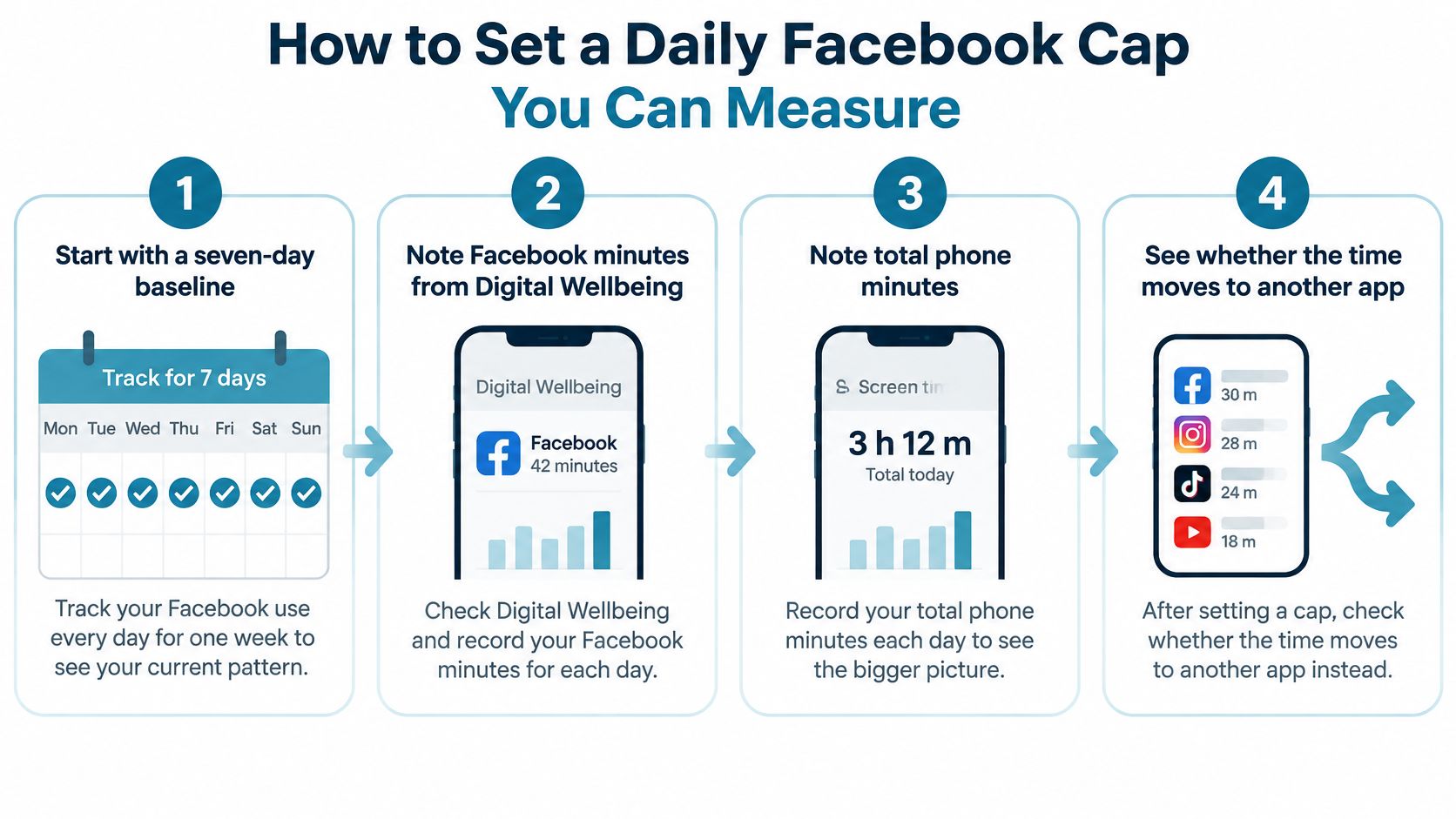
Start with a week of numbers before you pick a ceiling. Each day, write down Facebook minutes from Digital Wellbeing and total phone minutes. The second number tells you whether the time moved to Instagram, Chrome, or a game.
A ceiling you can check
Record both numbers for seven days. Facebook alone lies. If the phone total stays flat while Facebook drops, you did not restrict Facebook time. You relocated it.
Choose a daily ceiling as a test, not a permanent rule. In a 2018 randomized study in the Journal of Social and Clinical Psychology, 143 undergraduates either kept using Facebook, Instagram, and Snapchat as usual or limited each platform to 10 minutes a day, 30 minutes across the three, for three weeks. The restricted group reported statistically significant reductions in loneliness and depressive symptoms compared with the control group. Both groups also reported lower anxiety and fear of missing out than at baseline, which fits a week of watching the clock. Treat 30 minutes as a test value. The sample was university students, and the cap covered three apps, not Facebook by itself.
Put that ceiling on a Digital Wellbeing app timer so the limit lives on the phone, not in your memory. You will still be able to extend it. That is fine for the measurement week. It is not the setup that holds later.
Pick a fixed window, such as the hour after dinner, instead of a floating quota. You should know, before the urge, when the app is off limits. A floating "30 minutes sometime today" gets spent in the first scroll.
After seven days, compare both numbers with the baseline. Success means total discretionary screen time fell, not only the Facebook figure. If you hit the cap every day and total phone time did not move, the window has to cover the app that absorbed the minutes.
A cap you cannot check against total phone time will congratulate you for a shift you did not make.
The student result supports a preselected cap over a vague intention. It does not prove that 30 minutes fits your job, your group chats, or a night shift. Keep or move the ceiling based on the two totals.
Why Daily Limits Slip and How to Handle the Urge
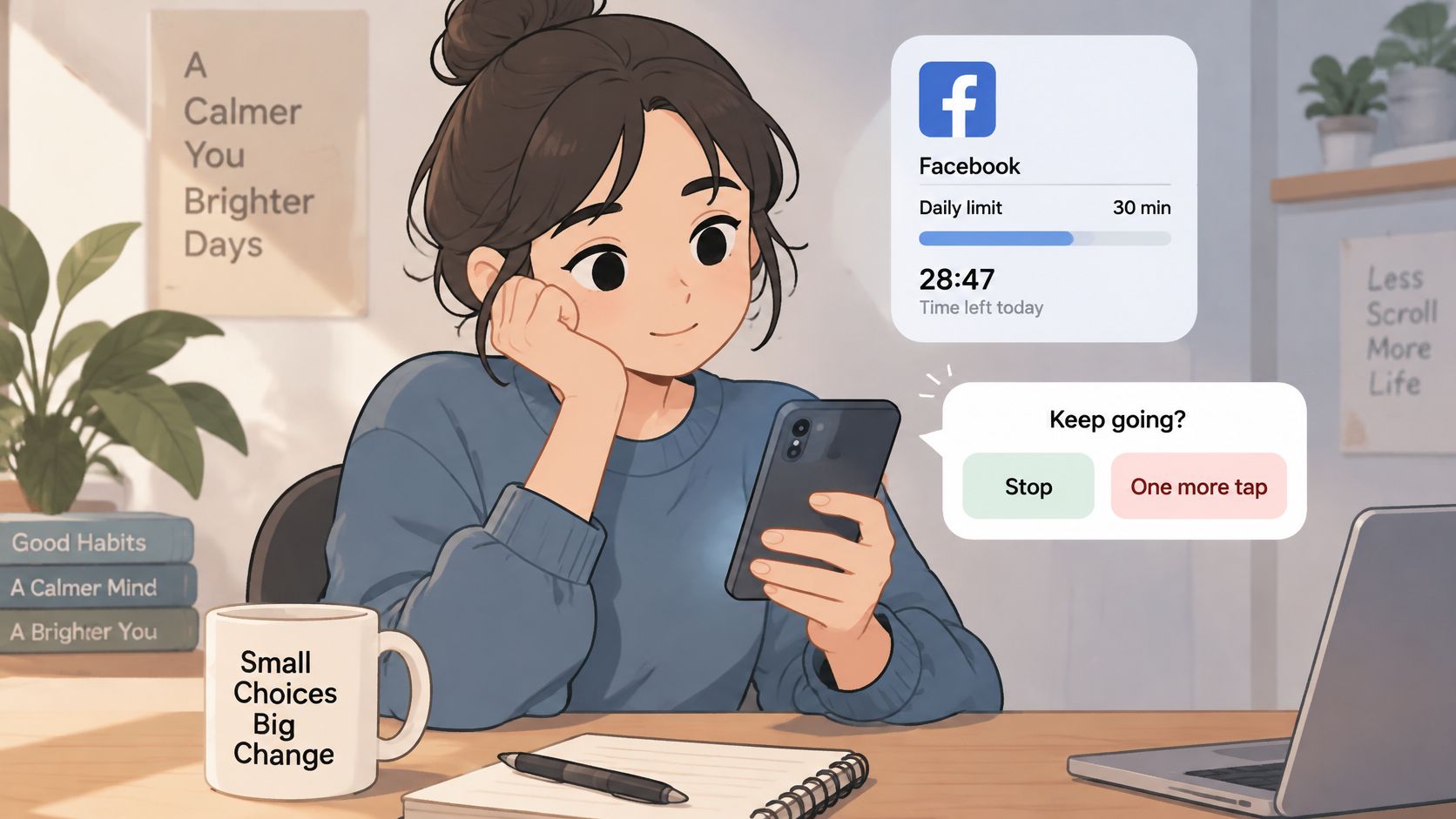
Setting the cap and keeping it are different jobs. You have probably finished the first and lost the second. A reminder asks you to stop and leaves the next tap available, so a limit that depends on remembering it fails at exactly the moment you need it.
The dividing line is what it costs to override. Low-friction limits notify you during or after use. Pre-committed restrictions remove the decision while the urge is already running, and only the second kind survives a hand already on the app. Screen-time guidance built for children leaves the adult version of this gap open, because you may still need Messenger, a group, an event, or a work page, and a cap you can clear in a few taps does not solve that. The problem is that the off switch and the urge sit in the same minute. The phone setup has to match the way impulse control actually works, or the timer is only a suggestion.
Decide this while you are calm
- Keep Messenger available if you need it for groups, events, or work. Blocking every Facebook surface can cut off messages you rely on.
- Write the window on paper before it starts. A note on the desk is harder to renegotiate than a number inside an app you control.
- Decide whether any override is allowed while you are calm, not while the feed is one tap away.
- Do not change the limit mid-session. The urge will argue for the bigger number, and it will sound reasonable.
- Track one limit at a time. Setting caps on five apps and recording none leaves a pile of timers and no record of which one you broke.
When the urge arrives, the plan should not still need a decision from you.
If it still needs you, it will lose. That test matters most after you have turned a control off more than once.
Build a Strict Session That Holds Once It Starts
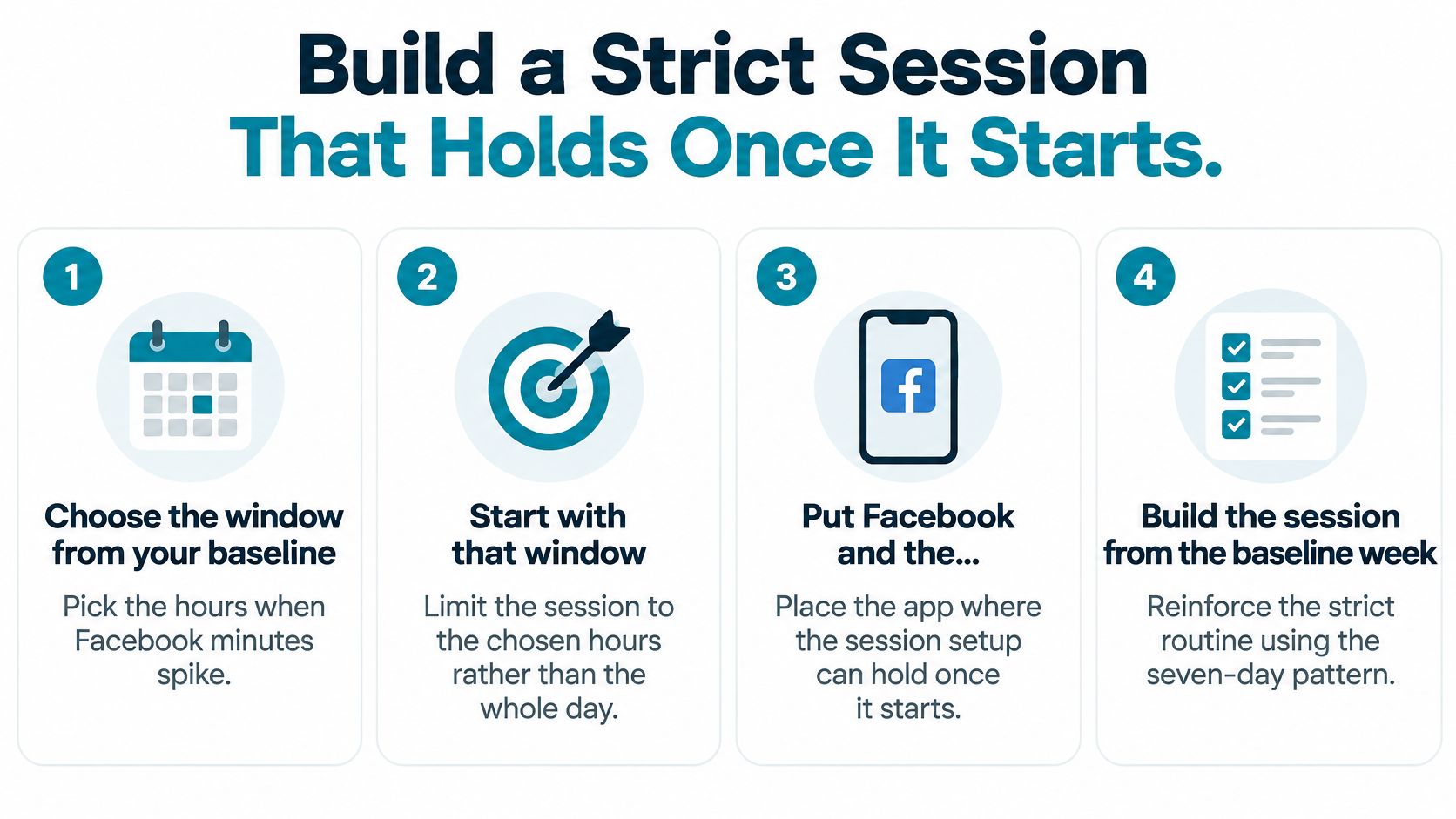
Build the session from the baseline week, not from a wish to use Facebook less in general.
Lock the choices before the timer
Choose the window from your baseline, the hours when Facebook minutes spike, and start with that window rather than the whole day. A two-hour evening block you can finish beats an all-day lock you will resent by Thursday.
Put Facebook and the apps that pull you in on one blocklist for that context, evenings or study, so the list matches the window. A custom blocklist grouped by context stops the swap from Facebook to the next feed in the same hour.
Set the duration before the session starts. By enabling Strict Mode, you will not be able to access blocked apps or disable the block until the scheduled time expires. The running session ends when its timer ends, and nothing else ends it.
Keep the Android Settings screen blocked for that session. Blocking Settings raises the cost of turning the blocker off during the urge. It is friction against the fast undo, not a claim that no other path exists.
Make the window recurring on a daily or weekly schedule so it starts without a fresh decision. The focus timer shows the time left, so you are watching a countdown instead of bargaining with yourself.
You need an internet connection once to create the account. After that, blocking works offline, and losing signal changes nothing about a running session.
A 2025 report on smartphone access found that participants used their phones nearly twice as much when the devices were within immediate reach. Across two five-hour knowledge-work sessions, they spent an average of 14 additional minutes on the phone when it was easy to reach, and they checked it nearly three times as often. A prompt that asks you to stop leaves the next action available. A fixed window makes the app harder to reach during hours you already picked.
Check the length against the spike you already logged. If that spike runs past the timer, lengthen the window before you start, not after the urge has started arguing.
Where Blocking Stops and What to Do About It
Enforcement needs Android's accessibility permission switched on before a session starts. Android's AccessibilityService documentation is plain about the lifecycle. You turn the service on explicitly in device settings, and the service can stop when you turn it off there or when the service disables itself. The operating system keeps a settings-based route. That is why blocking the Settings screen creates friction rather than an absolute lock.
The bypass it is built to stop
It defeats the impulsive bypass, the one done in five seconds without a plan. A determined person can still reach the system route, so call the session harder to undo, not impossible to undo. While Strict Mode is running, blocked apps stay closed until the timer ends, and the Settings screen is what makes that fast exit expensive. When no Strict Mode timer is running, you can pause blocking or uninstall the app. That exit belongs to a calm moment, not to the minute you want the feed.
Digital Wellbeing timers are weaker against an urge because they live in the same settings the urge already knows how to open. You do not need a clever second path. You need distance from the screen you use to quit.
After you slip once
The familiar pattern is dull. The session breaks, the plan feels fake, and they throw out the whole setup until next Sunday. Shorten the next window instead of cancelling it. Treat the broken session as data: which hour failed, which app opened instead, and whether Settings was the door. The next setup should be narrower, not louder.
A broken window is a measurement. It is not a reason to go back to a reminder you have already dismissed.
Commit to One Window and Test It for a Week
Pick the window where the impulse won most often during the baseline week. Write it down: the days, the start and end times, and the apps inside it. Then run it for seven days without renegotiating mid-window. TiedSiren is a free Android app for Android 8.0 and later, and its features are described on the TiedSiren website.
Grade the week on what replaced the scrolling, not on how virtuous you felt. A 2025 systematic review and meta-analysis in Scientific Reports found no significant overall effects of social-media abstinence on positive affect, negative affect, or life satisfaction, and no clear link between how long the abstinence lasted and those outcomes. Track something concrete instead: uninterrupted work minutes, bedtime consistency, or completed study sessions. Craving can still show up after access is blocked, which is why the window needs friction and something else to do. The longer version of that plan is how to stay off social media.
Day seven hands you three things: a window written down, a blocklist that held it, and one measurement. Compare that number with the baseline. If the window held but sat at the wrong hour, move it. If it broke, narrow it. If it held and the measurement improved, keep it and schedule the next week.
TiedSiren is a free Android app that blocks the apps you choose for a duration you commit to before the session starts, including a Strict Mode countdown that keeps Facebook closed for that window. If your own limits keep getting cleared at the weak moment, put one evening or study block on a daily or weekly schedule and let the timer be the exit. When you are ready to set that up, visit TiedSiren.