You've done the thing you swore you wouldn't. The blocker went on, it worked for a week, and then one evening you wanted back into the app and the prompt asked whether you were sure. You were sure. Two taps and the block was gone, and you spent the next hour doing exactly what you'd installed it to prevent.
That's the failure this page is built around. Not "which blocker has the best features", but which setup survives you at the worst moment, and how you'd know before you need it. The order below is deliberate: gate the phone, install from the right source, build the lists, then break the block yourself on purpose so you find the weak point on a Tuesday afternoon instead of at midnight.
TiedSiren runs on Android phones on version 8.0 and later. If you're on an iPhone or a desktop, nothing here applies to you. The habit being measured is enormous: Sensor Tower estimates cited in KeenVerdict's screen-time statistics put app time at roughly 5.3 trillion hours across iOS and Google Play in 2025, about 3.6 hours per mobile user per day across both ecosystems. That's the weight any blocker is pushing against.
Confirm Your Phone Runs Android 8.0 or Later
The blocker you already switched off didn't fail because it was bad at blocking. It failed because turning it off cost nothing in the moment you wanted out. So start the rebuild with the check that decides whether the rest of this page even applies to your phone.
TiedSiren requires Android 8.0 (Oreo) or higher, which covers over 95% of active Android devices. If your phone is inside that range, you're ready to install. If it isn't, no download will help, and forcing an install onto hardware the app wasn't built for creates a bug you'll spend an evening blaming on the app.
You'll find the version in the system information area of Settings, normally listed under About phone as Android version. Note it down along with the phone model. Those two details are what any support conversation needs first, and a surprising share of "the block didn't work" reports turn out to be an old build with a vendor skin on top.
The check that saves an evening: confirm the version before you install, not after. Two minutes now beats an hour of troubleshooting a session that never started.
Android carried a reported 72.15% of worldwide mobile operating-system share in January 2025, against roughly 27% for iOS, according to SOAX's Android market research. That reach is the good news for anyone building on Android only. It's also why the version spread across real phones is so wide, and why an 8.0 floor is worth checking rather than assuming.
If the version is below 8.0
Install any pending system update first, then look again. On a phone that's still short of 8.0 after updating, pick a different blocker rather than sideloading a file from a mirror. The install is free, so the only thing this check costs you is the minute it takes to look.
Confirm the version, write down the model, then move to the download.
Install From Google Play and Review Permissions
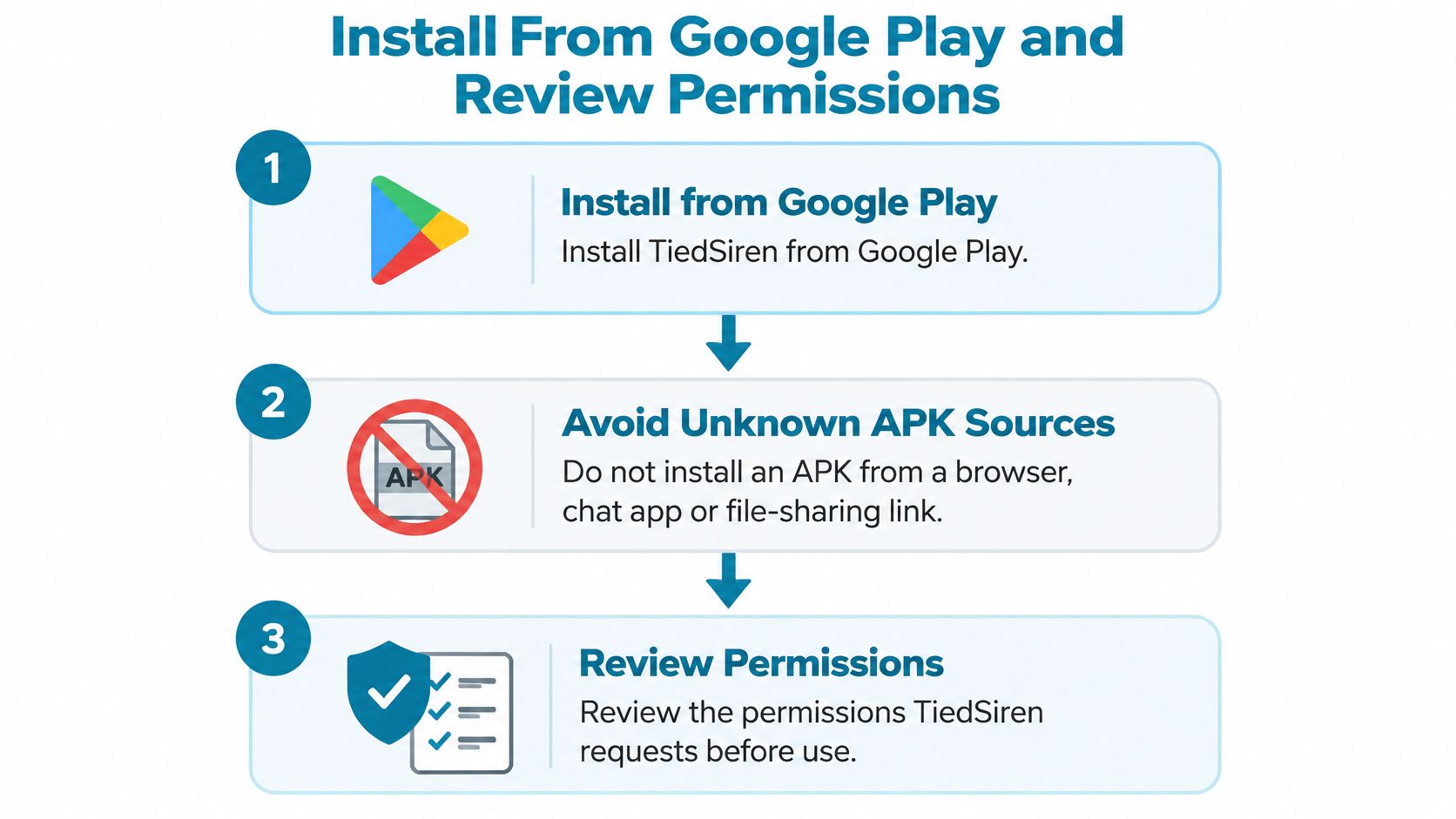
Install from Google Play, or reach the same listing through tiedsiren.com/download. Not a file forwarded in a group chat. Not a mirror site with a large green button and a countdown.
The channel earns its place. Google Play recorded 102.4 billion global downloads in 2024, according to TechRT's Android app usage statistics, and was estimated to handle 75% of global app downloads against 25% for iOS in Neontri's mobile app figures. A store that size gets watched. A file in a chat doesn't.
What the listing has to show you
Run these checks before you tap install, because all three are cheap and one of them will occasionally stop you.
- Publisher and history. The developer name should match the app you meant to install, and the update history should show recent releases rather than one upload from years ago. TiedSiren is the only app that Epictechtus publishes, so the name on the listing should be consistent with that.
- Description match. The listing should describe an app that blocks the apps you choose for a duration you commit to, and it should state Android 8.0 or later. If it doesn't match the description you came for, you're on the wrong listing.
- Data and permission details. Read them on the listing before installing. Anything with no link to blocking apps or sessions deserves a question before you approve it.
A file offered under the app's name by a website or a contact is a red flag, and so is a listing that doesn't resemble the product you searched for.
The permissions question
A blocker needs permissions tied to enforcement, so "it asks for a lot" isn't automatically wrong. What matters is whether each request maps to something you can name.
Usage access tells the app which application is in the foreground. Accessibility is the heavier permission, and it deserves the most scrutiny: Google's Android security and privacy update warns that installing from browsers, messaging apps or other unvetted sources exposes you to abuse, and that accessibility access can let a malicious app control the device and reach sensitive data such as banking information. TiedSiren's Accessibility Service checks the foreground app and the browser address bar, and reads nothing else such as messages or passwords. If you want the longer version of how that permission is scoped, read TiedSiren's guide to accessibility settings on Android.
Google's own numbers show why the source matters. Google's Play Protect security report states that Play Protect prevented more than 1.9 billion malware-install attempts from unknown sources in 2019, and records a 73% stop rate for potentially harmful app installations originating outside Google Play in 2018. Those are the attempts that were caught. That same writeup notes that only about 0.37% of 91,605 Google Play apps used accessibility APIs, which is why an unusual permission should come with a narrow, specific explanation rather than a shrug.
Install, then open the app once to confirm it launches. Keep the Play listing as your reference for updates.
Build Blocklists and Scheduled Sessions
Lists first, timer second. The order matters because a session is only as good as the list it enforces, and a list assembled in a hurry has holes in it.
Custom blocklists are grouped by context, so keep work, study and sleep as separate lists. A rule built for a study window shouldn't be catching the app you need for work calls. Put the apps that pull you back in on the relevant list, whether that's a social feed, a video app, a forum or a game, and leave off anything you need during that window.
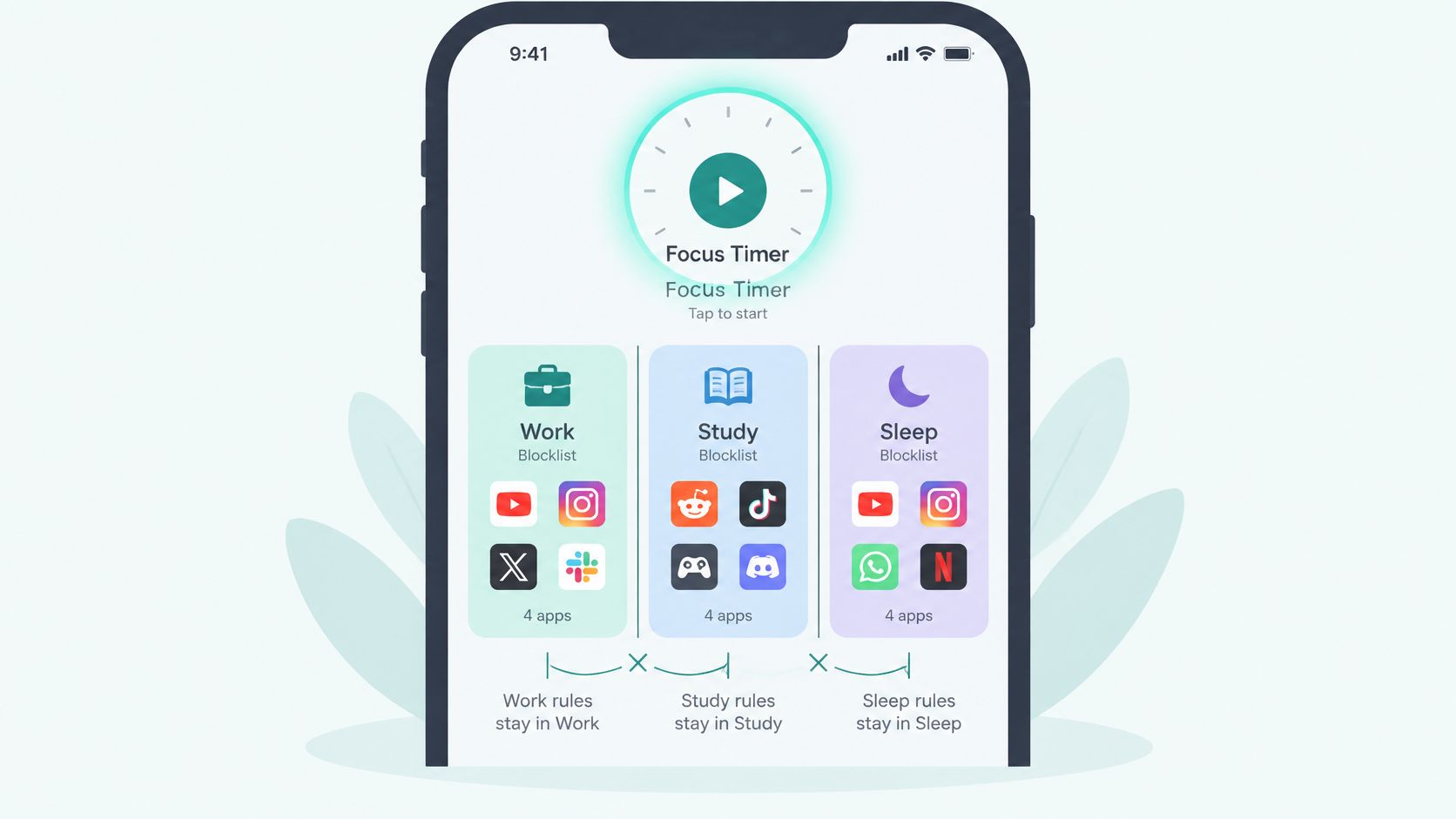
There's nothing to onboard. You install from Google Play, create the account, build a blocklist and start a session. Custom blocklists can cover Instagram, TikTok, YouTube, any installed app and websites, and a new list starts with popular time-wasting sites already filled in, so a blocked site closes the moment it opens. If you want a starting structure rather than an empty screen, TiedSiren's guide to building a custom block list walks through the grouping.
The reason to block a trigger app rather than merely silence it shows up in the attention research. An ERIC-indexed review of phone interruptions reports that notifications harm attention mainly by forcing task switches rather than through multitasking, and that students exposed to that switching remembered less of what was relevant to the task and more of what wasn't. Its examples are studying and classroom work, which is exactly where a fixed blocking window does more than a reminder can.
This short walkthrough shows the sequence running on a phone.
Scheduled sessions repeat daily or weekly, so a sleep block starts at the same hour every night without a fresh decision. Pick the window where you lose the most time, the hour before bed or a study block, and make that your first scheduled session.
Decide what's on each list before the window opens, never during it. A blocklist written mid-impulse tends to have a conveniently placed hole.
Keep the first list short for two weeks. A short list tells you which apps the block changed, and a long one hides the answer.
Test the Block Before You Rely on It
Don't wait for a real deadline to find out the block has a flaw. Set a 15-minute session with at least one blocked app on the list, which is long enough to run four checks and short enough to repeat if something fails.
Strict Mode is the part that ends a session only when its timer does, and it requires TiedSiren Pro, a subscription sold through Google Play. The Focus Timer shows the time left, so you can see how long the lock has to run. Once a session starts, it can't be shortened from the phone.
Turn on the optional Settings lock before you start the timer, not during. It keeps the Settings app closed until the timer ends, including the Wi-Fi, Bluetooth and permission screens, and it only works if it was already on.
| Test | How to run it | Pass result |
|---|---|---|
| Open a blocked app | Launch it during a running session | The app does not open |
| Open Android Settings | Try to open the Settings screen during a session | The Settings screen stays closed |
| Scheduled start | Let a scheduled session begin without touching the phone | Blocking starts at the set time |
| Session end | Wait for the timer to reach zero | Blocking ends when the timer ends |
Run them in that order. The first check confirms the list is live, the second confirms the fastest escape route is closed, and the last two confirm the schedule behaves without you present.
Mark each one pass or fail. A failure isn't a reason to abandon the app, it's a reason to fix the setup before a real study block or a night's sleep depends on it. The most common failure is the second row: a session running with the Settings lock left off, which means every other result is passing on a phone where the exit is still open.
Measure Where the Lock Holds and Where It Gives
Here's the part most download guides skip. A blocker adds friction. It raises the cost of the impulsive bypass, the one attempted without planning. It doesn't make escape impossible, and any product claiming otherwise is selling you something Android won't allow.
A peer-reviewed multimethod review indexed on PubMed Central found app-limit interventions cut total mobile-phone use by 6.2% per day and Facebook use by 33.2% in the short term. Modest, real, and conditional. The same body of work shows the failure mode plainly: among observed app-blocker activations, users respected the block in 115 of 245 cases, or 46.94%, and snoozed in 130 cases, or 54.06%.
| Route | During a session | Outside a session |
|---|---|---|
| Open a blocked app | Blocked | Allowed |
| Open Android Settings | Blocked by the Settings lock | Allowed |
| End the session early | Not possible, the timer ends it | Not applicable |
| ADB or safe mode | Still possible with deliberate steps | Still possible |
| Pause blocking or uninstall the app | Not possible while a Strict Mode session runs | Allowed when no timer is running |
Read that table carefully. The top three rows are the routes you'll try, and they're closed. The bottom two are the ones that require intent and a plan, and no app blocker on Android can close them for you. That's the trade you're making: the quick exit disappears, the slow one stays.
The number that matters isn't downloads or even blocked launches. It's the share of sessions that ended because the timer ran out.
Then measure it. Record a baseline of targeted-app use for seven days before you rely on the blocker, keeping the blocklist and session length fixed for at least two weeks. Track minutes in the blocked apps, launches, snoozes, force-stops and attempts to disable or remove the app. Count the sessions that finished with none of those events. Log deliberate technical bypasses separately from impulsive ones, because they're different problems and they need different answers. If you want the longer explanation of how the held lock behaves on screen, TiedSiren's piece on the Android lock app on screen covers it.
Choose Scheduled Sessions or Strict Mode
You're deciding one thing: does this window need to hold through a weak moment, or only need to run on a routine?
A scheduled session with a daily or weekly repeat handles the routine window, because blocking starts and ends on its own and there's no decision to make at the start. Strict Mode is for the window where you already know a weak moment is likely, since the session ends only when its timer ends and nothing else ends it. Research summarized in a Springer chapter on digital wellbeing interventions found that Android's native Digital Wellbeing controls were seen as insufficiently useful partly because they lacked enforcement and were frequently bypassed, and participants in related work often snoozed or deleted the interventions. That's the gap Strict Mode fills.
The routine argument holds up on its own. A study of notification suppression during programming work, available as an arXiv paper on interruption and focus, reported lower break rates and longer focus intervals for many participants, along with preliminary keystroke-based evidence of a 5% to 12% productivity gain for several of them in do-not-disturb conditions, while noting the effects varied by person. A fixed window is a decent bet for knowledge work. It isn't a guarantee.
So: scheduled sessions for routine windows, Strict Mode for the moments you've previously switched a blocker off.
Blocking distracting apps and websites is free, and the app carries no ads. Strict Mode needs TiedSiren Pro, sold through Google Play, and you can cancel it in Google Play at any time.
This week, set one scheduled session for the window where you lose the most time, run the four checks once, and write down what happened. Keep the install you verified from the listing you checked, so the setup you tested is the setup you're still running in a month.
TiedSiren is a free Android app blocker built for the moment your last blocker failed: you choose the apps, choose a duration, start the session, and the countdown is the only exit. Blocklists and scheduled sessions cost nothing, and Strict Mode, which locks a session you can't shorten from the phone, is there for the windows you already know are dangerous. Install it, run the four checks, and see whether it holds before you need it to. Visit TiedSiren to get started on Android 8.0 or later.