You flip the switch, set the PIN, and hand the phone back. By dinner there's a new game on it. Nothing failed. The setting covers one route in, and the phone has several.
People who look up how to block app installs on Android often get a single step: turn off unknown sources or switch on parental controls. Both are real controls, and both work on the path they cover. Neither tells you which path that is, so an app still lands on the phone the same evening.
Everything below applies to Android phones. An iPhone handles installs through a different set of restrictions entirely, so the menus described here won't match what you see there.
Which Control Stops Which Install Path
Read the last column of this table before any other. It names who can apply the control, and when that person isn't you, the rest of the row doesn't matter.
| Control | Google Play installs | Sideloaded APKs | Apps already installed | Set by |
|---|---|---|---|---|
| Play Store parental controls | Above your rating cap | Not affected | Not removed | Anyone with the PIN |
| Parent approval on a supervised account | Needs parent approval | Governed by the phone's unknown-source setting | Not removed | Parent through Family Link |
| Unknown-sources restriction alone | Allowed | Blocked, but ADB can still install | Not removed | Device administrator |
| Play-only policy on a managed device | Allowed | Blocked | Not removed | Device administrator |
| Committed app-blocking session | Not part of the session | Not part of the session | Blocked from opening until the timer ends | You, before the session starts |
The Play route is the crowded one. Google reports that Play was available in more than 190 countries and regions, reached over 2.5 billion active users each month, and recorded more than 150 billion installs during 2024, according to the 2024 Play transparency report. That volume is why an install control has to be judged by which path it shuts, not by how strict it sounds.
Now read the fourth column. Every row says not removed. No install control on Android cleans up what's already sitting on the phone, so finishing the job requires a separate pass through the app drawer.
The rows also split by authority. Play Store parental controls belong to whoever holds the PIN. Parent approval needs a supervised account. A Play-only policy needs a device administrator. The committed session needs you, a few minutes before the moment you would otherwise give in, and nothing else.
One cell reads differently on purpose. Whether a sideload gets through on a supervised phone comes from that phone's own unknown-source setting, not from the approval you granted in the Play Store, so the same setup can behave differently on two children's handsets.
Stop Installs With the Play Store's Own Controls
Someone on the phone opens the Play Store, searches for the app that keeps coming back, and taps Install. A PIN and a rating cap on that same account are the only things in the way. No second Google account, no supervised child profile, and no device administrator. If you can open Play Store settings, you can apply this layer.
Set the four controls on the phone you want to restrict.
- Turn on parental controls. In the Play Store, open Settings, then Family, then Parental controls, and set a PIN you will remember. The menu stays locked until that PIN goes in, so the rating cap cannot be changed by someone who does not have it.
- Set the content filter to the highest maturity rating you will accept. Apps rated above that cap cannot be installed from this account without the PIN. That prompt is the whole mechanism.
- Turn on authentication for purchases. A paid app or an in-app purchase then asks for the account password before it completes. The rating cap does not cover spend on its own.
- Test it on the app that keeps coming back. Search for that exact app, try to install it, and watch whether the store asks for the PIN. If it installs with one tap, the app sits under your cap and this layer will not touch it.
Where this layer stops
The filter reads maturity ratings, not app names. An app under the cap installs without a prompt, and the apps that eat the most time usually sit under a family cap. Social and messaging apps absorbed 3 trillion hours on iOS and Android devices in 2024, 6% more than the 2.8 trillion in 2023, according to Sensor Tower's State of Mobile report. Most of those titles carry a rating a family filter waves through.
The same menu never sees an APK from a browser or a file manager. Google is phasing in developer verification requirements, starting in a few countries, while sideloading remains supported through an advanced flow and ADB. A Play Store PIN does not close that path, and it does not remove an app already in the drawer.
Practical rule: if the app you want gone is rated for everyone, the parental control menu was never going to hold it. Use it for the paid download you regret, then move to a layer that can name the app.
I would use this on a phone you own, where the problem is a new Play install and you are the person holding the PIN. A parent approval on a supervised account, or a Play-only policy on a managed device, needs someone with more authority than a store PIN.
How a Parent Approves Installs on a Child's Account
Approval asks a parent before an app arrives, and it only operates inside a supervised account. Set it up from the parent's phone, not the child's.
- Put the child's Google account under Family Link supervision, created or linked from your own account. Without supervision there is no approval rule to attach, so this step comes first.
- Turn on approval for app downloads and purchases for that account. A Play install then waits for a decision instead of completing on the spot.
- Approve or decline from your phone when the request arrives. The child sees the request waiting, and you see the app name and its developer before you answer.
- Sweep the phone for apps installed before approval existed. Approval governs future installs, so anything that arrived last month is still sitting there and needs removing by hand.
- Test one install from outside the Play Store. Open a browser on the child's phone, download an APK, and try to install it. What happens next depends on the phone's unknown-source setting and the Android version, so the test tells you more than the approval screen does.
The last step matters more than it looks. A parent who assumes approval covers every route will be surprised by a file manager that still holds install permission from an earlier download.
When approval is enough
Approval handles the ordinary family case well: a younger child, a personal phone, no alternative store installed, and nothing previously sideloaded. In that setup the request-and-approve loop is the whole answer, and it costs nothing.
It gets thinner as the child gets older. A teenager who can create a Google account or borrow a friend's phone has routes the approval never sees, and an app already installed keeps working no matter what you switch on afterward.
How to Lock Installs to Google Play on a Managed Device
A Play Store PIN works on any personal phone. Family approval covers a child's account. Neither one is the layer that holds a whole fleet to Play-only installs. That configuration belongs to whoever administers the hardware, and only after the device is enrolled.
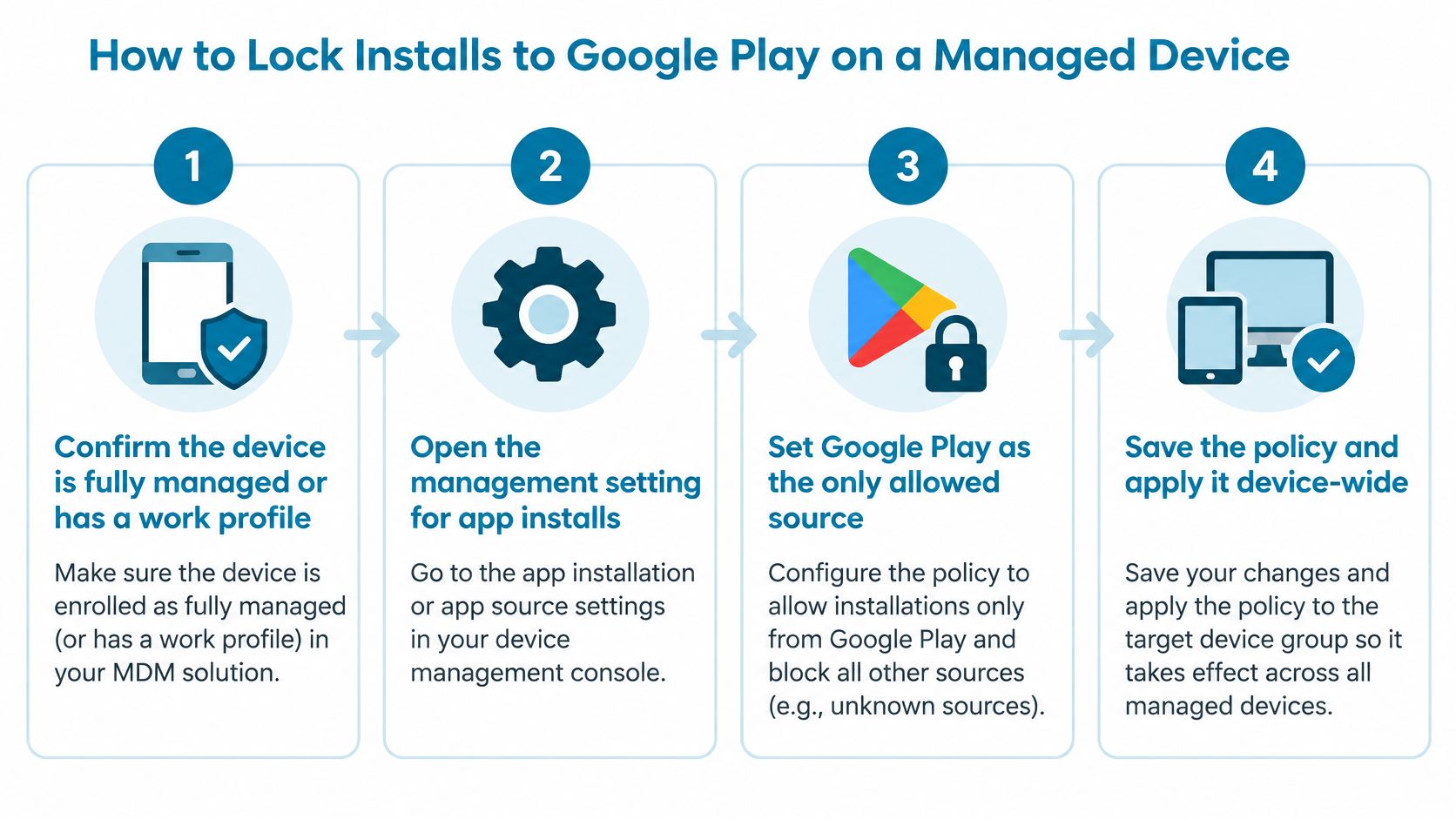
Run the sequence in this order:
- Confirm the device is fully managed or carries a work profile. Check the enrolment type in your mobile device management console. Until the device is under administrator control, there is nothing to attach a policy to.
- Apply the restriction that stops unknown-source installs, scoped to the device or to the profile. This blocks sideloaded APKs and leaves Play installs untouched. Android's documented restriction for this is
DISALLOW_INSTALL_UNKNOWN_SOURCES. - Apply the device-wide unknown-source restriction in the device management console. A restriction that only covers the work profile leaves personal-profile routes open, which is where most failed deployments go wrong. Use the device-wide control your console exposes for unknown sources, not a profile-only toggle.
- Test both profiles. Install something from Play, then try an APK from a browser or a file manager. Do it in the work profile and the personal one, and reboot between attempts to see whether the policy survives.
- Inventory installed apps and remove what should not be there. The policy governs future installs, so an app that arrived before the policy is unaffected by it.
Android's own device management documentation for security covers this scope problem. A work-profile restriction normally affects only that profile, while personal-profile installs may remain possible unless the administrator applies the supported device-wide controls.
A Settings screen that still opens does not show the policy failed. Users will point at a menu that looks unchanged. Judge the result by the install, not by whether Settings still paints.
If you would rather watch the sequence run on a real handset, this walkthrough covers the same ground:
What a passing test looks like
A sideloaded APK gets refused in both profiles, a Play install still completes, and the inventory of installed apps has not changed from before the test. Get those three results and the policy is doing its job, even if the Settings screen still opens and the rejection message looks unfriendly.
The same split shows up when you lock a single app on screen: enforcement lives at the system layer, and the interface stays visible whether or not it is allowing you through.
Blocking Apps That Are Already Installed
The icon is already on the home screen. A Play Store PIN, a parent approval, or a managed-device policy decides whether a new package can arrive. None of those stops Instagram from opening at 11pm. That job belongs to a session the person holding the phone can start, with no administrator account required.
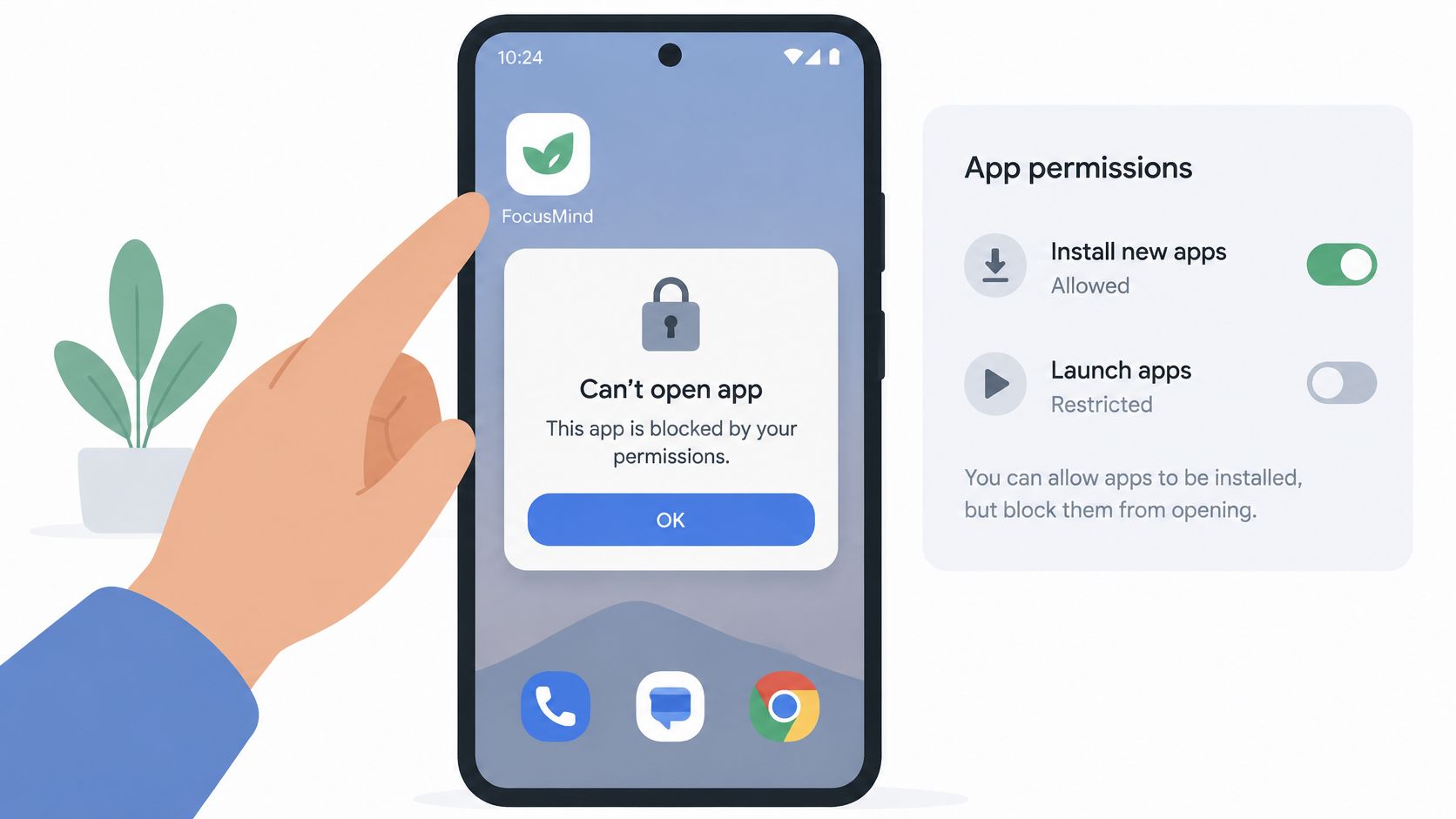
TiedSiren covers that layer on Android 8.0 and later. You build a blocklist for the context, work, study, or sleep, and put the installed apps in it: Instagram, TikTok, YouTube, or any other app already on the phone. A website goes in by its address, such as youtube.com, and comes out with one tap. Set the duration and start. Blocking apps, websites, blocklists, and scheduled sessions is free. Strict Mode needs TiedSiren Pro. While that timer runs, blocked apps and websites will not open, and the session cannot be shortened from the phone once it starts. A focus timer shows the time left. Daily or weekly schedules start the same window without a fresh decision every evening.
Why the Settings screen is the shortest path
Google's documentation on restricted settings shows sensitive access is granted per app, inside Settings, under Apps, where the user can allow restricted settings for a specific application. That page also warns that accessibility access lets an app read screen content and act on the user's behalf. Settings is the fastest place to dismantle a block you just started.
The Settings lock is optional, and you turn it on before the timer starts. It keeps the Settings app closed until the Strict Mode timer ends, including the Wi-Fi, Bluetooth, and permission screens. It does not rewrite Android's permission model. I would turn it on when the failure you expect is the five-second undo: open Settings, switch the blocker off, and return to the feed. A determined person can still use other routes. The lock raises the cost of the impulsive one.
What the friction buys
A defined window without the apps beats a reminder to use the phone less. A 2025 experiment that removed mobile internet access from 242 participants, against 225 in a delayed-intervention group, improved mental health, subjective well-being, and objectively measured sustained attention, and 91% of participants improved on at least one of those outcomes, per the study in PNAS Nexus.
The pattern a session cuts off is short and repeated. In a three-week study of 160 adolescents, researchers logged 733,359 app-activity observations, and the median smartphone session lasted just 1.5 minutes against a 6.9-minute average, with 4.2 app activities per session, according to the study in New Media & Society. During that study, 77% of participants reported more distraction when their use was fragmented. The blocklist is aimed at those brief entries, not at a long session you planned. The setup for that list is in how to block apps on Android.
Install Block Problems and Their Fixes
An app that still installs from the Play Store usually means the control covers the wrong slice of the phone. A work-profile policy leaves the personal profile open. The rows below are the common symptoms of a scoped or misapplied install control, in the order they tend to show up.
| Symptom | Likely cause | Fix |
|---|---|---|
| App still installs from the Play Store | Policy covers only the work profile | Test the personal profile and apply the device-wide controls |
| Settings still visible while an install fails | Normal: the install is rejected and the interface stays | Not a failure; judge the policy by the install test |
| Sideloaded APK still installs | Browser or file manager keeps its unknown-source permission | Revoke that permission for every source and retest |
| Old app still on the phone | Every policy here governs future installs | Inventory installed apps and remove the ones that should not be there |
| App opens during a committed session | Session was not running or the app was not in the blocklist | Confirm the blocklist and the running timer before the window starts |
Fixes that take two minutes
The profile check is the fastest one. Apply the device-wide control, then try the same Play install in the personal profile. If it now fails there too, the policy had been limited to the work profile.
The unknown-source fix is the second fastest. Open the Install unknown apps page, list every app holding that permission, and revoke it for the browser, the file manager, and anything else you do not recognise. A sideload still completes when one installer is blocked and another still holds the permission.
Fixes that take an evening
Removing what is already installed is inventory work. Sit with the device, work through the app list, and uninstall what should not be there. The install layer only governs the next install. It will not clear an app that is already on the phone.
Retesting across both profiles takes longer than a single install attempt, because a reboot belongs in the check. Test Play, test a browser APK, test a file-manager APK, reboot, then repeat in the other profile. Write down what each attempt returned. The rejection message varies, and a silent success is easy to miss.
For a blocked session, check before the window opens. Confirm the app is on the blocklist and the timer is already running. Starting after the app is open is a timing miss. Both the list and the timer have to be set before the window starts.
Pick the Layer That Matches Your Problem
Match the situation to a row and stop reading there.
A phone your company or school manages: the administrator applies the Play-only policy, and no setting you change on the device stands in for it. Ask them for the device-wide configuration rather than a work-profile one.
A younger child on a personal phone: Play Store parental controls plus Family Link approval, then a look at what the child installed before either existed. That combination holds until the child has a second route into the phone.
A teenager or an adult who keeps reinstalling one app: no install control solves this. The app arrives from the Play Store in a tap, the filtering runs on ratings rather than names, and the typical social-media user spent 2 hours and 23 minutes a day on social platforms in January 2024, according to DataReportal's Digital 2024 report. The layer that fits is a session holding the chosen apps closed for a window you commit to before you start.
Run three checks before choosing: which path does the app arrive by, who controls the device, and is the app already installed. Then take one step. Blocking apps, websites, blocklists and scheduled sessions is free, with no credit card required, and TiedSiren runs on Android 8.0 and later from Google Play or tiedsiren.com/download. Installs get answered by install controls. Apps already on the phone get answered by a session. If you're still comparing blockers, this roundup of app blockers for Android covers how the enforcement models differ.
Installs are the easy half: a rating cap, an approval request or an administrator policy closes the routes you can name, and the table above tells you which. The half that decides whether the phone stays quiet during your study hour or your bedtime is the app that's already installed and opens in a tap. TiedSiren locks a session for a duration you choose before it starts, holds the apps on your blocklist closed until the timer ends, and keeps the Settings screen shut so turning it off takes more than a reflex. It's free to start, it runs on Android 8.0 and later, and you can get TiedSiren here when you're ready to stop negotiating with yourself.